Repository navigation
Markdown Editor
Markdown files get their own editor: the text, a live preview of the finished page, and a toolbar for the usual formatting. You can even edit the finished page directly, like a word processor.
This works for files ending in .md, .markdown and .mdx (MDX is shown as plain Markdown). Open one from the Files panel or with Go to File (Cmd+P, see Search Everywhere), as with any file.
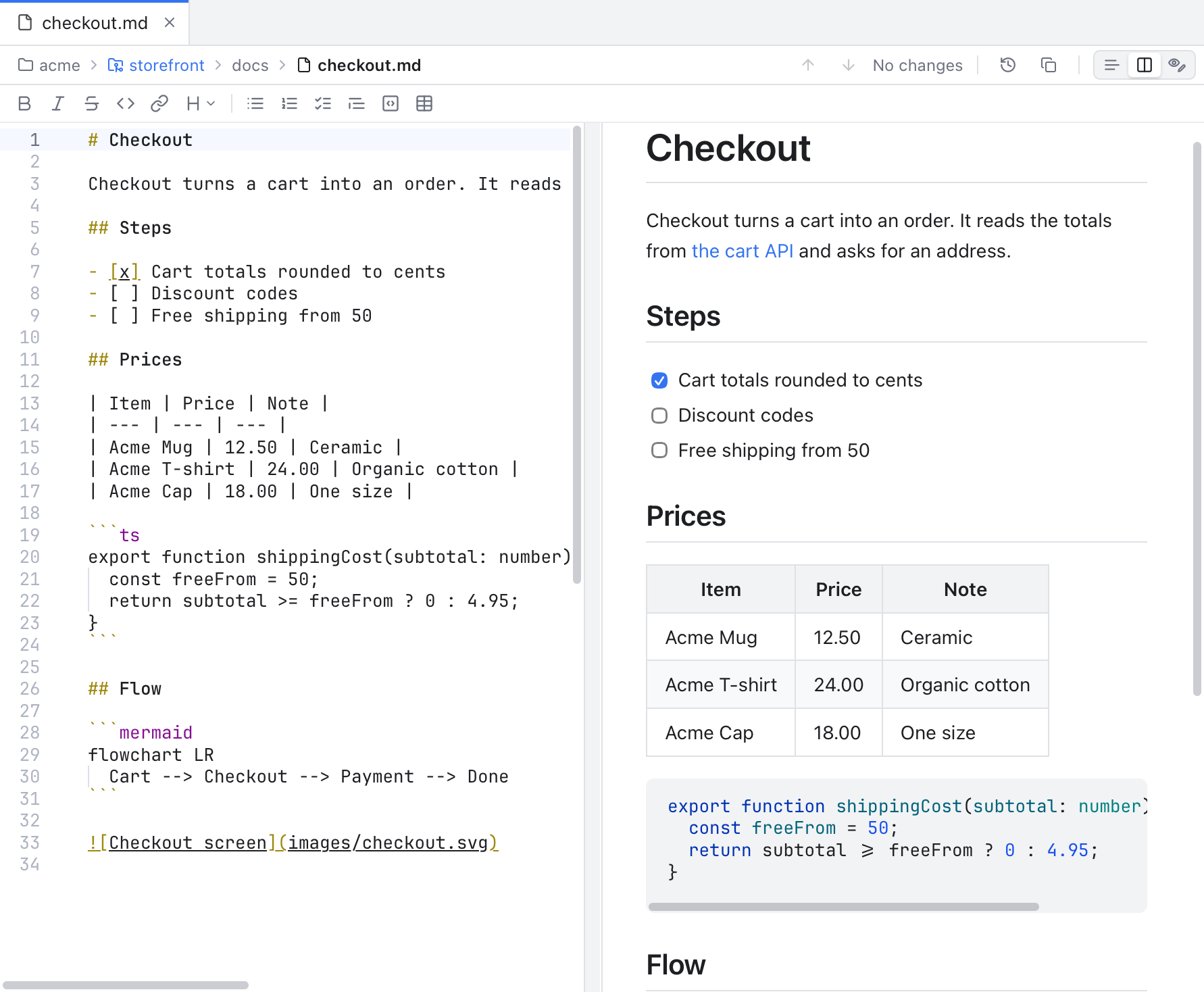
Editor and Preview: the text on the left, the preview on the right, the path bar and the formatting toolbar above both.
The three buttons at the right end of the path bar (the slim bar under the tabs, see Editor and Tabs) switch the view:
| Button | What you see |
|---|---|
| Editor Only | Just the text, like any other file. |
| Editor and Preview | The text and a live preview side by side. This is the default. |
| Rich Editor (the eye with a pencil) | The finished page, which you can edit in place (see below). |
The same choices are in the menu bar under View > Markdown (Editor Only, Editor and Preview, Rich Editor). They are enabled only while a Markdown file is the active tab.
Each file remembers its own view until you quit the app. New files open in the view picked in Settings > Editor > Markdown preview; see Settings.
In Editor and Preview, drag the line between the two sides to give the preview more or less room. Double-click the line to split 50/50. The size is kept for every Markdown file and saved for next time.

The formatting row with the Heading menu open, and the view switch in the path bar above it.
The formatting buttons sit in a low row of their own under the path bar, in every view. From left to right:
- Bold, Italic, Strikethrough, Inline code and Link.
- Heading: a menu with Heading 1, Heading 2, Heading 3 and Normal text.
- Bulleted list, Numbered list, Task list, Quote, Code block and Table.
In the text editor, press a button again to remove the style (Bold on bold text removes the stars). With no selection, a style applies to the word under the cursor. Each press is one Undo step, on every cursor at once. Table adds three columns, a header and two rows, and selects "Column 1" so you can type its name.
Keys in a Markdown text editor: Cmd+B for bold, Cmd+I for italic and Cmd+K for a link, as the buttons' tooltips show. While you type in the file, Cmd+B makes text bold instead of hiding the sidebar.
The preview follows your typing after a short pause, and only the changed parts are drawn again.
- Scrolling is linked. Scroll either side and the other follows to the same place.
-
Task boxes work. Click a box in the preview to tick or clear
- [ ]in the text. -
Links open. Web and mail links open in your browser. Links to other files in your workspace open them in a tab. Links to a heading (
#install) scroll to it. Anything else shows Link not opened. - Code blocks are colored with the same colors as the editor.
- Cmd+S saves, also while the preview has focus.
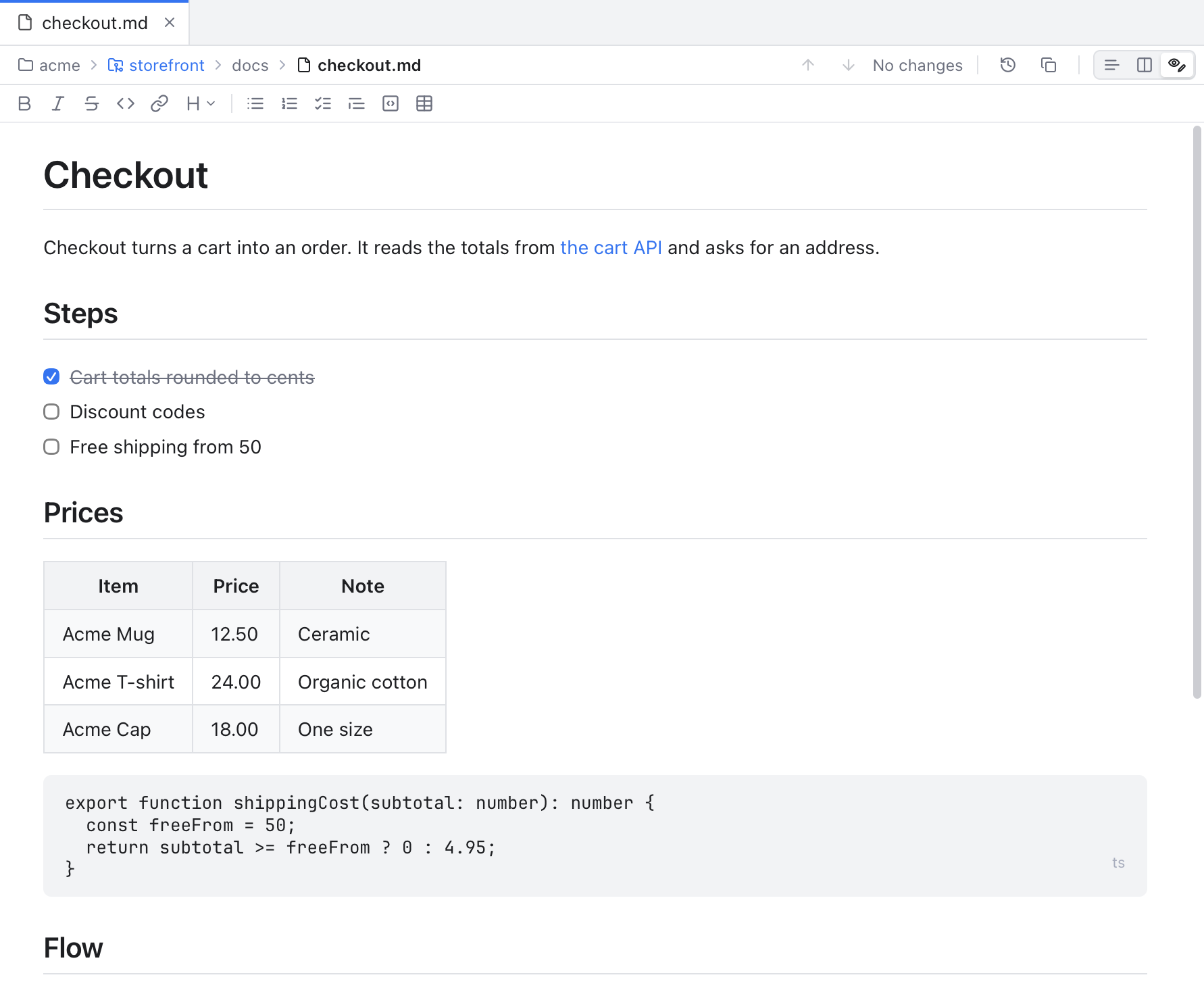
The Rich Editor: headings, lists, task boxes and tables are edited as they look.
The Rich Editor shows the finished page and lets you type in it, like Typora or a word processor. Behind the scenes the text is still the real file:
- Only what you edit changes. Text you did not touch keeps its exact spelling: list markers, emphasis style, table padding, blank lines and line endings stay as they were. Only the words you type or format are new.
- Undo, save and diff work as usual. The tab shows the unsaved dot, Cmd+S saves and the diff shows the change.
- The toolbar works here too. The same buttons format the selected text. Link (or Cmd+K) asks for an Address. When the cursor is already on a link, it removes that link.
- Cmd+B and Cmd+I make text bold and italic.
- Click a task box to tick it.
- Links: a click puts the cursor in the link text, so you can edit it. Cmd+click follows the link.
-
Front matter (the
---block of settings at the top of some files) is kept as written and hidden from the page.
Raw HTML such as a <table> or <details> block shows as it is and is kept as written; you edit the text around it. Some files cannot be kept exactly, and then the page stays read-only with a note that says why:
- This file has HTML, JSX or MDX the rich editor cannot keep exactly. Edit it in the text editor.
-
This file has reference-style links, which the rich editor cannot keep exactly. Edit it in the text editor. (links like
[text][name]with[name]: urlbelow) - This file has footnotes, which the rich editor cannot keep exactly. Edit it in the text editor.
- This file is too large for the rich editor. Edit it in the text editor. (over 600 KB)
Switch to Editor and Preview to change such a file.
Leaving the Rich Editor opens the text at the top of the file.
A fenced code block with the language mermaid becomes a diagram:
```mermaid
flowchart LR
  Cart --> Checkout --> Paid
```
The preview draws mermaid diagrams. In the Rich Editor the diagram shows under its code, and changes as you type.
Diagrams follow the light or dark look and your color theme. A diagram with a mistake shows Mermaid: and the error instead.
-
Images in your workspace show, as long as they are PNG, JPEG, GIF, WebP or SVG and at most 10 MB. Paths are relative to the Markdown file, and
/pathstarts at the repository root, like on GitHub. - Images from the web are not loaded. You see Remote image not loaded with the address as a tooltip. This keeps the app from contacting servers just because you opened a file.
- Images outside the workspace show Image outside the workspace.
A Markdown file can contain raw HTML, and a file from a cloned repository is not always trustworthy. So the preview removes scripts, event handlers, frames, forms, styles and javascript: links before anything is shown, and the page never navigates away. Diagrams are cleaned the same way.
- Long files with many diagrams stay light: diagrams and images are drawn only when they are near the screen, and a tab you are not looking at frees its preview until you come back.
- A link like
other.md#sectionopens the file but does not scroll to the section yet. - In the Rich Editor, diagrams keep their old colors after you change the theme until they are drawn again: scroll far away and back, or reopen the file.