Repository navigation
History and Log
The Log shows the history of the active repository as a graph, so you can see where branches split and join. Select a commit to read it; right-click it to copy, undo or reuse it.
- Click the Log icon (the clock) in the left activity bar, below the Changes and Branches icons.
- Or press Shift+Cmd+L (View > Log), or choose Git > Show Git Log (Cmd+9).
- Or choose Show Log in a repository's ... menu in Changes, which makes that repository active first.
The Log opens in the middle of the window. Click the icon or press Shift+Cmd+L again, or click the X at the right end of the Log toolbar, to hide it. It always shows the active repository; switch repositories from the header (see Workspaces).
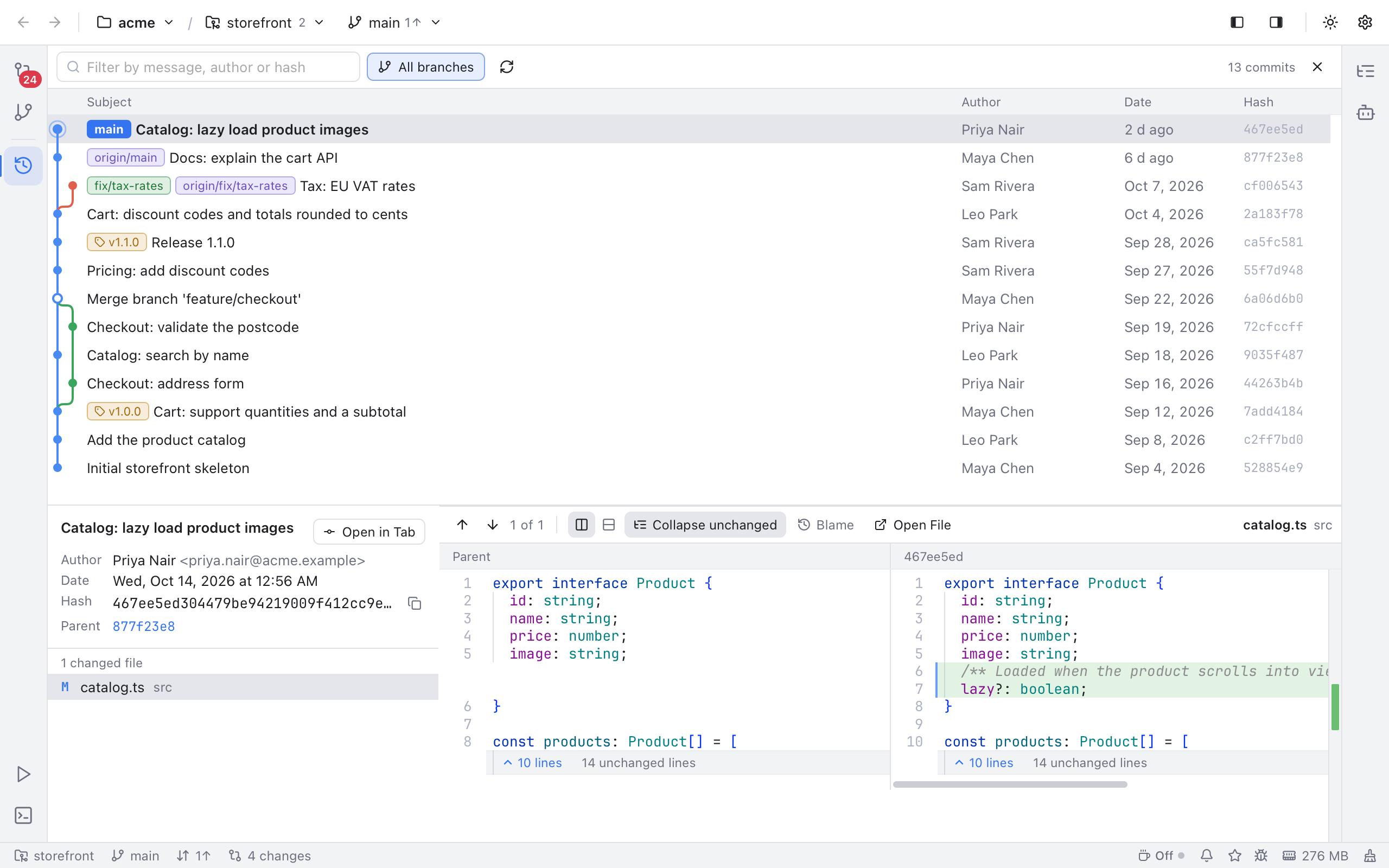
The commit list with its branch graph, branch and tag labels, authors and dates.
Each row is one commit (a saved snapshot with a message):
- Graph: colored lanes show branches; a line splitting or joining is a branch or a merge. The commit you have checked out (HEAD) is highlighted.
-
Subject: the first line of the message, with labels for the branches and tags that point at it, such as
origin/mainorv1.1.0. Past three, a +2 label lists the rest on hover. - Author, Date and the short Hash. Recent dates read "2 h ago" or "yesterday"; older ones show the day. Hover the author for the email, or the date for the exact time.
History loads 300 commits at a time and more as you scroll, so even huge repositories open quickly. The toolbar count reads, for example, 300+ commits while there is more to load.
All branches in the toolbar, on by default, shows commits from every local and remote branch (tags and stashes are not followed); off, only the history of what you have checked out. It is the same as Show all branches in the log in Settings > Git. The history refreshes by itself after commits, checkouts and fetches, and the circular arrow refreshes it by hand.
Type in Filter by message, author or hash. The list keeps commits whose subject, author name or email contains the text, or whose hash starts with it, and the count reads, for example, 4 of 300+ loaded commits.
The filter only searches loaded commits; Load more next to the count searches further back. Press Esc to clear it. In the list, Up, Down, Page Up, Page Down, Home and End move the selection; in the filter box, Down or Enter jumps into the list.
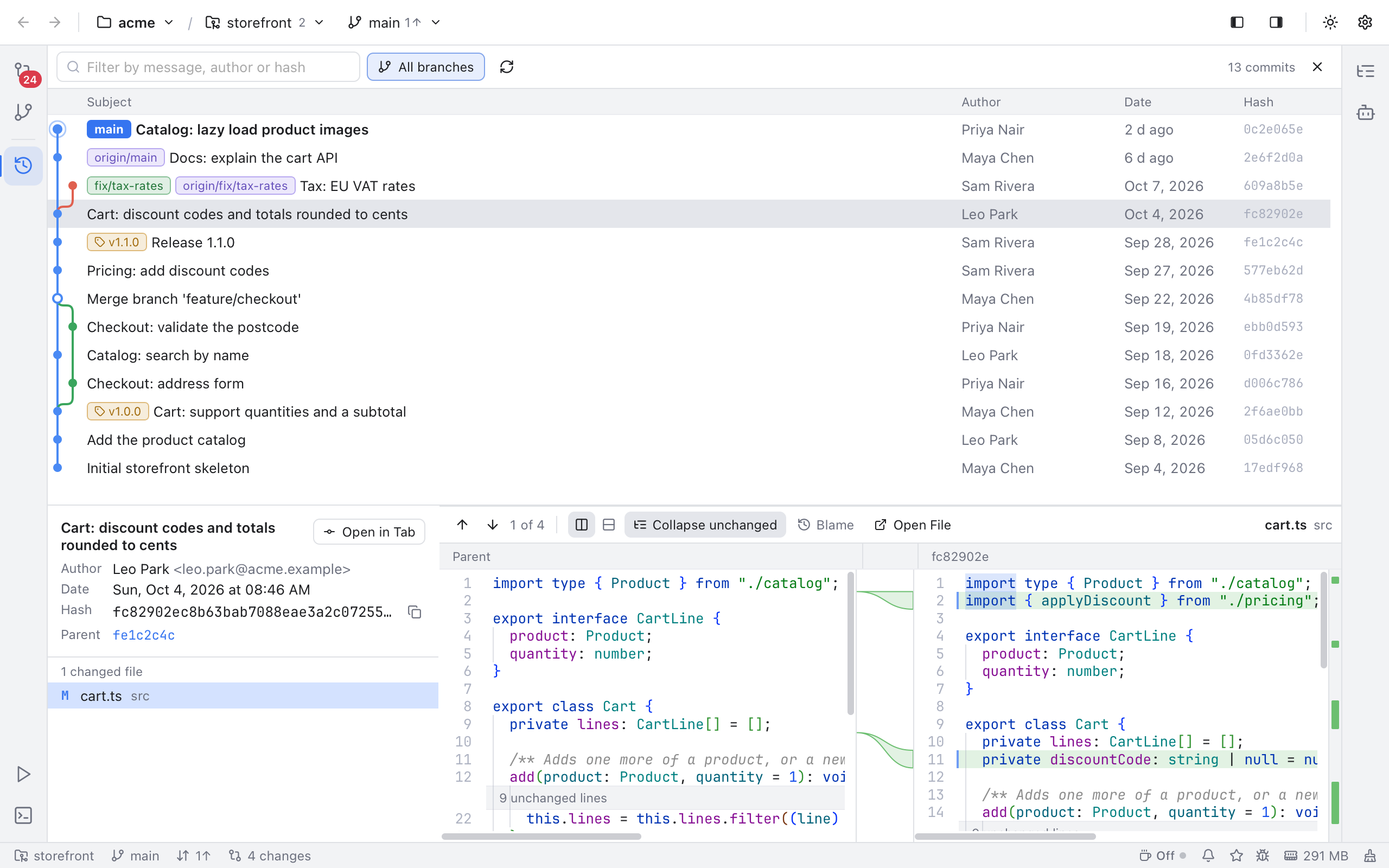
The selected commit: message, author, date, hash, parents, changed files and the diff.
Selecting a commit opens its details under the list. Drag the bars between the list, the details and the diff to resize them, and the bar above the changed files to give the message more or less height.
On the left:
- The full commit message.
- Author and Date, and the Committer when someone else committed it, for example after a rebase.
- Hash, with a button to copy it.
- Parent (or Parents for a merge). Click one to jump to it; one not loaded yet is greyed out.
- 1 changed file (or more), each with its status letter (M modified, A added, D deleted, R renamed, C copied, T type changed). Use Up and Down to step through them. A merge lists only the files changed on both sides; see Merge Commits.
On the right is the read-only diff of the selected file, Parent against the commit. It works like the Diffs view, with Collapse unchanged and Blame of the file at that commit.
When you open a commit from blame, the Log loads history until it finds it, and the diff opens on the line you clicked. If it is not there, a note says Commit is not in the loaded history; try turning All branches on.
Open a commit in its own tab to read a big change with the whole editor area:
- Double-click it in the list, or select it and press Enter.
- Click Open in Tab next to the message, or choose it in the right-click menu.
- Double-click one of its changed files to open the tab on that file.
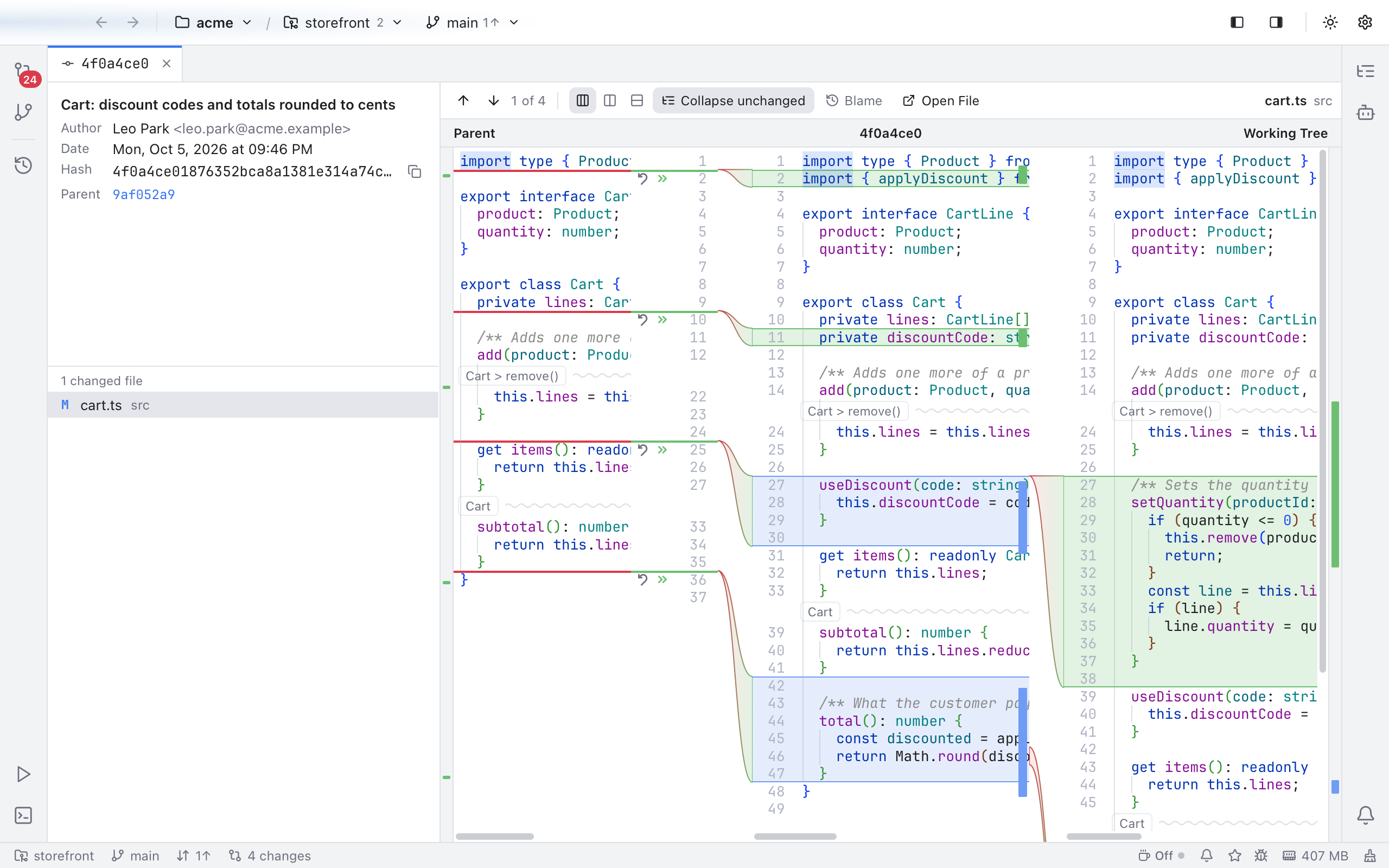
The commit in a tab: the same details and changed files, with the diff using the whole editor area.
The tab shows the short hash; hover it for the message. Opening the same commit again goes back to its tab. Right-click the tab for Copy Commit Hash.
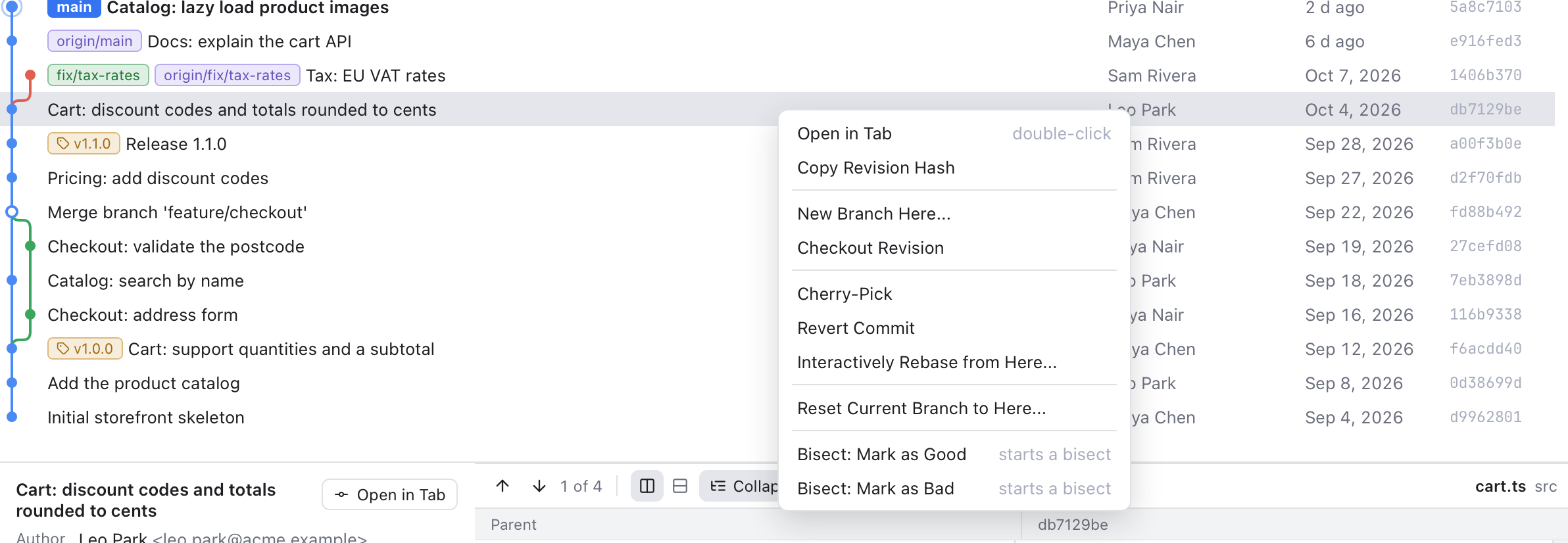
Everything you can do with a commit.
- Open in Tab (the same as a double-click) and Copy Revision Hash.
- New Branch Here... creates a branch at this commit and, with Checkout branch ticked, switches to it.
- Checkout Revision checks out the commit itself, after asking. This is a "detached HEAD": you are on no branch, so create one to keep new commits made there.
- Cherry-Pick copies this commit's change onto your current branch as a new commit.
- Revert Commit makes a new commit that undoes this one. The history stays as it is, which makes it safe for commits you already pushed.
- Interactively Rebase from Here... opens the Interactive Rebase dialog for this commit and the ones after it, to reorder, squash, reword or drop them.
- Reset Current Branch to Here... moves your current branch back (or forward) to this commit.
Cherry-Pick, Revert and Interactive Rebase are disabled for merge commits (the menu says merge commit). Interactive Rebase also needs a branch and no other operation in progress. Everything except Copy is disabled while another operation runs. If Cherry-Pick or Revert stops on conflicts, Nibtree opens the Conflicts dialog; see Resolving Conflicts.
Reset opens a dialog such as Reset main to a9f492b that asks how to treat the changes from the commits you move past:
- Soft: move the branch only. Those changes stay staged.
- Mixed: move the branch and reset the index (the staging area). The changes stay in your files, unstaged.
- Hard: move the branch and throw away all changes in the index and your files. Nibtree asks once more (Hard Reset), because this cannot be undone.
-
Keep: move the branch and update the files the move changes, but keep your uncommitted changes. For example, an uncommitted fix in
README.mdstays while the branch moves back. Git refuses if one of your changed files would be overwritten.
Git > Reset HEAD... resets to any revision you type, with the same modes. The Reset HEAD dialog is described in Git Dialogs. With a commit selected in the Log, Git > Patch > Create Patch from Commit... saves it as a patch file (see Git Menu).
Example: you committed "WIP" twice on main and want to redo them as one commit. Right-click the commit before them, choose Reset, pick Soft, then commit again from Changes.