Repository navigation
Commit Options
The commit box in Changes has two small controls next to the Commit button: an arrow with more ways to commit, and a gear with options for the commit itself. This page explains both.
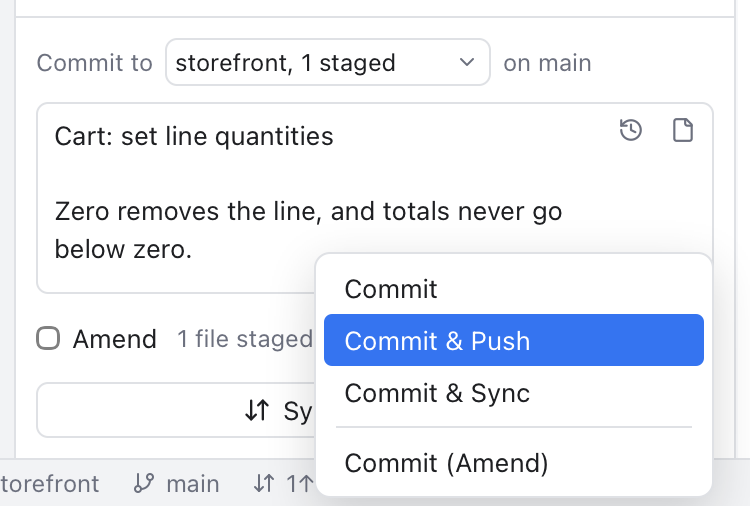
The arrow next to Commit: commit, then push or sync, or amend.
Click the arrow on the right of Commit:
- Commit does the same as the button. While Amend is ticked it reads Amend Commit.
-
Commit & Push commits, then pushes the branch to its upstream (the server branch it follows). A branch without an upstream is published to
origin(or to the first remote when there is noorigin). - Commit & Sync commits, then runs Sync Changes: it pulls what the server has, then pushes. See Repository Actions.
- Commit (Amend) replaces the last commit with one that has the staged changes and the message in the box. With an empty box, the last commit keeps its message.
The first three need a message and staged changes, like the button. Commit & Push and Commit & Sync are greyed out in two cases:
- On a detached HEAD, when you are on no branch.
- While Amend is ticked. Pushing a rewritten commit needs a force push, and that should always be a choice you make on purpose.
If the commit fails, for example because a hook refused it, nothing is pushed. If the push or pull fails after a good commit, the commit stays and the note says what went wrong.
The check mark on each repository row and the ... > Commit submenu commit too. See Repository Actions.
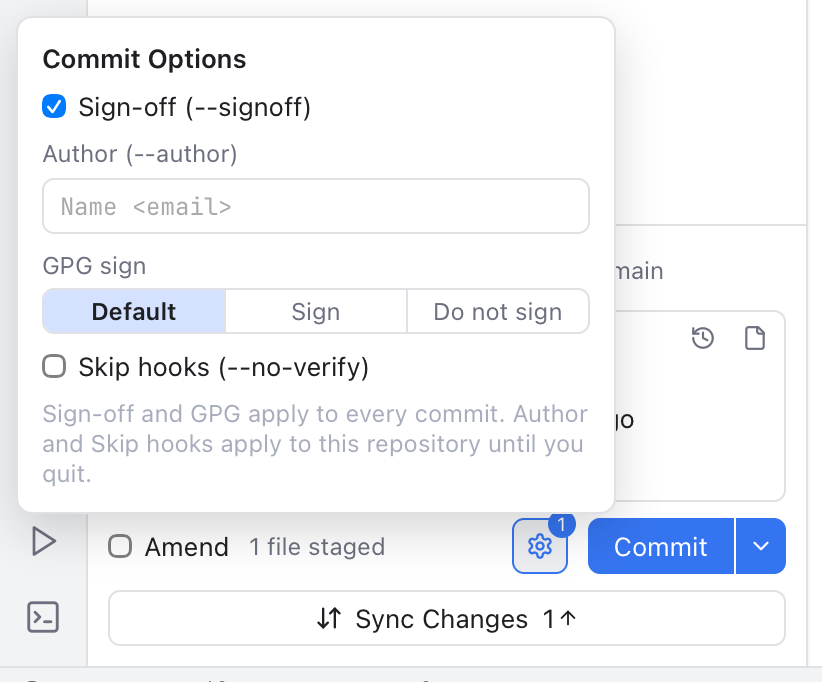
The gear next to Commit, with Sign-off turned on.
Click the gear left of the Commit button. A small panel opens above it:
-
Sign-off (--signoff) adds a
Signed-off-by: Your Name <you@example.com>line at the end of the message. Some projects, such as the Linux kernel, ask for it to show you agree to their contribution rules. -
Author (--author) commits in someone else's name, written as
Name <email>, for exampleAnn Lee <ann@example.com>. Use it when you commit work someone sent you. You stay the committer. Leave it empty to commit as yourself. -
GPG sign decides whether the commit is signed with your key, which proves it came from you:
-
Default: your git setting
commit.gpgSigndecides, as in the Terminal. -
Sign always signs (
-S). -
Do not sign never signs (
--no-gpg-sign), for example when your key is not at hand.
-
Default: your git setting
- Skip hooks (--no-verify) skips the pre-commit and commit-msg hooks (scripts your project runs before each commit, such as a linter). Handy for a quick work-in-progress commit, but the checks are there for a reason.
Press Esc or click outside to close the panel.
- Sign-off and GPG sign are saved settings and apply to every commit in every repository. They are also in Settings > Git, as Sign off commits and GPG sign commits.
- Author and Skip hooks belong to one repository and last until you quit Nibtree. Then they reset, so you never commit under another name by accident days later.
A badge on the gear counts the options that change the commit, and the gear turns the accent color. Its tooltip lists them, for example Commit Options: --signoff --no-verify.
The options apply to every way of committing: the Commit button, its arrow, the check mark on a repository row and the ... > Commit items.
The author must look like Name <email>, with a name and an email that has an @. While it does not, the panel says what is wrong, such as Write the author as Name , and a commit stops with a note Check the commit author. Fix the text, or clear it, and commit again.
You apply a patch that Ann mailed you, and your project wants sign-offs:
- Stage the files and write the message.
- Open the gear, tick Sign-off, and type
Ann Lee <ann@example.com>in Author. - Choose Commit & Push from the arrow.
The commit shows Ann as the author, you as the committer, ends with your sign-off line, and is on the server a moment later.
These pages are generated from docs/wiki. To correct something, open a pull request against the source file; edits made here are overwritten.
Using Nibtree
- Getting Started
- Welcome Screen
- Workspaces
- Files Panel
- File Operations
- File Icons
- Rounded Panels
- Editor and Tabs
- Pin Reorder and Wrap Tabs
- Single Tab Title
- Split Editor
- New File and Unsaved Changes
- Unload Hidden Tabs
- Editing Code
- Code Appearance
- Markdown Editor
- Image and PDF Preview
- Search Everywhere
- Recent Files
- Navigation Bar
- Find and Replace
- Changes and Commits
- Sign In Prompts
- Commit Box Layout
- Repository Actions
- Commit Options
- Ignoring Files
- Diffs
- Inline Diffs
- Staging View
- Revert a Change
- Resolving Conflicts
- Merge Tool
- Blame
- History and Log
- Merge Commits
- Branches and Tags
- Branches Popup
- Remotes
- Stashes
- Shelf
- Git Menu
- Git Dialogs
- Interactive Rebase
- Worktrees
- AI Agents
- AI Tasks
- AI Usage
- Keep Computer Awake
- Submodules
- Git LFS
- GitHub
- Git Console
- Terminal
- Terminal Features
- Scripts
- Navigation
- Menus
- Settings
- Settings Search
- Color Themes
- Settings Terminal and Automation
- Settings Files
- Updates
- Status Bar and Help
- Notifications
- Memory Use
- Clear Cache
- MCP and CLI
- Git Mergetool
- Keyboard Shortcuts
- Keyboard Shortcuts Editor
- Troubleshooting
- Troubleshooting Git
Developers
- Developer Guide
- Architecture
- Project Layout
- Backend
- How Folder Watching Works
- Folder Watching Bugs We Fixed
- How Workspace Files Work
- How the Preview Scheme Works
- Backend Services
- How Terminal Features Work
- Terminal Bugs We Fixed
- Frontend
- How the Rich Markdown Editor Works
- Rich Markdown Bugs We Fixed
- Git Menu Links
- Menu Keys and Routing
- Frontend Modules
- Blame Bugs We Fixed
- Project Color And Title Bar
- One Diff View
- Diff Bugs We Fixed
- Merge Tool Layouts
- Merge Tool Bugs We Fixed
- Color Theme Bugs We Fixed
- How the Connected Diff Works
- Rounded Panels Bugs We Fixed
- Update Bugs We Fixed
- Status Bar Bugs We Fixed
- MCP and CLI Bugs We Fixed
- Repository Actions Bugs We Fixed
- How the Changes Tab Works
- CodeMirror Patterns
- How the Cursor Works
- How Editor Features Work
- How the Path Bar Works
- Commands and Events
- Settings Reference
- Commands Workspace and Changes
- Commands Branches and Remotes
- Commands History and Extras
- Commands App and Tools
- Testing
- Test Suites
- Debugging
- Debugging with MCP
- Measuring Setting Memory
- How Terminal Memory Is Measured
- How Markdown Diagrams Work
- Releases and CI
- Publishing the Wiki
- Versioning and Changelog
- Browser Version Packages
- Browser Release Checks
- Docker Image
- Platforms and Signing
- Windows Support
- Windows Bugs We Fixed
- Windows MCP and CLI
- Docs and Screenshots
- UI Library
- UI Library MCP
- UI Library Bugs
- UI Library Migration
- Contributing
How features work
- Welcome screen
- Workspaces and folders
- Files panel
- File operations
- File icons
- Editor and tabs
- Pin, reorder and wrap tabs
- Single tab title
- Split editor
- New File and unsaved changes
- Unload hidden tabs
- Editing code
- Code appearance
- Markdown editor
- Image and PDF preview
- Search Everywhere
- Recent Files
- Navigation Bar
- Find and replace
- Changes and commits
- Sign-in prompts
- Commit box layout
- Repository actions
- Commit options
- Ignoring files
- Diffs
- Inline diffs
- Staging view
- Revert a change
- Resolving conflicts
- Merge tool
- Blame
- History and log
- Merge commits
- Commit tabs
- Branches and tags
- Branches popup
- Remotes
- Stashes
- Shelf
- Git menu
- Git dialogs
- Interactive rebase
- Worktrees
- AI agents
- AI usage
- Keep computer awake
- AI tasks
- Submodules
- Git LFS
- GitHub account
- Git Console
- Back and Forward
- Integrated terminal
- Scripts tool window
- Menu bar
- Settings
- Search in Settings
- Color themes
- Rounded panels
- Updates and release channels
- Status bar and help links
- Notifications
- Memory readout and memory log
- Clear Cache
- MCP server and command line tool
- git mergetool mode