Repository navigation
Git Console
Nibtree does its work by running git commands, the same ones you would type in a terminal. The Git Console shows them: every command, the repository it ran in, how long it took, whether it worked, and what git printed.
Use it when something surprises you. If a push fails or a pull does something odd, the console shows the exact command and git's own message, so you can repeat it in a terminal or paste it into a bug report.
The Git Console is off by default, because most people never need it and keeping a list of commands costs memory.
- Open Settings (Cmd+,) and choose the Git section.
- Turn on Git Console. The hint says it shows as the Git Console tab in the bottom panel, next to Terminal.
- A Show Git Console button appears under the hint while a folder is open. Click it to open the console right away.

While it is off, nothing is recorded, the tab is hidden, and the menu items below are hidden too. Turning it off again throws the list away.
With the switch on, any of these opens the console:
- Git > Show Git Console in the menu bar.
- View > Git Console. It has a check mark while the console is on screen; choose it again to hide the panel.
- The Git Console tab of the bottom panel, next to Terminal and Shelf (and Run, once you ran a script). See Terminal for the panel.
The console only lists commands that ran after you turned it on.
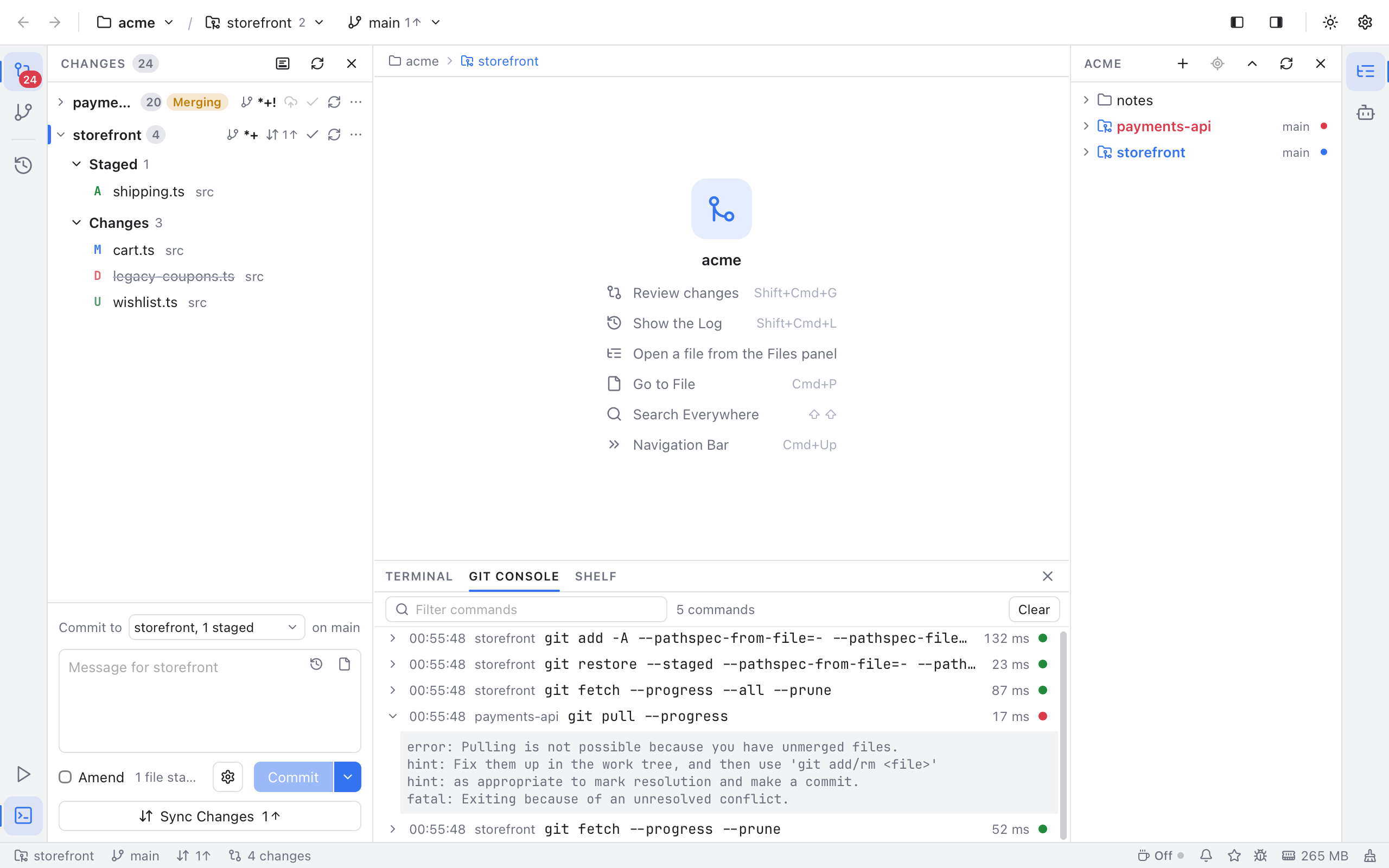
Each row is one git command, oldest at the top and newest at the bottom:
- the time it started, like
14:03:27; - the repository name;
- the command, for example
git push --set-upstream origin main; - how long it took, like
120 msor2.35 s; - a status dot: green when git finished with exit code 0 (the number git hands back when all went well), red when it failed, and pulsing while it still runs. Hover the dot to read "Exit code 0" or the reason it failed.
Click a row to open it. Below the row you see what git printed: normal output first, then error output, then the reason when git could not start at all. Long output scrolls inside its box. Nibtree keeps only the start of a very long output and says so with a note like "(output cut: only the start is kept)". Click the row again to close it.
The list follows new commands as they arrive. Scroll up to read older ones and it stays where you are; scroll back to the bottom to follow again.
Only real git commands show up. Nibtree reads most things (status, the log) directly from the repository without running git, so those never appear here.
-
Filter commands at the top narrows the list. Type a few words: a row matches when every word is in its command or its repository name, so
push originorstorefront fetchboth work. The count next to it reads like "3 of 40 commands". - Right-click a row for Copy Command, Copy Output and Show Output (or Hide Output). Copy Command quotes the arguments, so you can paste it into a terminal as it is.
- Clear empties the list, also in the app's memory.
Your secrets stay hidden
Commands and output can contain passwords or tokens, for example in a remote URL like https://user:password@host/repo.git. Nibtree masks them with *** before anything is stored: passwords in URLs, tokens used as a URL user name, values of options such as http.extraheader, Bearer and Basic headers, and GitHub and GitLab tokens (ghp_..., github_pat_..., glpat-...). The list lives only in memory and is gone when you quit.
The console keeps the last 500 commands. Each one keeps at most 16 KB of normal output and 16 KB of error output, and all of them together at most 4 MB. Older commands drop off first.