Repository navigation
Submodules
A submodule is a git repository inside another git repository. The outer one (the parent) does not store the submodule's files. It records only which commit of the submodule it uses, plus the submodule's URL in a file called .gitmodules. Projects use submodules to include a shared library or theme at an exact version.
Because the parent records a commit, not files, working with submodules has its own steps: after cloning, the submodule folders are empty until you init and update them, and when someone moves the parent to a newer submodule commit, you update again.
As their own repositories. Once a submodule is checked out, Nibtree finds it like any nested repository. It appears in the Changes sidebar with a submodule tag next to its name, and you commit, branch and push in it as usual. See Workspaces.
As one entry in the parent. In the parent's changes, a submodule is a single row tagged submodule, like git status shows it. The row says what changed:
- new commits: the submodule has a different commit checked out than the one the parent records;
- modified content: files inside the submodule are changed;
- untracked content: the submodule has new files.
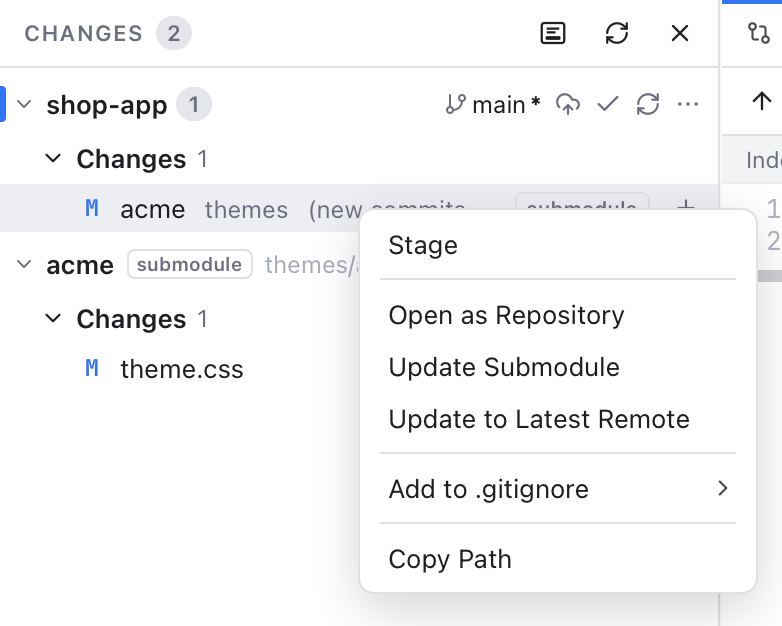
A submodule entry has only a Stage button: staging it records the submodule's current commit in the parent. There is no discard, because the change lives inside the other repository; use Update Submodule to go back to the recorded commit. Right-click the entry for:
- Open as Repository: make the submodule the active repository (it is added to the workspace if needed).
- Update Submodule: check out the commit the parent records.
- Update to Latest Remote: move it to the newest commit of the branch it follows.
Opening the entry's diff shows "Subproject commit" and a commit id on each side, like git diff.
Nibtree respects a submodule's ignore setting (in .gitmodules or your repository config), just like git status.
All submodule commands work on the parent repository. You find them in two places:
- Git > Submodules in the menu bar, for the active repository.
- The parent's ... menu in the Changes sidebar, under Submodules.
| Item | What it does |
|---|---|
| Init Submodules (Init) | Registers the submodules from .gitmodules in your repository config. |
| Update Submodules (Update) | Clones missing submodules and checks out the recorded commits, also inside nested submodules. |
| Update to Latest Remote | Like Update, but moves each submodule to the latest commit of the branch it follows. |
| Sync URLs | Copies changed URLs from .gitmodules into your config, after someone moved a submodule to a new server. |
| Add Submodule... | Adds a new submodule (see below). |
| Remove Submodule... | Removes one (see below). |
| Open Submodule as Repository... (Open as Repository) | Makes a checked-out submodule the active repository. |
When the repository has several submodules, Remove and Open ask which one. Update shows git's progress in the status bar.
- Open the parent repository.
- Choose Git > Submodules > Update Submodules.
That runs init and update in one step. The submodules then appear as repositories in the Changes sidebar.
Choose Git > Submodules > Add Submodule....

-
Repository URL: where the submodule comes from, for example
https://github.com/owner/library.git. - Path in this repository: the folder it goes into. It starts from the URL's name, and must be a relative path inside the repository that no other submodule uses.
- Branch to follow (optional): the branch that Update to Latest Remote uses.
- Click Add.
Git clones it and stages .gitmodules and the new submodule. A note reminds you to commit them, so the parent records the submodule.
Choose Git > Submodules > Remove Submodule... and confirm. Nibtree deinitializes the submodule (git stops treating it as checked out). It deletes its folder and its cloned repository inside .git/modules, where git keeps submodule copies, and stages the removal. Commit to finish. Unpushed work inside the submodule is lost, which is why it asks first.
The storefront repository uses a themes/acme submodule. A teammate updated it and you pulled.
- The parent's changes show
themes/acmewith new commits: your checkout is still on the old commit. - Right-click it and choose Update Submodule. The entry disappears, because the submodule now matches what the parent records.