Repository navigation
Settings
Settings change how Nibtree looks and behaves, apply at once and are saved. A mark such as +70 MB means a setting uses more memory when on (Memory Use).
- Click the gear at the top right of the header (Settings (Cmd+,)).
- Or press Cmd+,, or choose Nibtree > Settings... in the menu bar (File > Settings... on Windows and Linux).
- Or click the gear on the welcome screen.
Settings opens on Appearance. The status bar's Spaces opens Editor, the terminal's Default Shell... opens Terminal, and About Nibtree opens About.
The sections are on the left, under a search field. Esc or the x closes it. Drag the title to move it; double-click it to center it.
Reset to Defaults at the bottom left puts every setting in settings.json back to its default, after asking (Reset Settings). Panel choices and sizes live in state.json and are kept.

The Appearance section.
| Setting | What it does | Default |
|---|---|---|
| Theme | System follows the system, or pick Light or Dark. Colors are picked in Editor. | System |
| Rounded panels | Rounded panels with space between them. See Rounded Panels. | Off |
| Project color in the top bar | A glow in the project's Welcome color. | On |
| File toolbar | Top, Bottom or Hidden, plus switches. See Navigation Bar. | Top |
| Interface font size | Size of menus, lists and buttons, 11 to 16 px in half steps. | 13 px |
| File icons | No icons, Minimal or Material Icons in the file lists. See File Icons. | No icons |
The theme is also in View > Appearance. The sun button in the header (Toggle light/dark theme) switches between Light and Dark; System follows the system.
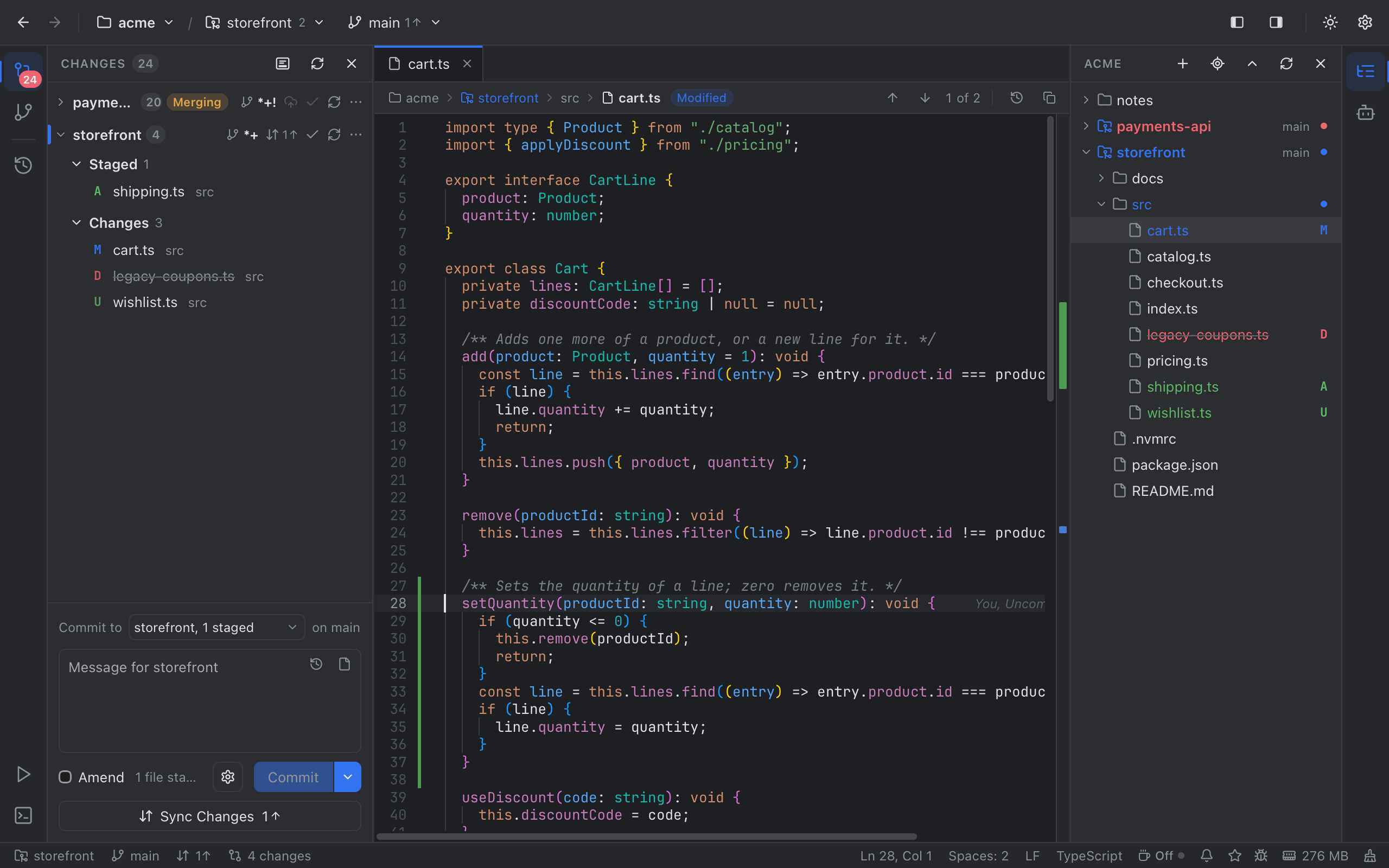
Nibtree in the dark theme.
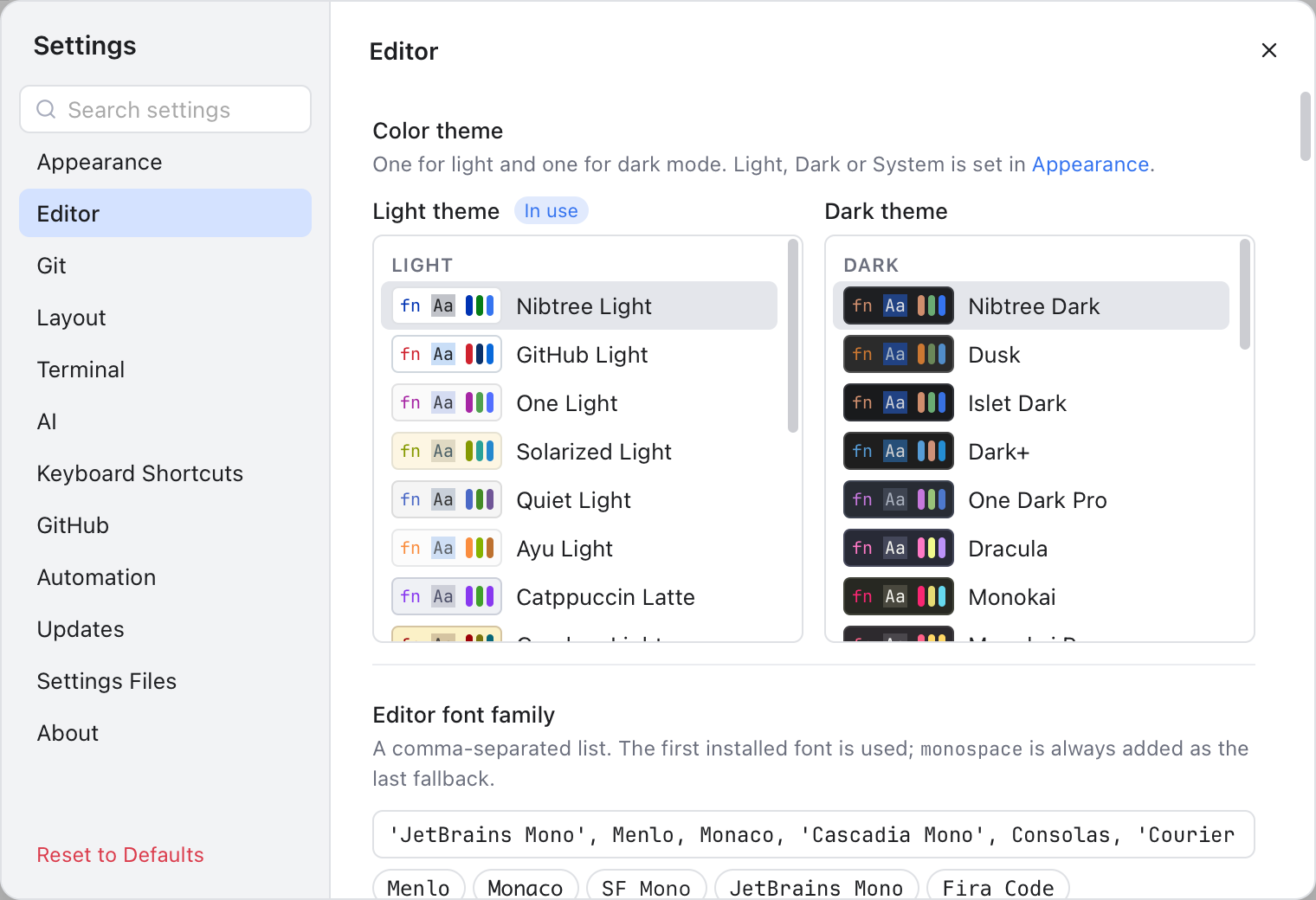
The top of the Editor section: the color theme pickers.
Color theme has two lists, Light theme and Dark theme: the one in use depends on the Appearance. See Color Themes.

Font family with a live preview, font size, font weight and line spacing.
| Setting | What it does | Default |
|---|---|---|
| Editor font family | A comma-separated list. The first installed font is used; monospace is always added last. |
'JetBrains Mono', Menlo, Monaco, 'Cascadia Mono', Consolas, 'Courier New', monospace |
| Editor font size | Code in the editor, diffs and the merge tool, 10 to 20 px in half steps. See Zoom. | 13 px |
| Editor font weight | Thin to Black. See Font weight. | Regular |
| Line spacing | Space between lines, 1.0 to 2.5 times the font size. Double-click the slider to reset it. | 1.25 |
| Change font size with Ctrl + mouse wheel | Hold Control (or Command) and scroll over code, or pinch. | Off |
| Font ligatures | Draws =>, != and === as single symbols with fonts such as Fira Code. |
Off |
| Syntax highlighting | Colors code by language. See Syntax highlighting. | On |
| Tab size | Spaces per indent level (2, 4 or 8) when not detected, and the width of a tab. | 4 |
| Detect indentation | Indent like the file does. Also View > Detect Indentation. See Indentation. | On |
| Render whitespace | Draws spaces as dots and tabs as arrows: None, Boundary, Selection, Trailing or All. See Render whitespace. | Selection |
| Word wrap | Wraps long lines in the file editor, also with View > Word Wrap (Option+Z). Diffs and the merge tool never wrap. | Off |
| Cursor style, width, blinking, smooth caret, caret extra top and bottom | The shape, thickness, blinking and size of the cursor. See The cursor. | Line, 2 px, Blink, Off, 0, 0 |
| Editing features | Auto-close brackets, completion, fold arrows, indent guides, word highlight, scroll past the end, column selection, a margin line. See IDE features. | On; margin line off |
| Markdown preview | How Markdown files open: Editor only, Editor and preview or Rich editor. See Markdown Editor. | Editor and preview |
| Current line blame | Author, age and commit at the end of the cursor line. Cmd+click it to open the commit in the Log; Cmd+Option-click copies the hash. See Blame. | On |
| Blame gutter | A blame column beside the line numbers. Also the Blame button in the editor path bar and the diff toolbar. | Off |
| Recent Files | Cmd+E lists recent files. See Recent Files. | On |

The lower part of the Editor section: render whitespace, word wrap, Markdown preview and blame.
Type a font list and press Enter, or click a font name below it. Reset goes back to the default font.

Defaults for diffs, the merge tool, the Log, commits and the Git Console.
| Setting | What it does | Default |
|---|---|---|
| Diff layout | Every diff Side by side or Inline (Inline Diffs); the diff toolbar's buttons set it too. | Side by side |
| Side by side in Changes, for commits | 3 columns: the Staging View, or a commit beside your working tree. | 2, 3 |
| Merge tool layout | Merge Tool panes: Columns or Stacked. | Columns |
| Ignore whitespace in the merge tool | Hides whitespace-only differences when a merge starts; its button sets it too. | Off |
| Show all branches in the log | Includes every local and remote branch in the Log. | On |
| Sign off commits | Adds a Signed-off-by line to every commit (--signoff). Also in Commit Options. |
Off |
| Commit box | Single or Per repository (Commit Box Layout). | Single |
| GPG sign commits |
Default follows git's commit.gpgSign, Sign adds -S, Do not sign adds --no-gpg-sign. |
Default |
| Git Console | Lists the git commands the app runs in a tab next to Terminal; off, nothing is recorded (Git Console). | Off |
Git > Update Project... remembers merge or rebase (updateMethod, default merge); see Git Dialogs.
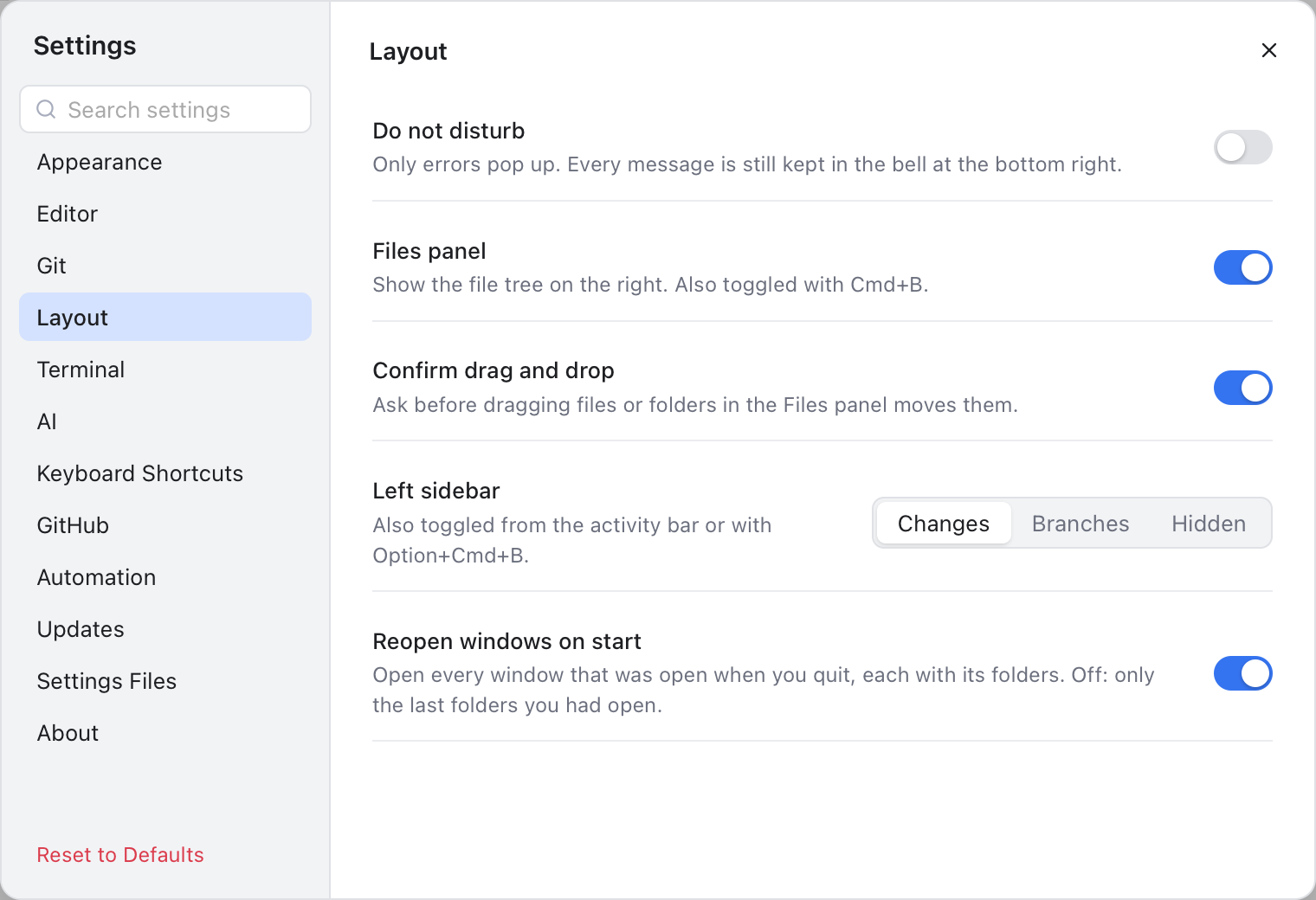
Which sidebars are shown.
| Setting | What it does | Default |
|---|---|---|
| Files panel | Shows the file tree on the right (also Cmd+B). | On |
| Confirm drag and drop | Asks before a drag in the Files panel moves files (see File Operations). | On |
| Left sidebar | Changes, Branches or Hidden (also Option+Cmd+B and the activity bar). | Changes |
Two header buttons show or hide the activity bars, the icon strips at the window edges (also in the View menu). Drag a panel's edge to resize it; double-click to reset. All this is saved in state.json, but Confirm drag and drop is in settings.json.

Automation: the MCP server, the command line tool and the memory log, all off by default.
- Terminal: the shell, font, cursor, scrollback and copy on selection.
- AI: agent permissions and arguments (AI Agents).
- GitHub: sign in to GitHub for Share Project, Sync Fork and Create Gist.
-
Automation: the MCP server, the
nibtree clitool and the memory log.
Every option is described in Terminal, GitHub and Automation Settings.
Updates controls the update check and the release channel (Updates). About has the version and links to star the project, report a bug or request a feature (Status Bar and Help).

The settings folder and the list of settings changed from their defaults.
Where your settings are saved and which ones you changed. A banner shows when a settings file cannot be read:
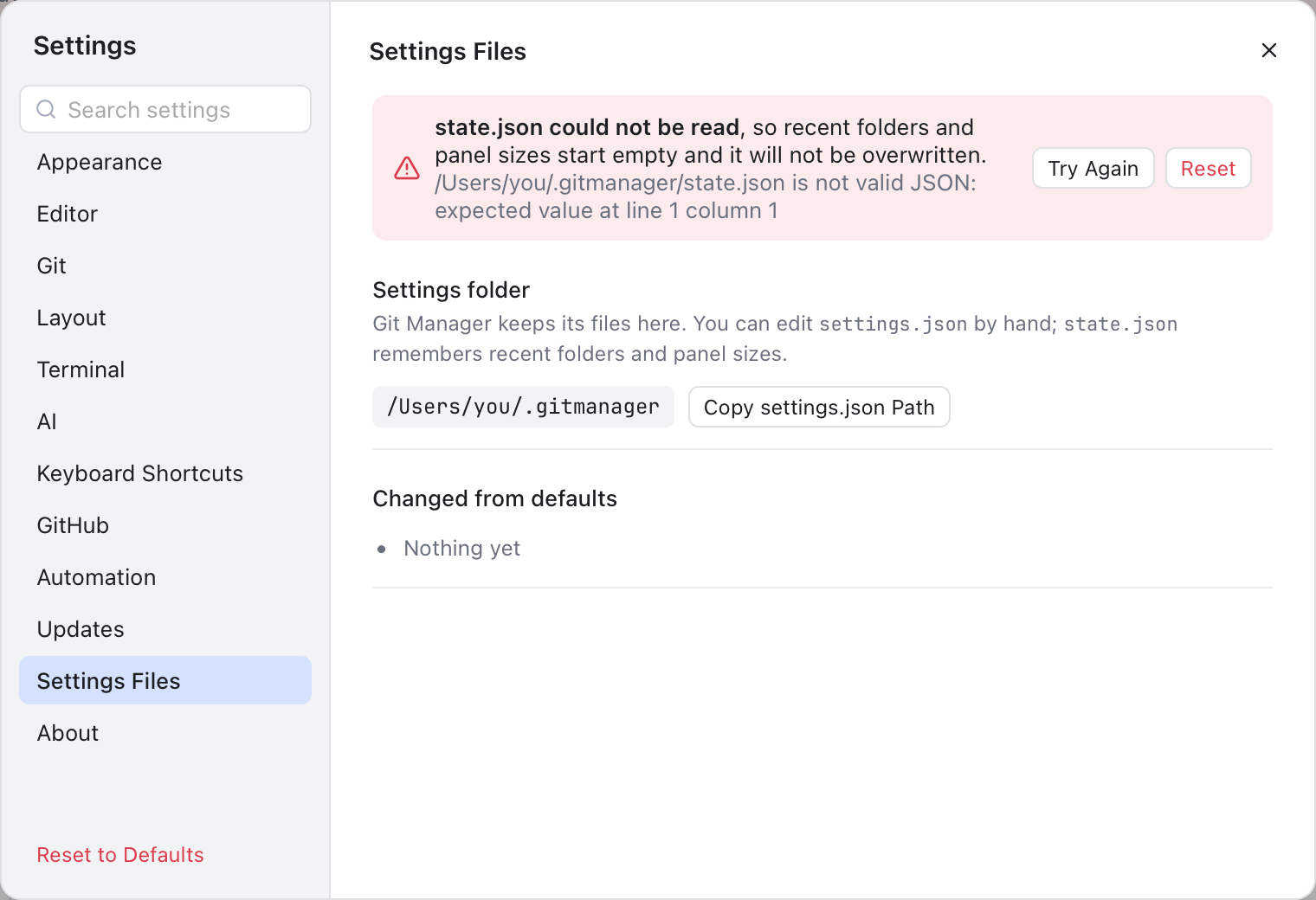
The state.json banner: Try Again rereads the file, Reset replaces it with a fresh one.
Settings Files explains both files, every key and the banners.