Repository navigation
Status Bar and Help
The status bar is the thin line at the bottom of the window. It tells you where you are (repository, branch, cursor) and how the app is doing, and it has quick links for giving feedback.

Repository, branch and changes on the left; cursor, file details, the star, the bug icon and memory on the right.
The left side describes the active repository, the one the sidebars and the Git menu work on.
-
Repository name. Hover it for the full path. Click it to open Select a Repository, a list you can filter by typing:
- Auto (the default) makes the active repository follow the open tab. Open a file, a diff, or a commit, branch or history tab, and its repository becomes the active one. A terminal tab picks the repository of its folder. The Log and an empty editor keep the active repository as it is.
- Pick a repository to keep it active whatever tab is open. Pick Auto again to follow the tabs.
- Each repository shows its branch, and its folder when that differs from its name. The current choice says selected.
- Branch. A checked-out commit shows as "detached" and its short hash. A long name is cut short with "..."; hover it for the full name. Click it to open the Branches popup for that repository and check out another branch.
- Sync, right after the branch. It shows the commits to pull and to push, such as 1↓ 2↑. Click it to pull, then push. When nothing is waiting, a click pulls whatever the remote has. A branch that is not on the remote yet shows a cloud icon instead: click it to publish the branch (push it and track it). Hover it to see what a click will do.
- 4 changes: the number of changed files, hidden when there are none. Click it to open a Changes tab: the changed files on the left, and the selected file compared with the last commit on the right (staged and unstaged edits together). Use Up and Down to move through the files; double-click a file or press Enter to open it. The list updates as you work. Drag the line between the list and the diff to make the list wider or narrower (double-click the line to reset it). The layout button in the tab's toolbar hides the list to give the diff the whole width; the toolbar then names the file shown, and its up and down arrows move to the previous or next file. Hover a file for Stage (+), Unstage (-) and Discard changes, or right-click it for more. A staged or partly staged tag shows what is already in the next commit. The buttons next to Changed files stage, unstage or discard every file at once. Discard asks first and keeps staged changes. Below the list (above it with a commit box per repository) is the same commit box as in the Changes sidebar, sharing its message, so you can commit the staged files without leaving the tab.
- 2 conflicts, in red, while files are in conflict. Click it to open the Conflicts dialog. See Resolving Conflicts.
- A note such as Merging feature into main while a merge, rebase, cherry-pick or revert is in progress. See Resolving Conflicts.
With Auto, a file tab that is outside any repository says No repository; click it to pick a repository. In a folder without git it shows the folder name.
While a file is shown in the editor:
- Ln 42, Col 7: the cursor position. With a selection it adds, for example, "(18 selected, 2 lines)".
- Spaces: 4 (or Tab Size: 4 for a file indented with tabs): the indentation, detected from the file unless Detect indentation is off. Click it to open Settings on the Editor section.
- LF or CRLF: the file's line endings. Nibtree keeps them as they are when saving.
- The language, such as TypeScript.
Always on the right:
- Update available: 1.2.0, when a new version is out (with (beta) for a beta). Click it for the notes and the download. A version you skipped is not shown. See Updates.
- A spinner with the running operation, such as Push... or Commit....
- Reading changes 2 of 5 with a spinner, right after a folder opens, while the changes of each repository load. You can already work. See Workspaces.
- A star: opens the project on GitHub, where you can star it.
- A bug icon: the feedback menu (below).
- Memory, a memory stick icon with a size such as 597 MB: how much memory Nibtree uses right now. See Memory Use.
The memory item on the right (the memory stick icon and a size) shows how much memory Nibtree uses right now. Click it for a breakdown. The details, the GPU rows and the memory log are in Memory Use.

Help > Keyboard Shortcuts: every shortcut of the app, with a filter.
The Help menu in the menu bar has:
- Nibtree Help: this wiki, in your browser.
- Keyboard Shortcuts: a window inside the app with every shortcut, grouped by menu, and a filter box. Open Online Version opens Keyboard Shortcuts.
- What's New and Release Notes (see Updates).
- Available MCP Tools...: which tools AI agents may use (see MCP Server and Command Line Tool).
- Report a Bug..., Request a Feature... and Star on GitHub, as below.
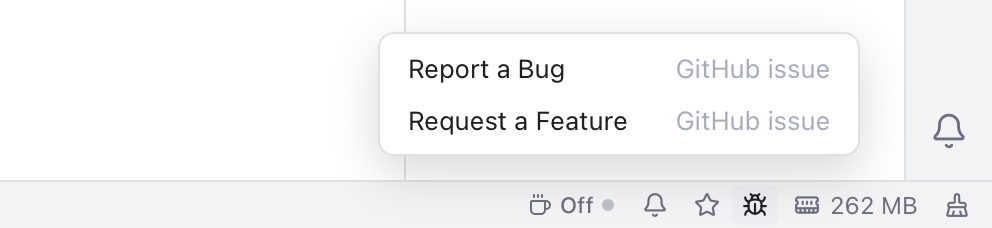
Report a Bug and Request a Feature, from the bug icon in the status bar.
Click the bug icon at the right of the status bar:
- Report a Bug opens a new GitHub issue with a bug form. Your Nibtree version and your system with its version (for example macOS 15.4.1 or Windows 11 build 26200.8037) are filled in for you.
- Request a Feature opens a new GitHub issue with the feature form.
Both open in your browser. You need a GitHub account to send them.
A good bug report says what you did, what you expected and what happened. A screenshot or the text of an error note helps a lot.
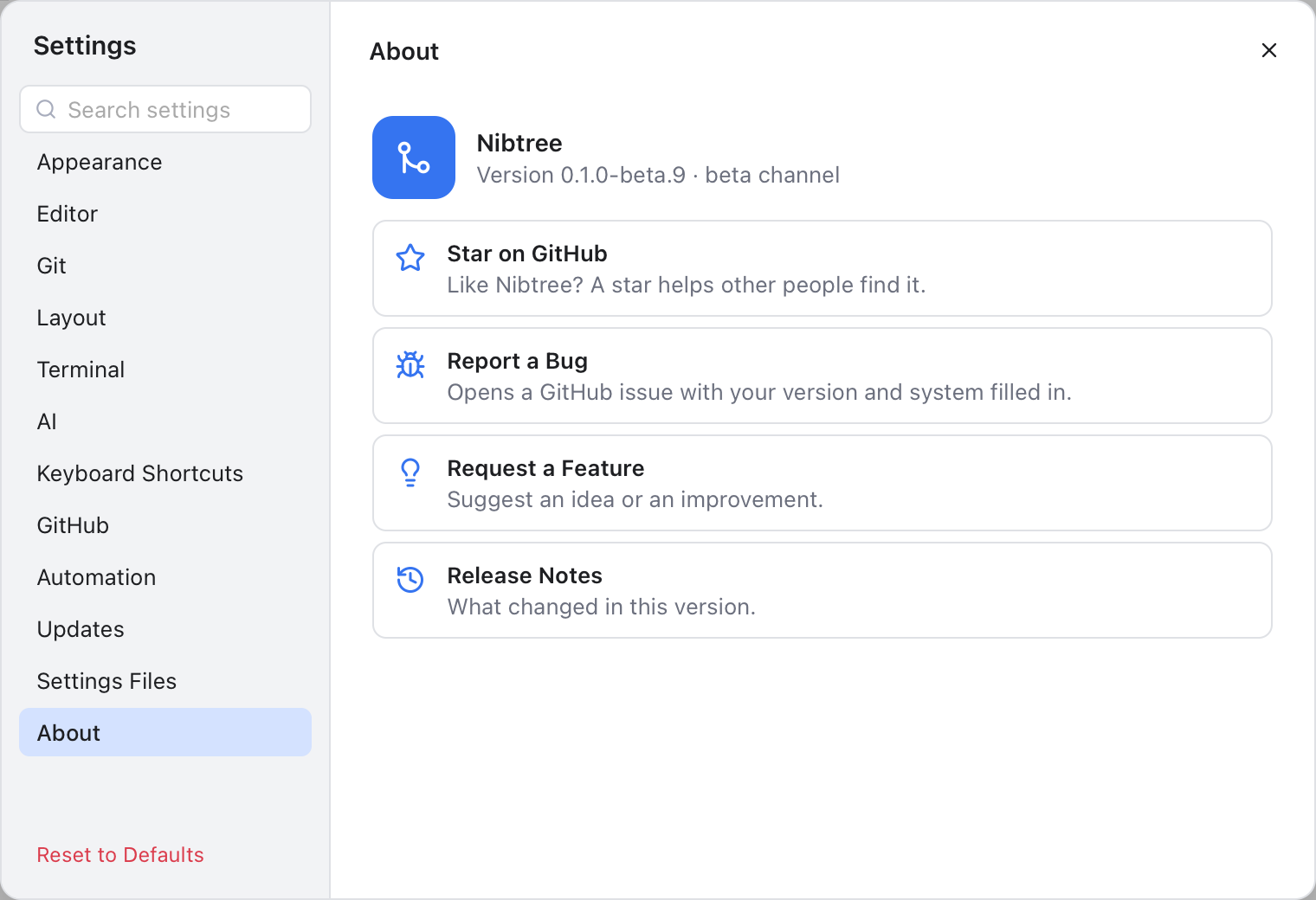
Settings, About: the version, the channel and the project links.
Settings, About shows your version and update channel, and has the same links in one place:
- Star on GitHub: like Nibtree? A star helps other people find it.
- Report a Bug and Request a Feature, as above.
- Release Notes: what changed in this version.
The welcome screen has these links too, at the bottom of its sidebar.
Short notes appear at the bottom right for a few seconds when something finishes, such as "Pushed". When something fails, the note shows what went wrong, usually git's own message. Error notes stay nine seconds, you can copy their text, and the x closes any note early. The Troubleshooting page covers the common ones.