Repository navigation
MCP and CLI
Nibtree can let AI tools such as Claude Code, Cursor or VS Code use the app. They can read your repositories, run git actions, open files, drive the window and measure its memory. It does this with MCP (Model Context Protocol), an open standard that AI tools use to call "tools" in other programs. The same tools also work from a terminal with the command line tool, nibtree cli.
Both are off by default. While both are off, nothing listens and nothing extra runs.

Settings, Automation: the server is running, with the secret token and the command for Claude Code.
- Open Settings (Cmd+,) and pick Automation (every setting there is listed in Terminal, GitHub and Automation Settings).
- Turn on MCP server.
- The Status line now says Running at http://127.0.0.1:48731/mcp.
Port is 48731 unless you change it (any number from 1024 to 65535). A change restarts the server. If another program already uses the port, the Status line says so in red: pick another one.
Secret token is made the first time the server starts. Every connected tool must send it. Show reveals it, Copy copies it, and New Token makes a new one, so tools that use the old token stop working until you update them.
Under Connect Claude Code, click Copy and run the command once in a terminal. It looks like this, with your real token:
claude mcp add --transport http nibtree http://127.0.0.1:48731/mcp --header "Authorization: Bearer <token>"Then start Claude Code and ask, for example, "What changed in my repository?" or "Open the file with the cart logic in Nibtree". Nibtree must be running with a folder open.
Most other MCP clients (Cursor, VS Code, Windsurf and more) read a JSON config. Copy the one under Other MCP clients into the client's MCP settings:
{
  "mcpServers": {
    "nibtree": {
      "type": "http",
      "url": "http://127.0.0.1:48731/mcp",
      "headers": { "Authorization": "Bearer <token>" }
    }
  }
}
Help > Available MCP Tools: every tool with its switch, grouped by category, and the recent calls at the bottom.
Open Help > Available MCP Tools... (or the button next to the Status line). It lists every tool with a switch, grouped by category: Workspace, Git, Files, Search, Scripts, Terminal, App and Performance. A badge tells you what each one can do:
- read only: it only looks.
- can change files: for example staging or committing.
- destructive: it can lose work or run commands, such as discarding changes, pushing, resetting a branch, writing, renaming, moving or trashing files, running scripts or typing in a terminal. These start off.
clone_repository starts off too, though it is not destructive: it is the one tool that writes outside the folders open in Nibtree.
Type in Filter tools to find one. Turn All On and Turn All Off work on the tools shown, or on one category. Turn All On asks first when it would turn on destructive tools. Restore Defaults puts the tools shown back to how they start, destructive tools and clone_repository off and every other tool on, after asking you. A single switch turns its tool on right away. The header says how many tools are on, for example "74 of 86 tools on".
Recent calls shows the last calls as they happen: the tool, MCP or CLI, the time, how long it took and any error.
There are about 87 tools. Some highlights:
-
Workspace and app:
list_workspace(start here),get_app_state,list_menu_commandsandrun_menu_command(any menu bar item),show_panel,open_settings. -
Git:
git_status,git_diff,git_log,git_blame,git_branches, and actions such asgit_stage,git_commit,git_pull,git_push,git_merge,git_rebaseand the stash tools.clone_repositoryclones into any folder you name and can open the clone in the window (openset towindow) or add it to the open folders (workspace). -
Files and search:
read_file,open_file,get_editor_text,search_files,search_text,search_symbols. -
File operations:
create_file,create_folder,copy_paths, andrename_path,move_pathsandtrash_paths, which work like the Files panel: open tabs follow, a file with unsaved edits is refused and nothing is ever replaced. Rename, move and trash start off; trash only moves to the system Trash. -
Scripts and terminal:
list_scripts,run_scriptandstop_run(the Run tab),list_terminals,new_terminalandsend_terminal_text.run_scriptandsend_terminal_textcan run any command, so they start off. -
Performance:
get_memory_usage,sample_memory, a live memory recording,get_ui_performance,inspect_elements,inspect_layout,trace_scrolls,scroll_viewandtake_screenshot.
Your AI tool reads each tool's own description, so you can simply ask in plain words.
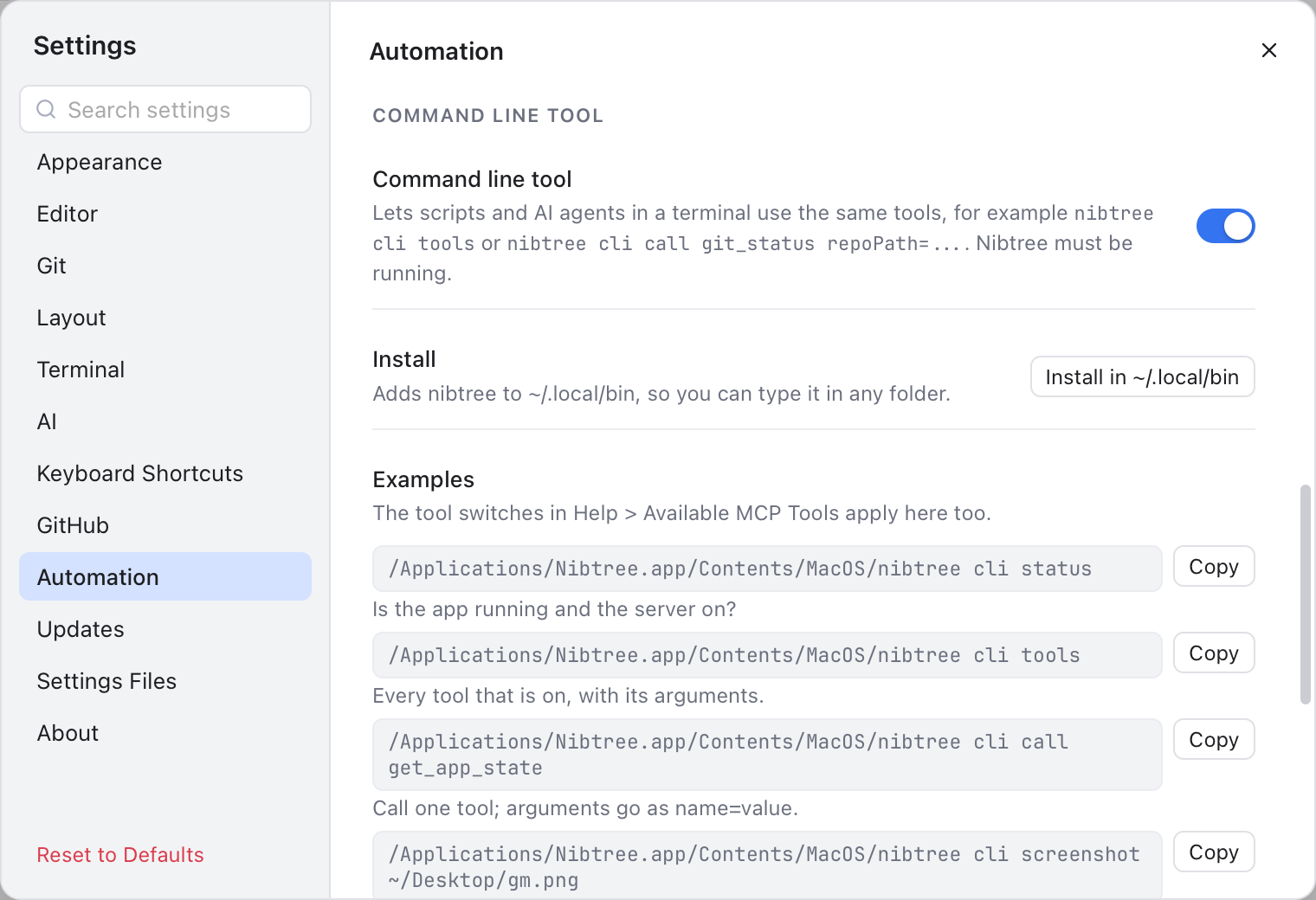
The Command line tool section with Install in ~/.local/bin and example commands.
Turn on Command line tool in Settings, Automation. Then click Install in ~/.local/bin (Install on Windows) so you can type nibtree anywhere. On a Mac, if that folder is not on your PATH, Settings shows a line for ~/.zshrc; on Windows it goes into WindowsApps, which is on your PATH. Remove takes it away.
nibtree cli status                     # is the app running, which switches are on
nibtree cli tools                      # the tools that are on (--all lists every tool)
nibtree cli describe git_log           # what a tool does and its arguments
nibtree cli call git_log repoPath="$PWD" limit=5
nibtree cli call copy_paths paths='["/Users/me/shop/src/cart.ts"]' targetFolder=/Users/me/shop/lib
nibtree cli clone https://github.com/owner/repo.git --open window
nibtree cli screenshot ~/Desktop/gm.png
nibtree cli memory --duration 10       # live memory, then the minimum, average and peak
clone works like git clone: it clones into the folder you are in (or --into <folder>), names the new folder after the URL unless you give a name, and --open window or --open workspace shows it in Nibtree. Turn on clone_repository in Available MCP Tools first.
Arguments go as name=value. A list is written as JSON in single quotes, like paths='["/a.ts","/b.ts"]' above. If your shell mangles quotes, pass a JSON file with --args-file args.json, or pipe it in with --args-file -. Add --json for JSON output. The tool switches in Available MCP Tools apply here too.
The exit code is the number a command hands back to the shell or script that ran it:
- 0: it worked.
- 1: the tool reported an error.
- 2: the app cannot be reached or is switched off, or the command was used wrongly.
On Windows, nibtree runs nibtree-cli.exe, a console program next to the app. Windows PowerShell 5.1 breaks JSON in --args, so pipe it in: '{"limit": 5}' | nibtree cli call git_log --args-file -.
- The server only listens on this Mac (127.0.0.1), never on the network.
- Every request needs the secret token. It is kept in
~/.nibtree/mcp.json, readable only by you. - Web pages cannot use it: requests from a browser are refused.
- Tools only reach the folders open in Nibtree right now. Anything else is refused. The one exception is
clone_repository, which starts off and only makes a new folder. - Destructive tools are off until you turn them on.
- Each switch has its own job. With only the command line tool on, an MCP client cannot get in. With only the MCP server on, the command line tool cannot get in.
Turn the switches off when you do not use them. See Troubleshooting if a tool cannot connect.