Repository navigation
Editor and Tabs
Nibtree has a light code editor. Open files in tabs, edit and save them, and jump to the lines you changed since the last commit.
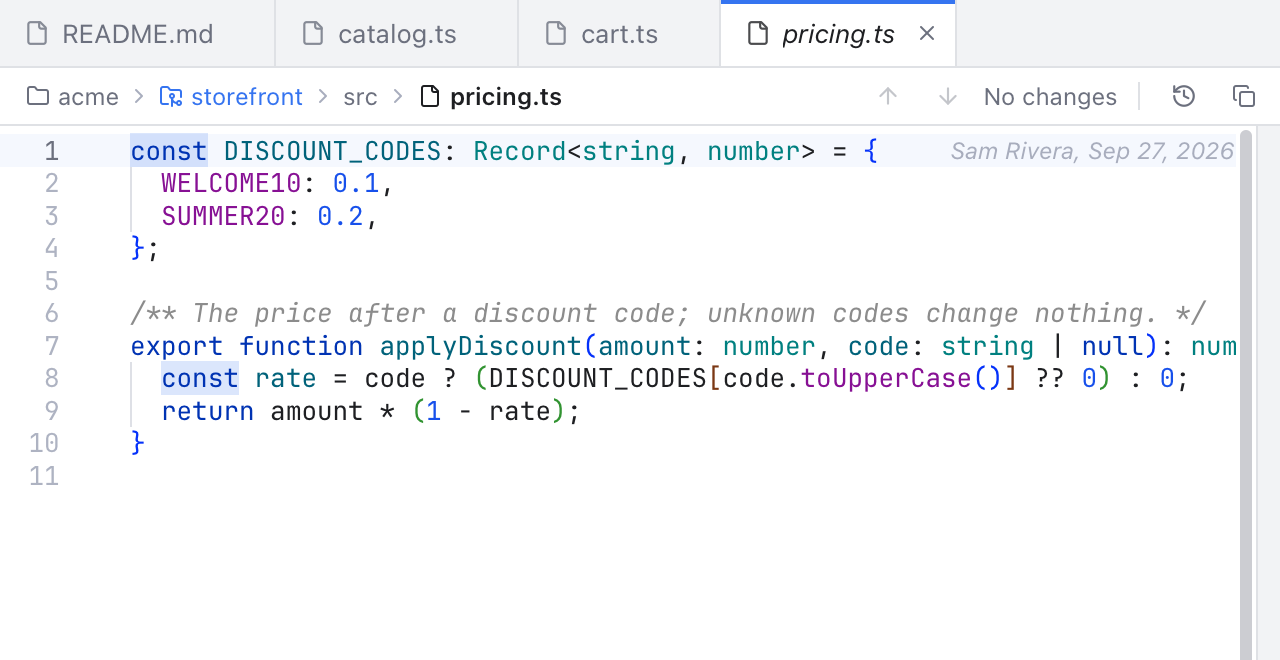
Tabs with an italic preview tab, and the slim path bar right above the code.
- Click a file in the Files panel to open it in a preview tab. Its name is shown in italics, and the next file you click replaces it.
- Double-click a file to open it in a normal tab that stays open.
- Press Cmd+P (or Shift twice) to find a file by name. See Search Everywhere.
A preview tab becomes a normal tab when you double-click the tab, start editing, or choose Keep Open in its right-click menu.
Markdown files open with a formatting toolbar and a live preview; see Markdown Editor. Images and PDFs open in a preview; see Image and PDF Preview.
Files over 4 MB and binary files are not opened; the tab shows a note instead. If a file is deleted on disk while its tab is open, the tab says This file no longer exists on disk. and offers Close.
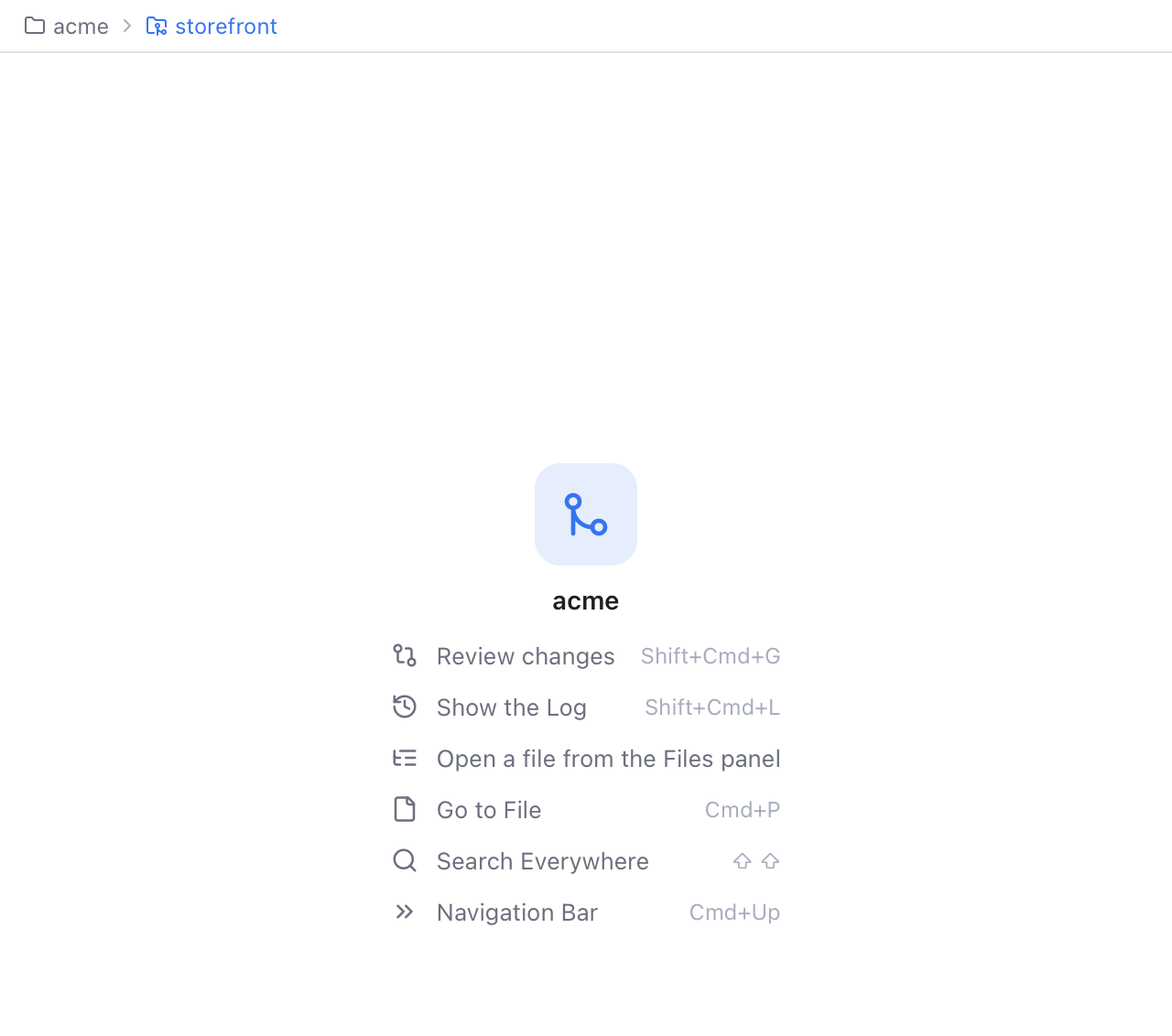
The empty editor area: the Navigation Bar, the workspace name and six ways to start.
With no file, diff or Log open, the editor area shows the Navigation Bar, the workspace name and six shortcuts:
- Review changes (Shift+Cmd+G) opens the Changes sidebar.
- Show the Log (Shift+Cmd+L) opens the commit history. It is greyed out when there is no repository.
- Open a file from the Files panel shows the Files panel.
- Go to File (Cmd+P) finds a file by name.
- Search Everywhere (press Shift twice) searches the whole workspace.
- Navigation Bar (Cmd+Up) opens the bar's list.
- Click a tab to show it. Every tab keeps its own cursor, scroll position and unsaved edits (see also Unload Hidden Tabs).
- Shift+Cmd+] and Shift+Cmd+[ show the next and previous tab (also Window > Next Tab and Previous Tab).
- Cmd+W closes the tab on screen (File > Close Tab).
- New tabs open after the current one.
- A dot on the tab means unsaved changes; hover it for the close button. Middle-click a tab to close it.
- Scroll the mouse wheel over the tab strip to move through many tabs.
- When two tabs have the same file name, the folder name is shown next to each.
- Drag a tab to move it, and pin the tabs you always need. See Pin, Reorder and Wrap Tabs.
Right-click a tab for Pin Tab, Close, Close Others, Close to the Right, Close All, Copy Path and Copy Relative Path (a preview tab also has Keep Open). If a tab you close has unsaved changes, you are asked before they are thrown away. Closing the window or folder keeps them instead (New File and Unsaved Changes).
There is also a Diff tab, always first, with the file name and the word Diff. It appears when you select a file in Changes and shows that file's diff. Its close button clears the selection.
Some tabs show other things, each with its own icon:
- a commit from the Log (History and Log);
- a terminal (Terminal);
- a file's History, or a comparison, from the Git menu's Current File submenu (Git Menu);
- two branches compared, or a branch against your files on disk, from the Branches popup (Branches Popup);
- a shelved file (Shelf).
They close like any other tab; closing a terminal tab stops its shell.
One slim bar sits between the tabs and the code.
On the left are the breadcrumbs: the workspace folder, then each folder down to the file. Repository folders are marked with a git icon. Hover it to see it in full; click it, or press Cmd+Up, to browse: see Navigation Bar.
Badges next to the path tell you about the file:
- Unsaved: you have edits that are not saved yet.
- Modified, New file or Conflicted: what git thinks of the file.
- 2 conflicts (or similar): how many conflict blocks are in the text.
On the right are small icon buttons. Hover one to see what it does:
- Up and Down arrows jump to the previous or next change (Shift+F7 and F7), wrapping around at the end of the file. The label next to them reads 2 of 5 while the cursor is in a change, 5 changes when it is not, or No changes. In a file with conflicts it counts sections: changes and conflict blocks together.
- Blame (the clock) shows who last changed each line. It looks pressed while it is on. See Blame.
- Copy relative path copies the file's path inside the workspace folder.
- In a Markdown file, the three view buttons. See Markdown Editor.
The arrows and Blame only appear for files inside a git repository.
When the editor gets narrow, the 2 of 5 label hides first, then the badges shrink to colored dots (hover them for the text) and the folders shorten to "..." from the left. The file name stays readable the longest.
A file with conflicts gets a second, tinted strip with Accept All Current, Accept All Incoming, Resolve in Merge Tool and Mark as Resolved. See Resolving Conflicts.
Saving is in the File menu:
- Save (Cmd+S) writes the file. It is greyed out until you edit. Line endings (LF or CRLF) are kept as they were.
- Save All (Option+Cmd+S) saves every tab with unsaved edits.
- Revert File reloads the file from disk and drops your unsaved edits. You are asked first.

A green bar beside the new lines, ticks beside the scrollbar, and 2 changes in the path bar.
While you edit, Nibtree compares the text with the last commit:
- A thin colored bar next to the line numbers marks added and modified lines, a small mark deleted ones. Click a bar to revert its change.
- The strip beside the scrollbar has a tick for every change and conflict. Click a tick to jump there. Hover it to see the kind of change and the line.
- Conflict blocks are marked in their own color and win over plain changes.
F7 and Shift+F7 (or the arrows in the path bar) move between these changes and conflicts.
Files that change on disk (a checkout, another app writing, even to an ignored log) reload by themselves unless they have unsaved edits; scrolled to the end, a log follows new lines.
Syntax colors, multiple cursors, the Code menu, line spacing and zoom are on Editing Code. To find and replace text, see Find and Replace.
While a file is shown, the right side of the status bar shows the cursor position (Ln and Col, plus the selection size), the indentation (Spaces: 4, detected from the file), the line endings and the language. Click Spaces to open Settings on the Editor section. See Status Bar and Help.