Repository navigation
Memory Use
Nibtree is built to stay light. The memory item at the right of the status bar, a memory stick icon with a size such as 597 MB, shows how much memory it uses right now, and a debug log can record how that changes over time.
The readout lets you see that for yourself. It shows physical memory as Activity Monitor counts it. That includes the helper processes macOS runs for the app's web view, which draws the interface. On Windows it counts like Task Manager's Memory column, for the app and the Microsoft Edge WebView2 processes it starts, which adds the rows WebView2 (browser), Utility and Crash reporter.
Click it for a breakdown: Nibtree (app), Web content (UI), Graphics and Networking, each with its size and a bar. Below them, GPU acceleration answers two questions. Terminals use the GPU says yes (and in how many terminals) or no with the reason: turned off in Settings, font ligatures on, or the GPU failed and the terminal fell back to normal drawing. WebGL support says whether the web view can use the GPU for that at all, and names the graphics chip. The window itself always draws with the GPU through the system; that is the Graphics row. GPU drawing in terminals is smoother and lighter on the CPU with a lot of output. It costs about 70 MB for the first terminal, mostly in the Graphics row, and about 10 MB for each other one. Turn it off in Settings, Terminal to save that memory, if you see drawing glitches, or if you want font ligatures. Opening it measures again at once. Press Esc or click elsewhere to close it.
The number updates every few seconds while the window is visible, and stops while it is hidden. The brush button right of it is Clear Cache: it gives back the memory WebKit keeps after you close files. It is not on Windows. When the app was started from a Terminal, the helpers are matched by their start time, and the breakdown says so.
Below the app's rows, Terminals lists what runs in this window's terminals: the sum at the top, then one row per terminal, AI agent or script in the Run tab, biggest first. Each row counts the shell and everything it started, such as Claude Code, a dev server or a test run. An agent row shows the agent's title and its folder.
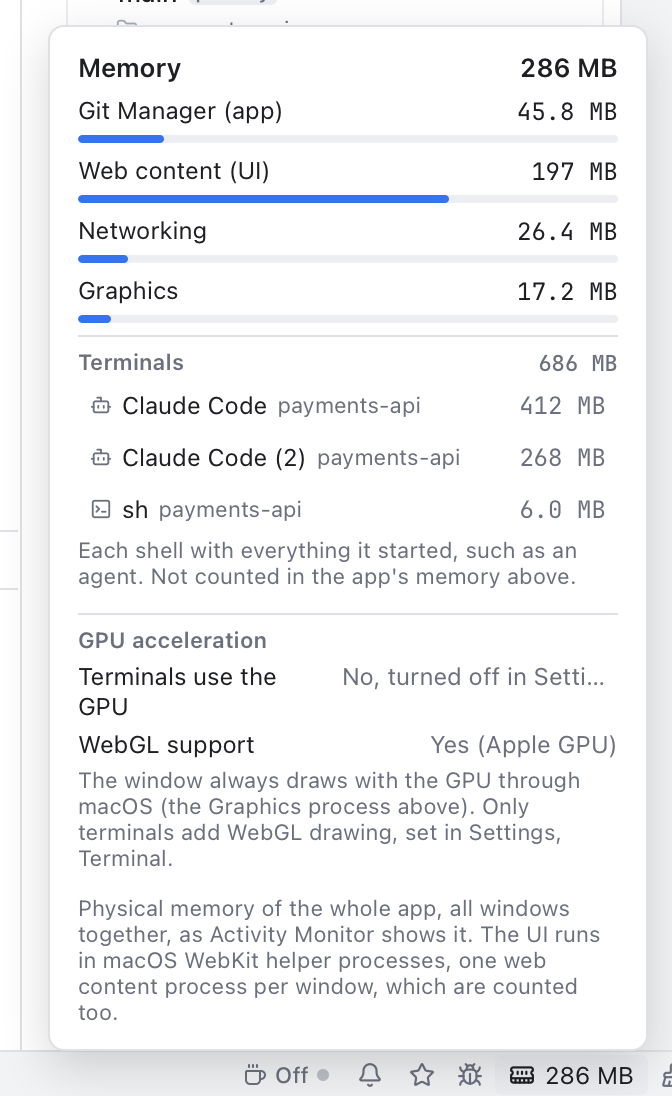
The memory details with two agents and a terminal.
Click a row to bring that terminal to the front. Point at a row to see how many processes it counts. These programs are not part of the app's own number in the status bar, because they are separate programs you started. The section shows only while the details are open and hides when no terminal runs.
Most settings cost almost nothing. The few that use clearly more memory when they are on have a small orange mark beside their name in Settings, such as +70 MB. Point at the mark to see when the memory is used and what it grows with.
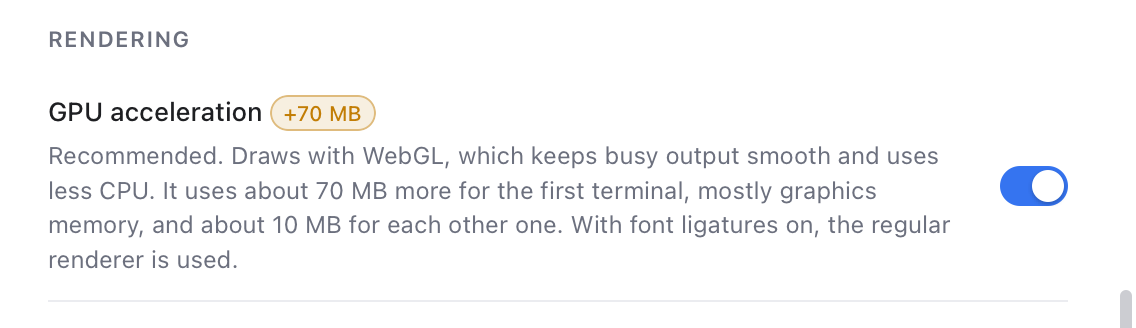
The memory mark beside GPU acceleration in Settings, Terminal.
| Setting | About how much more | When |
|---|---|---|
| GPU acceleration (Terminal) | 70 MB | For the first terminal, then about 10 MB for each other one |
| Scrollback (Terminal) | 90 MB at 50,000 lines, 175 MB at 100,000 | Per terminal, once that many lines were printed; 5,000 is the default |
| Blame gutter (Editor) | 35 MB | While a file is open with the column showing |
| Markdown preview (Editor) | 35 MB, up to 140 MB with diagrams | Editor and preview and Rich editor, compared with Editor only |
| File icons (Appearance) | Up to 25 MB | Material Icons with thousands of files listed; Minimal costs less |
| Syntax highlighting (Editor) | 35 MB | With code open; about the same for one file or ten |
| Render whitespace (Editor) | 9 MB | With All |
| Tab limit (Editor) | 4 MB per tab | Each open file tab keeps its editor until Unload hidden tabs frees it; a limit closes the oldest |
Recent Files (Editor) has a gray mark instead, about +1 MB: keeping its list costs almost nothing, and its popup uses about 17 MB only while it is open. See Recent Files.
These numbers come from the release app on a MacBook Pro screen. A bigger window, a longer file or a wider terminal uses more. How they were measured is in Measuring Setting Memory.
To find out what makes memory grow, turn on Settings, Automation, Memory log, Log memory changes. While it is on, Nibtree reads its memory every Read memory every (250 ms, 500 ms, 1 s or 2 s; 500 ms by default) and writes a line whenever the total changed by Write a line when it changes by (0, 1, 5 or 20 MB; 5 MB by default; 0 writes every reading). It also notes what was on screen and when scrolling started and stopped.
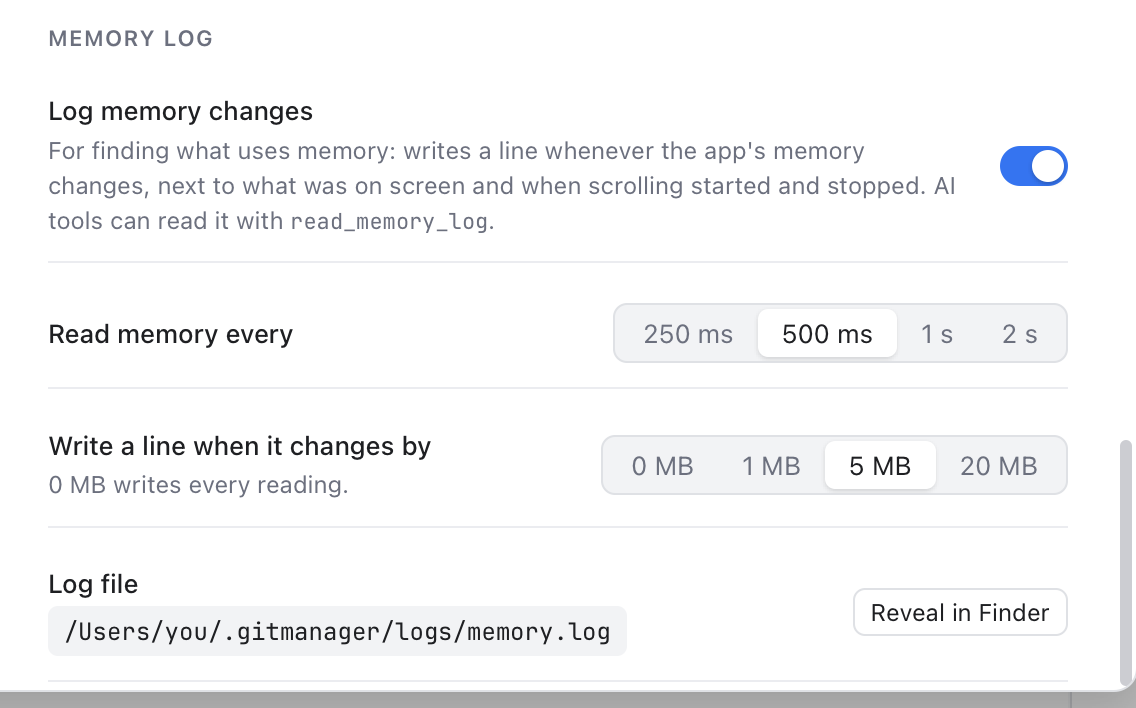
Settings, Automation, Memory log, with the path of the log file.
The file is ~/.nibtree/logs/memory.log. Reveal in Finder (Reveal in File Explorer on Windows) shows it. A line looks like 2026-10-02T04:20:31.512Z total 400.0 MB (+50.0) | Web content 300.0 | ..., with times in UTC. Past 5 MB the log starts over and keeps the previous one as memory.log.1. AI tools can read it with the read_memory_log tool (see MCP Server and Command Line Tool). Turn it off when you are done: off, nothing runs.