Repository navigation
Editing Code
The editor has the everyday tools of an IDE editor: syntax colors, code completion, multiple cursors, line commands in a Code menu, and folding. How text looks (line spacing, whitespace, the cursor, word wrap, indentation and zoom) is on Code Appearance. Tabs, saving and change markers are on Editor and Tabs.
The editor has line numbers, bracket matching, Tab to indent, and syntax colors for JavaScript, TypeScript, JSX, Rust, PHP, HTML, Vue, Svelte, Blade, CSS, SCSS, Less, JSON, Markdown, Python, YAML, SQL, Go, Java, Kotlin, Swift, Ruby, shell scripts, TOML, XML, Dockerfile, C, C++ and C#. A language loads the first time you open one of its files.
Edit > Undo (Cmd+Z) and Redo (Shift+Cmd+Z) work on the editor that has the focus, with its own history per tab.
To find text in the file, press Cmd+F. See Find and Replace.
You can type in several places at once:
- Option+Shift+click adds a cursor where you click.
- Cmd+D (Select Next Occurrence) selects the word at the cursor, then adds the next place where it appears, one at a time.
- Ctrl+Cmd+G (Edit > Select All Occurrences) selects every place at once.
Press Esc to go back to one cursor.
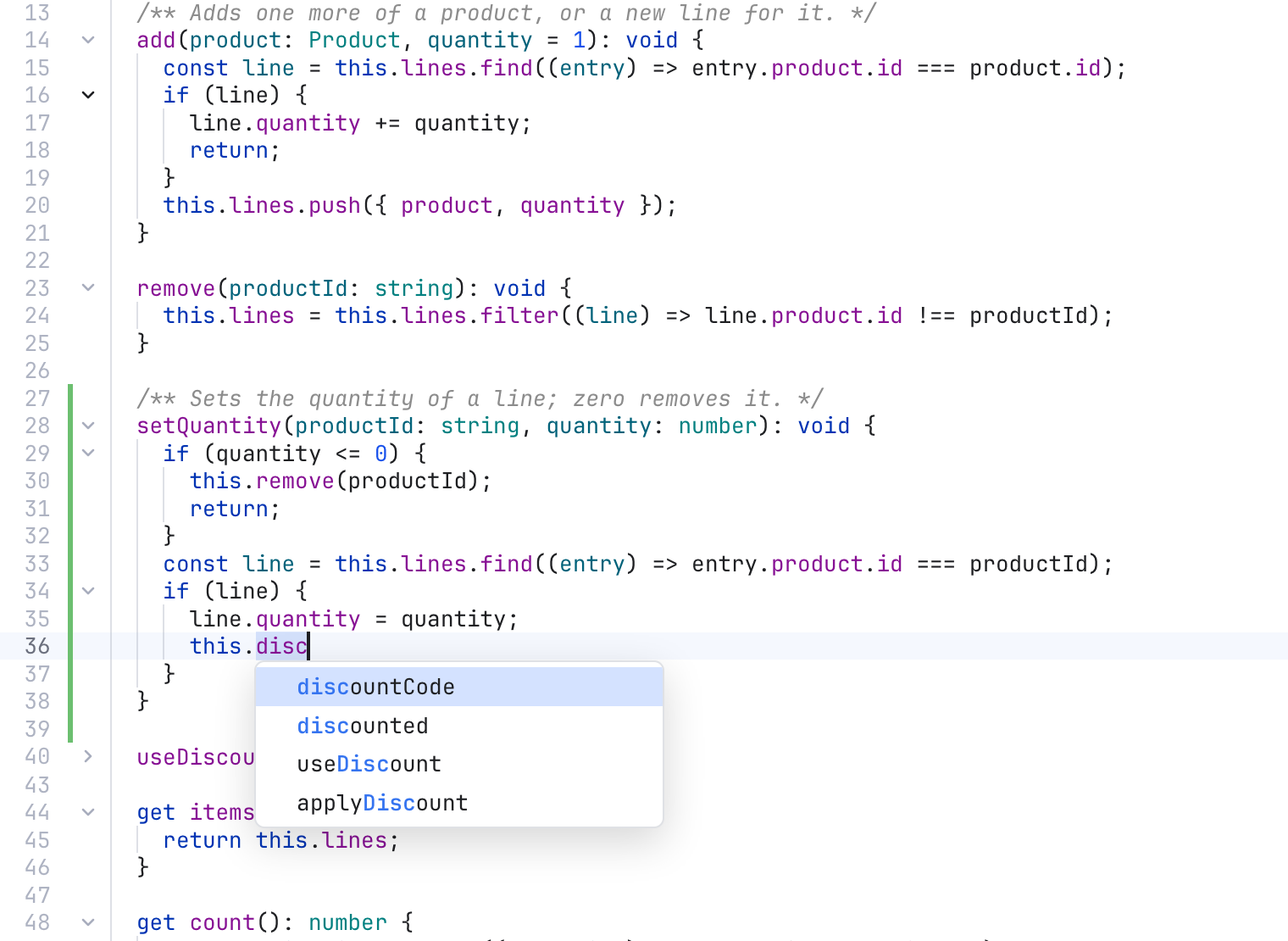
Completion for this.disc, indent guides, and fold arrows with one folded block.
Each one has a switch in Settings, Editor, Editing features. Turning one off removes it from open editors and frees its memory.
Typing (, [, { or a quote adds the closing one. Typing the closer steps over it; Backspace deletes both.
A list of suggestions opens while you type: words from the file plus the language's own keywords and names. Ctrl+Space opens it by hand. Up and Down pick, Enter or Tab accepts, Esc closes. Turn off Show completion while typing to open it only with Ctrl+Space. In Markdown and plain text it always waits for Ctrl+Space, so writing prose stays quiet.
Arrows beside the line numbers fold and unfold blocks. They show while the pointer is over the gutter; a folded block keeps its arrow.
Faint vertical lines mark each indent level, showing which block a line belongs to.
Other uses of the word at the cursor get a soft background.
The last line can scroll up to the top of the editor.
Hold Option and drag to select a rectangle: one cursor per line, at the same columns. Option+Shift+click still adds a cursor.
A thin line at a column. It is off by default; turn it on and pick the column (120 is common).
Diffs and the merge tool get indent guides, word highlights, column selection and the margin line. Folding and scrolling past the end stay in the file editor, so the panes keep lining up.
The Code menu in the menu bar acts on the editor that has the focus. Its keys work without the menu, too.
| Item | Key | What it does |
|---|---|---|
| Comment with Line Comment | Cmd+/ | Comments the lines out, or back in |
| Comment with Block Comment | Option+Cmd+/ (or Ctrl+Shift+A) | Wraps the selection in a block comment |
| Duplicate Line or Selection | Shift+Cmd+D | Copies the selection right after itself, or the line below |
| Delete Line | Shift+Cmd+K | Deletes the line |
| Join Lines | Ctrl+Shift+J | Joins the line with the next one, with one space between |
| Move Line Up / Down | Option+Up / Option+Down | Moves the line, or the selected lines |
| Indent Line / Unindent Line | Cmd+] / Cmd+[ | Moves the lines one indent level right or left |
| Toggle Case | Shift+Cmd+U | Upper case, or lower case if it already is |
| Sort Lines | Sorts the selected lines, or the whole file | |
| Folding > Expand / Collapse | Option+Cmd+] / Option+Cmd+[ | Opens or folds the block at the cursor |
| Folding > Expand All / Collapse All | Ctrl+Option+] / Ctrl+Option+[ | Opens or folds every block |
| Go to Line... | Cmd+L | Jumps to a line |
| Select Next Occurrence | Cmd+D | Adds the next match to the selection |
Items that change the text are greyed out in a read-only pane (such as a diff) or while no editor has the focus.
Duplicate takes Shift+Cmd+D because Cmd+D adds the next occurrence. Option+Shift+Up and Down copy the line up or down.
Code > Go to Line... (Cmd+L) asks for a line number. Type 42, or 42:7 for line 42 at column 7, and press Go. The field starts with where the cursor is now. The older key Option+Cmd+G still opens a small line field too.