Repository navigation
Interface Overview
RemuxForge has one main window shared by its three modes, with the same menus, keyboard shortcuts and shared controls in each. The Desktop app, the WebUI and Docker all show the same interface.
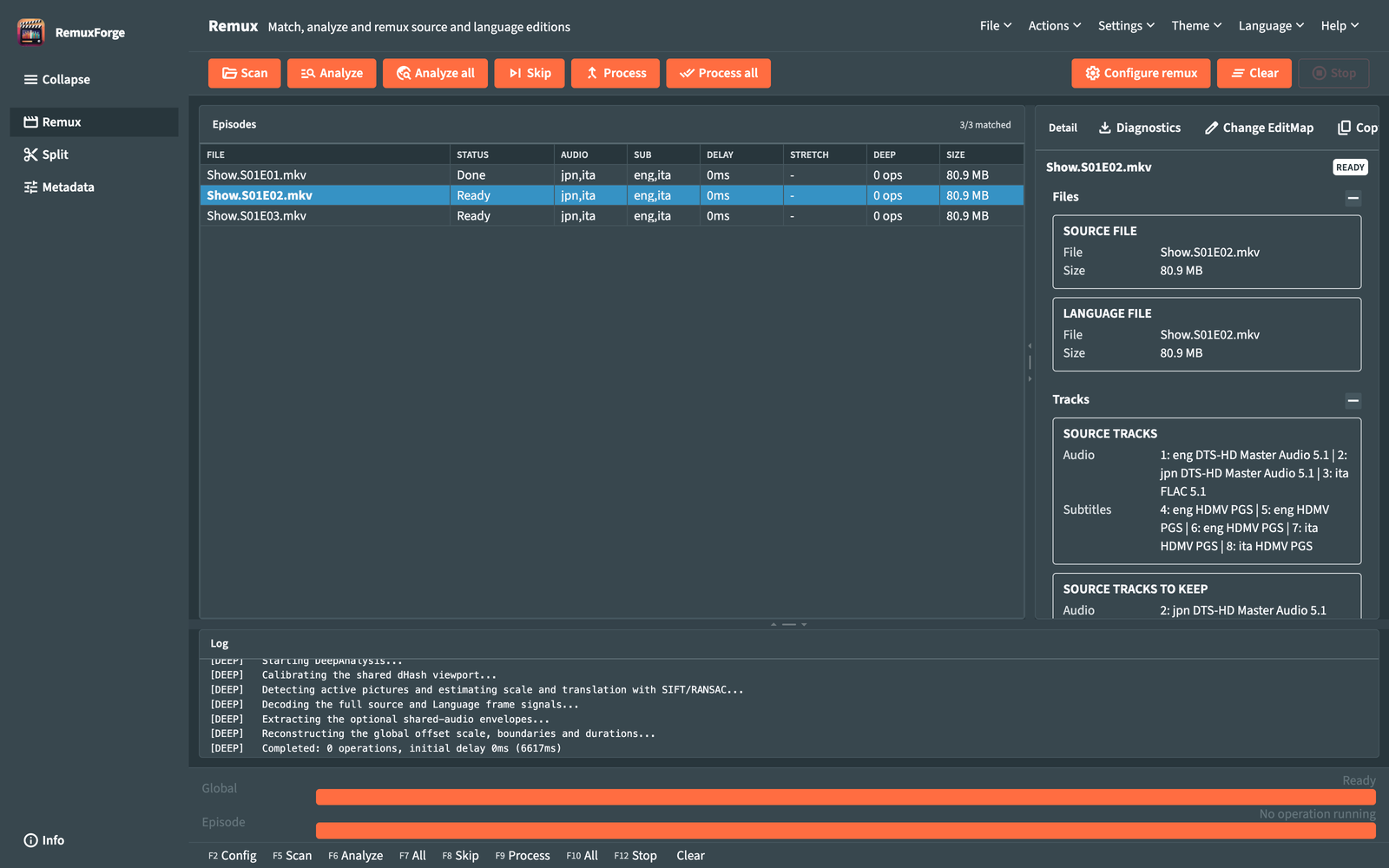
| Area | What it does |
|---|---|
| Mode bar (left edge) | Switches between Remux, Split and Metadata, and opens Info. Collapse shrinks it to icons; Expand brings the labels back. In a window narrower than 1000 pixels the bar shows only the icons and Collapse/Expand is hidden. RemuxForge reopens the last mode you used. |
| Menu bar (top) | File, Actions, Settings, Theme, Language, Help. The File, Actions and Settings items change with the mode. When a new version is out, a badge next to the menu links to its release page. |
| Toolbar | The most used commands of the current mode as buttons, for example Scan, Analyze, Process, Stop. |
| Work area | The list of files or episodes on the left and the Detail panel of the selected row on the right. Drag the divider to resize them. In a window narrower than 1000 pixels the two are stacked. The columns of the lists follow the width of their pane, without horizontal scrolling: a text that does not fit ends with an ellipsis and shows in full when you point at it. After you resize a column by hand, the list can scroll sideways again. |
| Log | Every step of the current operation, including the exact commands sent to MKVToolNix and FFmpeg. You can select and copy the text. Long lines wrap. Drag the divider above it to make it taller. |
| Progress | Two bars: Global for the whole batch and Episode for the current file. When nothing runs it shows Ready and No operation running. |
| Shortcut bar (bottom) | The commands of the current mode with their keys. Each entry is also a button. |
Each mode keeps its own file list, settings and log while you switch to another mode.
Every mode follows the same rhythm: configure, scan, analyze, process.
- Configure: tell RemuxForge which files to use and what to do. Remux and Split use a guided window (a wizard); Metadata uses the toolbar above its file list.
- Scan: RemuxForge finds the files. Remux pairs them, Split prepares a plan for each file.
- Analyze: RemuxForge works out exactly what will happen to every file and shows it in the Detail panel. Files stay untouched.
- Process: RemuxForge writes the results. Selected commands work on the highlighted rows, All commands on the whole list.
The wizards of Remux and Split combine steps 1 and 2: their last button applies the configuration and scans straight away.
| Menu | Items |
|---|---|
| File | Clear · Configure remux (F2) |
| Actions | Scan files (F5) · Analyze selected (F6) · Analyze all (F7) · Skip/Unskip (F8) · Process selected (F9) · Process all (F10) · Stop (F12) |
| Settings | Tool paths · AI · Audio · Advanced settings · Encoding profiles |
| Menu | Items |
|---|---|
| File | Clear · Split configuration (F2) |
| Actions | Scan input (F5) · Analyze selected (F6) · Analyze all (F7) · Exclude from processing (F8) · Open in cut editor (F4) · Split selected (F9) · Split all (F10) · Join parts… · Stop (F12) |
| Settings | Tool paths · AI |
| Menu | Items |
|---|---|
| File | Clear (Ctrl+L) · Load preset... (F3) |
| Actions | Manual edit... (F4) · Scan input (F5) · Analyze (F6) · Apply selected (F9) · Apply all (F10) · Advanced rename (F11) · Stop (F12) |
| Settings | Tool paths · AI |
The Metadata toolbar also has Create preset with AI.
| Menu | Items |
|---|---|
| Theme | The ten Radzen themes: Default, Dark, Humanistic, Humanistic Dark, Material, Material Dark, Software, Software Dark, Standard, Standard Dark |
| Language | English · Italiano |
| Help | Info (version, license, repository, website, Discord, runtime, platform) · Licenses (the licenses of RemuxForge and its main libraries) |
Audio, Advanced settings and Encoding profiles apply to the whole application and appear in the Settings menu of Remux mode. All settings are described in Settings.
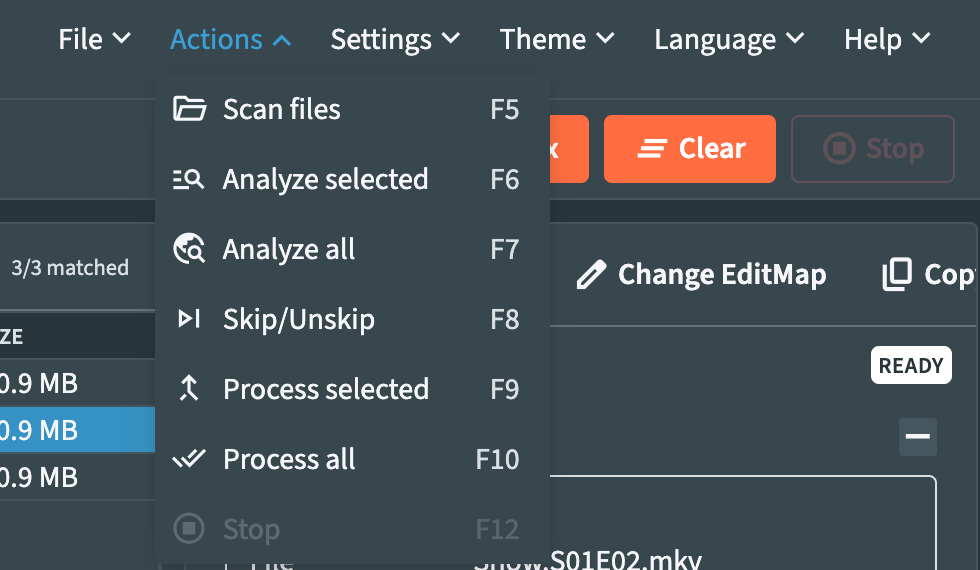
Escape closes the topmost window in every mode. A shortcut follows the state of its command: when the button is grayed out, the key waits too.
| Key | Remux | Split | Metadata |
|---|---|---|---|
F2 |
Configure remux | Split configuration | |
F3 |
Load preset... | ||
F4 |
Open in cut editor | Manual edit... | |
F5 |
Scan files | Scan input | Scan input |
F6 |
Analyze selected | Analyze selected | Analyze |
F7 |
Analyze all | Analyze all | |
F8 |
Skip/Unskip | Exclude / include | |
F9 |
Process selected | Split selected | Apply selected |
F10 |
Process all | Split all | Apply all |
F11 |
Advanced rename | ||
F12 |
Stop | Stop | Stop |
Ctrl+L |
Clear | ||
Enter |
Opens the row menu | Opens the row menu |
| Key | Remux | Split | Metadata |
|---|---|---|---|
↑ ↓
|
Move the selection | Move the selection | Move the selection |
Shift+↑ ↓
|
Extend the selection | Extend the selection | |
Ctrl+↑ ↓
|
Move the focus and keep the selection | Move the focus and keep the selection | |
Home / End
|
First / last row | First / last row | First / last row |
PageUp / PageDown
|
Ten rows up / down | ||
Space |
Adds or removes the focused row | ||
Ctrl+A |
Selects every row | Selects every row |
With the mouse, in Remux and Split: click selects a row, Ctrl+click (Cmd+click on a Mac) adds or removes a row, Shift+click selects a range. Right-click opens the row menu.
The configuration of Remux and Split opens in a wizard:
- Steps on the left. The current step is highlighted; a red mark shows a step with something to fix. Click a step to jump to it.
-
Fields in the middle. A field marked
*is required. - Help on the right. Hover or focus a field and its explanation appears here, with examples.
- Back and Next at the bottom. The last step shows a summary with an Edit button on each line, then the button that applies everything.
When something blocks the confirmation, a red box lists each item with an Edit button that takes you straight to the field.
Every path field has a Browse button that opens the file picker:
- The path bar at the top accepts typed or pasted paths and suggests matching folders as you type.
-
Locations on the left lists the starting points: the drives on Windows,
/and the mounted volumes on macOS,/on Linux. - The list shows Filename, Size, Modified and Type; folders show
<Directory>. Click a column header to sort by it. - Find at the bottom filters the list as you type.
- Double-click a folder to open it, or a file to pick it. The buttons next to the path bar go Back, Up one level, to the Root (This PC on Windows,
/elsewhere), and Refresh the list. - The confirm button reads Select folder, Select file or both, depending on what the field accepts.
With Docker, the picker shows the folders inside the container; see Docker.
Short messages appear in the top corner: a finished batch, warnings found in a plan, an error. The log keeps the full story, including the reason an episode was skipped and the warnings of each file. The messages are explained in Troubleshooting.
Stop (F12) asks the running operation to stop at the next safe point. The current file is completed, or left with nothing half-written, and the batch ends. Files already finished stay in place; the log reports how many completed.
In the Desktop app, closing the window stops running work in the same safe way before RemuxForge exits. With the WebUI, closing the browser tab leaves the server running; stop it from the terminal where it runs.