Repository navigation
Split Workspace
Prepare and review in the Split wizard finds the source files and prepares a cut plan for each one. This page covers what follows: the plan review, the file list, the File detail panel and the split itself.
Before the first configuration the Split screen shows Prepare a new split with a Configure split button.
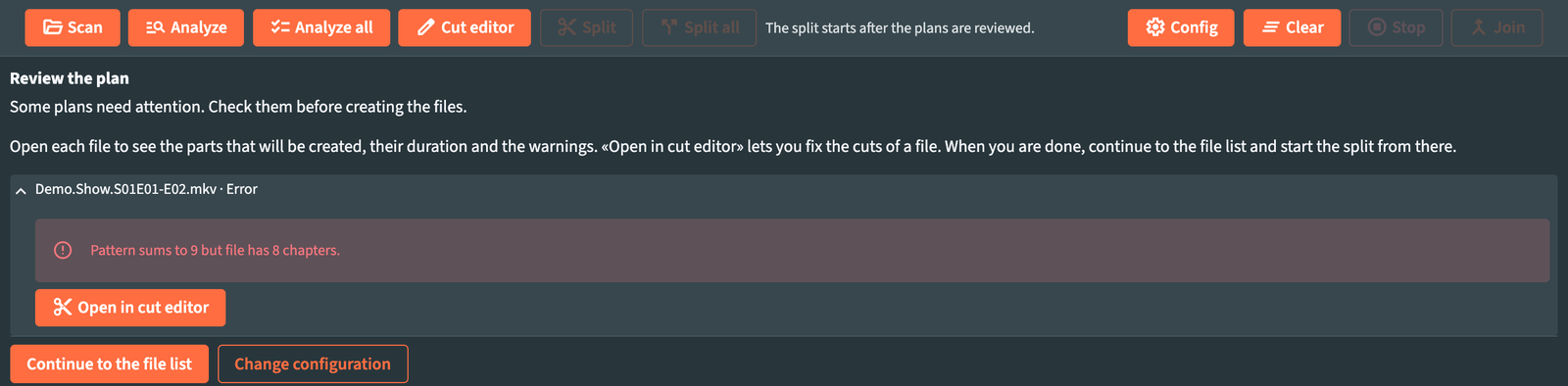
The review appears as Review the plan at the top of the Split screen, above the file list. While RemuxForge works, it shows its progress: Finding source files…, then Preparing the cut plans….
When every plan is ready and clean, you go straight to the file list. When a plan needs attention, the review stays in place with the message Some plans need attention. Check them before creating the files. Split and Split all wait until you continue to the file list. Each file is a collapsible entry, marked with its outcome, with:
- every output file: name, duration, number of segments and full path;
- for each segment, its range in the Source and its place In file;
- the warnings and errors of the plan;
- Open in cut editor, to fix the cuts of that file in the Cut editor.
Buttons at the bottom:
| Button | What it does |
|---|---|
| Continue to the file list | Closes the review and shows the workspace, where you start the split. |
| Change configuration | Reopens the wizard. |
| Close | Appears when the source had no supported video files, or the preparation stopped. |
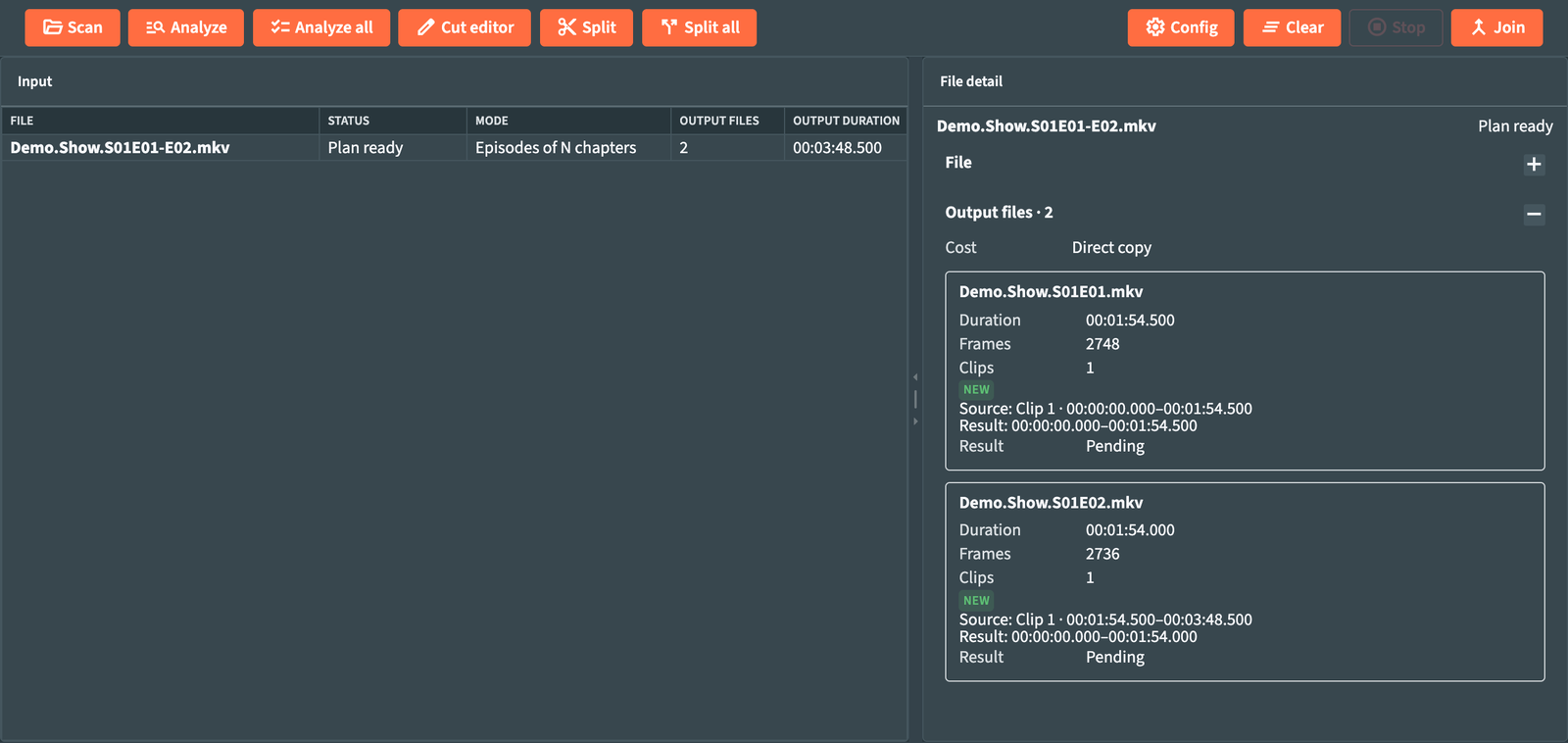
| Column | Shows |
|---|---|
| File | The source file. |
| Status | See below. |
| Mode | The cut mode of the plan. Manual segments marks a file with its own parts from the cut editor. |
| Outputs | How many files the plan creates. |
| Output duration | Total length of the outputs. |
| Plan outcome | Direct copy, Re-encode N frames, or Not executable. |
| Warnings | Warnings found in the plan. |
| Existing outputs | Outputs that already exist in the destination. |
| Warning / error | The latest message of the file. |
| Status | Meaning |
|---|---|
| To define | Manual mode: build the parts in the cut editor. |
| Pending | Listed, plan not built yet. |
| Analyzing... | Building the plan. |
| Plan ready | The plan is valid and ready to split. |
| Invalid plan | The plan cannot run; the reason is in the detail panel. |
| Running | Creating the files. |
| Done | Files created. |
| Error | The split of this file failed; the reason is in the detail panel and in the log. |
| Stopped | The batch stopped before this file. |
| Skipped | Excluded from processing. |
| Command | What it does |
|---|---|
Analyze selected (F6) / Analyze all (F7) |
Rebuilds the plan of the selected files or of all files. |
Exclude from processing (F8) |
Leaves the selected files out of the split; the same command includes them again. |
Split selected (F9) / Split all (F10) |
Creates the files. |
Open in cut editor (F4) |
Opens the selected file in the Cut editor. On the toolbar and in the shortcut bar it reads Cut editor. |
| Join parts… | Opens Join parts. |
Stop (F12) |
Stops after the current safe point. |
Right-click a file, or press Enter, for its menu: Analyze selected, Split selected, Exclude from processing / Include in processing, Open in cut editor, Back to global configuration. The last one discards the manual parts of the file and returns it to the wizard's rules.
Scan input (F5) searches the source again. Files with manual parts keep them when they are unchanged; RemuxForge asks before discarding the parts of files that changed or disappeared.
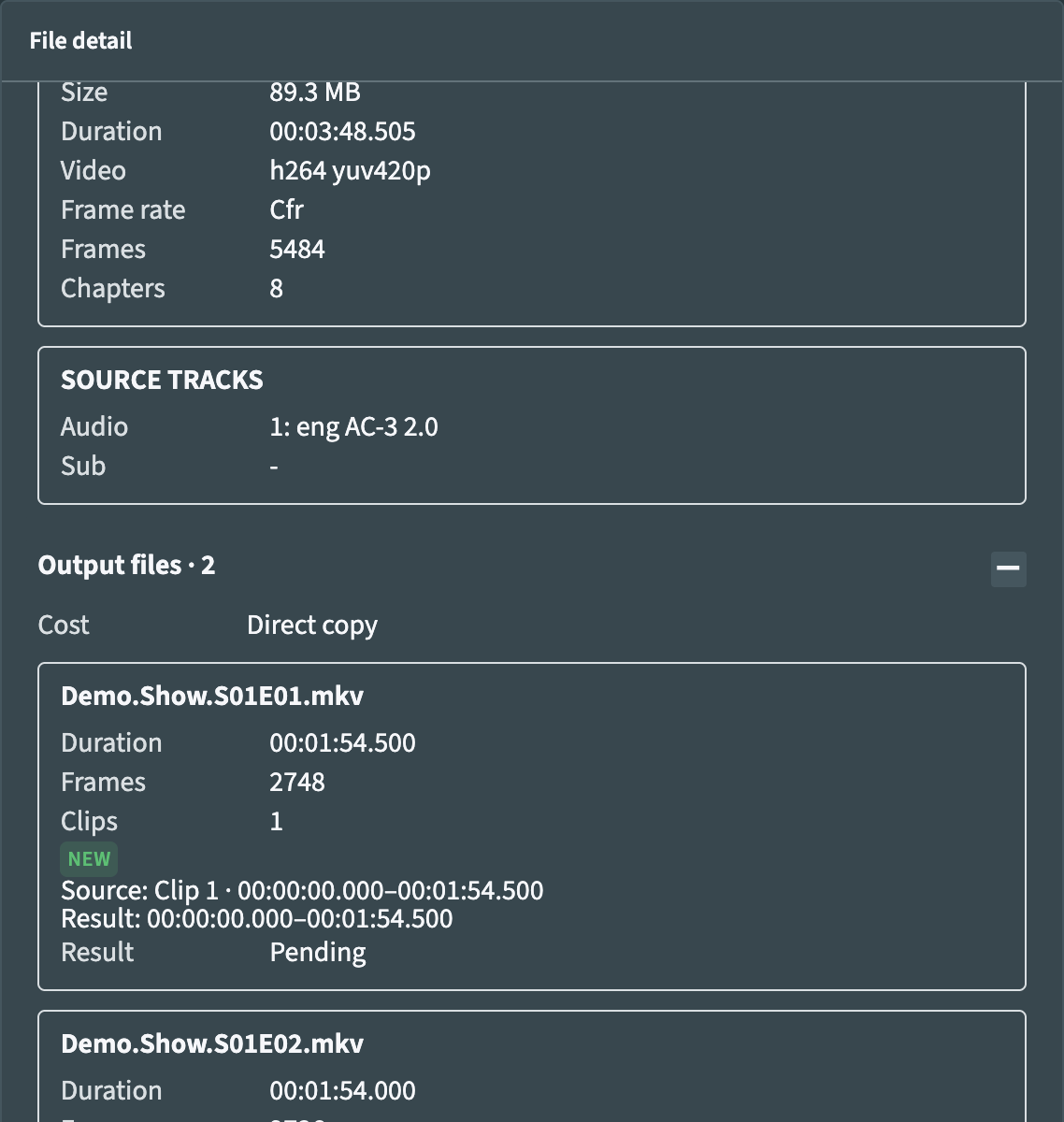
Select a file to see its detail. Each section folds open and closed.
| Section | Contents |
|---|---|
| File | Path, size, duration, Video codec, Frame rate mode, Frames, Chapters, and the source tracks (Audio, Sub). |
| Output files | The number of outputs in the title, the Cost of the plan (Direct copy or Re-encode N frames) and its warnings. Then one card per output: name, Duration, Frames, number of Segments, what happens to an existing file (New, Exists, will be skipped, Exists, will be overwritten), and for each segment its range in the Source and its place In file. Result shows the outcome of the file: Pending until the split, then Completed, Existing file skipped, Failed, Cancelled. Errors and warnings of the plan close the section. |
A file without a plan shows File not analyzed yet with an Analyze selected button.
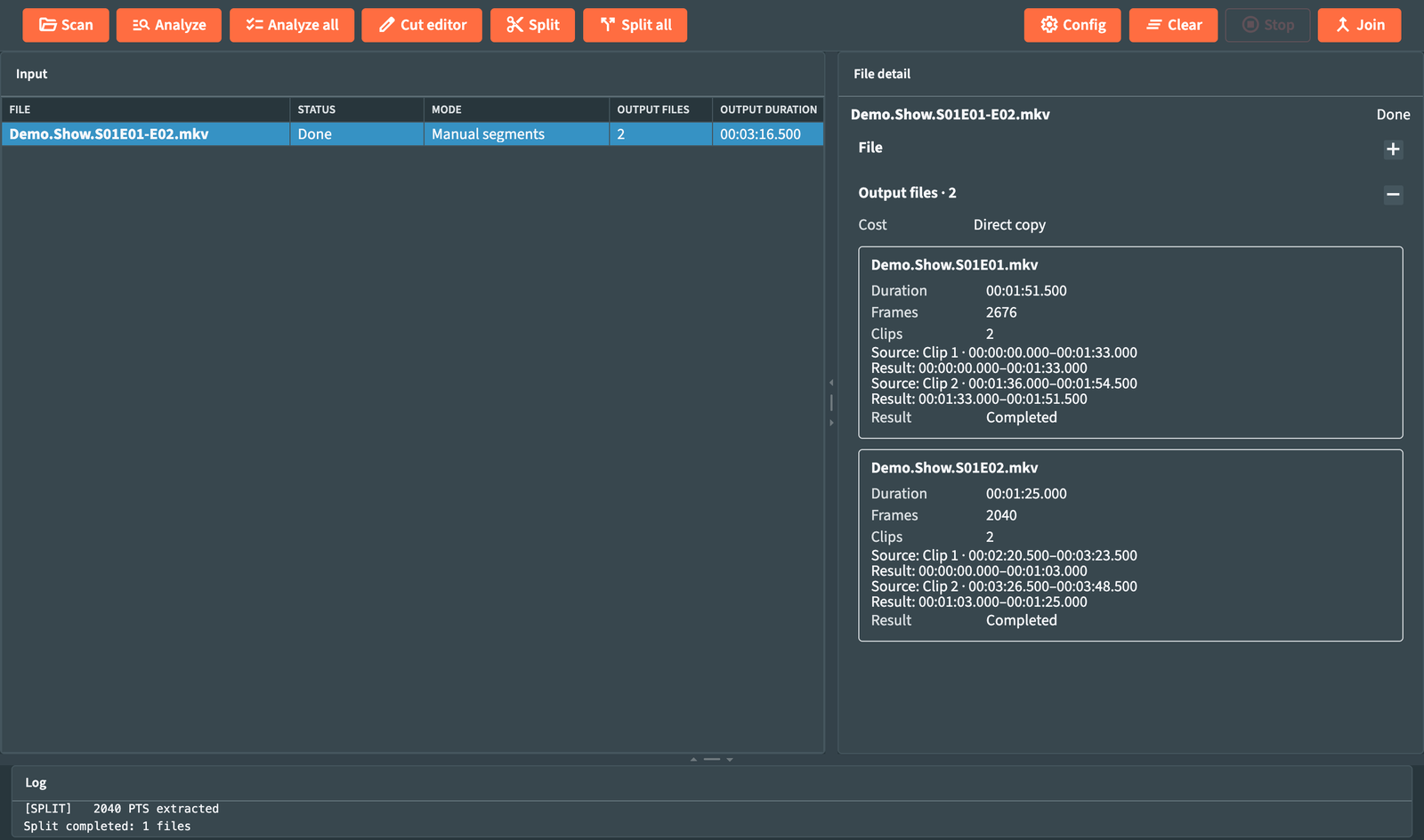
After the split, each file shows Done, the log ends with Split completed, and every output card reads Result: Completed:
| Element | Behavior |
|---|---|
| Video | Copied as it is; with Frame exact (re-encodes), only the frames next to a cut are re-encoded, with the same codec as the source and the Re-encode quality and Re-encode speed of the wizard. The result is always an MKV file. |
| Frame timing | Preserved, variable frame rate included. |
| Audio and subtitles | Cut to the same range as the video. |
| Chapters | Each part keeps the chapters that fall inside it, with their names and languages. |
Each output is written in a hidden .remuxforge-split-… folder next to its destination and moved to its final name only when it is complete and checked, so a stopped or failed split never leaves a half-written file under the final name. Next to the destination, keep free space for at least twice the size of the largest output: its pieces and the finished file sit there together until the move. A source that is not MKV also needs room in the temp folder for one temporary MKV copy, and Frame exact cuts of H.264, H.265 and MPEG-2 for a copy of the video track. Files are processed one at a time, so the space does not grow with the size of the batch.
The outputs of a file are independent: when one fails, the others are still written, and at the end the log lists the outputs that failed. Before writing, RemuxForge checks that a source that is not MKV still gives the same frames as when it was analyzed; if it changed, its outputs fail and the file has to be analyzed again.