Repository navigation
Remux Workspace
After Confirm and scan in the Remux wizard, the Remux screen shows the episode list on the left and the Detail panel on the right. Here you analyze each pair, check the planned result and write the files.
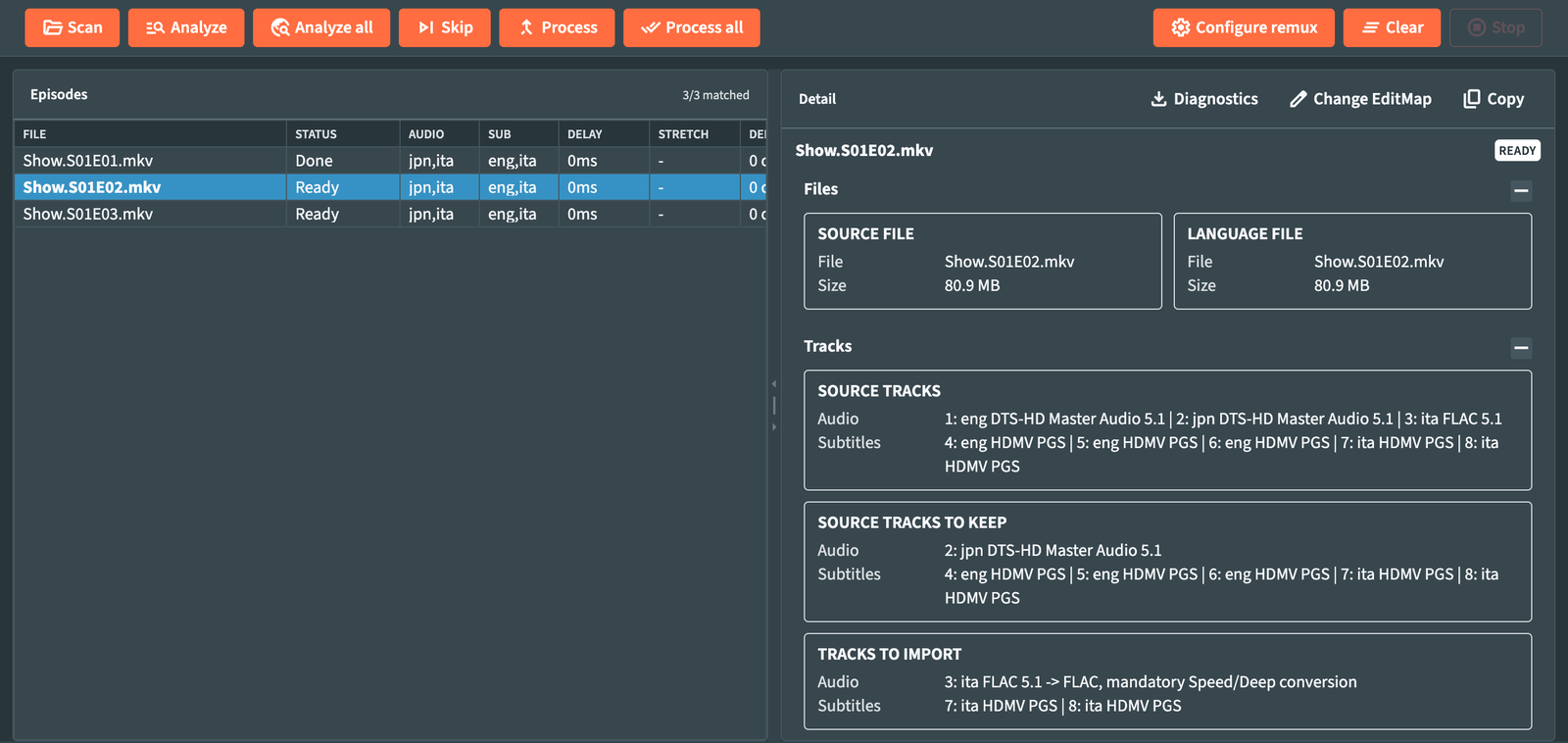
Before the first configuration the screen shows Prepare a new remux with a Configure remux button. Clear (File menu or toolbar) empties the list and returns to that starting point; your files stay untouched.
-
Analyze: Analyze selected (
F6) or Analyze all (F7). RemuxForge reads the tracks of each pair, works out the final layout and, with Automatic sync or Edit alignment, measures the synchronization. This is the slow step when pictures are compared. - Review: click an episode and read the Detail panel. FINAL RESULT lists the tracks of the finished file.
-
Process: Process selected (
F9) or Process all (F10) writes the results.
Skip/Unskip (F8) leaves the selected episodes out of the batch, and brings them back.
Selection works like in a file manager: click, Ctrl+click, Shift+click, Ctrl+A, and the arrow keys with Shift. Selected commands act on every highlighted row, so you can analyze or reprocess a few episodes without running the whole season again. The full list of keys is in Interface overview.
The header shows Episodes with the count of matched pairs, for example 3/3 matched.
Episodes that have more than one file on the same side, and files that would write the same output, are skipped: the log names them together with the files in conflict. See How matching works.
| Column | Shows |
|---|---|
| File | The Source file of the pair. |
| Status | Where the episode is in the workflow, see below. |
| Audio | Audio languages of the result. |
| Sub | Subtitle languages of the result. |
| Delay | Audio delay applied, in milliseconds. |
| Stretch | Speed correction factor applied. |
| Deep | Cut and insert operations of Edit alignment. N proposed means operations found but left unapplied. |
| Size | Size of the Source file. |
Audio, Sub, Delay, Stretch and Deep reach their final values after the analysis.
| Status | Meaning |
|---|---|
| Pending | Paired, waiting for analysis. |
| Analyzing... | Analysis running. |
| Ready | Analyzed and ready to process. |
| Merge... | Writing the result. |
| Encoding... | Re-encoding the video with the chosen profile. |
| Done | Finished. |
| Error | Something failed: the reason is in the Detail panel and in the log. With Automatic sync or Edit alignment, this includes interlaced video and a file whose scan type MediaInfo cannot read. |
| Skipped | Left out of the batch: no matching Lang file, episode not recognized in the name, no Lang track for the chosen languages, or excluded with F8. |
Select an episode to see its full report. Sections appear as they become relevant:
| Section | Contents |
|---|---|
| SOURCE FILE / LANGUAGE FILE | Paths and sizes of the pair. |
| SOURCE TRACKS | Every track of the Source file. |
| SOURCE TRACKS TO KEEP | The Source tracks that go into the result. |
| TRACKS TO IMPORT | The tracks taken from Lang. |
| FINAL RESULT | Audio and subtitle layout of the finished file. |
| SYNCHRONIZATION | Delays, speed correction, the FrameSync offset with its confidence and checkpoints, the Edit alignment operations. |
| AUDIO PROCESSING | For each track, what is converted and why. |
| ENCODING | Profile, size before and after, reduction and time. |
| PROCESSING TIMES | Time of each stage. |
| RESULT | The file written. |
| ERROR / SKIPPED | The reason for a failure or a skip. |
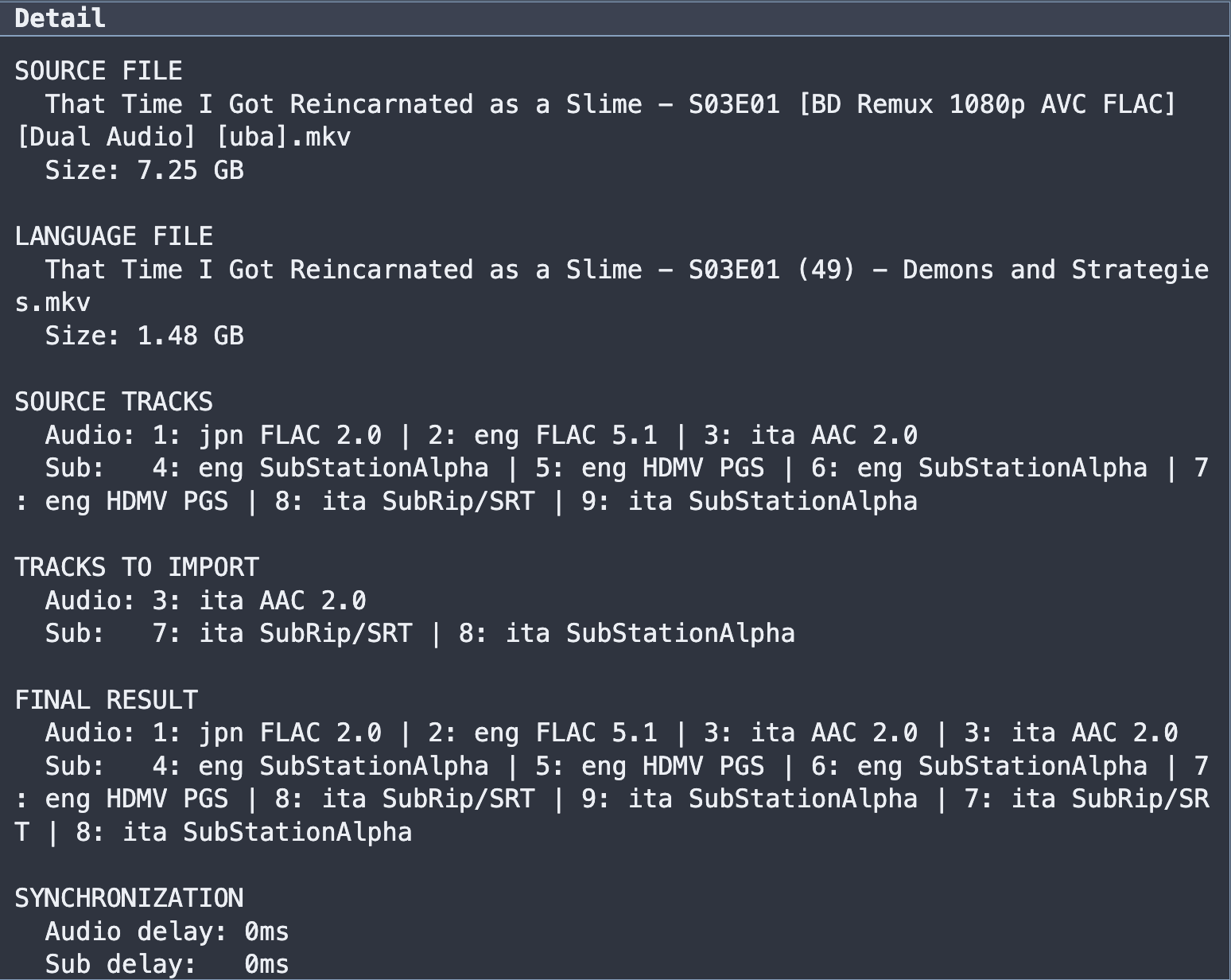
FINAL RESULT is the first section to check. When a language is missing there, look at the Tracks step of the wizard: languages to import, codec filters and the languages to keep.
The panel has three buttons:
- Change EditMap opens the EditMap editor, where you review and adjust the alignment of Lang against Source on a timeline. With Automatic sync the button reads Verify synchronization and opens the same view to check the measured delay.
- Copy copies the whole report.
- Diagnostics downloads a ZIP with the Edit alignment measurements of the episode. It appears when Per-episode Deep Analysis diagnostics is on in Settings ▸ Advanced settings.
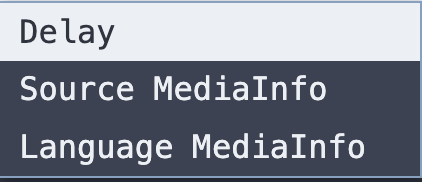
Right-click an episode, or select it and press Enter:
| Item | What it does |
|---|---|
| Delay | Opens the delay window for this episode. |
| Source MediaInfo | Full MediaInfo report of the Source file. |
| Language MediaInfo | Full MediaInfo report of the Lang file. |
| Result MediaInfo | Full MediaInfo report of the finished file, after processing. |
Result MediaInfo is the final check of a processed episode: track list, languages and flags as written.
Sets Audio delay (ms) and Sub delay (ms) for one episode, on top of the automatic synchronization. The window shows Auto sync offset and the resulting Effective delay, so you can correct a single episode and leave the rest of the batch as it is.
Configure remux (F2) reopens the wizard with the current settings. Confirming a change rescans the files and discards analyses that no longer match the new settings, so every processed file reflects the configuration it was analyzed with.