Repository navigation
Settings
The Settings menu holds the options that apply to every job. In Remux mode it shows Tool paths, AI, Audio, Advanced settings and Encoding profiles; in Split and Metadata mode it shows Tool paths and AI. The settings are shared by all modes, so a change made in one mode applies everywhere.
Theme and Language have their own menus in the menu bar.
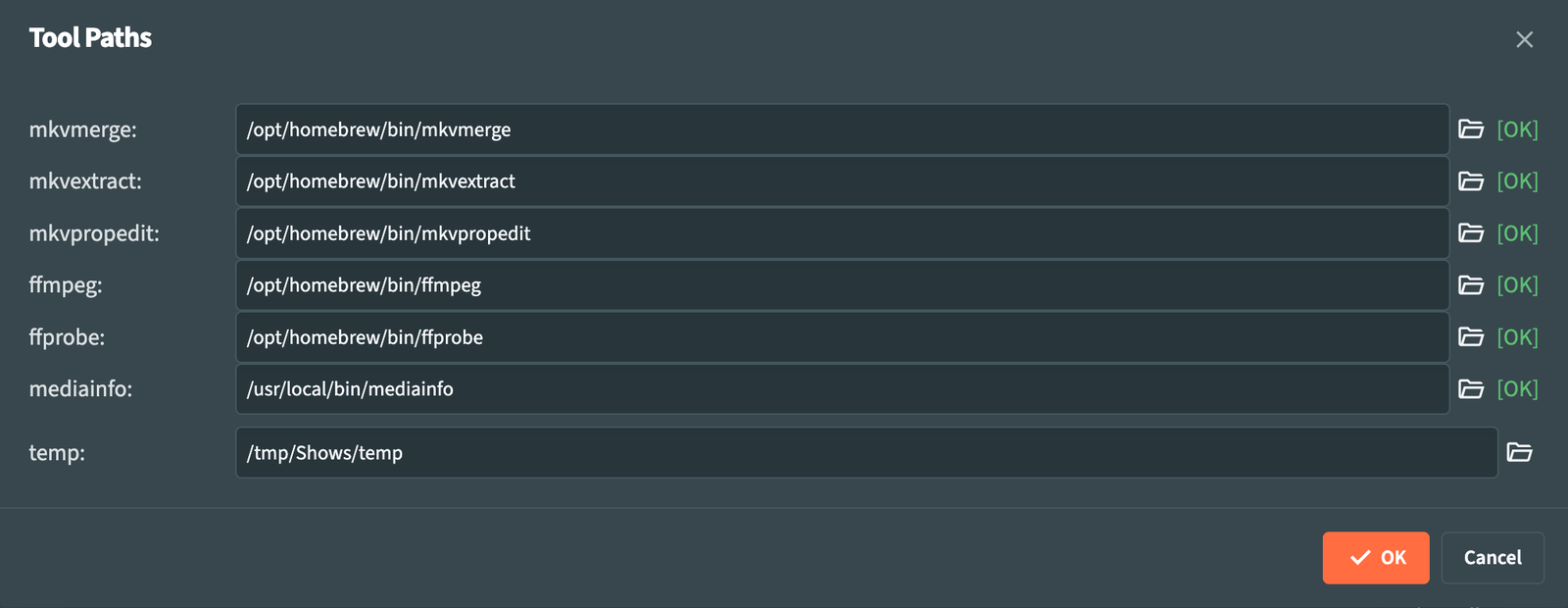
Tool Paths lists the helper programs RemuxForge uses, with the status of each one: mkvmerge, mkvextract, mkvpropedit, ffmpeg, ffprobe and mediainfo. RemuxForge finds them by itself at start-up, in the usual install folders and in the system PATH. Type a path, or use the folder button, to choose a specific copy.
| Status | Meaning |
|---|---|
[OK] |
Found and ready. |
[NOT FOUND] |
Not found: install the tool or enter its path. |
[CLI NOT FOUND] |
MediaInfo: the program found is the graphical version; RemuxForge needs the command-line one. |
[ERROR] |
The download of ffmpeg did not complete. |
When ffmpeg is missing, [ Download ] fetches a build for Windows or Linux and sets its path. On macOS, install it with Homebrew (brew install ffmpeg-full), as described in Deploy.
temp is the folder for intermediate files. Audio processing and Edit alignment write large files there, and Remux, Split and Join parts write there the temporary MKV copy of each MP4, AVI or M2TS source they read, so a fast disk with plenty of free space speeds them up. By default it is the temp folder inside the data folder.
OK checks the paths and saves them.
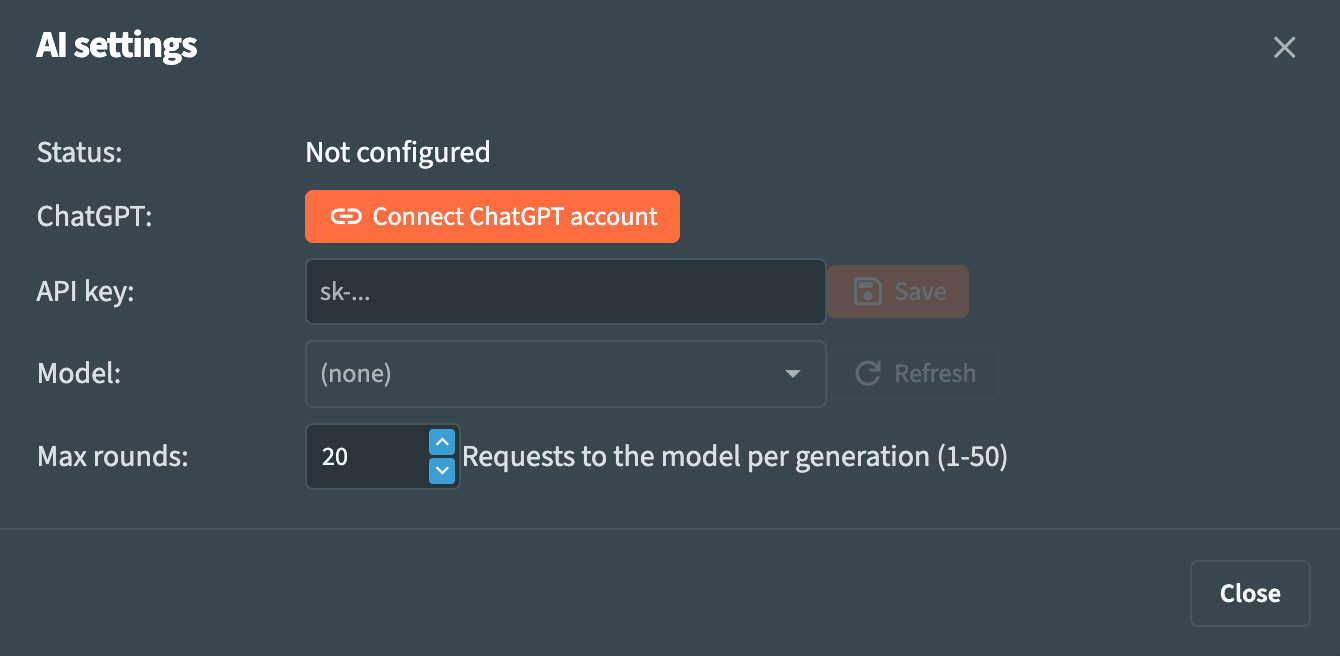
AI settings connects RemuxForge to OpenAI for the AI preset wizard of Metadata mode.
| Field | What it does |
|---|---|
| Status | Not configured, API key configured, or ChatGPT account connected with the account name. |
| ChatGPT | Connect ChatGPT account opens the OpenAI sign-in page; requests then count against your ChatGPT plan. Disconnect removes the connection. |
| API key | An OpenAI API key, as an alternative to the account; requests then count against the key's credit. Save stores it, Remove deletes it. |
| Model | The model to use. Refresh reads the models available to your account or key. |
| Max rounds | How many requests the wizard can send to the model for one preset, from 1 to 50. Default 20. |
The first time you connect an account or save a key, RemuxForge asks for consent and lists the data it sends to OpenAI, described in What is sent to OpenAI. Accept enables the AI features.
When the browser runs on a different device from RemuxForge, for example with RemuxForge in Docker on a server, the sign-in page cannot return to it by itself. After signing in, copy the address of the page that fails to load (it starts with http://127.0.0.1:) into Address after login and press Complete.
The credentials, the model and Max rounds are saved as plain text in ai-credentials.json in the data folder. On macOS and Linux only your user can read the file.
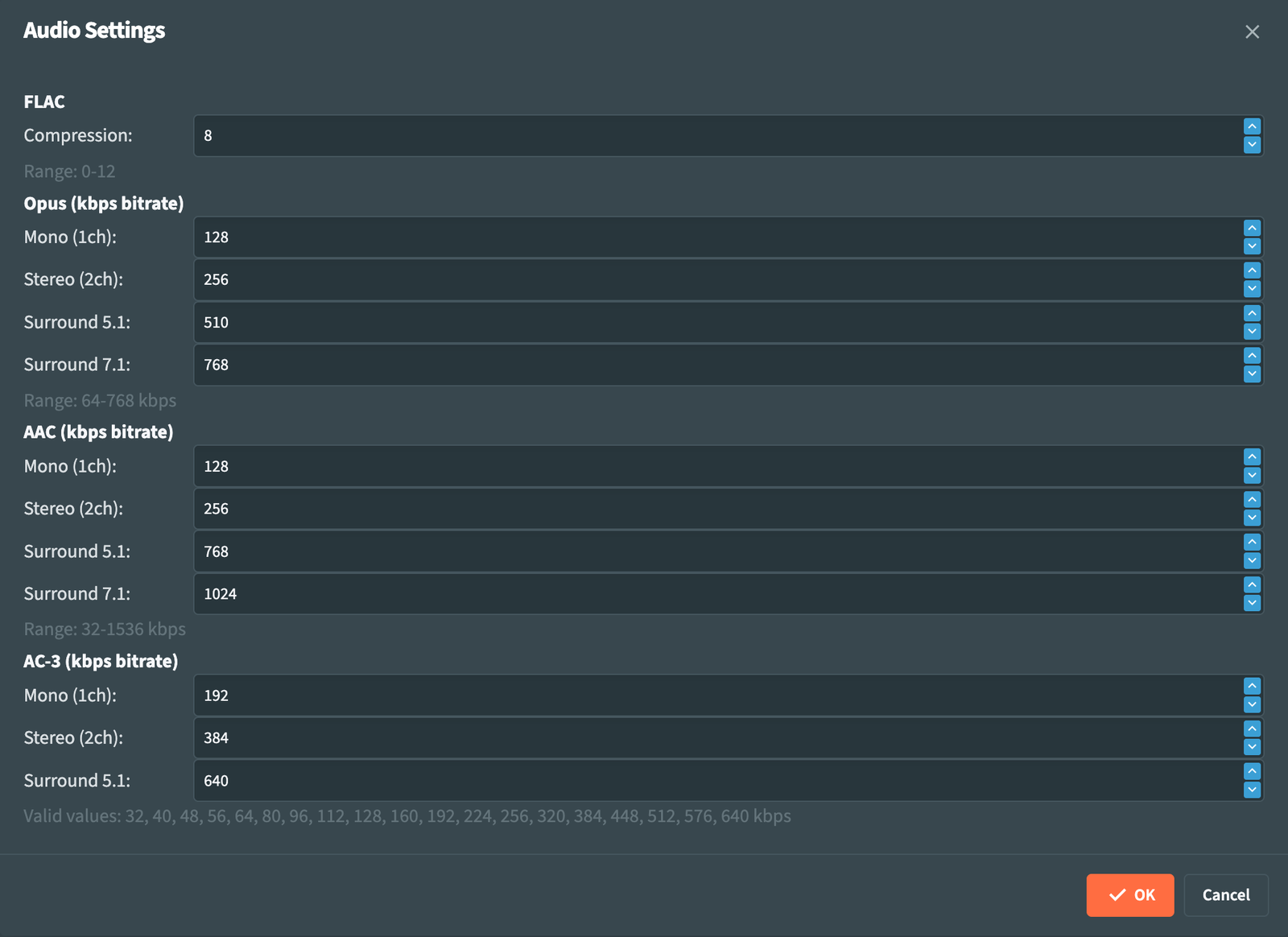
Audio Settings sets the quality of converted audio. Bitrates depend on the channel layout, so a stereo track and a 5.1 track in the same job each get a suitable value.
| Format | Setting | Range | Default |
|---|---|---|---|
| FLAC | Compression | 0-12 | 8 |
| Opus | Mono, Stereo, Surround 5.1, Surround 7.1 | 64-768 kbps | 128, 256, 510, 768 |
| AAC | Mono, Stereo, Surround 5.1, Surround 7.1 | 32-1536 kbps | 128, 256, 768, 1024 |
| AC-3 | Mono, Stereo, Surround 5.1 | Listed values | 192, 384, 640 |
AC-3 accepts these bitrates: 32, 40, 48, 56, 64, 80, 96, 112, 128, 160, 192, 224, 256, 320, 384, 448, 512, 576, 640 kbps. It covers layouts up to 5.1.
FLAC is lossless at every level: a higher level gives a slightly smaller file and takes longer to encode.
The format itself is chosen per job, in the Processing step of the Remux wizard.
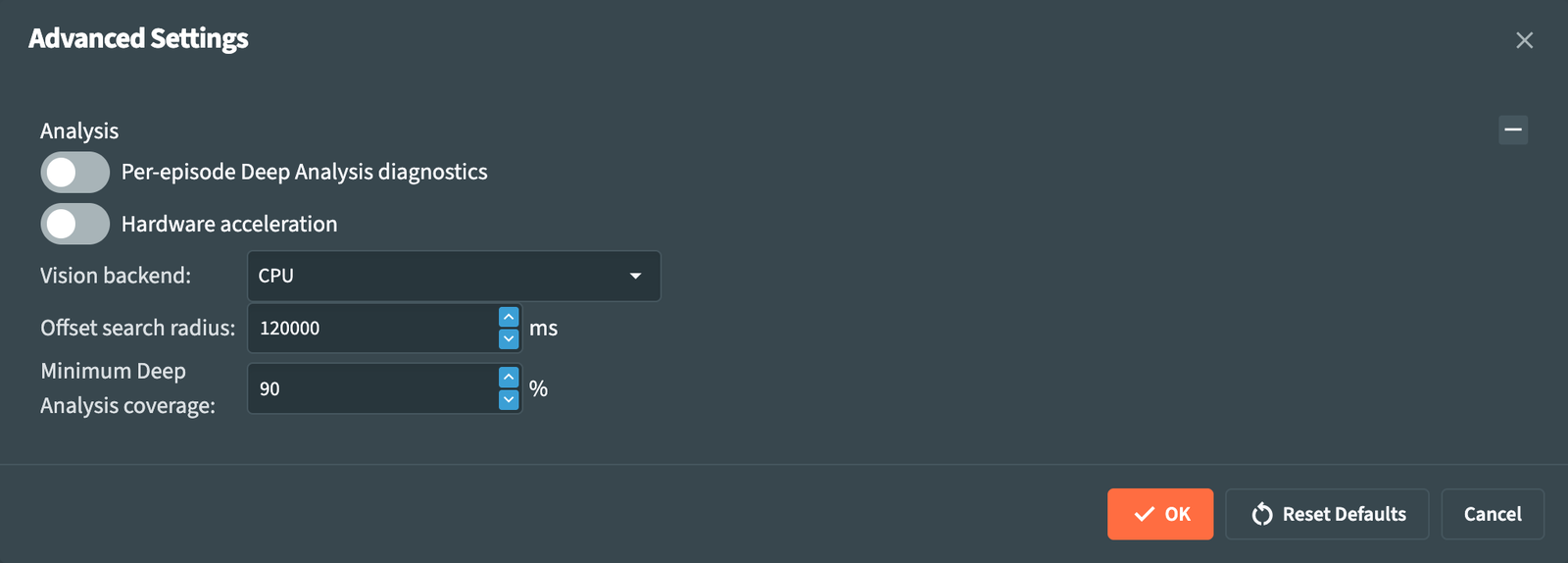
Advanced Settings has an Analysis section for the picture comparison of Automatic sync and Edit alignment.
| Field | What it does | Default |
|---|---|---|
| Per-episode Deep Analysis diagnostics | Saves the Edit alignment measurements of each episode. The Diagnostics button of the Remux workspace downloads them as a ZIP. | Off |
| Hardware acceleration | Decodes the video on the graphics card during analysis. Turning it on tests the methods ffmpeg offers on this machine; choose one in Hardware backend. | Off |
| Vision backend | CPU, or Vulkan to run picture matching and frame fingerprints on the graphics card. Choosing Vulkan tests the device and shows its name. | CPU |
| Offset search radius | How far, in milliseconds, Edit alignment looks for the matching frame around each point. From 5000 to 600000. A larger value finds scenes moved further apart and takes longer. | 120000 |
| Minimum Deep Analysis coverage | The share of the episode an EditMap must explain to be accepted. | 90% |
When a test fails, the dialog shows the reason and returns the field to its previous choice: CPU for Vision backend, off for Hardware acceleration.
Reset Defaults restores the values in the table. OK saves them.
Vulkan works with a graphics card and driver that support Vulkan; under Docker the device also has to reach the container, see Docker. Remux synchronization explains how these settings affect the analysis.
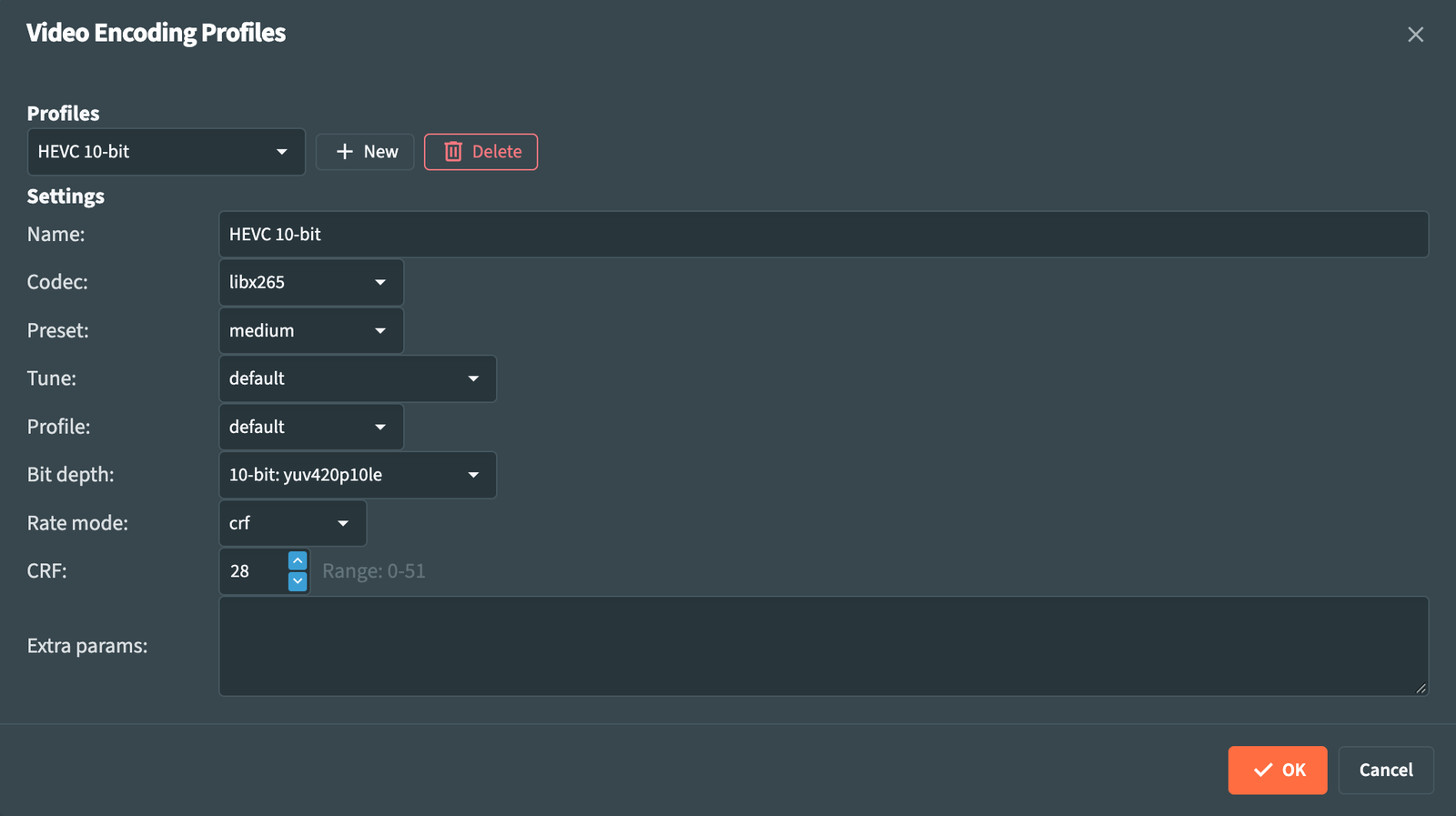
Video Encoding Profiles stores the settings for re-encoding the video. The Video encoding field of the Remux wizard offers these profiles by name; Create encoding profile opens this dialog.
Under Profiles, choose a profile from the list, New to create one, Delete to remove it. Under Settings:
| Field | libx264 (H.264) | libx265 (HEVC) | libsvtav1 (AV1) |
|---|---|---|---|
| Preset |
ultrafast to placebo; slower presets compress better |
ultrafast to placebo
|
0 to 13; 0 is the slowest and best |
| Tune |
default, film, animation, grain, stillimage, psnr, ssim, zerolatency, fastdecode
|
default, psnr, ssim, grain, zerolatency, fastdecode, animation
|
0 - VQ (Psychovisual), 1 - PSNR, 2 - SSIM
|
| Profile |
default, baseline, main, high, high10, high422, high444
|
default, main, main10 and the other HEVC profiles |
N/A |
| Bit depth | 8 and 10 bit, 4:2:0, 4:2:2 and 4:4:4 | 8, 10 and 12 bit, 4:2:0, 4:2:2 and 4:4:4 | 8 and 10 bit, 4:2:0 |
| Rate mode |
crf, bitrate
|
crf, bitrate
|
crf, qp, bitrate
|
| CRF / QP | 0-51, default 23 | 0-51, default 28 | 0-63, default 35 |
| Bitrate (kbps) and Passes | With bitrate; 1 or 2 passes |
With bitrate; 1 or 2 passes |
With bitrate
|
| Film grain | N/A | N/A | 0 (disabled) to 50, with Film grain denoise |
A lower CRF gives higher quality and larger files. Extra params adds encoder options for anything the dialog does not list.
RemuxForge encodes with these three software encoders. Hardware acceleration in Advanced settings applies to the analysis.
The Theme menu offers Default, Dark, Humanistic, Humanistic Dark, Material, Material Dark (the default), Software, Software Dark, Standard and Standard Dark. The Language menu switches the interface between English and Italian. Both choices are saved and restored at the next start.
RemuxForge keeps all its settings in one folder, .remux-forge:
| Edition | Location |
|---|---|
| WebUI and CLI | Next to the program, or inside the folder set by REMUXFORGE_DATA_DIR
|
| Desktop on Windows | %LOCALAPPDATA%\RemuxForge\.remux-forge |
| Desktop on macOS | ~/Library/Application Support/RemuxForge/.remux-forge |
| Docker |
/data/.remux-forge, in the /data volume |
Contents:
.remux-forge/
├── appsettings.json           every setting on this page, plus the remux presets
├── ai-credentials.json        AI connection, model and Max rounds
├── presets/metadata/          Metadata presets
├── temp/                      intermediate files (the default temp folder)
├── deepanalysis-diagnostics/  Edit alignment diagnostics, when turned on
└── framesync-diagnostics/     Automatic sync diagnostics, written by the CLI on request
The ffmpeg downloaded by [ Download ] is saved in the same folder. The WebUI and the CLI share the folder, so profiles, audio defaults and presets created in one are available in the other. Copying .remux-forge moves a complete configuration to another machine; then check Tool paths, which are specific to each machine.
The environment variables REMUXFORGE_DATA_DIR, REMUXFORGE_PORT, REMUXFORGE_LANG and REMUXFORGE_LOG_FILE are described in CLI.