Repository navigation
Remux EditMap Editor
The EditMap editor shows how the Lang audio lines up with the Source video for one episode, and lets you adjust it by hand. An EditMap is the list of operations that turns the Lang timeline into the Source timeline:
- a Cut removes a stretch of Lang that Source does not have;
- an Insert adds a gap where Source has a scene that Lang lacks (filled with silence, or with Source audio when Fill gaps with Source audio is on).
Edit alignment builds the EditMap automatically during analysis; the editor is where you review it and correct it. The concepts behind it are in Remux synchronization.
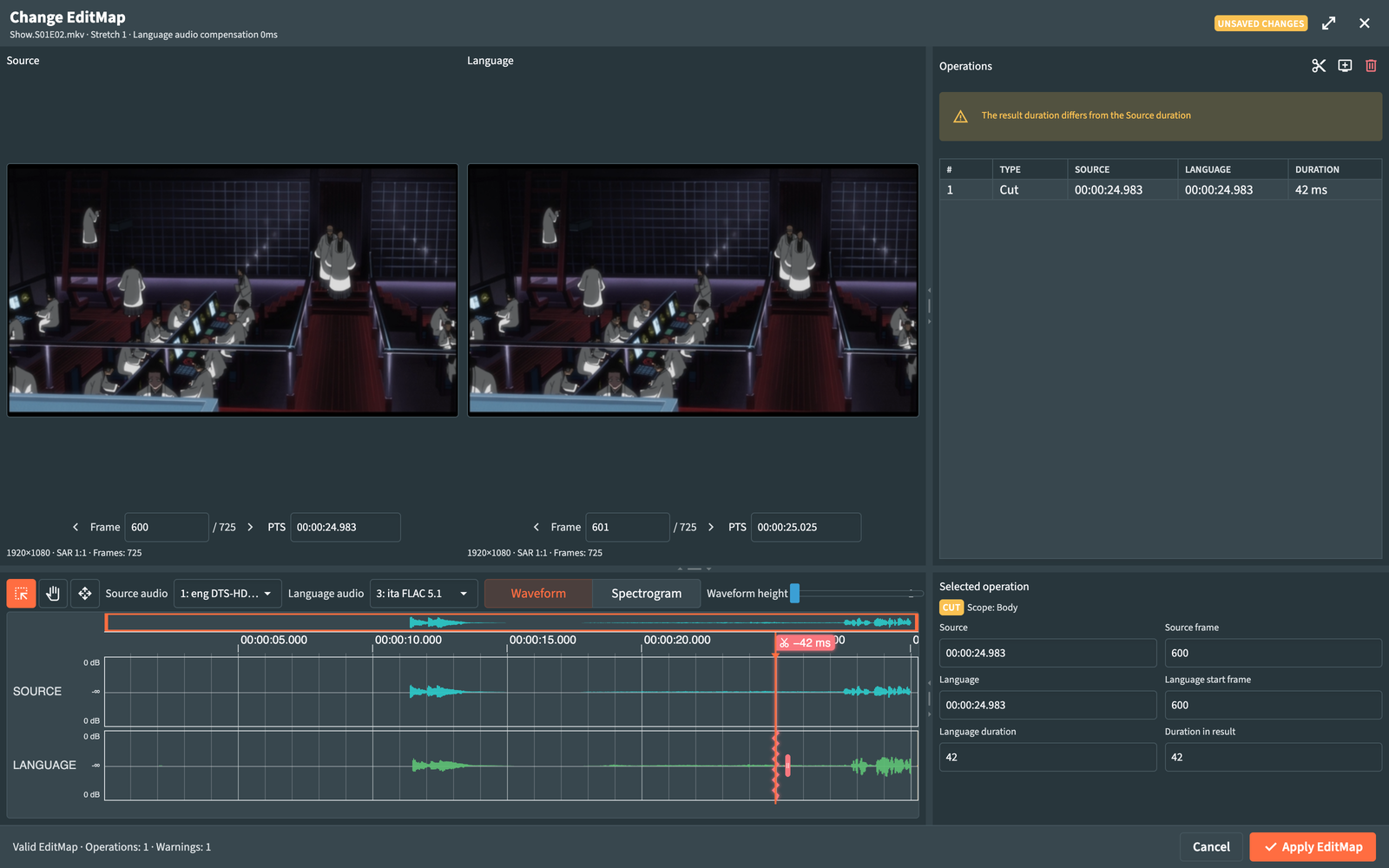
Select an episode in the Remux workspace and press Change EditMap in the Detail panel. It is available for pending, analyzed and failed episodes.
With Automatic sync, the same button reads Verify synchronization: the editor opens in a view-only mode titled FrameSync verification, with the measured delay, so you can compare frames and audio and confirm the result.
When the editor opens, RemuxForge indexes the frames of both files (Indexing, then Ready). The header shows resolution, aspect ratio and frame count of each file.
A Source or Lang file that is not MKV is remuxed into a temporary MKV when the editor opens; the editor reads it for the whole session and deletes it when it closes. If that temporary file disappears while the editor is open, the previews stop and a single notification, Editor session temporary file missing, asks you to close and reopen the editor.
Two panes show the Source frame and the matching Language frame at the cursor, each with its frame number and PTS. The arrow buttons step one frame back or forward on either side; holding a button keeps stepping. With the editor focused, ← and → step the Source frame, Shift steps ten frames at a time.
When a Source point has no counterpart in Lang (inside an Insert), the Language pane shows No matching Language frame.
The timeline shows Source audio and Language audio one above the other, aligned on the Source time, with the operations drawn as flags and regions.
| Control | What it does |
|---|---|
| Audio visualization | Waveform or Spectrogram. |
| Waveform height | Enlarges quiet audio to make boundaries easier to see. |
| Mouse wheel or trackpad pinch | Zooms around the pointer. Horizontal scrolling moves along the timeline. |
Timeline tools:
| Tool | What it does |
|---|---|
| Hand | Drag to scroll the timeline. |
| Selection | Click to move the cursor, drag to select a range, Shift+click to extend; drag the edges to resize the selection and the inside to move it. |
| Operations | Drag a flag, its line or an Insert region to move the operation; drag the handle to change its duration; click empty space to move the cursor. |
Right-click on the timeline offers Add Cut here, Add Insert here, Create Cut from selection, Create Insert from selection and, on an operation, Delete operation.
| Command | What it does |
|---|---|
| Add Cut | Creates a Cut from the selection, or at the cursor when the cursor has a matching Language frame. |
| Add Insert | Creates an Insert at the cursor when the cursor has a matching Language frame. |
| Delete | Deletes the selected operation. |
The operations table lists every operation with its Type (Cut or Insert), its position on the Source and Language timelines and its Duration.
Select a row to edit it in Selected operation. The panel shows the Scope, where the operation sits (Start, Body or End of the video), and the editable values: the Source frame or Language start frame, Language duration (the length a Cut removes from Lang), Duration in result (the length an Insert adds) and, for an Insert, Insert gain (dB), the volume of the Source audio used to fill it. Times accept ss, mm:ss or hh:mm:ss, with milliseconds after a comma or a dot, for example 1:30.250. Frame numbers go from 1 to the last frame.
The precision button opens the EditMap precision editor, a larger view of the selected operation for frame-exact adjustments; the same button returns to the full editor.
The editor checks the EditMap after every change. The status line reads Valid EditMap with the count of operations and warnings, or lists the structural errors. Rows with problems are marked, and each listed problem has an Edit button that selects the operation.
Apply EditMap validates the map and rebuilds the remux plan of the episode with it; the detail panel then marks it Manual edit. Close leaves the EditMap as it was. The status badge in the header reads Unsaved changes while edits are waiting to be applied.
Each problem message says how to fix the operation it marks; sync problems are covered in Troubleshooting.