Repository navigation
Split Wizard
Split turns one video file into several, or trims it. A disc with four episodes becomes four files; a recording with a long intro becomes the same recording without it. Video, audio, subtitles and chapters go into every part, and variable frame rate timing is preserved.
Configure split (F2) opens the wizard described on this page. It has five steps, and the help pane on the right explains the field under the mouse. The plan review and the file list that follow are on Plan review and workspace.
| Field | What it does |
|---|---|
File or folder to split *
|
A video file, or a folder. With a folder, every supported file found is split with the same rules. |
| Include subfolders | Also looks in the subfolders of the source folder. Available when the source is a folder. |
Split reads MKV, MP4, AVI and M2TS files (.mkv, .mp4, .m4v, .avi, .m2ts, .mts, .ts) and always writes MKV. A source that is not MKV is remuxed into a temporary MKV in the temp folder while it is analyzed, while the cut editor is open and while its parts are written, and deleted afterwards: keep free space there for a copy of the largest non-MKV source.
A folder batch suits a box set of discs with the same structure. All the files of a folder must have the same video codec and the same scan type, progressive or interlaced: otherwise the source is refused with the list of the files that differ. Each file gets its own plan, so a disc with a different chapter count shows up in the review with a warning or an error, and the others proceed normally.
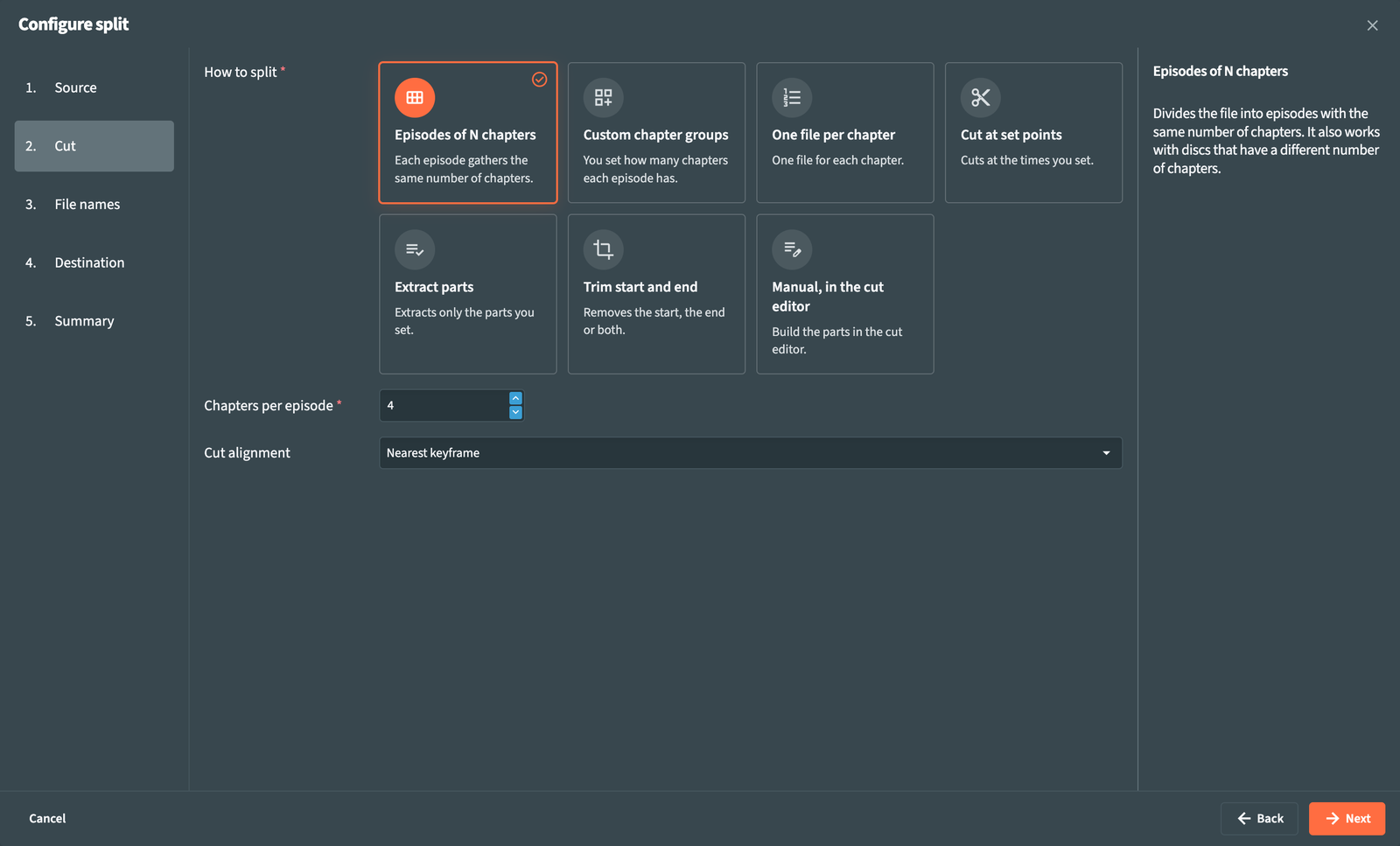
How to split offers seven cards. The fields below the cards change with the choice.
| Card | What it creates | Field |
|---|---|---|
| Episodes of N chapters | Episodes with the same number of chapters each. | Chapters per episode: the chapters in one episode. When the chapters do not divide evenly, the last episode collects the remaining ones and the plan points it out. |
| Custom chapter groups | Episodes with the chapter counts you list, in order. | Chapters of each episode: one row per episode, for example 5, 5, 5, 6. The total equals the chapter count of the file. |
| One file per chapter | One file for each chapter. | None. |
| Cut at set points | A new file at each point; two points give three files. | Cut points: one row per point. |
| Extract parts | One file for each part you define; the rest of the source is left out. | Parts to extract: one row per file, with Start and End. |
| Trim start and end | A single file with the part between two points. | Keep from and Keep until; at least one is required. Empty means the start or the end of the file. |
| Manual, in the cut editor | The parts you build by hand for each file. | None: after preparation each file shows To define; open it in the Cut editor to build its parts. |
Rows have Add row and a remove button each.
| Form | Example | Meaning |
|---|---|---|
hh:mm:ss |
00:21:40, 00:21:40.5
|
Hours, minutes and seconds |
mm:ss |
21:40, 21:40.5
|
Minutes and seconds |
| Seconds |
1300, 1300.5
|
A plain number of seconds |
f<frame> |
f31200 |
An exact frame number, counted from 0. F31200 is read the same way |
END |
END |
The end of the file. Accepted in End of Parts to extract and in Keep until |
Seconds accept decimals in every form, with . as the separator.
Times land on the right frame on variable frame rate content too, because RemuxForge maps them onto the real frame timestamps. A frame number is the most precise form when you read it from a frame-accurate player. The end of a part is exclusive: f0 to f31200 contains frames 0 to 31199, and the next part can start at f31200.
The CLI writes several parts as a list: see CLI.
| Choice | What happens |
|---|---|
| Nearest keyframe (default) | The cut moves to the keyframe closest to your point, and the video is copied as it is. Fast. |
| Previous keyframe | The cut moves to the keyframe before your point. |
| Next keyframe | The cut moves to the keyframe after your point. |
| Frame exact (re-encodes) | The cut lands exactly on your frame. RemuxForge re-encodes only the frames between the cut and the next keyframe, and at the end of a part the last frames when they depend on a frame beyond the cut, and copies the rest. It takes much longer. |
Chapter marks normally sit on keyframes, so chapter-based cuts stay exact with Nearest keyframe. Choose Frame exact (re-encodes) for a cut at a measured time in the middle of a scene. Two neighboring parts always share the same boundary, so frames are never lost or duplicated between them, apart from the open-GOP cuts on interlaced video described below.
Frame exact (re-encodes) depends on the video codec of the source, and the list shows it only when the codec allows it:
| Video | Cut alignment |
|---|---|
| H.264, H.265 (HEVC), MPEG-2, Xvid/DivX (MPEG-4 ASP), DivX 3, MS-MPEG4v2, H.263, AV1, VP9 | Every choice, Frame exact included |
| VC-1, any other codec | Keyframe choices only |
Interlaced video (Interlaced, MBAFF, PAFF or Mixed in MediaInfo), any codec |
Keyframe choices only |
The note under the field gives the reason when Frame exact is missing. When the source changes and Frame exact is no longer allowed, the choice goes back to Nearest keyframe.
On interlaced video a keyframe can open a GOP whose first frames depend on the previous one. A cut on such a keyframe is accepted with a warning in the plan and in the log: depending on the file, the boundary moves back by a few frames, which appear at the start of the next part, or those frames are lost.
With Frame exact (re-encodes) two more fields appear, for the codec of the source (or the codec shared by the files of the folder):
| Field | What it does |
|---|---|
Re-encode quality *
|
Quality of the re-encoded frames. Lower values give better quality and larger files. |
| Re-encode speed | Encoder speed for the re-encoded frames, for the codecs that have one. Slower settings compress better at the same quality. |
| Video | Quality: scale, range, default | Speed: setting, values, default |
|---|---|---|
| H.264, H.265 | CRF, 0-51, 14 | preset, ultrafast to placebo, medium
|
| AV1 | CRF, 0-63, 16 | preset, 0-13, 6 |
| VP9 | CRF, 0-63, 15 | cpu-used, 0-8, 2 |
| MPEG-2, Xvid/DivX, DivX 3, MS-MPEG4v2, H.263 | q, 1-31, 2 | none |
Reopening the wizard keeps the values you applied; choosing another source starts again from the defaults of its codec.
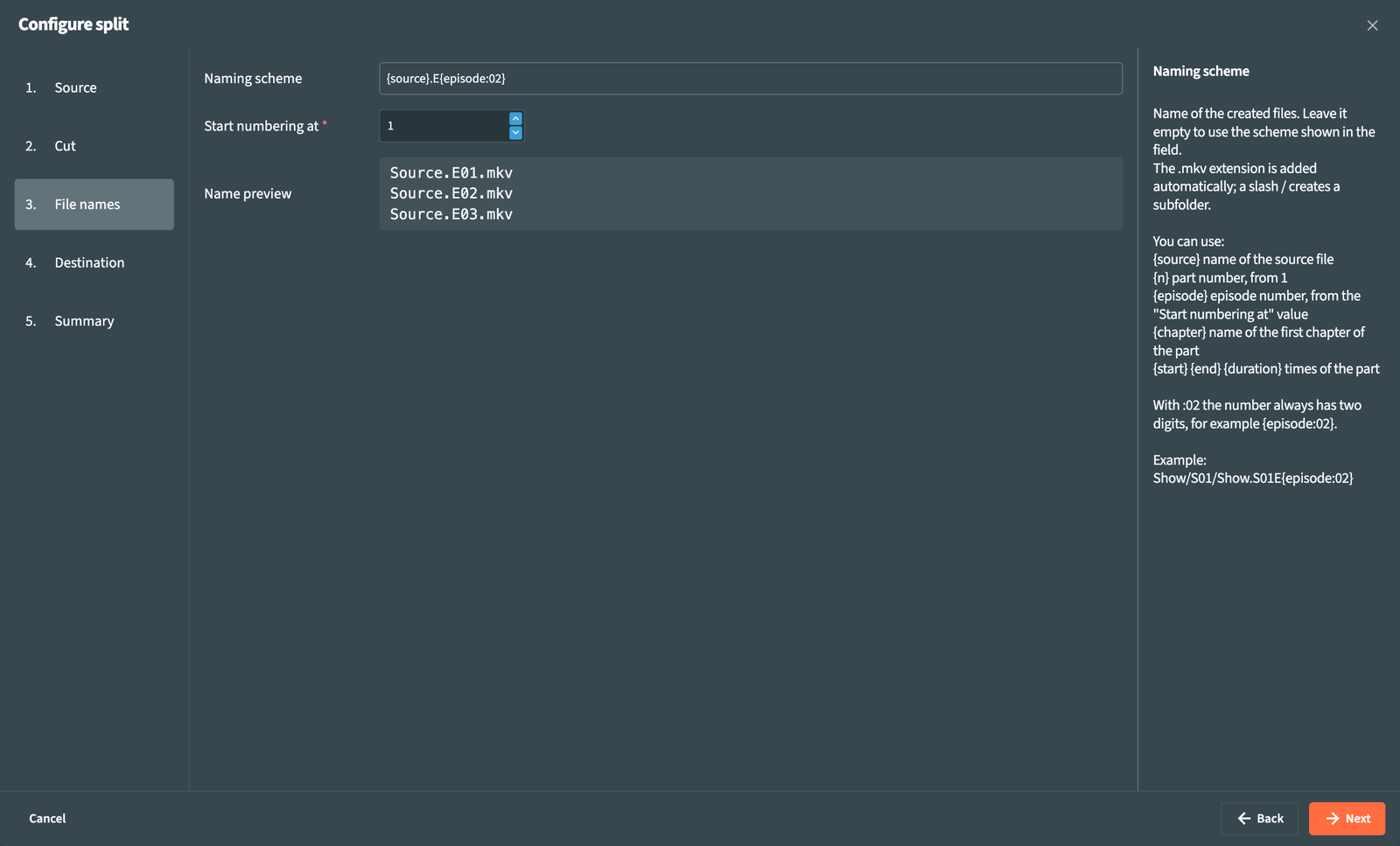
| Field | What it does |
|---|---|
| Naming scheme | Name of the created files. Empty uses the default scheme shown in the field. The .mkv extension is added automatically; a slash / creates a subfolder. |
Start numbering at *
|
First value of {episode}. Default 1. With 13, the first episode becomes E13 and the next ones follow. |
| Name preview | The names the scheme produces for three sample parts. |
Variables you can use:
| Variable | Value |
|---|---|
{source} |
Name of the source file, without extension. When the same folder holds another supported file with the same name, for example film.avi and film.mkv, the MKV keeps the plain name and the others keep their extension: film.part01.mkv and film.avi.part01.mkv
|
{n} |
Part number, from 1 |
{episode} |
Episode number, from Start numbering at |
{chapter} |
Name of the first chapter of the part |
{start} {end} {duration}
|
Times of the part, written as 00h21m40s
|
Add :02 to a number to write it with at least two digits: {episode:02} gives 01, 02 and so on, and 214 stays 214.
Default schemes:
| Card | Default |
|---|---|
| Episodes of N chapters, Custom chapter groups | {source}.E{episode:02} |
| One file per chapter | {source}.ch{n:02} |
| Trim start and end | {source}_trimmed |
| Cut at set points, Extract parts, Manual | {source}.part{n:02} |
Examples:
-
Show/S01/Show.S01E{episode:02}with Start numbering at 1 writesShow/S01/Show.S01E01.mkv,Show.S01E02.mkvand so on inside the destination folder. - A disc holding episodes 214 to 217:
Show.E{episode}with Start numbering at 214. - One file per chapter with its name:
{source}.ch{n:02} - {chapter}.
| Field | What it does |
|---|---|
| Destination folder | Where the created files go. Empty saves them next to each source file. With a source folder, its subfolders are recreated inside the destination. Join parts writes its file here too. |
| Overwrite existing files | On: files with the same name are replaced. Off: they stay as they are and their creation is skipped. The same choice applies to Join parts. |
RemuxForge refuses a name that would overwrite the source file itself.
The summary lists every choice with Edit to jump back to its step. Prepare and review finds the files and prepares a cut plan for each one. When a plan needs attention, the review opens; otherwise you go straight to the file list. Files are created only when you start the split.
Continue on Plan review and workspace.
- Plan review and workspace
- Cut editor · step by step
- CLI: the same cuts from the command line