Repository navigation
Remux Wizard
Remux combines two releases of the same content. Source is the release you keep: its video, and the audio and subtitle tracks you choose, go into the result. Lang is the release you take tracks from, for example a dub or a subtitle set. The result is:
Source video + the Source tracks you keep + the tracks imported from Lang
Source and Lang can be MKV, MP4, AVI or M2TS files (.mkv, .mp4, .m4v, .avi, .m2ts, .mts, .ts), in any combination. RemuxForge remuxes a file that is not MKV into a temporary MKV in its temp folder when the analysis compares the pictures (Automatic sync, Edit alignment, speed correction) and again when it writes the result, and deletes it at the end of each step: keep free space there for a copy of the non-MKV files of the largest pair, Source and Lang together. The result is always an MKV file.
Configure remux (F2) opens the wizard described on this page. It has six steps. The first two are always open; the others unlock after step 2 has read the files. The help pane on the right explains the field under the mouse.
For the reasons behind the synchronization choices, read Remux synchronization. What happens after the wizard is on Remux workspace.

| Field | What it does |
|---|---|
| Remux preset | Lists your saved presets. Load preset applies the chosen one after a confirmation; Delete removes it from the list. |
| Mux type | Three cards that decide how Lang lines up with Source. |
The three mux types:
| Card | Use it when |
|---|---|
| Simple mux: Merge tracks with the delays you set | The two releases are already in sync, or you know the offset in milliseconds. |
| Automatic sync: Finds and fixes the constant delay between the two versions on its own (FrameSync) | The dub starts a bit earlier or later, by the same amount through the whole episode. It also handles PAL/NTSC speed differences. |
| Edit alignment: Realigns versions with cuts or added and removed scenes (Deep Analysis) | One release has scenes cut, added or moved compared with the other. |
A preset stores the mux type and every reusable setting of the wizard: matching, languages, codecs, synchronization, processing and output choices. The paths of Source, Lang and Destination, Overwrite source and individual track choices stay with the current job.
The bar at the bottom of the wizard shows the active preset and marks it modified once you change something:
- Update saves the changes into the active preset.
- Save as… creates a new preset with a name you choose.
Presets work with By rules track selection; with Advanced batch selection the two buttons are grayed out. Presets are saved in the RemuxForge settings file, appsettings.json, and travel with it.

| Field | What it does |
|---|---|
Source file or folder *
|
The release to keep. A folder processes a whole season; a single file processes one episode. |
| Lang file or folder | The release to import from. Left empty, each Source file is paired with itself and the tracks are imported from the same file: useful to keep only some tracks of files you already have. A Lang folder equal to the Source folder counts as empty. With a single Source file, Lang is a single file too. |
| Include subfolders | Also looks in subfolders, for series organized by season. On by default. |
| Matching pattern | Recognises the episode in each file name and pairs Source and Lang files with the same episode. Default S(\d+)E(\d+), which reads names such as Show.S01E05.mkv. With a single Source file it is grayed out, because the two files pair directly. |
Read files and tracks (or Next) reads every file and shows the pairs: Source, Lang and the status of each pair, Matched, No matching Lang file or Episode not recognized in the name. After a change to these fields, Reread files and tracks refreshes the list.
MediaInfo first pair opens the full MediaInfo report of the first Source or Lang file, to check languages and codecs before going on.
The pattern is a regular expression applied to each file name, ignoring upper and lower case. The numbers it captures, joined with _, form the episode ID: Show.S01E05.mkv gives 01_05. Two files pair when their IDs are identical, compared as text, so S01E05 and S01E5 are different episodes. Patterns for other naming schemes, and how to align the numbering of the two releases, are in Codec and language reference.
The extension does not take part in matching. When Source and Lang are different folders and one of them holds the same episode twice, for example ep01.mp4 and ep01.mkv, the episode has no unique partner: RemuxForge skips it and names the conflicting files in the log. Files are skipped the same way when two of them would write the same output file, for example ep01.mp4 and ep01.avi, which both become ep01.mkv.
Track selection offers two ways to choose the tracks.
Picks tracks by language and codec, the same way for every episode. This is the mode presets save.
Import from Lang
| Field | What it does |
|---|---|
Languages to import *
|
Audio and subtitle languages to take from Lang. Type a name or a code, for example Italian or ita, and pick from the list. |
| Audio codec | Imports only Lang audio with these codecs, for example E-AC-3 or DTS-HD MA. Empty imports every codec of the chosen languages. |
| Subtitles only | Imports subtitles and leaves the Lang audio out. |
| Audio only | Imports audio and leaves the Lang subtitles out. |
Keep from Source
| Field | What it does |
|---|---|
| Audio languages | Source audio languages to keep. Empty keeps every Source audio track. |
| Audio codec | Keeps only Source audio with these codecs. Empty keeps every codec. |
| Subtitle languages | Source subtitle languages to keep. Empty keeps every Source subtitle. |
The codec names and their aliases, for example DD+ for E-AC-3, are listed in Codec and language reference.
Example: an English release with Japanese and English audio, plus an Italian dub release. Languages to import = Italian, Audio languages = Japanese. The result has the Japanese audio of Source, the Italian audio and Italian subtitles of Lang, and every Source subtitle, because Subtitle languages is empty.

Shows every track of the batch, grouped by origin, language, codec, channels, title and flags, and lets you choose group by group. It becomes available once the tracks of every file have been read without errors.
For audio and for subtitles there are two tables:
- Tracks in the result: what the finished files will contain. Source groups have an Exclude button (and Restore to bring them back); Lang groups have Delete.
- Available from Lang: every Lang group. Copy to result adds it to the result.
Columns: Origin (Source or Lang), Lang, Codec, Ch (audio channels), D / F (default and forced flags), Title, Coverage (in how many pairs the group exists; PARTIAL marks a group missing from some pairs) and Action.
Below the tables, a line reports the matched pairs and how many of them will be processed.
The fields depend on the mux type chosen in step 1. Remux synchronization explains when to use each option.
With Simple mux
| Field | What it does |
|---|---|
| Audio delay | Shifts the imported audio, in milliseconds. A positive value delays it, a negative value plays it earlier. |
| Subtitle delay | Shifts the imported subtitles in the same way. |
With Automatic sync or Edit alignment
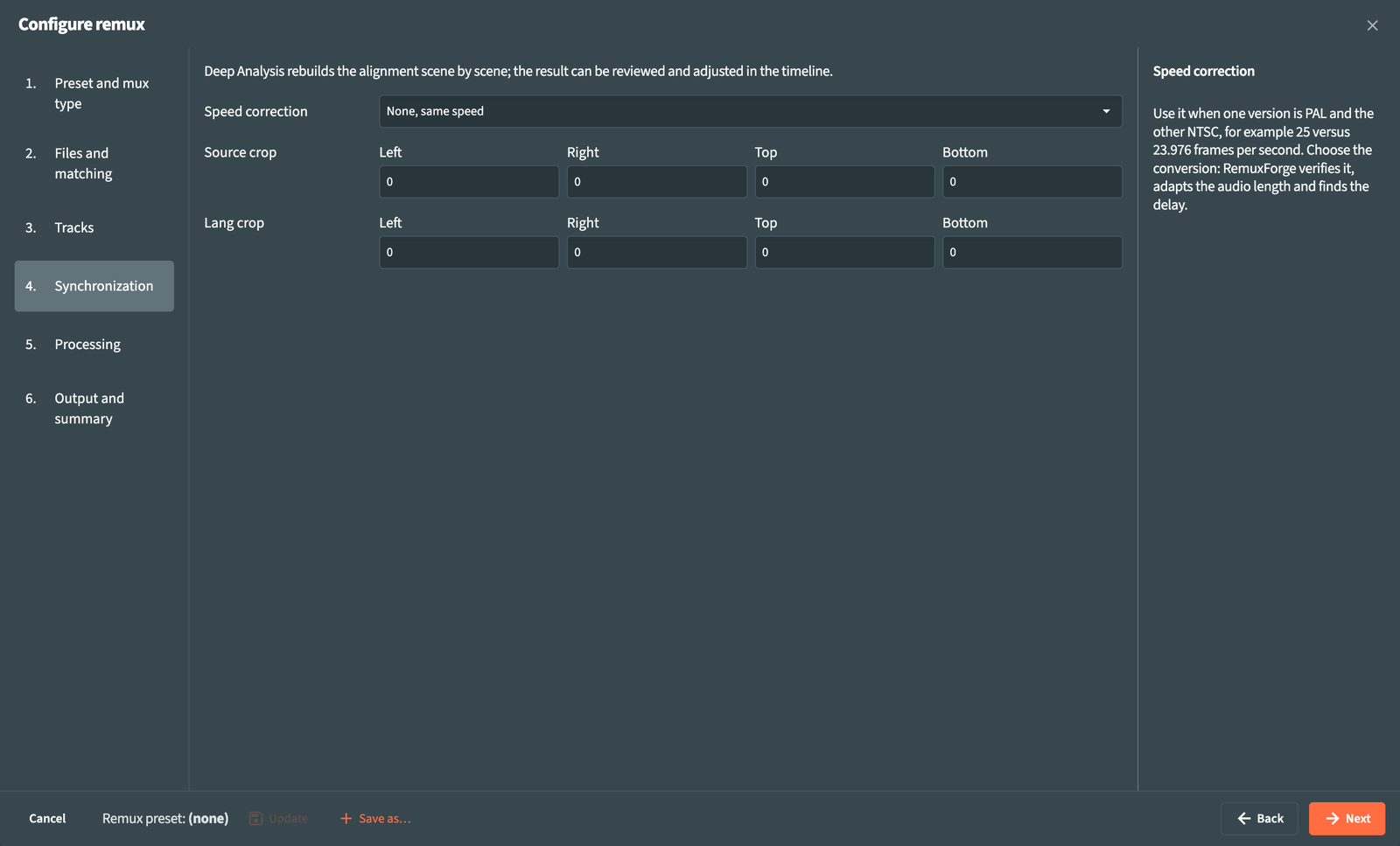
| Field | What it does |
|---|---|
| Speed correction | For releases with different frame rates, for example a PAL release at 25 fps and a film release at 23.976 fps. Choose the pair that matches Source - Lang, such as Source 23.976 - Lang 25. None, same speed is the default. |
| Source crop | Pixels to ignore at the Left, Right, Top and Bottom edges of the Source picture while comparing frames: black bars, logos, burned-in captions. With every value at 0, RemuxForge detects the edges by itself. |
| Lang crop | The same for the Lang picture. |
The speed list covers the conversions among 23.976, 24, 25 and 29.97 fps. Any other ratio is available from the command line: see CLI.
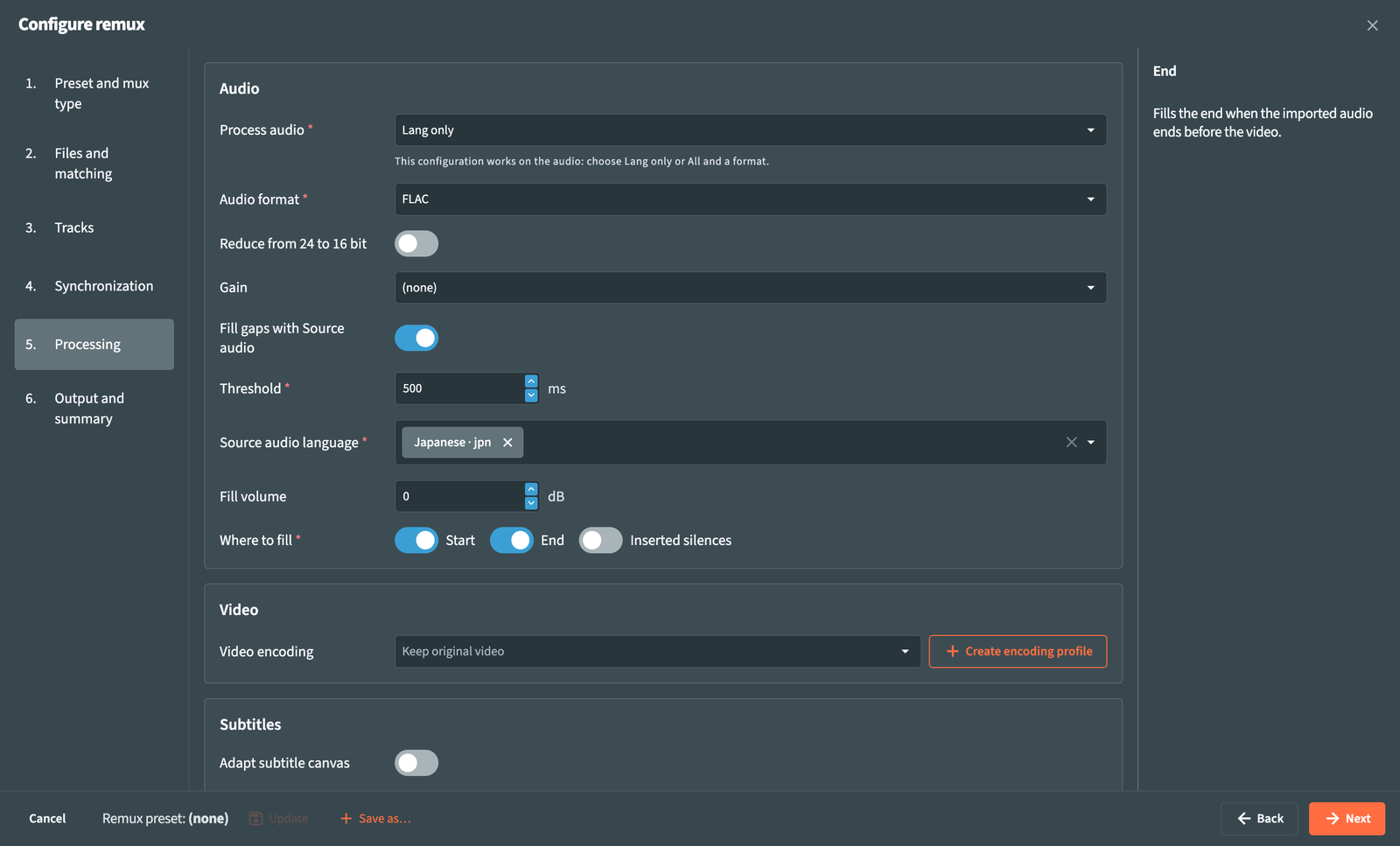
| Field | What it does |
|---|---|
| Process audio | Which audio to convert: None, audio unchanged, Lang only (the imported audio) or All (Source audio too). Edit alignment, speed correction with imported audio and Fill gaps with Source audio reshape the audio, so they need Lang only or All; the field shows * and a note when this applies. |
Audio format *
|
Format of the converted tracks: FLAC and LPCM keep the full quality, AAC, OPUS and AC3 take less space. Bitrates and FLAC compression come from Settings ▸ Audio. |
| Reduce from 24 to 16 bit | With FLAC or LPCM, converts 24-bit audio to 16-bit with high-quality resampling, for lighter files. |
| Gain | (none), Peak normalization or Fixed gain. |
| Peak target | With peak normalization: the level of the loudest peak after processing, from -60 to 0 dB. -1 dB is a safe value. |
| Fixed gain | With fixed gain: raises or lowers every converted track by the same amount, from -12 to +12 dB. |
| Fill gaps with Source audio | Completes the parts where the imported audio is missing with the audio of the same scene from Source, so the result has no silent holes. |
With Fill gaps with Source audio on:
| Field | What it does |
|---|---|
Threshold *
|
The minimum length of a gap, in milliseconds, for it to be filled. |
Source audio language *
|
The Source audio track to take the missing parts from. |
| Fill volume | Adjusts the volume of the parts taken from the Source, from -12 to +12 dB, to match the imported audio. |
Where to fill *
|
Start fills the beginning when the imported audio starts after the video. End fills the end when the imported audio ends before the video. Inserted silences fills the silences the alignment inserts where the Source has extra scenes. At least one is required. |
| Field | What it does |
|---|---|
| Video encoding | Re-encodes the video with an encoding profile, for example to save space. Keep original video copies it unchanged. Create encoding profile opens Settings ▸ Encoding profiles. |
Re-encoding takes much longer than a remux and changes the picture. Profiles are described in Settings.
| Field | What it does |
|---|---|
| Adapt subtitle canvas | Adjusts position and size of the imported subtitles to the Source picture, for releases with different resolution or black bars. Available with Automatic sync and Edit alignment, which measure the picture. |
| Copy chapters from Lang | Uses the chapters of the Lang file in place of the Source ones, shifted with the same synchronization as the imported subtitles. |

| Field | What it does |
|---|---|
| Overwrite source | Writes each result next to its Source file as .mkv. An MKV Source is replaced; a Source in another container (MP4, AVI, M2TS) is kept and the .mkv appears next to it, replacing an .mkv with that name if there is one. RemuxForge writes to a temporary file first and moves it into place once the result is complete. |
Destination folder *
|
Folder for the results, with the same file names and subfolders as Source and the .mkv extension. Required unless Overwrite source is on. |
The Summary lists mux type, files, import and keep choices, synchronization, processing and output, each with Edit to jump back to its step.
Confirm and scan applies the configuration and fills the episode list. When some pairs need attention, the wizard shows the warnings and stays open with Close. Continue on Remux workspace.
Output files keep the Source file names, with the .mkv extension. To rename them afterwards, use Advanced rename.
- Remux workspace: analyze, review and process
- Remux synchronization: choosing and tuning the synchronization
- Settings: audio defaults and encoding profiles