Repository navigation
Metadata Workspace
Metadata mode rewrites the descriptive data of .mkv files in bulk: track titles, languages and flags, the container title, Matroska tags, attachments such as covers, and track order. A preset describes the changes as IF/THEN rules; the workspace scans a folder, simulates the preset on every file, shows the exact before and after, and writes the files when you apply.
Analysis and apply are two separate steps. Analyze computes every change without touching the files; Apply writes them.
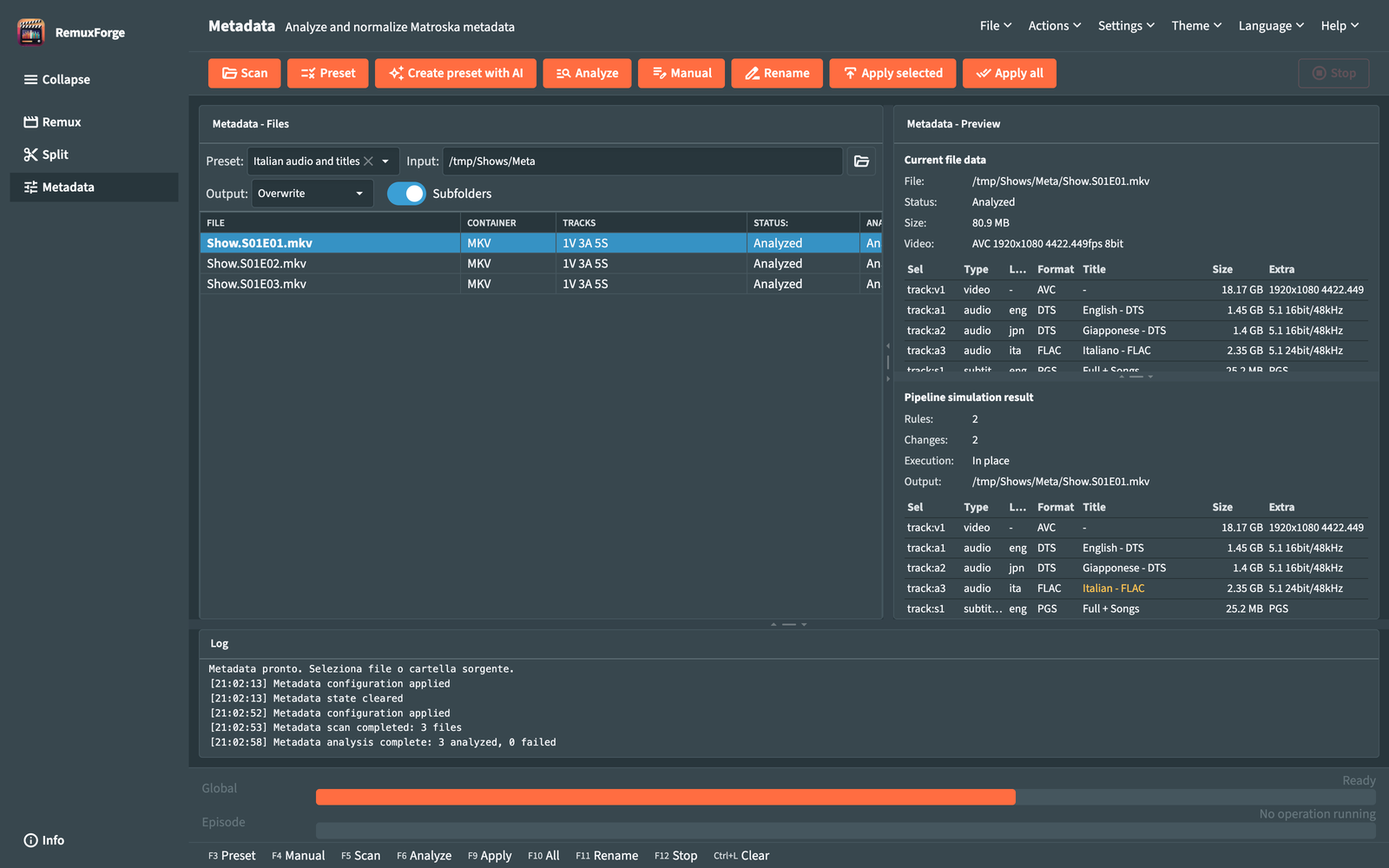
- Choose the Input: folder (or a single
.mkvfile) and run Scan input (F5). - Pick a preset in Preset:, or open Load preset... (
F3) to write one. Create preset with AI builds one from a description: see Create preset with AI. - Run Analyze (
F6). Every file gets its list of changes and an execution mode. - Select a file and read the Pipeline simulation result, or open Simulation detail for the full field-by-field view.
- Run Apply selected (
F9) for the selected file or Apply all (F10) for every analyzed file.
For one-off edits on a single file, Manual edit... (F4) edits fields, tags, track order and chapters directly: see Manual edit. To rename the files themselves, use Advanced rename (F11): see Advanced rename.
| Command | Key | Toolbar | What it does |
|---|---|---|---|
| Clear | Ctrl+L |
Status bar | Empties the file list and opens the input picker. |
| Load preset... | F3 |
Preset | Opens the preset editor. |
| Create preset with AI | Toolbar only | Opens the AI wizard. Available once files are scanned and AI is set up in Settings. | |
| Manual edit... | F4 |
Manual | Opens the manual editor on the selected file. |
| Scan input | F5 |
Scan | Reads every .mkv in the input with MediaInfo. Other video files are ignored, and the log counts them. With no input set, it opens the path picker first. |
| Analyze | F6 |
Analyze | Runs the active preset on every scanned file. |
| Apply selected | F9 |
Writes the analyzed changes of the selected file. | |
| Apply all | F10 |
Writes the analyzed changes of every file. | |
| Advanced rename | F11 |
Rename | Opens Advanced rename on the scanned files. |
| Stop | F12 |
Stops the running scan, analysis or apply. |
Up, Down, Home and End move the selection in the files table. Escape closes the open dialog.
The left pane, Metadata - Files, starts with the job settings.
| Control | What it does |
|---|---|
| Preset: | Active preset, chosen from the presets saved in the RemuxForge configuration folder. Empty shows No preset. |
| Input: | Folder or single .mkv file to work on; a single file in another container is refused. The folder button opens the path picker. |
| Subfolders | Includes the .mkv files in subfolders. On by default. |
| Output: | Overwrite edits the original files. Output folder writes edited copies to another folder and leaves the originals as they are. |
| Keep folders | With Output folder: recreates the input's subfolder structure inside the output folder. On by default. |
| Overwrite existing | With Output folder: replaces files already present in the output folder. Off by default. |
| Output folder: | Destination folder for Output folder. Browsing for a folder also switches Output: to Output folder. |
Changing Input: or Subfolders empties the file list, so the next step is a new scan. Changing the output settings keeps the list and marks analyzed files Needs reanalysis, because the execution mode depends on where the file is written.
Analysis chooses, per file, how the changes are written. The Execution column shows the result.
| Execution | When | How it writes |
|---|---|---|
| No changes | The preset changes nothing on this file. | Nothing is written. |
| In place | Output Overwrite, header changes only. |
mkvpropedit edits the original file. Seconds per file, whatever its size. |
| Copy and edit | Output Output folder, header changes only. | The file is copied to the output folder, then mkvpropedit edits the copy. |
| Remux | A track is removed or moved. |
mkvmerge writes a new file with the new track set and order, then mkvpropedit applies the remaining edits. With Overwrite the new file is written next to the original as <name>.remuxforge.<id>.tmp.mkv and replaces it on success. It takes as long as copying the file and needs free space for one copy. |
Tags, attachments, chapters and track statistics are written by mkvpropedit in every mode. Tags keep everything already in the file: only the managed keys the preset touches change.
| Column | Content |
|---|---|
| File | File name. |
| Container | File extension. |
| Tracks | Track counts by type, for example 1V 2A 3S. |
| Status: | Pending, Scanned, Analyzing, Analyzed, Stale analysis, Running, Completed, Error or Skipped. |
| Analysis | Not analyzed, Analyzed, Needs reanalysis, Error or Applied. |
| Execution | Execution mode chosen by the analysis. |
| Changes | Number of changes the preset makes on the file. |
| Warning / error | Message of the last failed step on this file. |
An error on one file marks that file only; the others carry on.
An analysis describes the file and settings it was computed on. When the output settings change, analyzed files move to Needs reanalysis (status Stale analysis). Apply writes only files in the Analyzed state, so run Analyze again before applying.
Each analysis starts from the file as the scan read it, so analyzing again after editing the preset gives the result of the new preset alone.
The right pane, Metadata - Preview, describes the selected file in two parts.
The top half shows the file as it is on disk:
- File:, Status:, Size: and a Video: summary with format, resolution, frame rate, bit depth and HDR format.
- The track table, with columns Sel (track selector such as
a1), Type, Lang, Format, Title, Size and Extra (resolution and frame rate for video, channels and sample rate for audio, format and forced for subtitles). - Attachments ({0}), with a preview of the cover image when the file has one.
- Chapters ({0}), with the start time of each chapter.
- Field detail, which opens every field and tag of the file.
The bottom half appears once the file is analyzed:
- Rules:, the rules that matched; Changes:, the number of changes; Execution:, the execution mode; Output:, the exact path the file is written to.
- The simulated track table, colored by change: added, removed and modified values stand out, and removed tracks are marked.
- Container changes, listing attachments added, replaced or deleted.
- Simulation detail, which opens the field-by-field comparison.
After an apply the section reads "Changes already applied to this file: {0}. Run a new analysis to redo them." A file not analyzed yet shows "Analysis not executed."
Both buttons open the same viewer. Field detail shows the file as it is now; Simulation detail shows it as the preset leaves it.
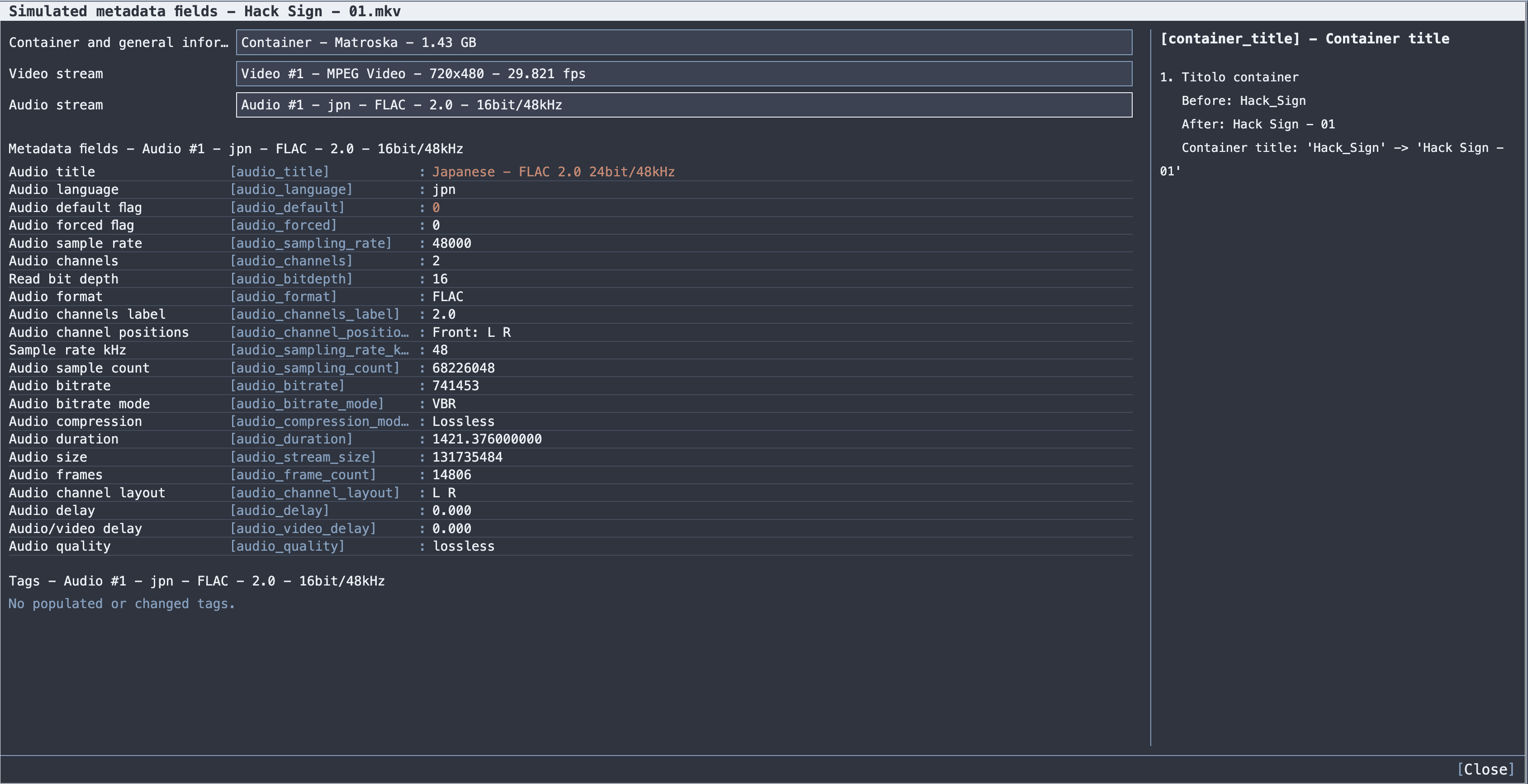
- The selectors Container and general information, Video stream, Audio stream and Text stream choose what to inspect. Track entries carry resolution, frame rate or sample rate, and removed tracks are labelled removed. The selector last used sets the context of the two sheets.
-
Metadata fields lists the fields of the chosen context, each with its label, token (for example
[audio_title]) and value. Tags lists the Matroska tags, shown as[tag:KEY]. - In the simulated view, changed cells are colored. Hovering one fills the Change detail box with the rule that changed it plus Before: and After:. A removed track shows "Track removed by rule: {0}". Changes only narrows both sheets to the changed rows.
- Copy values copies the fields and tags of the current context as text.
The token next to each field is the exact text to use in a preset value or condition.
Apply selected (F9) writes the selected file; Apply all (F10) writes every analyzed file. Files with No changes are left alone.
A confirmation dialog, Apply metadata, opens before writing when the job overwrites originals or removes tracks. It states how many files are overwritten ("You are about to overwrite {0} files. This cannot be undone.") or changed, and how many tracks are deleted.
With Output folder, each destination path is checked first. A file whose output path is shared with another file of the batch, or already exists while Overwrite existing is off, is marked Skipped and the rest of the batch continues. The log line names the reason.
When a file is written, its status becomes Completed and its analysis Applied. With Overwrite, the file is read again so the preview shows its new state. The log ends with the totals of files written, failed and skipped.
To apply a preset from scripts, see CLI.
Clear (Ctrl+L) empties the file list and the analysis state and opens the input picker, ready for a new folder. The active preset and the output settings stay as they are.
- Metadata presets: writing rules in the preset editor
- Create preset with AI: generating a preset from a description
- Manual edit: editing one file by hand, including chapters
- Advanced rename: renaming the scanned files
- Metadata reference: fields, operators, tags and functions