Repository navigation
Metadata Manual Edit
Manual edit... (F4, toolbar Manual) edits one file by hand: fields, tags, track order and chapters, written as soon as you press Apply. It suits single corrections and chapter work, while presets handle the same change across many files.
Select a file in the Metadata workspace and press F4. RemuxForge reads the file's tags, attachments and chapters, then opens Manual metadata edit - {0} with the file name.
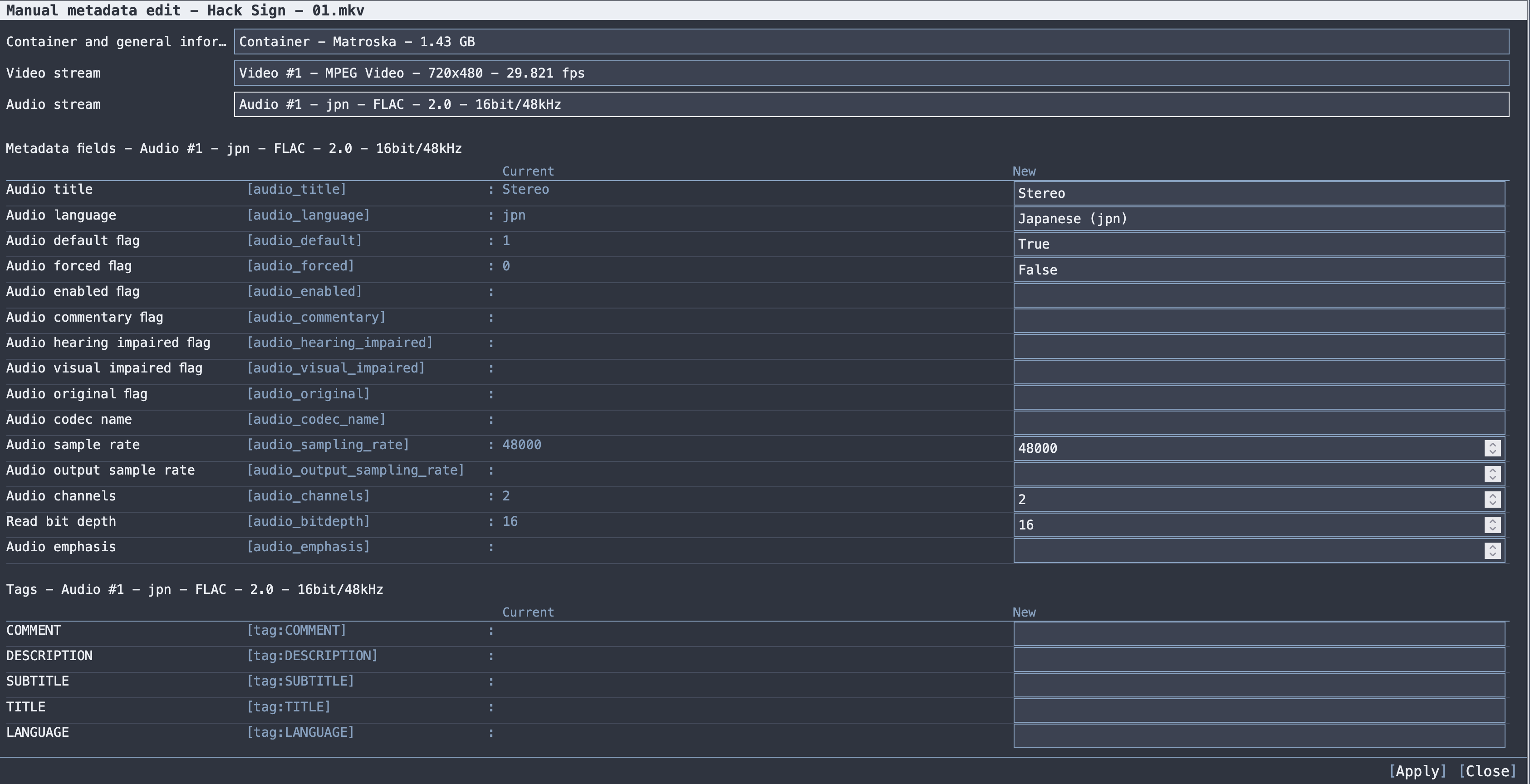
The editor shares its layout with the Field detail viewer:
- The selectors Container and general information, Video stream, Audio stream and Text stream choose the part of the file to edit. The selector last used sets the context of the sheets.
- Metadata fields lists every editable field of that context, advanced fields included, with its Current value and a New input.
- Tags lists every managed tag writable in that context, with the same two columns.
The New input follows the field type: lists for flags, languages and enumerated values, numeric inputs for numbers, text for the rest. A changed input is highlighted. Emptying the input clears the field or tag, for the ones that can be cleared, such as titles and tags.
Values are validated as in a preset: flags take 1 or 0, languages are normalized to ISO 639-2, numeric fields take numbers.
Track order (moving a track remuxes the file) lists the tracks of each type that has at least two, in file order. The arrows move a track up or down among the tracks of its type; moved tracks are highlighted.
Moving a track switches the execution to Remux: mkvmerge writes the file with the new order, then the other edits are applied. All the other manual edits are written in place by mkvpropedit.
Chapters ({0}) shows the chapter list with the number of chapters. Each row holds the start time and the name of a chapter; nested chapters are indented under their parent.
| Action | Effect |
|---|---|
| Add chapter | Adds a chapter at the end of the edition, starting at the latest start time and using the language of the other chapters. With several editions, each Edition {0} has its own add button. On a file without chapters, the first chapter creates the chapter block. |
| Delete (row) | Removes the chapter together with its nested chapters. |
| Delete every chapter | Removes all chapters from the file. |
Start times accept hh:mm:ss, mm:ss or seconds alone, each with up to nine decimals, for example 00:23:41.5, 23:41.5 or 1421.5. Minutes and seconds go up to 59 when a larger unit precedes them, so 90 is ninety seconds. An invalid time is highlighted in the row, and Apply asks to correct it with "Some chapter starts are not valid times: use hh:mm:ss.fff."
Chapters are listed by start time; ordered editions keep their playback order. Writing the chapters keeps everything the editor does not show exactly as it was: editions and their flags, chapter names in other languages, nested chapters and full timing precision.
Apply writes the edits to the file at once, with the Output: settings of the workspace:
- with Overwrite, the original file is edited and then read again, so the preview shows its new state;
- with Output folder, the edited copy is written to the output folder, following Keep folders and Overwrite existing.
The edits are recorded under the rule name Manual edit, and the log reports the written file. When nothing differs from the current values, the dialog reads "No manual changes to apply." After a manual edit with Overwrite, run Analyze again before applying a preset to the same file.
- Metadata workspace: scanning, analyzing and applying presets
- Metadata presets: the same edits as rules for many files
- Metadata reference: every field and tag with its type