Repository navigation
Quick Start
Three short walkthroughs, one per mode. Each one takes you from an empty screen to finished files with the default settings. The other pages of this wiki explain every option in detail.
Before you start, RemuxForge is running and Settings ▸ Tool paths shows [OK] for every tool: see Deploy.
Switch mode with the buttons on the left edge of the window: Remux, Split, Metadata.
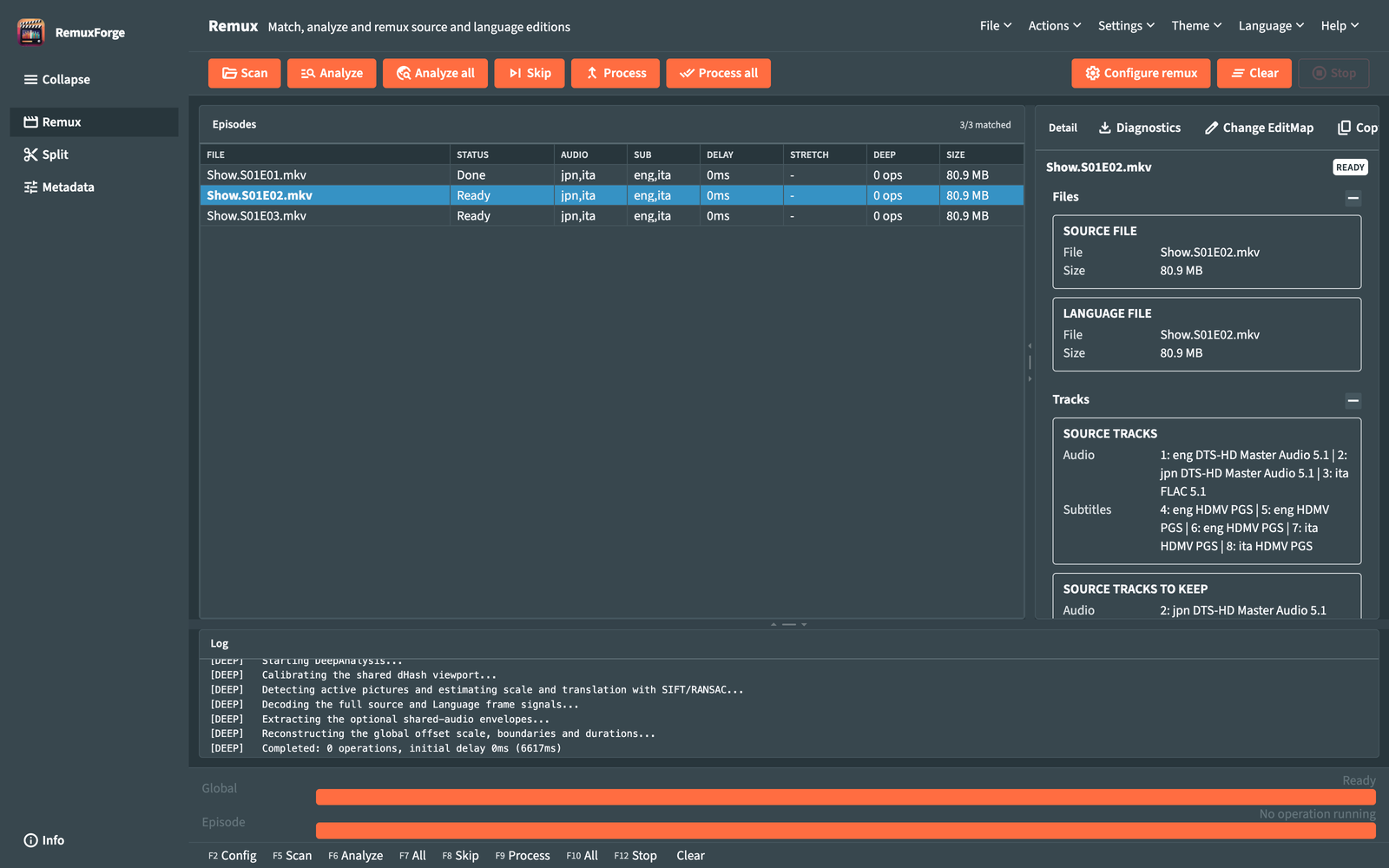
You have the release you want to keep (Source) and a second release of the same episodes with the audio or subtitles you want (Lang). RemuxForge copies the chosen tracks from Lang into Source.
- Click Remux, then Configure remux. A guided window opens with six steps on the left.
- Preset and mux type: pick Simple mux when both releases are already in sync. Pick Automatic sync when the dub may start a little early or late; RemuxForge finds the offset by itself.
- Press Next. In Files and matching, choose Source file or folder and Lang file or folder with Browse. A folder works for a whole season.
- Press Next: RemuxForge reads the files and lists the pairs it found, Source next to Lang. Check that each episode has its partner.
- In Tracks, choose Languages to import, for example Italian. Leave the other fields empty to keep every Source track.
- Press Next through Synchronization and Processing: the defaults are fine.
- In Output and summary, choose a Destination folder, check the summary and press Confirm and scan.
- The episode list fills in. Press Analyze all (
F7), then click an episode and read FINAL RESULT in the Detail panel on the right: it lists the tracks of the finished file. - Press Process all (
F10). The new files appear in the destination folder.
More: Remux wizard · Remux workspace · Remux synchronization
You have one long video file, for example a disc with four episodes, and want one file per episode. The source can be MKV, MP4, AVI or M2TS; the episodes are always written as MKV.
- Click Split, then Configure split.
- Source: choose the file with Browse.
- Cut: pick how to split. Episodes of N chapters suits most discs: enter how many chapters make one episode. Cut at set points lets you type the times where each new episode begins.
-
File names: type a naming scheme such as
Show.S01E{episode:02}and set Start numbering at to the first episode number. Name preview shows the result. - Destination: choose a folder, or leave it empty to save next to the source.
- Summary: press Prepare and review. RemuxForge prepares a cut plan for each file.
- When a plan needs your attention, the review opens: click each file to see its parts, then press Continue to the file list.
- Press Split all (
F10).
More: Split wizard · Plan review and workspace · Cut editor
- Click Metadata. Choose the Input folder with its folder button, tick Subfolders for a library organized in folders, and choose Output: Overwrite edits the files where they are.
- Press Scan input (
F5). Every MKV appears with its tracks. - Choose what to change:
- pick a saved preset in the preset list, or press Load preset... (
F3) to create one; - or press Create preset with AI and describe the change in your own words (it needs Settings ▸ AI).
- pick a saved preset in the preset list, or press Load preset... (
- Press Analyze (
F6). The Changes column shows how many edits each file receives; open a file's Simulation detail to see every value before and after. - Press Apply selected (
F9) on one file and check it. Then press Apply all (F10).
To rename the files themselves, press Advanced rename (F11).
More: Metadata workspace · Preset editor · Create preset with AI · Advanced rename
- Interface overview: menus, shortcuts and shared controls
- Settings: tools, audio defaults, encoding profiles, AI