Repository navigation
Split Cut Editor
The cut editor builds by hand the files that Split creates from one source. Each output file is a list of segments: ranges of the source, joined in the order of the list. A file can hold one range, several ranges with a part left out, or ranges in a new order, and the same range can go into two files. You can shape the files the wizard prepared, or start from the whole source with the Manual, in the cut editor card.
This page describes every area and control. For the steps of a typical job, such as splitting a file into two episodes or removing an opening theme, see Cut editor: step by step.
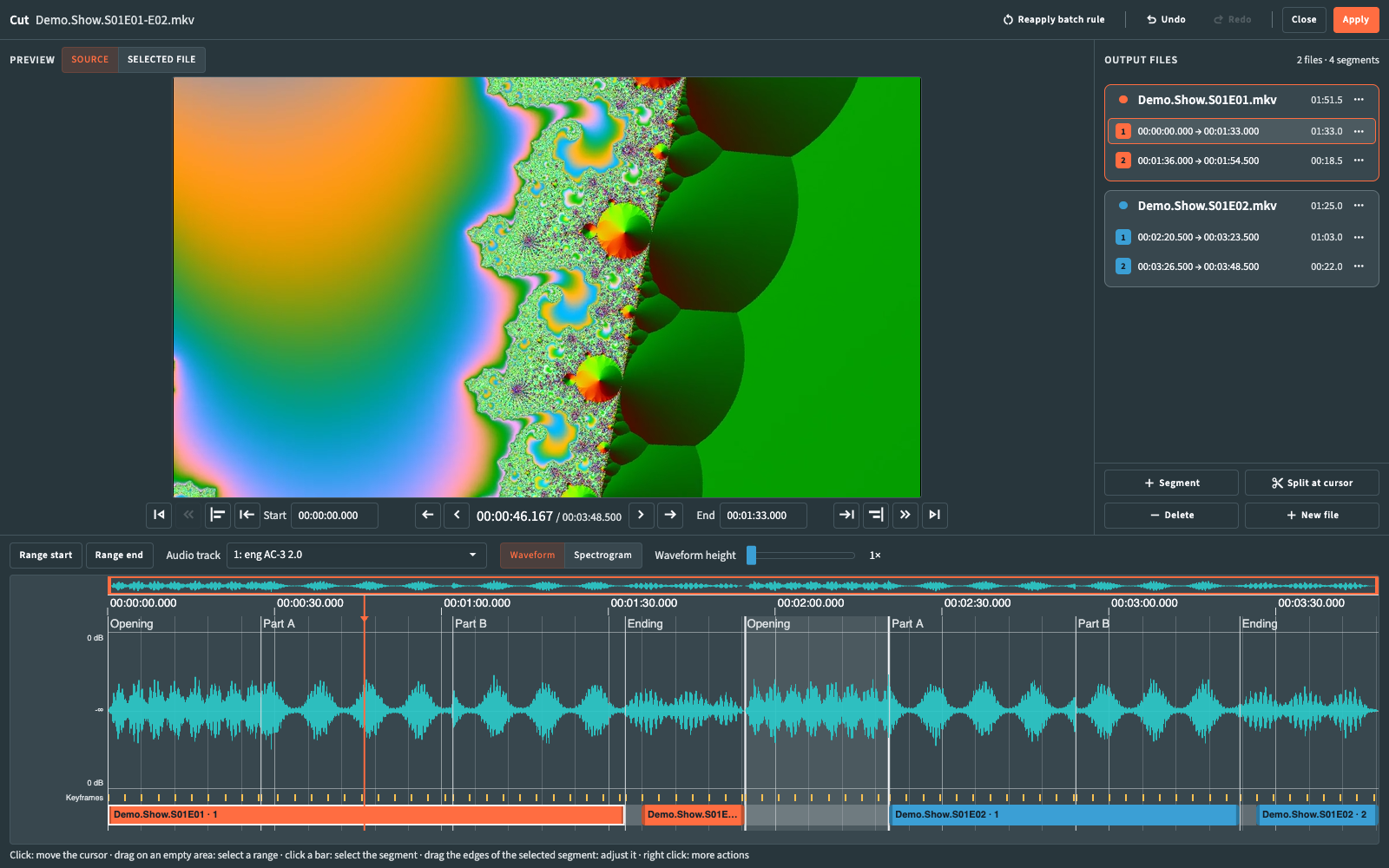
Select a file in the Split file list, then use one of these:
-
Cut editor on the toolbar or in the shortcut bar, or Open in cut editor in the Actions menu (
F4); -
Open in cut editor in the row menu of the file (right-click, or
Enter); - Open in cut editor on the entry of the file in the plan review.
The editor reads the frames and the keyframes of the file (Preparing source information…), then opens on the first output file, with the cursor on the start of its first segment. If the preparation fails, the message comes with Retry preparation.
What the editor shows at first depends on the file:
| File | Starting point |
|---|---|
| Cut by a wizard rule, such as Episodes of N chapters | The files the rule creates, one segment each. |
| Manual, in the cut editor (status To define) | One file holding the whole source. |
| Edited before (Manual segments) | The files applied last time. |
| Area | What it shows |
|---|---|
| Header | Cut, the name of the source file, Restore full source or Reapply batch rule, Undo, Redo, Close, Apply. |
| Frame preview | The frame at the cursor, with the navigation bar below it. |
| Output files (right) | The files with their segments, the errors and warnings, and the editing buttons. |
| Timeline (bottom) | The whole source, with audio, chapters, keyframes and the segments of every file. |
The preview shows still frames: you move the cursor, and the preview shows the frame under it.
Preview, at the top of the pane, chooses what the preview follows:
| Choice | What it shows |
|---|---|
| Source | The source frame under the cursor. |
| Selected file | The selected file already assembled: its segments one after the other, as they will be written. The line under the frame gives the matching Source time. Available when the selected file has at least one segment. |
Between the frame buttons, the position reads current time / total duration, of the source or of the assembled file; its tooltip gives the frame number.
From left to right:
| Button | What it does |
|---|---|
| Start of video | Cursor on the first frame (Home). |
| Previous segment | Selects the segment before the selected one, following the list from top to bottom across all files. |
| Go to segment start | Cursor on the first frame of the selected segment. |
| Start at cursor | Moves the start of the selected segment to the cursor. |
| Start | The start of the selected segment as a time. Type a new value and press Enter. |
| Previous keyframe | Cursor on the source keyframe before the shown frame. |
| Previous frame / Next frame | One frame back or forward (← / →). Holding the button keeps stepping. |
| Next keyframe | Cursor on the source keyframe after the shown frame. |
| End | The end of the selected segment as a time, exclusive. Type a new value and press Enter. |
| End at cursor | Moves the end of the selected segment to the cursor; the shown frame becomes its last frame. |
| Go to segment end | Cursor on the last frame of the selected segment. |
| Next segment | Selects the segment after the selected one, across all files. |
| End of video | Cursor on the last frame (End). |
The segment buttons and the Start and End fields work on the selected segment, and are available when a segment is selected. Previous segment and Next segment are available when the list has a segment in that direction; the keyframe buttons when a keyframe exists in that direction. With Selected file, the frame buttons, Start of video and End of video move inside the assembled file; the other buttons bring the preview back to the Source.
Start and End take the same forms as the wizard: hh:mm:ss.mmm, mm:ss, seconds, f followed by a frame number, END for the end of the source (see Writing times). The end is exclusive: f31200 in End makes frame 31199 the last frame of the segment. A value the editor cannot use returns to the current one; Esc restores it while you type.
The heading shows the number of files and segments. Errors and warnings appear at the top of the list, errors first; Show next to a message selects the file or the segment involved and moves the cursor to it.
Each file is a card with a colored dot (the same color marks its segments on the timeline), its name, its total duration, a red badge with the number of errors, and ⋯ for its menu. Click the card heading to select the file. Below it, each segment shows its number, its range in the source (start → end), its duration and its own ⋯; the tooltip adds the frame numbers. Click the range to select the segment: the cursor moves to its start. An empty file shows Drag a segment here.
⋯ on a segment, or a right-click on it in the list or on its bar in the timeline, opens More segment actions:
| Item | What it does | Available |
|---|---|---|
| Go to start / Go to end | Cursor on the first or last frame of the segment. | Always |
| Move up / Move down | One place earlier or later in the same file. | When a place exists in that direction |
| Move to ▸ | Moves the segment to the end of the file chosen in the submenu. | With at least one other file |
| Copy to ▸ | Puts a copy at the end of the file chosen in the submenu; the original stays where it is. | With at least one other file |
| New file from here | Moves this segment and the ones after it into a new file, placed right after this one. | From the second segment of a file |
| Join with next | Joins the segment and the next one into a single segment. | When the next segment starts where this one ends |
| Start on keyframe | Moves the start to the keyframe chosen by Cut alignment in the wizard. | With Nearest keyframe, Previous keyframe or Next keyframe |
| Delete segment | Removes the segment. A notification offers Undo. | Always |
⋯ on a file, or a right-click on its heading, opens More file actions:
| Item | What it does | Available |
|---|---|---|
| Rename | Turns the name into a field. Enter confirms, Esc cancels. The name ends in .mkv; a / creates a subfolder. |
Always |
| Automatic name | Returns to the Naming scheme of the wizard. | With a name typed by hand |
| Move up / Move down | One place earlier or later in the list. | When a place exists in that direction |
| Merge with next | Appends the segments of the next file to this one and removes the next file. A notification offers Undo. | When this file and the next one both have segments |
| Delete file | Removes the file with its segments. A notification offers Undo. | Always |
| Button | What it does | Available |
|---|---|---|
| Segment | Adds to the end of the selected file a segment from the cursor to the end of the source. | With a selected file |
| Split at cursor | Divides the selected segment in two at the cursor, inside the same file; the second part becomes the selected segment (S). |
With the cursor inside the selected segment, after its first frame |
| Delete | Removes the selected segment (Delete). A notification offers Undo. |
With a selected segment |
| New file | Adds an empty file at the end of the list. Drop a segment on it to create the file already filled. | Always |
| Drag | Result |
|---|---|
| A segment between two segments of its file | Changes its place. |
| A segment into another file, or onto Drag a segment here | Moves it there. |
| A segment onto New file | Creates a new file holding it. |
Any of the above with Alt held at the drop |
Copies instead of moving. |
| A file heading between two files | Changes the order of the files. |
The timeline shows the whole source, from top to bottom:
- an overview strip of the whole file, with the part in view highlighted;
- the time ruler, with the chapter marks and their names;
- the audio of the track chosen in Audio track, as Waveform or Spectrogram; Waveform height enlarges quiet audio;
- Keyframes, one tick per keyframe;
- the segments of every file as colored bars, labeled with the file name and the segment number. Segments that overlap in the source go on separate rows.
The selected segment is outlined; a segment with an error has a dashed red outline. With Selected file in the preview, the bars of the other files are dimmed. The line below the timeline sums up the gestures.
| Gesture | What it does |
|---|---|
| Click on an empty area | Moves the cursor there. |
| Click on a bar | Selects the segment and its file, and moves the cursor there. |
| Drag an edge of the selected segment | Moves its start or end; the preview follows the edge. |
| Drag on an empty area | Marks a range of the source. |
| Right-click on a bar | Opens More segment actions. |
| Right-click inside the marked range, below the ruler | Opens Marked range actions. |
| Mouse wheel or trackpad pinch | Zooms around the pointer. Horizontal scrolling moves along the timeline. |
| Drag the ruler, or the highlighted part of the overview | Scrolls the view. Dragging an edge of the highlighted part changes the zoom. |
Esc during a drag cancels it.
Range start and Range end, above the timeline, mark a range at the shown frame (I and O); Range end includes the shown frame. With only one end marked, the range runs to the start or to the end of the source. Dragging on an empty area of the timeline marks a range directly.
A right-click inside the range opens Marked range actions:
| Item | What it does | Available |
|---|---|---|
| Remove from selected file (…) | Removes the marked part of the source from the selected file, named in brackets. Segments that cross the range are shortened or divided; the other files keep their segments. | When the range covers a segment of the selected file |
| Clear the marked range | Removes the mark. | Always |
| Key | Action |
|---|---|
← / →
|
Previous frame / Next frame. |
Home / End
|
Start of video / End of video. |
I / O
|
Range start / Range end. |
S |
Split at cursor. |
Delete |
Delete on the selected segment. |
Ctrl+Z (Cmd+Z on a Mac) |
Undo. |
Ctrl+Shift+Z or Ctrl+Y (Cmd+Shift+Z on a Mac) |
Redo. |
Esc |
In a field, restores its value; with a menu open, closes it; during a drag, cancels it; otherwise works as Close. |
The editor checks the files after every change. Every change, a drag on the timeline included, is one step of Undo and Redo.
| Button | What it does |
|---|---|
| Restore full source | Shown for files in Manual, in the cut editor. Replaces the files with one file holding the whole source. Undo brings back your edits. |
| Reapply batch rule | Shown for files cut by a wizard rule. Replaces the files with the result of the rule. Undo brings back your edits. |
| Close | Closes the editor. With changes still to apply, RemuxForge asks to Discard changes or Continue editing. |
| Apply | Saves the files as the plan of this source and closes the editor. Available when there are no errors; otherwise the header reads Fix the reported errors to apply. |
After Apply the file list shows Manual segments in Mode, and the split creates these files. Back to global configuration in the row menu of the file list discards the manual files and returns the file to the wizard's rules.
A segment that starts on a keyframe and ends on a keyframe or at the end of the source is copied as it is; otherwise RemuxForge re-encodes only the frames next to the cut. Start on keyframe moves a start onto a keyframe. The details are in Internals.
When the video can be cut only on keyframes (VC-1, a codec outside the frame exact list, or interlaced video), a segment that starts or ends off a keyframe is an error, and the message says why. On interlaced video, a cut on an open-GOP keyframe is accepted with a warning that says whether frames are lost or the boundary moves.
A source that is not MKV is remuxed into a temporary MKV when the editor opens and deleted when it closes. If that temporary file disappears while the editor is open, a single notification, Editor session temporary file missing, asks you to close and reopen the editor.