Repository navigation
Metadata AI Preset
Create preset with AI writes a metadata preset from a plain-language request. An OpenAI model reads the metadata of the scanned files, builds the rules, and RemuxForge validates them and previews the result on every file before anything is saved or applied.
The command sits in the toolbar of the Metadata workspace. It is available once the input is scanned and AI is set up in Settings with a ChatGPT account or an API key and a model.
The wizard has five steps, shown in the dialog title.
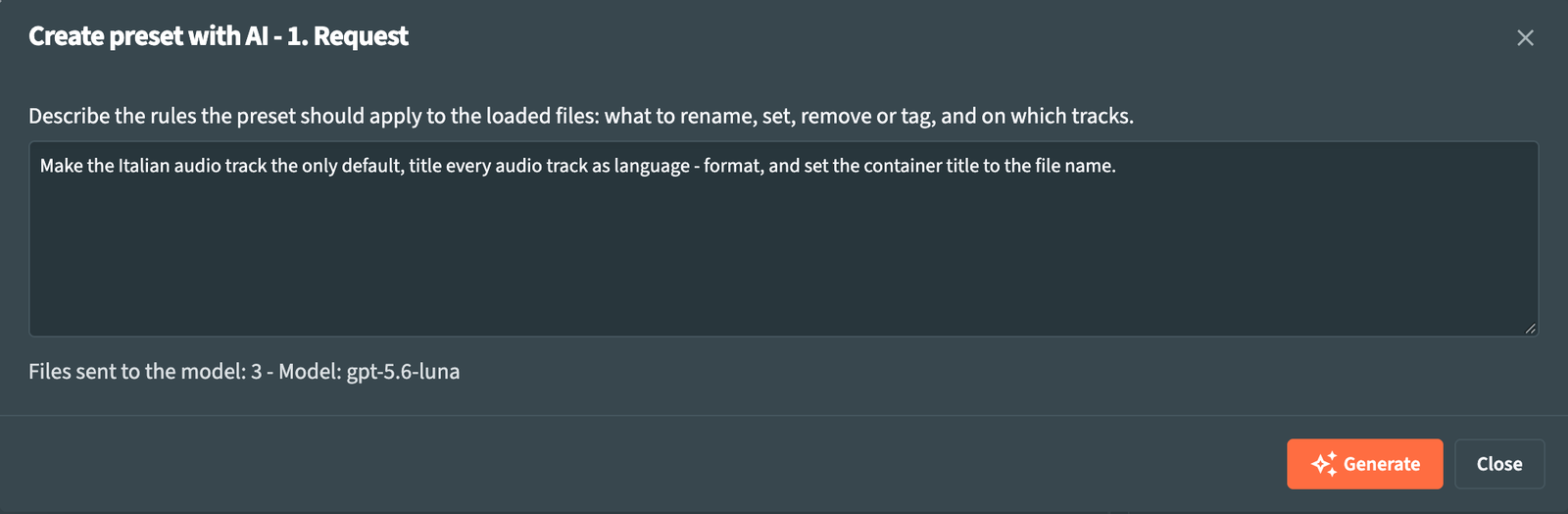
Describe what the preset should do: which tracks to rename, which fields to set, what to remove or tag. For example:
Set the language of Italian audio tracks to ita, name them "Italiano" and make the first one default
Concrete requests give precise rules: name the languages, formats and titles involved, and say which track should win when several match.
The line under the text box shows how many files are sent to the model and which model is in use. Generate starts the next steps.
The first generation reads the tags, attachments and chapters of every scanned file, with a counter of the files read. Later generations in the same wizard reuse what was read. Cancel returns to the request.
The model works in rounds while the dialog shows what it is doing:
- It receives the request and an overview of the files: counts and the most frequent values of the main fields.
- It can query the files for more detail, for example the audio tracks of a given language.
- It submits a preset. RemuxForge validates it with the same checks as the preset editor; when something is wrong, the model receives the errors and submits a corrected preset.
Each round is recorded in the Log tab, prefixed with AI ·. The number of rounds per generation is set by Max rounds in Settings. Cancel stops the generation; Retry starts it again with the same request and Back returns to the request to change it.

The valid preset is evaluated on every scanned file with the current output settings, without writing anything.
- The summary line gives the files changed, the total changes, the number of rules and the rounds the model used.
- Warnings about the preset, such as two rules with the same description, appear above the lists.
- The file list shows, for each file, the number of changes and the execution mode. The first file with changes is selected.
- The table shows the changes of the selected file: Rule, Target, Field, Before and After.
- Preset JSON expands to the full preset.
Next moves to saving. Back returns to the request, with the text kept, to refine it and generate again.
Preset name: holds the name proposed by the model; it becomes the file name of the preset.
| Button | What it does |
|---|---|
| Save preset | Saves the preset and makes it the active preset. |
| Save and apply | Saves the preset, makes it active, then analyzes and applies it to all the scanned files. |
| Apply without saving | Analyzes and applies the preset to all the scanned files, then restores the previous active preset. |
A confirmation dialog opens when the name matches a preset that already exists, and when applying overwrites original files or removes tracks, with the same counts as the workspace confirmation.
The saved preset opens in the preset editor (F3) like any other, ready to be refined by hand. Applying follows the same rules as Apply all in the workspace: see Applying.
RemuxForge sends OpenAI your request and the data of the loaded files that the model needs to build the preset: file names, full paths, container and track metadata, and tags. The audio and video content stays on your machine. Requests count against your ChatGPT plan or your API key credit, under OpenAI's terms.
The first time you connect an account or save a key, a consent dialog shows this list, and Accept enables the AI features. The connection and the stored credentials are described in Settings.
- Metadata presets: reading and refining the generated rules
- Metadata workspace: analyzing and applying
- Settings: connecting an account, choosing the model and Max rounds