Repository navigation
Connections and folders
Basics · Hrvatski
Add, edit, organise, move and search your servers; protocols, tags and notes.
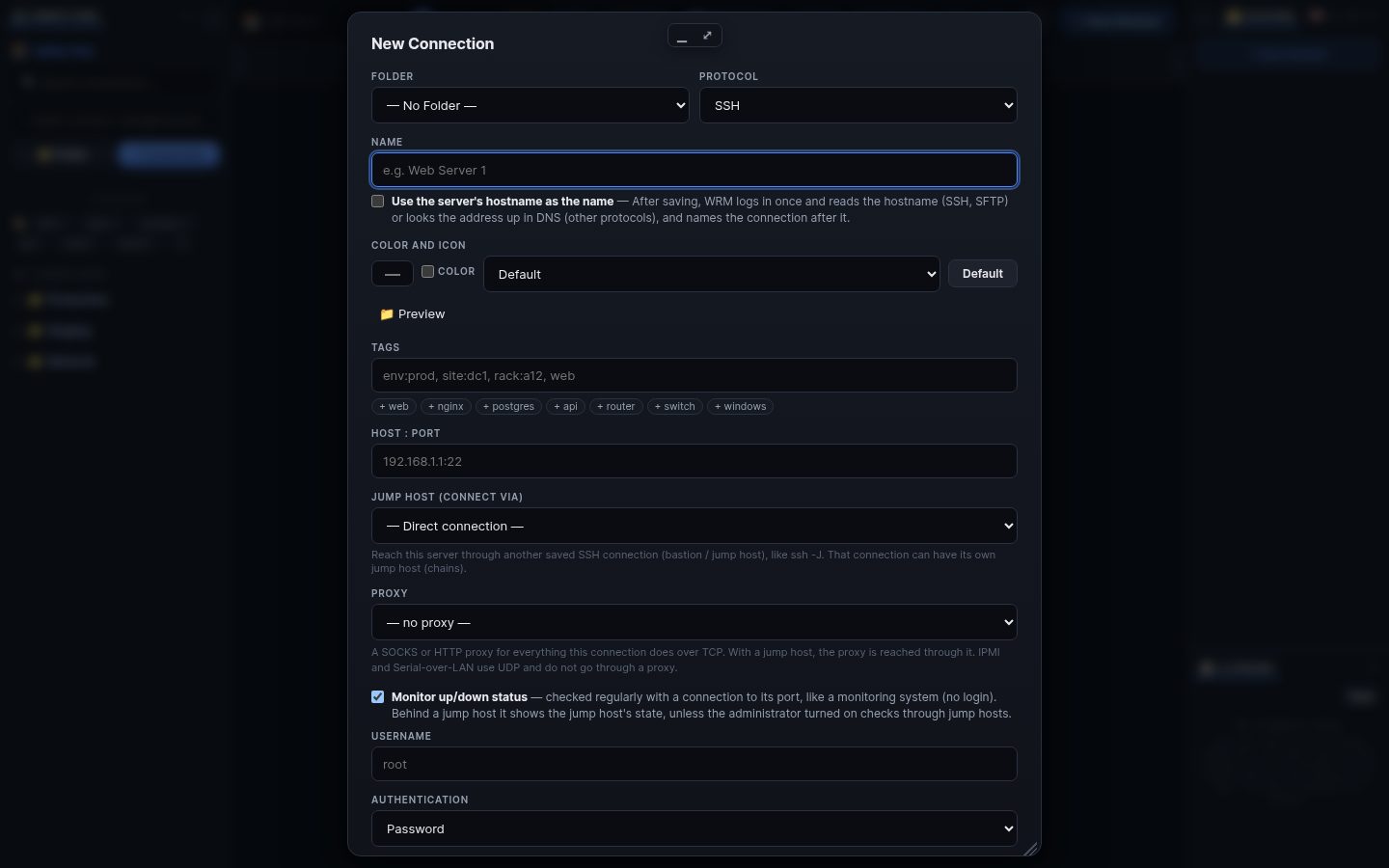
A connection is one saved server: protocol, address, login and options. Connections live in folders in the left sidebar.
- + Connection in the sidebar.
- Choose the protocol: SSH (terminal and files), SFTP/FTP/FTPS (files only), RDP, VNC, Telnet (remote desktop), or Web interface (HTTP/HTTPS page of a switch, iDRAC, NAS…).
- Enter host, port and user. For the login choose a password, a key from 🔑 Keys, a shared credential, or a Bitwarden SSH key.
- Optional: folder, tags (
env:prod,site:dc1), a jump host or proxy, SSH tunnels, notes, out-of-band management (BMC). - Save, then double-click the connection to open it.
Type user@host:port (or rdp://…, vnc://…, https://…) into ⚡ Quick connect and press Enter. It is kept 24 hours under Quick connections; 💾 saves it for good.
- 📁 Folder creates a folder; right-click a folder for a subfolder, rename, share, sort A–Z or keep sorted.
- Drag connections and folders to move them; drop between two rows to put it exactly there. Ctrl+click selects several, then drag them together or use right-click → Move to….
- Right-click a connection: open, edit, duplicate, share, network tools, tunnels, notes, delete.
- The search box filters by name, host, user and tags (
#env:prod). - The 🏷 tag bar filters by tags;
env:prodconnections get a red PROD badge. - The light next to each connection: 🟢 up, 🟡 slow, 🔴 down (hover for why). A red bar lists only the servers that are down.
📝 on a connection holds procedures, contacts and links (small Markdown). They are shown in the terminal window too.
Search terms: connection, server, add, new, edit, folder, move, drag, order, sort, tag, search, ssh, rdp, vnc, telnet, web, quick connect, notes, status
The same article is in WRM: ? in the top bar (or F1) opens Help, where you can search it and ask the help AI.
← Previous: Getting started · Home · Next: Import and export →