Repository navigation
Your account and settings
Personalise · Hrvatski
Password, two-factor sign-in, signed-in devices, the Settings tabs and installing WRM as an app.
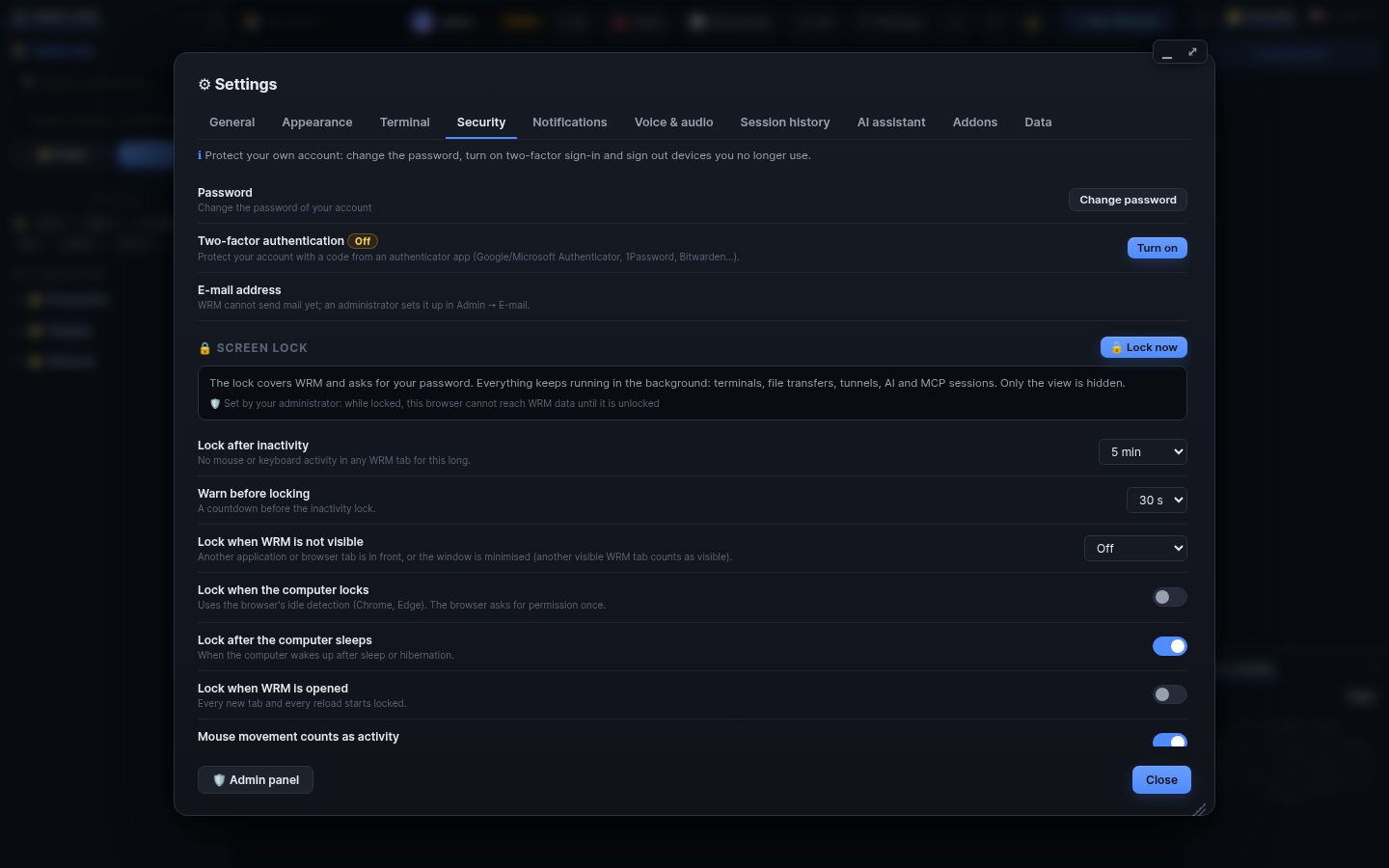
⚙ Settings in the top bar:
| Tab | What it holds |
|---|---|
| General | language, install as an app, notifications when a server goes down |
| Appearance | themes, fonts, size |
| Terminal | font size, scrollback, automatic reconnect |
| Security | password, two-factor sign-in, signed-in devices, screen lock |
| Notifications | what you receive and where |
| Voice & audio | microphone, speaker, push-to-talk |
| Session history | your terminal sessions and recordings |
| AI assistant | your AI status, your own keys and preferences, 🧭 Set up AI |
| AI connections | AI apps connected over MCP |
| Addons | install and manage addons |
| Data | import and export |
Settings → Security → Two-factor authentication: scan the QR code with an authenticator app, enter a code, and keep the 10 recovery codes safe.
Signed-in sessions lists every browser with your account; Sign out ends one, Sign out everywhere else ends the rest.
Settings → General → Install (Chrome, Edge, Safari on iOS: Add to Home Screen) opens WRM in its own window, also on phones and tablets.
Search terms: settings, account, password, change password, 2fa, two factor, totp, authenticator, recovery codes, sessions, devices, sign out, install app, pwa, profile, e-mail
The same article is in WRM: ? in the top bar (or F1) opens Help, where you can search it and ask the help AI.
← Previous: Notifications · Home · Next: Users, roles and teams →