App Options
App options holds everything that is not tied to a single integration — where MagicChatbox sends OSC, how the window and tray behave, and the separators and prefixes applied to every chatbox line.
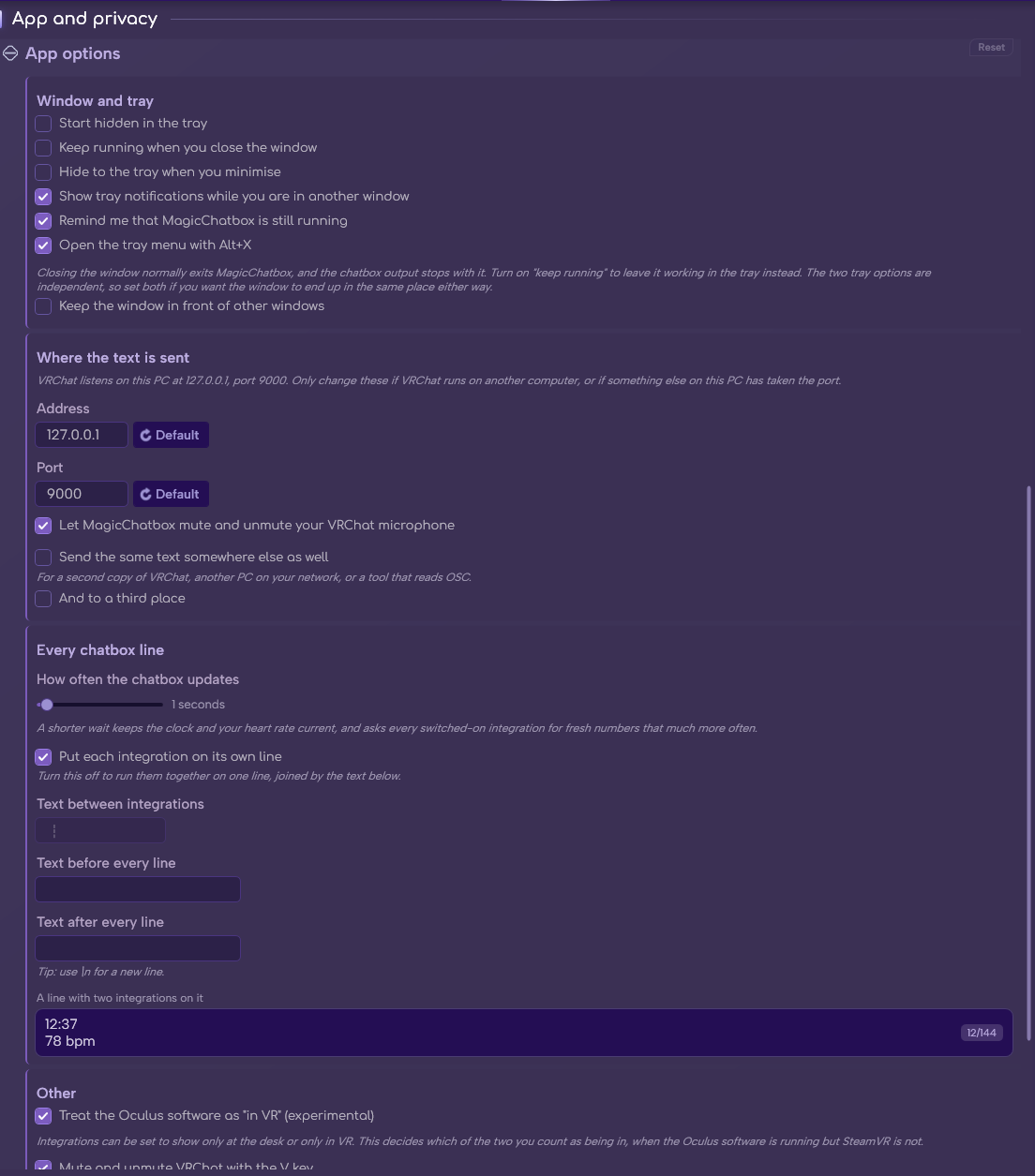
The App options section.
See the rest of this section
- Start hidden in the tray — launch straight to the tray, with no window.
- Keep running when you close the window — the X button hides the app instead of quitting it.
- Hide to the tray when you minimise.
- Show tray notifications while you are in another window.
- Remind me that MagicChatbox is still running — a periodic nudge, so you do not forget it is on.
- Open the tray menu with Alt+X — a global hotkey for the tray menu.
- Keep the window in front of other windows.
Tip
If MagicChatbox "will not start", it is usually already running with the first two settings on. Check the tray next to your clock.
- This is the part that matters most. If nothing appears in VRChat, it is almost always here or in VRChat's own OSC toggle.
-
Address — where to send. Default
127.0.0.1, your own machine. - Port — the port VRChat listens on. Default 9000.
- Let MagicChatbox mute and unmute your VRChat microphone — on by default. This is what lets text-to-speech open your mic while it speaks.
Important
OSC must also be enabled inside VRChat: press R, go to Options → OSC, and switch it on. Nothing MagicChatbox sends will appear until you do.
Note
Address is the field you change for a Quest — set it to your headset's IP. See Standalone.
- MagicChatbox can mirror everything to two more destinations, for other OSC applications or another machine.
-
Send the same text somewhere else as well — off by default. Has its own Address and Port, default
127.0.0.1:9002, and its own Mute and unmute the microphone here too. -
And to a third place — off by default. Default
127.0.0.1:9003, with the same per-destination microphone option.
- These apply to the whole line, after all the integrations have had their say.
- How often the chatbox updates — between 0.7 and 10 seconds. Default 1.
- Put each integration on its own line — use line breaks instead of a separator.
-
Text between integrations — the separator. Default
┆. - Text before every line — a prefix.
- Text after every line — a suffix.
- A live preview beside these shows exactly what the wrapping looks like.
Caution
The prefix, suffix and separators all come out of your 144 characters. A three-character separator with six integrations enabled costs you fifteen characters before any of them has said anything.
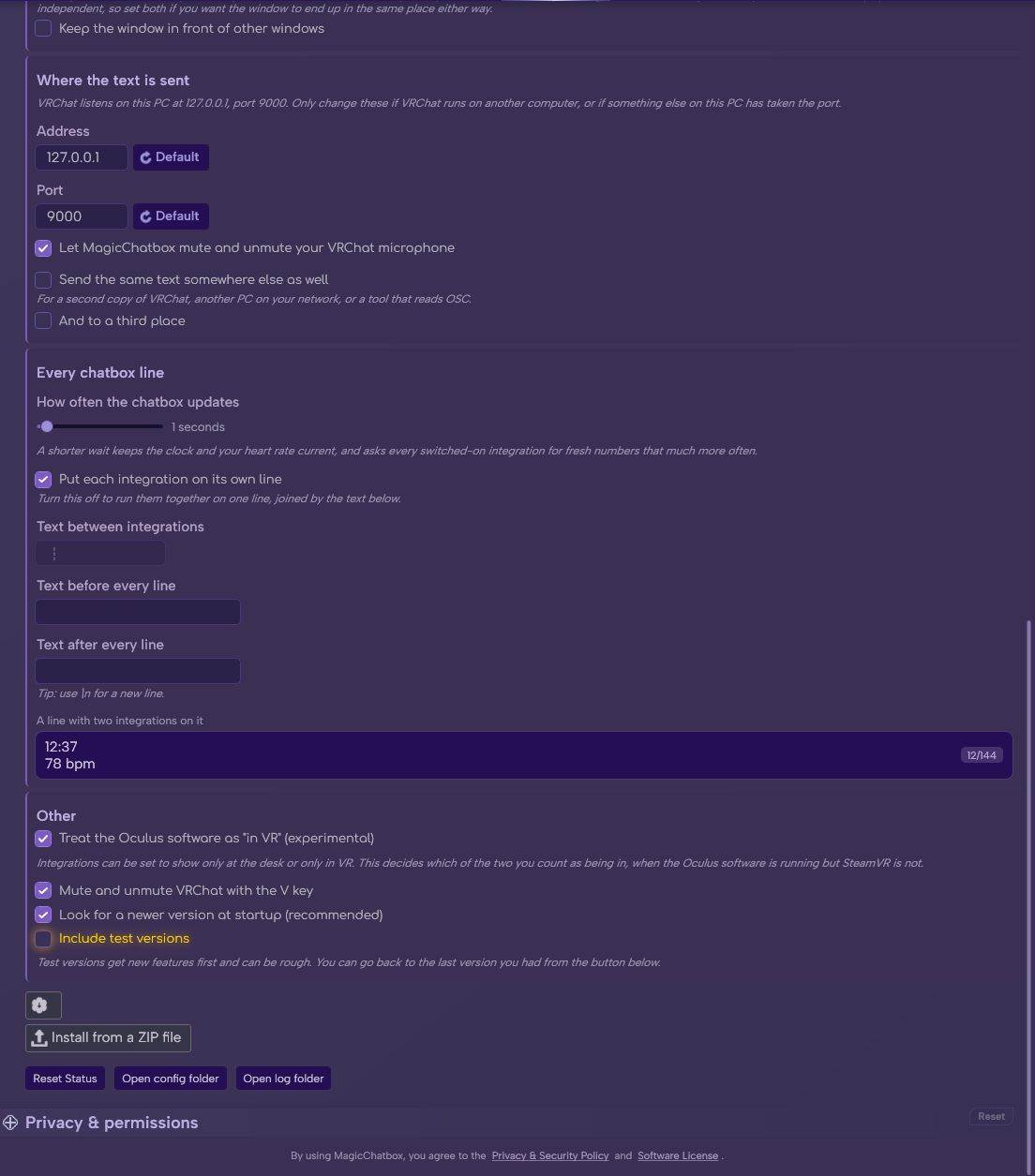
- Treat the Oculus software as "in VR" (experimental) — helps MagicChatbox notice VR mode on some Oculus setups.
- Mute and unmute VRChat with the V key.
- Look for a newer version at startup (recommended) — on by default.
- Include test versions — opt into pre-release builds.
| Button | What it does |
|---|---|
| Go back to {version} | Roll back to your previous version after a bad update. |
| Install from a ZIP file | Update by hand from a ZIP you downloaded. |
| Reset Status | Clear your saved status messages. |
| Open config folder | Opens %AppData%\Vrcosc-MagicChatbox. |
| Open log folder | Opens %LocalAppData%\Vrcosc-MagicChatbox\logs. |
Tip
Backing up the config folder backs up everything except connected accounts — those are encrypted to your Windows user and have to be reconnected on another machine.
- There is no global temperature unit. Each integration that shows a temperature carries its own scale, because you may well want different ones in different places:
- Component Stats — five scales, individually toggleable, which can rotate.
- Weather — its own Temperature in picker, plus a second scale in brackets.
- Every integration can be enabled separately for VR and for desktop, using the two chips on its tile in the Integrations tab.
Note
This is why an integration can work on desktop but appear to do nothing in VR, or the reverse. If something is missing in one mode only, check its chips before anything else.
- Reorder integrations on the Integrations tab sets the order segments are printed in the line.
Important
Reordering does not change which integration gets dropped when the line is too long. That order is fixed — see Reading the Integrations page.
Note
Lyrics does not appear in that list. It has no independent position — it follows whichever music integration is playing, so it is anchored automatically.
- You can find help in our Discord Server by creating a ticket.