Troubleshooting
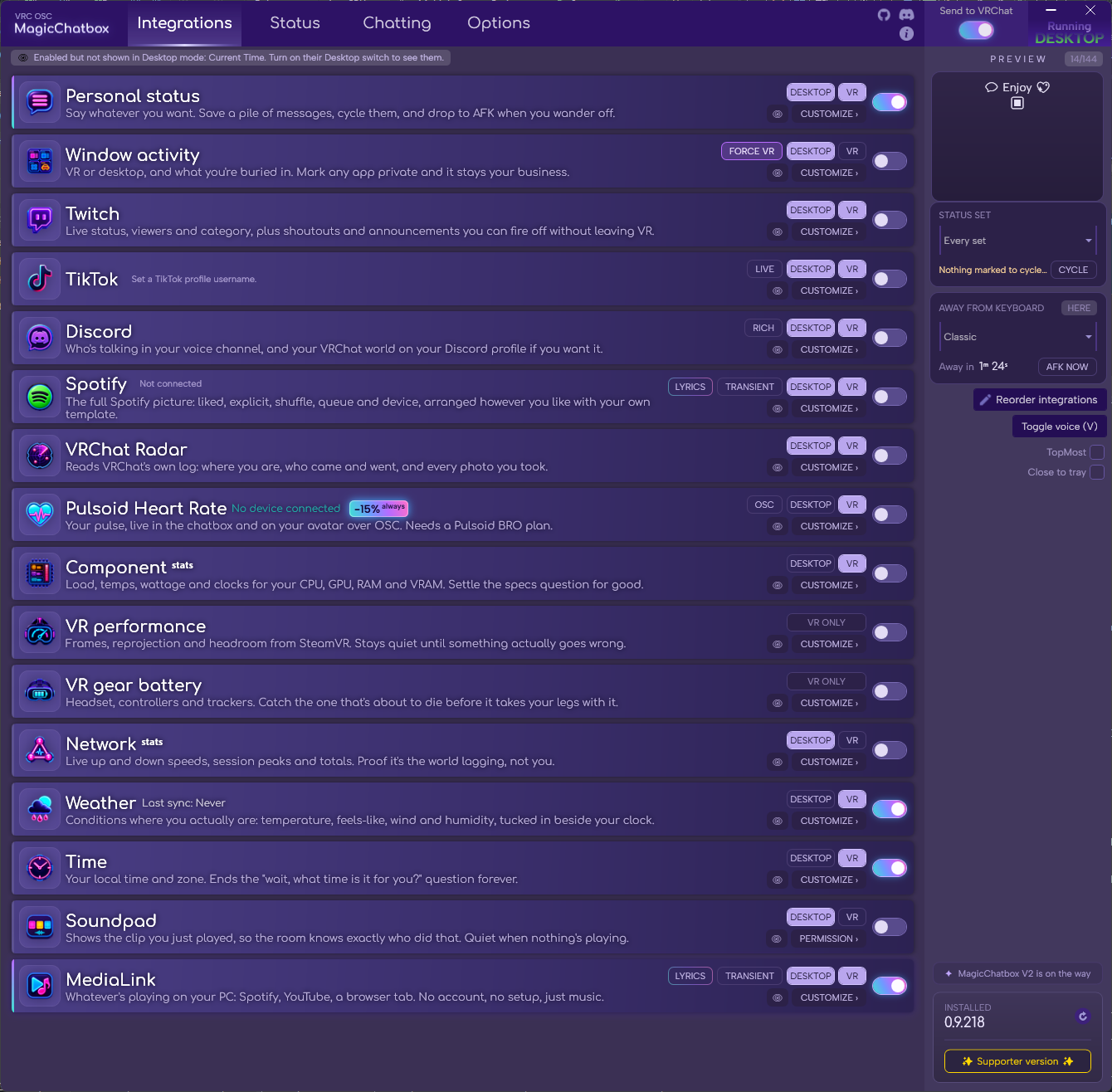
The Integrations tab, where most problems show themselves.
- Check these in order. They are ordered by how often they turn out to be the cause.
- Is OSC enabled in VRChat? R → Options → OSC → Enabled. This is by far the most common cause. If it was already on, toggle it off and on again, or use Reset OSC Config in that same menu.
-
Does the PREVIEW panel show anything? Open the Integrations tab and look at the preview.
- Preview is empty → the problem is in MagicChatbox. Nothing is switched on, or nothing has anything to say. Continue to the next section.
- Preview shows your line → the problem is between MagicChatbox and VRChat. Keep going here.
- Is anything switched on at all? MagicChatbox starts completely quiet. Switch on Time as a test — it needs no setup.
- Are the DESKTOP / VR chips right? Each integration has separate chips for the two modes. An integration with only VR lit shows nothing while you are on desktop.
-
Is the address still
127.0.0.1? In Options → App options → Where the text is sent. If you changed it for a Quest and are now back on PCVR, change it back. - Restart VRChat. It only reads the OSC setting at certain points.
Important
If the preview is correct and OSC is on and it still does not arrive, it is almost always a firewall problem. Allow MagicChatbox through Windows Firewall, and check that no antivirus is blocking local UDP.
- Every integration tile has a thin coloured rail down its left edge. Dark means nothing from it is reaching the chatbox. There are only five reasons for that:
- It has nothing to say. Music paused, no heart rate device, a quiet Discord call. This is normal.
- Its DESKTOP / VR chip is off for the mode you are in. The 👁 notice at the top of the page names these directly.
- It was trimmed to fit the 144 characters. The ✂ notice names these, and the tiles are faded.
- It needs a permission you declined. Check Options → Privacy.
- It is not set up. Spotify, Twitch, Discord voice and Pulsoid all need connecting first.
Tip
If an integration worked and then stopped, try switching it off and on again. When an integration fails three times in a row, MagicChatbox stops calling it for 60 seconds and then quietly retries. Toggling it clears that state immediately.
- VRChat's chatbox holds 144 characters. That is VRChat's limit, not ours. When you go over, MagicChatbox drops whole integrations rather than cutting text off mid-word.
- What gets dropped is fixed, and it is not the order in the Reorder list. Each integration has a built-in importance. From first-dropped to last-kept:
Time → Weather → Network stats → Soundpad → Component stats → VR performance → VR gear battery → TikTok → Twitch → Discord → Heart rate → VRChat radar → Window activity → Spotify → Lyrics → Music Display → Personal status
- So Personal status is the last thing standing, and Time is the first to go.
Note
Reorder integrations changes the order pieces appear in the line, and gives earlier ones more room to size themselves. It does not change which one gets dropped first.
-
To make room:
- Switch off what you are not actually reading.
- Split across modes with the DESKTOP / VR chips — hardware stats at your desk, heart rate in the headset.
- Shorten the wording. Most integrations have separators, prefixes and labels you can trim.
- Watch out for fancy text. Bold, italic and monospace letters are Unicode characters that cost two of your 144 each. Small caps and superscript mostly cost one.
- It is probably already running. Look in the Windows tray, next to the clock. MagicChatbox can start hidden and can close to the tray — both are settings in Options → App options → Window and tray.
- Missing .NET. Install the .NET 10 Desktop Runtime.
- Running from inside the ZIP. Extract it to a real folder first.
-
A corrupt settings file. MagicChatbox moves unreadable files aside automatically as
.corrupt-<timestamp>, so it should recover on its own. If it does not, see Starting over below.
- MagicChatbox is not signed with a Microsoft certificate, so SmartScreen warns about it — as it does for any unsigned app. Click More info → Run anyway.
- Every release on the Releases page carries a VirusTotal link so you can check the exact file you downloaded.
Caution
Only download from the official Releases page. Forks and re-uploads are not supervised by us and we cannot vouch for them.
| Service | Most likely cause |
|---|---|
| Spotify | The redirect URI on your Spotify Developer app does not match http://127.0.0.1:7387/callback/ exactly, including the trailing slash. |
| Twitch | Your User Access Token expired. Twitch tokens are not refreshed automatically — generate a new one and paste it in again. |
| Discord | Discord did not grant the rpc scope. Rich Presence will still work; who-is-talking will not. |
| Pulsoid | Tokens expire. Reconnect. If it says the saved token could not be decrypted, you are on a different Windows account than the one that saved it. |
| Any of them | The connection is encrypted to your Windows user account. Copying settings to another PC or user means reconnecting. |
Note
Each of these needs a local port free while connecting — Pulsoid uses 7384/7385, Discord 7386, Spotify 7387. If the browser never comes back, something else is using that port.
-
Options → App options → Open log folder, or browse to
%LocalAppData%\Vrcosc-MagicChatbox\logs. - Open the newest file.
- Search for
ERRORor the name of the integration that is misbehaving.
- When you open a support ticket, attaching this file and your app version answers most of the questions we would otherwise have to ask.
-
In Options → App options:
- Reset Status — clears your saved status messages only.
- Open config folder — then close MagicChatbox and delete or rename the folder to reset everything. It will be rebuilt on next launch.
- Individual Options sections also have their own reset, so you can start one integration over without losing the rest.
Tip
Rename the config folder rather than deleting it. If that was not the problem, you can put it back.
- You can find help in our Discord Server by creating a ticket. Include your app version and the newest log file.