VRChat Radar
VRChat Radar reads VRChat's own log file and turns what it finds into chatbox events — the world you entered, who joined, who left, when you took a photo. It is the most event-driven integration in MagicChatbox, and the one that makes your chatbox feel alive rather than static.
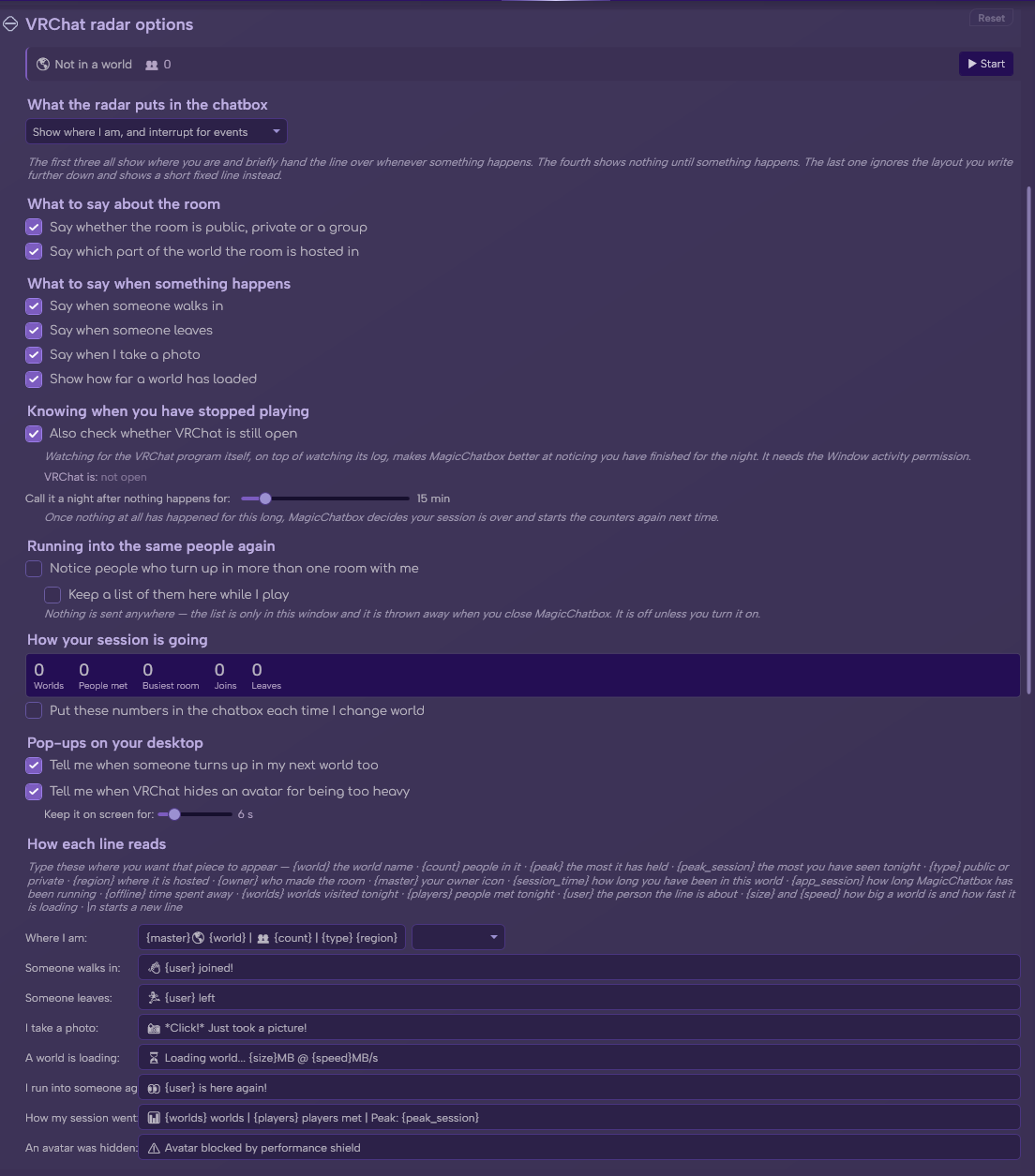
The VRChat radar section in Options.
See the rest of this section
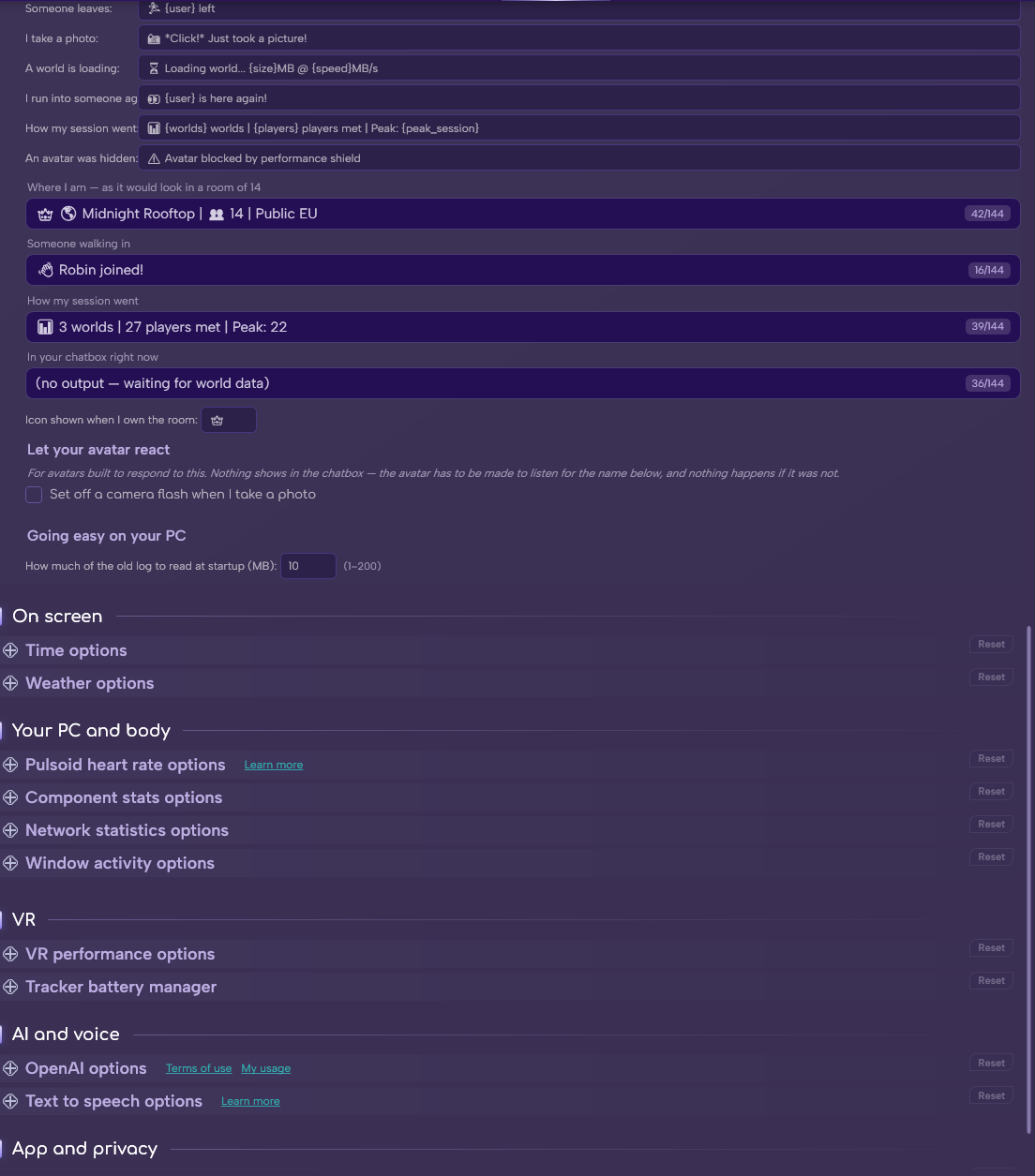
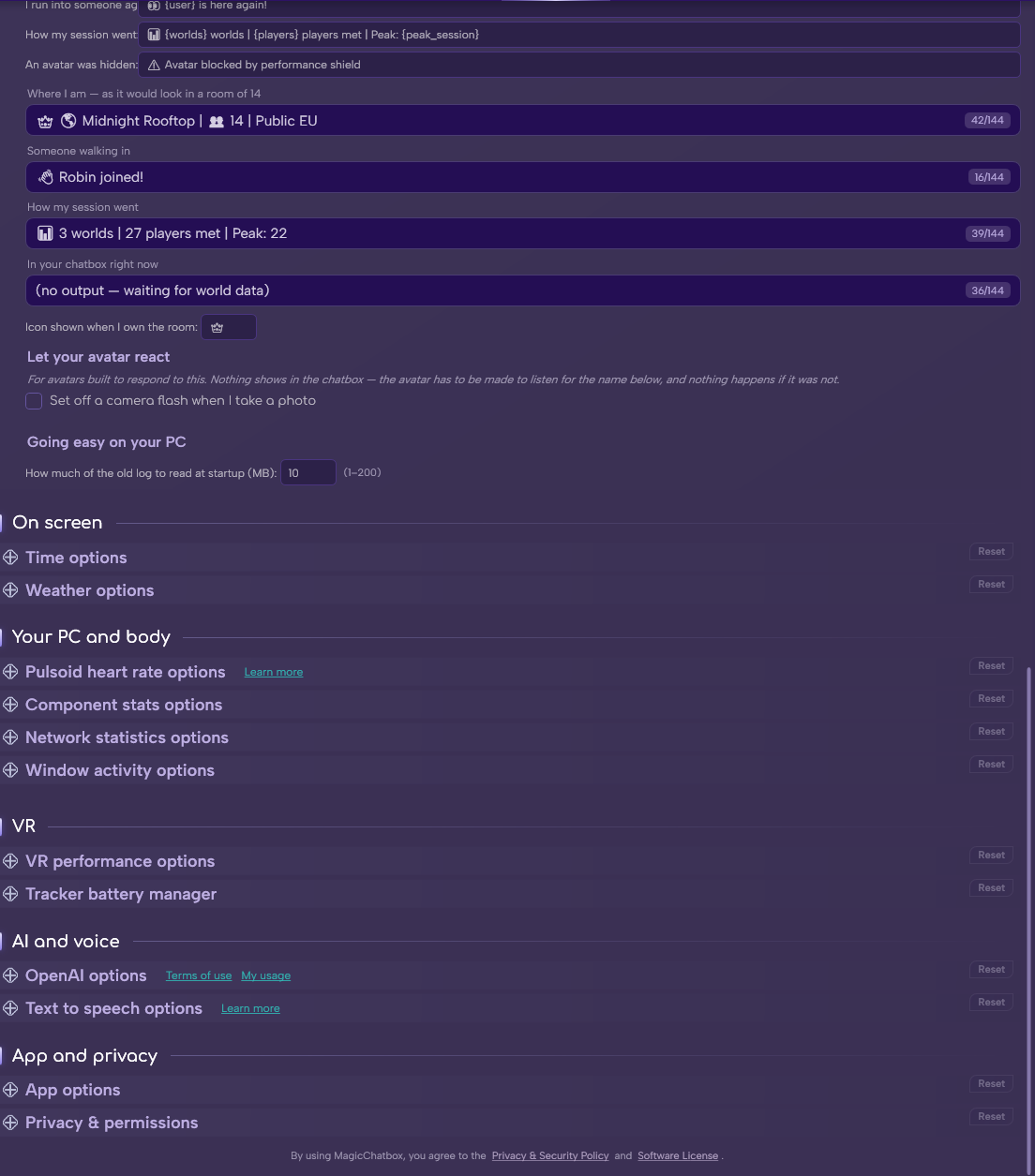
- VRChat, with logging enabled (it is by default).
- The 📡 VRChat Log Reader permission, which MagicChatbox asks for when you enable the integration.
Important
This integration needs the 📡 VRChat Log Reader permission, because it reads VRChat's log files. Decline it and the integration switches itself back off. You can grant it later under Options → Privacy.
Note
Everything here comes from a local log file that VRChat writes itself. There is no VRChat API involved, no account connection, and nothing is sent anywhere.
-
Radar produces bursts of events, so how they are shown matters more than for most integrations.
- Event overlay — events appear briefly over your normal output, then it returns. This is the default.
- Always show — keep radar information up permanently.
- Transient only — show events for a moment and nothing in between.
- Join/leave only — restrict output to who is coming and going.
- Compact info — a condensed form.
- Joins — on by default.
- Leaves — on by default.
- Screenshots — on by default.
- World download — show progress while a world loads. On by default.
- Instance type and Region — include these in the world announcement. Both on by default.
- Session stats — a periodic summary of your session.
- Avatar blocked warning — tell you when the performance shield blocks an avatar. On by default.
- Every announcement is a template you can rewrite.
| Event | Default template |
|---|---|
| World | {master}🌎 {world} | 👥 {count} | {type} {region} |
| Join | 👋 {user} joined! |
| Leave | 🏃 {user} left |
| Screenshot | 📸 *Click!* Just took a picture! |
| Download | ⏳ Loading world... {size}MB @ {speed}MB/s |
| Seen again | 👀 {user} is here again! |
| Session stats | 📊 {worlds} worlds | {players} players met | Peak: {peak_session} |
| Avatar blocked | ⚠️ Avatar blocked by performance shield |
- Available placeholders are
{user},{world},{count},{type},{region},{owner},{master},{size},{speed},{worlds},{players},{peak_session},{peak},{session_time},{app_session}and{offline}. Use\nfor a line break.
- The Where I am line also has a preset picker with ten ready-made templates: Detailed, With Owner, Compact, Full Stats, Session, Multi-line, Minimal, World Host, Host Stats and Event Host.
-
Master icon — shown by
{master}when you are the instance master. Default👑.
-
Each event type has its own duration in seconds.
- Join / leave — 4
- Screenshot — 4
- World download — 8
- Seen again — 5
- Session stats — 15
- Avatar blocked — 6
-
Radar can recognise someone you were just in an instance with and call it out.
- Detect seen again — off by default.
- Seen again window — how many minutes count as "just now". Default 5.
- Show notification — also raise an in-app notification. On by default.
-
Radar keeps a record of who you have run into.
- Show encounter table — display the record in the app.
- Min encounter count — only list people seen at least this many times, to filter out one-offs. Default 2.
- Use window detection — confirm VRChat is actually running rather than relying on the log alone. On by default.
- Session timeout — how many minutes of inactivity end a session. Default 15.
-
Radar can fire an avatar parameter when you take a screenshot, so your avatar can react with a flash effect.
- Send camera flash OSC — off by default.
-
Parameter — default
/avatar/parameters/CameraFlash.
- How much of the old log to read at startup (MB) — between 1 and 200. Default 10. This decides how much history the radar knows about when you launch it part-way through a session.
Tip
Raise it if you start MagicChatbox after VRChat and want the worlds and people from earlier in the evening counted. Lower it if startup feels slow.
Note
There used to be a second setting here, How many log lines to keep in memory. It never did anything — the radar reads the log as a stream and keeps no line buffer — so it has been removed.
Note
Backfill is what lets Radar know which world you are already in when you start MagicChatbox mid-session, instead of waiting for you to change worlds.
- You can find help in our Discord Server by creating a ticket.