IntelliChat
IntelliChat adds AI tools to the chat box. It can fix your spelling, tighten a message that will not fit in 144 characters, translate it, restyle it, or finish it for you.
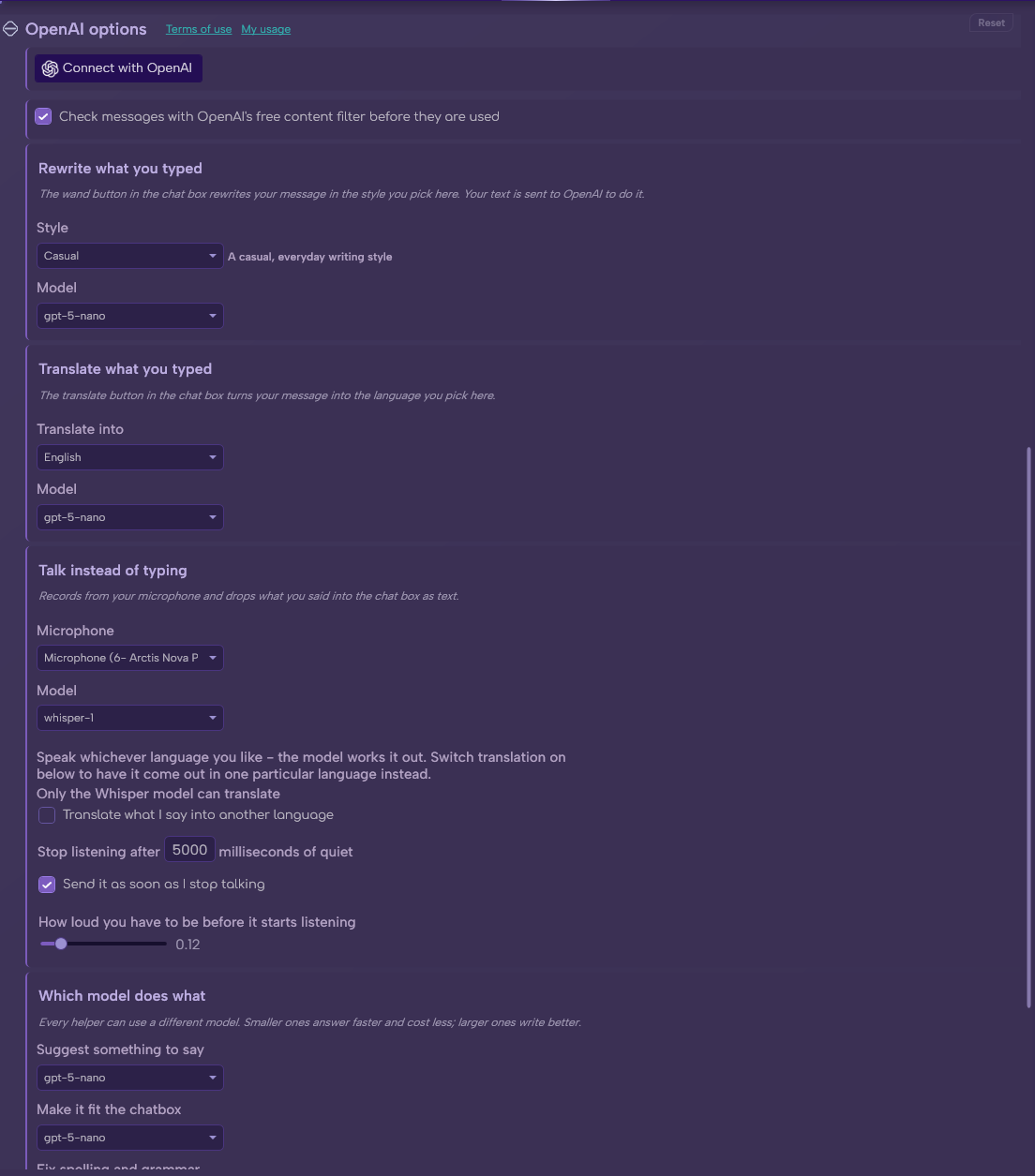
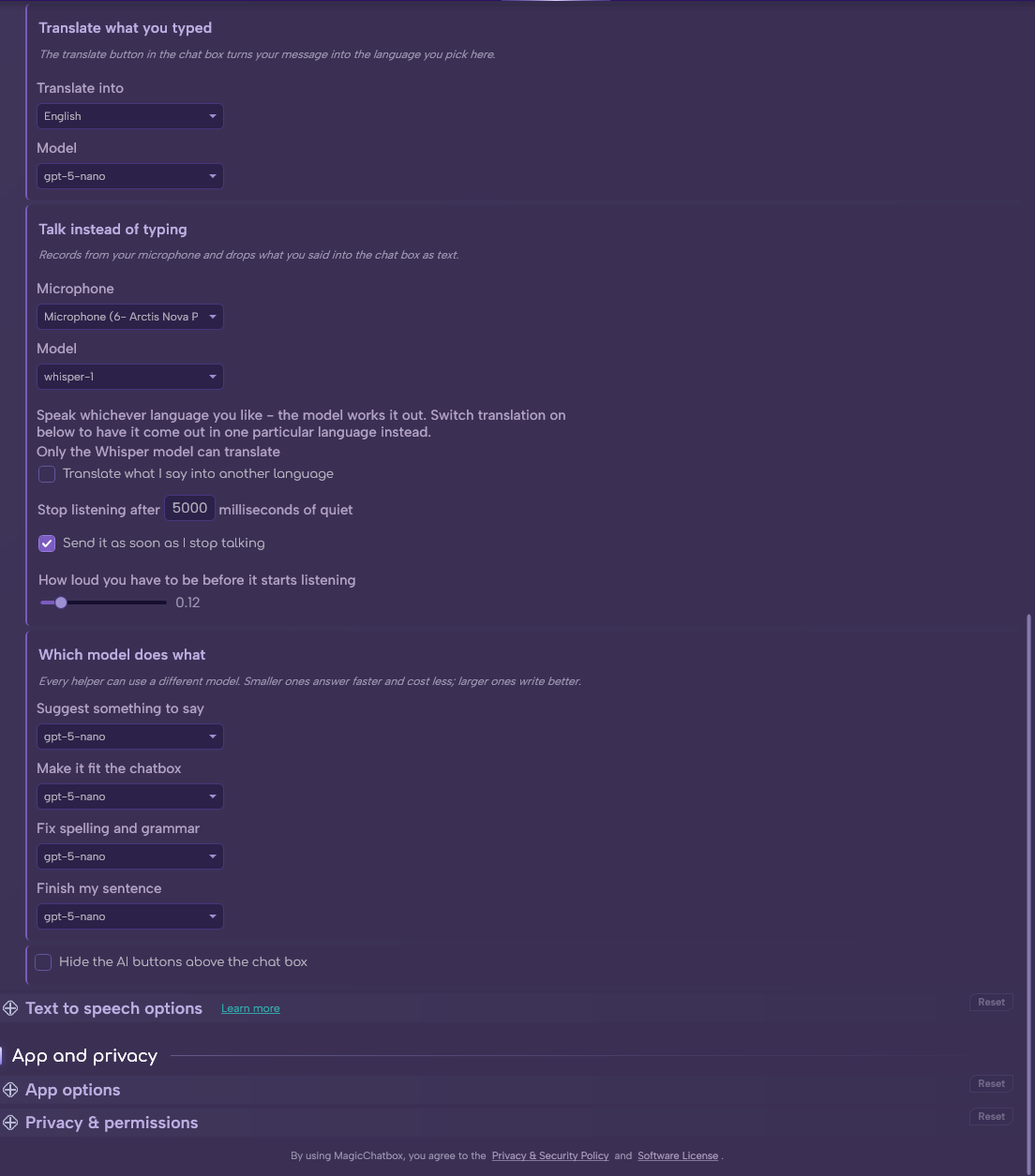
The OpenAI section in Options.
See the rest of this section
- An OpenAI account with billing set up.
- Both your Organization ID (
org-…) and an API key (sk-…). - The 🌐 Internet Access permission.
Important
IntelliChat uses your own OpenAI account and your own key. Usage is billed to you by OpenAI, not by MagicChatbox. The app shows tokens used per request and a running daily total next to each response, so you can see what you are spending as you spend it.
- Click Connect with OpenAI in Options → OpenAI. The dialog walks you through both values, in this order:
-
Organization ID — from platform.openai.com/account/organization. It starts with
org-. -
API key — from platform.openai.com/api-keys. It starts with
sk-.
Note
Both are required, and the dialog will not let you continue until each one has the right prefix. If you have only copied the API key, go back for the organization ID.
Caution
An API key is a billable credential. MagicChatbox stores it encrypted for your Windows account, but treat it like a password — never paste it into a screenshot or a support ticket.
-
Each tool runs on its own model, so you can spend more on the ones that matter and less on the rest.
- Spelling check — fix typos before sending.
- Beautify sentence — clean up phrasing.
- Shorten text — cut a message down to fit.
- Language translation — translate into your chosen language.
- Text completion — finish the message you started.
- Conversation starter — generate something to say.
Tip
Shorten text is the one built for this app specifically. The chatbox is 144 characters and integrations are already using some of them — this is what turns a paragraph into something that fits.
- Style — the tone applied when you rewrite a message.
- Translate into — the target language for translation.
Note
There is no language to set for the source text — the model works out what you wrote in on its own.
- Check messages with OpenAI's free content filter before they are used — on by default, and free.
Caution
Moderation is on by default deliberately. MagicChatbox publishes to a shared social space, and the Punishment policy applies to what you send. Leave it on.
- Every tool picks its own model, so you can spend more on the ones that matter and less on the rest. Four are set here:
- Suggest something to say.
- Make it fit the chatbox.
- Fix spelling and grammar.
- Finish my sentence.
- The picker offers the current OpenAI chat models — the GPT‑5 family including the mini and nano variants, the GPT‑4.1 and GPT‑4o families, and the o1 and o3 reasoning models.
Tip
The small, fast models are more than good enough for spelling and shortening, and cost a fraction of the large ones. Save the expensive models for Suggest something to say, where the quality actually shows.
- Hide the AI buttons above the chat box removes them entirely. It lives at the bottom of the OpenAI options section — not on the Chatting page, where you might reasonably look for it.
- You can find help in our Discord Server by creating a ticket.