Tracker Battery
Tracker Battery shows the battery level of your VR hardware — controllers, headset and full-body trackers — in the chatbox. In full body, a tracker dying mid-session is the difference between carrying on and recalibrating everything, so seeing it coming matters.
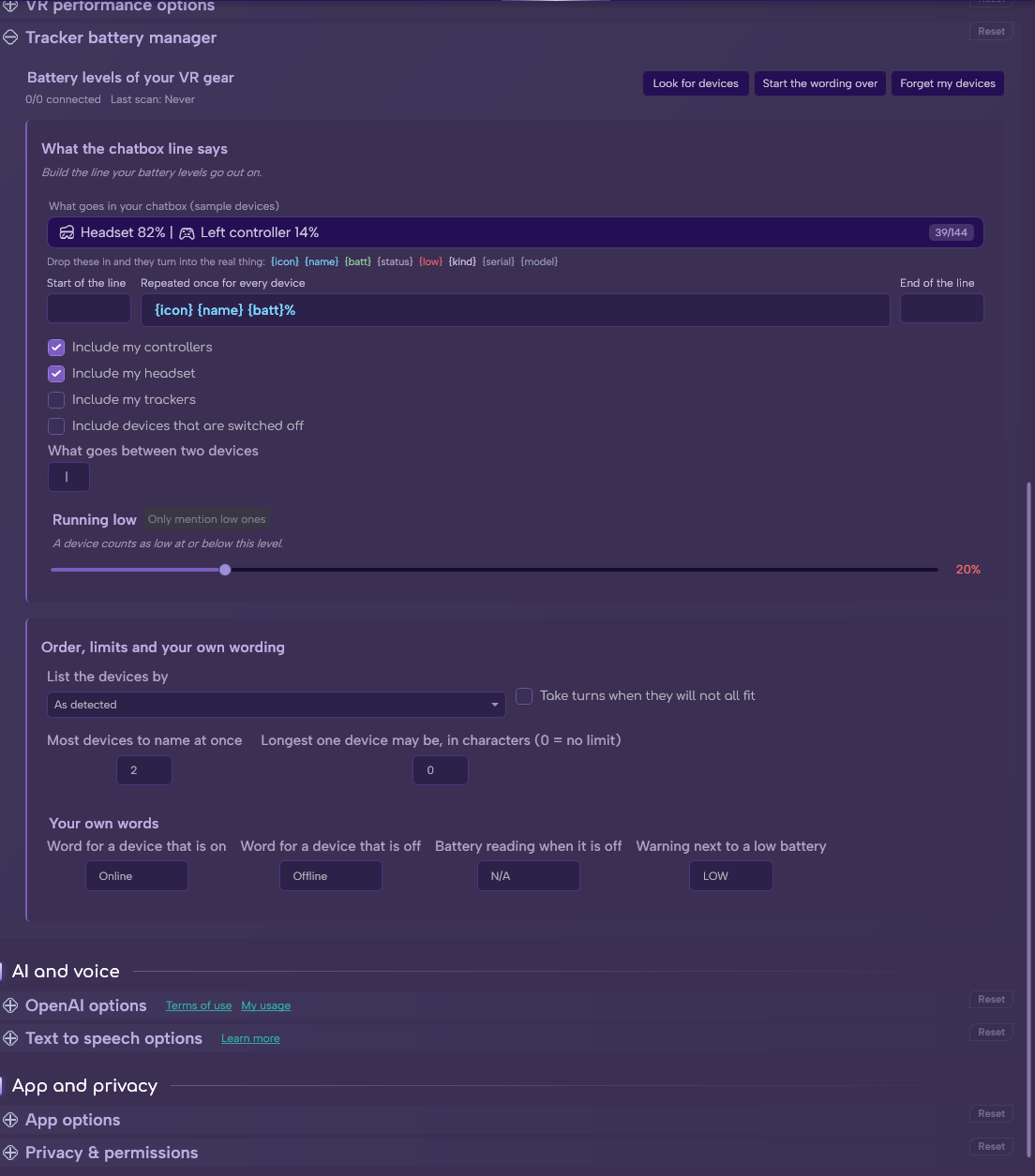
The Tracker battery manager in Options.
See the rest of this section
- SteamVR running, with your devices connected.
- The 🎮 VR Tracker Battery permission, which MagicChatbox asks for when you enable the integration.
Important
This integration needs the 🎮 VR Tracker Battery permission. Decline it and the integration switches itself back off. You can grant it later under Options → Privacy.
- Controllers — on by default.
- Headset — on by default.
- Trackers — off by default, since not everyone runs full body.
- Disconnected devices — off by default. Turn on if you want to see devices that are powered down rather than having them silently vanish.
- Each device is rendered with a template you control.
Default: {icon} {name} {batt}%
| Placeholder | What it becomes |
|---|---|
{icon} |
The device's icon |
{name} |
The device name |
{batt} |
Battery percentage |
{status} |
Your wording for on or off |
{low} |
Your low-battery warning tag |
{kind} |
Headset, controller or tracker |
{model} |
The model name SteamVR reports |
{serial} |
The device's serial number |
-
Around that you can set:
- Prefix and suffix — text before and after the whole block.
-
Separator — between devices. Default
|.
-
Offline battery text — shown when a level cannot be read. Default
N/A. -
Online text / Offline text — the words used for connection state. Defaults
OnlineandOffline. -
Low tag — appended to a device running low. Default
LOW.
- List the devices by — As detected, Name (A-Z), Battery low to high, Battery high to low, or Type, then name.
- Take turns when they will not all fit — cycle through devices across successive updates instead of cutting the list off, with Swap over every [N] seconds.
- Most devices to name at once.
-
Longest one device may be, in characters —
0means no limit.
Tip
Battery low to high puts whatever is about to die first in the line — which is exactly what you want to see, and what survives if the line gets trimmed.
- Every device MagicChatbox has seen gets its own card, and the settings there override the global ones:
- Icon and Call it — your own icon and name. The original model name stays visible underneath so you can tell them apart.
- Include this one — leave a device out entirely.
- Only when it is low — a device that stays quiet until it needs attention.
- Its own low point — a different threshold for this device.
Tip
Set your controllers to Only when it is low. They charge often and you rarely need to see them — but you very much want to know before one dies mid-session.
- Three buttons sit at the top of the section: Look for devices to rescan now, Start the wording over to reset the templates, and Forget my devices to clear the saved list and start fresh.
Note
Devices are remembered by serial number, so your custom names and icons survive reconnects and reboots. Base stations are deliberately ignored. Anything that does not report a battery at all is shown as 100%.
- Global emergency — surface a device that has reached a critical level regardless of your other display settings.
Note
This is the setting that makes it safe to turn most devices off in the normal display. You keep a clean line, and still get told when something is about to go flat.
- Compact whitespace — squeeze out extra spacing. On by default.
- Use small text — render in small characters to save room.
- Detected devices are remembered, so you can name them and decide individually which ones appear. Useful when "Tracker 3" means "left foot".
- You can find help in our Discord Server by creating a ticket.