Time
The Time integration prints your current time in the chatbox. It sounds trivial until you are in an instance with people on four continents — it is one of the most-asked questions in VRChat, answered permanently.
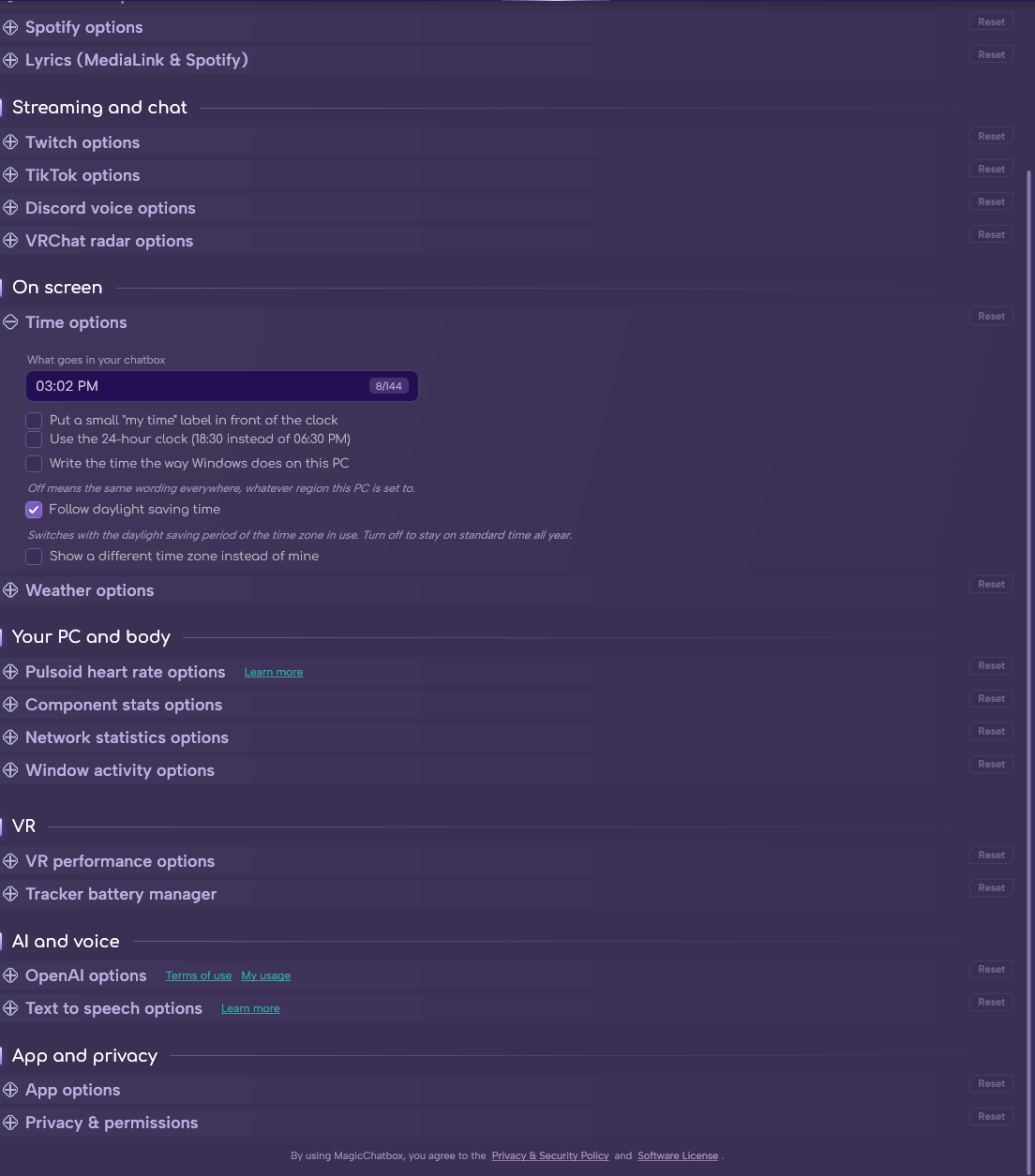
The Time section in Options.
-
Nothing. Time is calculated locally, with no network access and no permission required.
- Enable Time on the Integrations tab.
- 24-hour clock — switch between 24-hour and 12-hour display. Off by default, so you get 12-hour with AM/PM.
- Prefix time — add a prefix in front of the time.
- Show time zone — append your time zone, so the number means something to people elsewhere.
- Selected time zone — which zone to display. Defaults to UTC, so set this to your own.
- Use system culture — format the time the way Windows is configured to, instead of the app's own format.
Tip
Show time zone is the setting that makes this integration genuinely useful. 21:41 tells an international instance nothing; 21:41 CEST tells them everything.
- Follow daylight saving time — on by default. MagicChatbox works out whether DST currently applies, so there is nothing to toggle twice a year.
-
Bussy Boys mode turns a chosen date into a running counter, so instead of a clock you can show how long it has been since something.
- Enable the mode and set your date.
- Multi mode changes how much detail the counter shows.
Note
This shares its settings with the 📐 Personal Status feature — configure it in either place.
- The Weather integration can attach itself to the time output, so the two share one compact segment instead of taking two. See the Weather page for the layout and ordering options.
- You can find help in our Discord Server by creating a ticket.