Spotify
The Spotify integration connects to your Spotify account directly, so it knows things the Windows media session never exposes — whether a track is liked, whether it is explicit, your shuffle and repeat state, the active device, the volume, and the queue.
Note
If you only want "what is playing", 🎼 Music Display does that with no account and no setup at all. Use this integration when you want the extra Spotify-only detail or the templating — and be aware that it takes about five minutes to set up the first time.
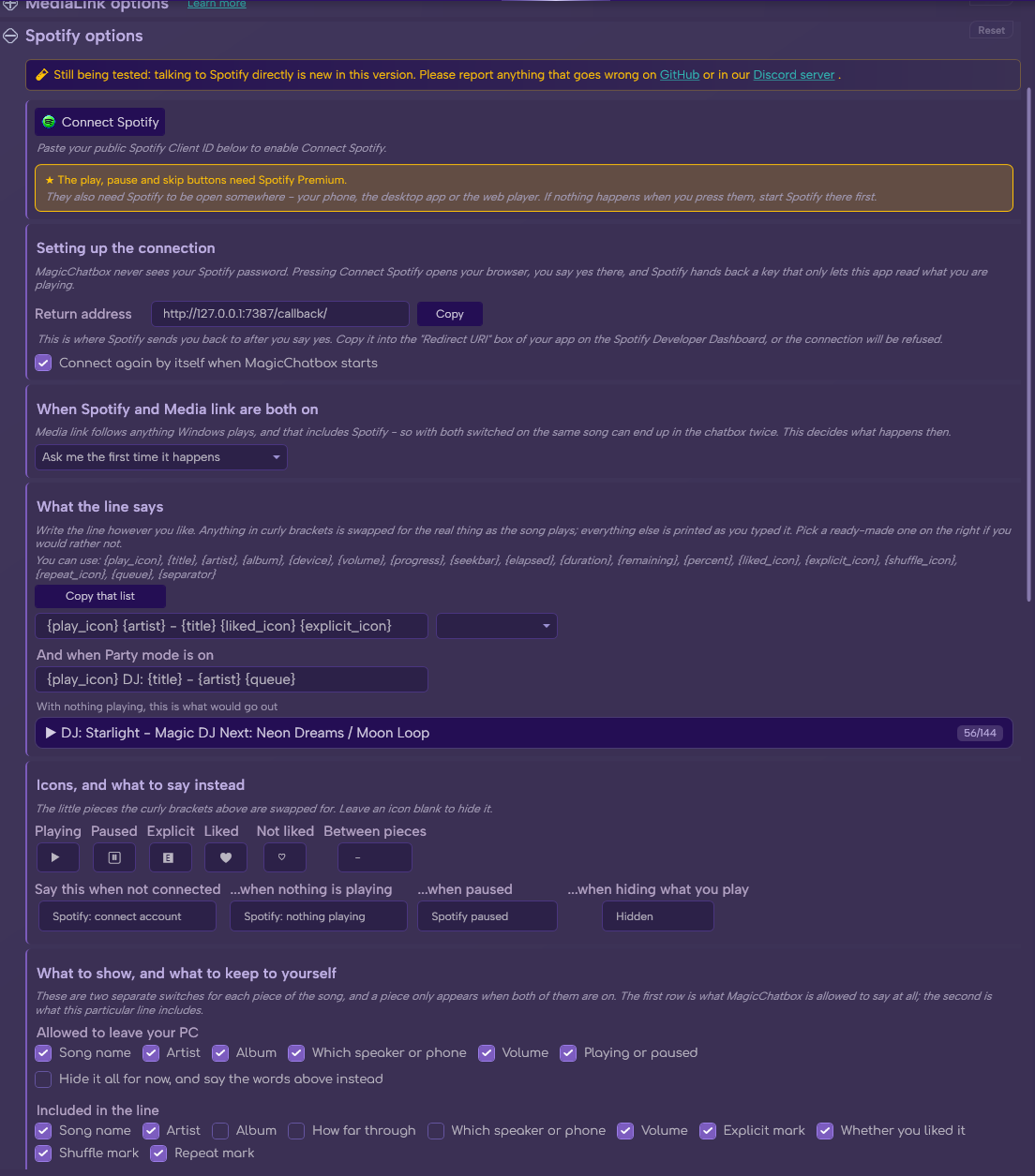
The Spotify section in Options.
See the rest of this section
- A Spotify account.
- The 🌐 Internet Access permission, which MagicChatbox asks for when you enable the integration.
- Your own Spotify Developer app. This is free, takes a few minutes, and is explained step by step below.
- Spotify Premium — only if you want the play, pause, skip and volume buttons to work. Showing the track works on a free account.
Important
MagicChatbox does not ship with a Spotify login. Spotify requires every application to identify itself with its own Client ID, and does not allow one to be shared between users. So you create a Spotify app of your own — it exists only to let your copy of MagicChatbox talk to your Spotify account. Nobody else ever sees it.
- This is a one-time setup. Have the Connect dialog open in MagicChatbox while you do it, because you need to copy a value out of it.
-
In MagicChatbox, enable Spotify on the Integrations tab, then open Options → Spotify and click Connect.
-
In the dialog that opens, find the Return address box and click Copy. The value is:
http://127.0.0.1:7387/callback/
-
Click Open the Spotify Developer Dashboard (or go to developer.spotify.com/dashboard) and log in with your normal Spotify account.
-
Click Create app. Give it any name and description you like — "MagicChatbox" is fine.
-
In Redirect URIs, paste the return address you copied, exactly as it is, and click Add.
-
Save the app, then open its Settings and copy the Client ID.
-
Back in MagicChatbox, paste the Client ID into the Client ID box and click Connect.
-
Your browser opens Spotify's approval page. Approve it, and MagicChatbox reports it is connected.
Caution
A mismatched redirect URI is the single most common reason connecting fails. It must match character for character, including the trailing slash. If you get an INVALID_CLIENT error or the browser never comes back, check this first.
Note
You are pasting a Client ID, which is public by design. You are not asked for a client secret, and MagicChatbox never asks for your Spotify password. The login happens on Spotify's own page using the Authorization Code + PKCE flow.
- Connect again by itself when MagicChatbox starts is on by default, so you only do this once. The token is encrypted for your Windows account and can be cleared at any time with Disconnect.
-
These are the permissions requested on the approval page:
Scope Why user-read-playback-stateRead what is playing and on which device user-read-currently-playingRead the current track user-modify-playback-stateThe play, pause, skip and volume buttons user-library-readTell whether you have liked the track user-library-modifyLet you like a track from MagicChatbox
Note
Playlist editing and private listening history are not requested.
-
The first time you connect, MagicChatbox asks what it may put in the chatbox. These are separate from the display toggles below — they are a hard allow-list, under the heading Allowed to leave your PC.
- Song name, Artist, Album, Which speaker or phone and Volume can each be allowed or denied.
- Playing or paused controls whether the play/pause icon is shown at all.
- Hide it all for now, and say the words above instead — replaces everything with your privacy text, so the line keeps its shape without revealing what you are listening to.
Caution
A denied field is never printed, even if the matching display toggle is on and even if you put its placeholder in your template. If something refuses to appear, check here first.
-
Under Included in the line, these decide which pieces are available to your template.
- Song name — on by default.
- Artist — on by default.
- Album — off by default.
- How far through — off by default.
- Which speaker or phone — off by default.
- Volume — on by default.
- Explicit mark, Whether you liked it, Shuffle mark and Repeat mark — the four status icons.
- The line is built from a template you control. Anything in braces is replaced; everything else is printed literally.
Default: {play_icon} {artist} - {title} {liked_icon} {explicit_icon}
- A preset picker sits next to the box with ready-made layouts: Compact, Rich, MediaLink style, Compact Seekbar, Album, Controls, Party/DJ and Minimal. Pick one as a starting point and edit from there.
| Placeholder | What it becomes |
|---|---|
{play_icon} |
Play or pause icon, depending on state |
{title} |
Track title |
{artist} |
Artist name |
{album} |
Album name |
{device} |
Active playback device |
{volume} |
Volume as a percentage |
{progress} |
Progress in your chosen display mode |
{seekbar} |
The character-based seek bar |
{elapsed} |
Time played so far |
{duration} |
Total track length |
{remaining} |
Time left |
{percent} |
Progress as a percentage |
{liked_icon} |
Liked or unliked heart |
{explicit_icon} |
Explicit marker |
{shuffle_icon} |
Shuffle on or off |
{repeat_icon} |
Repeat off, context or track |
{queue} |
Upcoming tracks, party mode only |
{separator} |
Your configured separator |
Note
Use \n anywhere in a template to insert a line break.
Important
When the line is too long, fields are dropped in a fixed order — not truncated mid-word. The order is:
queue → volume → device → album → seekbar → progress → remaining → elapsed → duration → percent → liked_icon → explicit_icon → shuffle_icon → repeat_icon → artist
Title and the play icon are never dropped. So put the things you care least about early in that list, and know that {artist} is the last thing to go before the title stands alone.
-
Party mode swaps in a second template built around the queue, for when you are the one picking the music.
- Use the Party mode line instead — on by default.
-
And when Party mode is on — the template. Default
{play_icon} DJ: {title} - {artist} {queue}.
Note
{queue} only resolves while party mode is enabled, and MagicChatbox only requests queue data when your template actually contains it — so an unused {queue} costs nothing.
- How to show it — Nothing, Just the times, as plain text, Just the times, in small raised digits, or A progress bar.
- Use a shorter progress bar when the line runs out of room — on by default. When space runs short, the bar drops to a compact form rather than pushing other integrations out.
- Which progress bar — only shown when you picked a progress bar. The bar styles are shared with 🎼 Music Display, where you can also design your own.
-
Every icon and every piece of state text is editable.
-
Playing
▶and Paused⏸. -
Explicit
🅴. -
Liked
♥and Not liked♡. - Shuffle and Repeat marks.
-
Between pieces — the separator. Default
-.
-
Playing
-
And the fallback messages, for when there is nothing to say:
-
Disconnected —
Spotify: connect account -
Nothing playing —
Spotify: nothing playing -
Paused —
Spotify paused -
Privacy hidden —
Hidden
-
Disconnected —
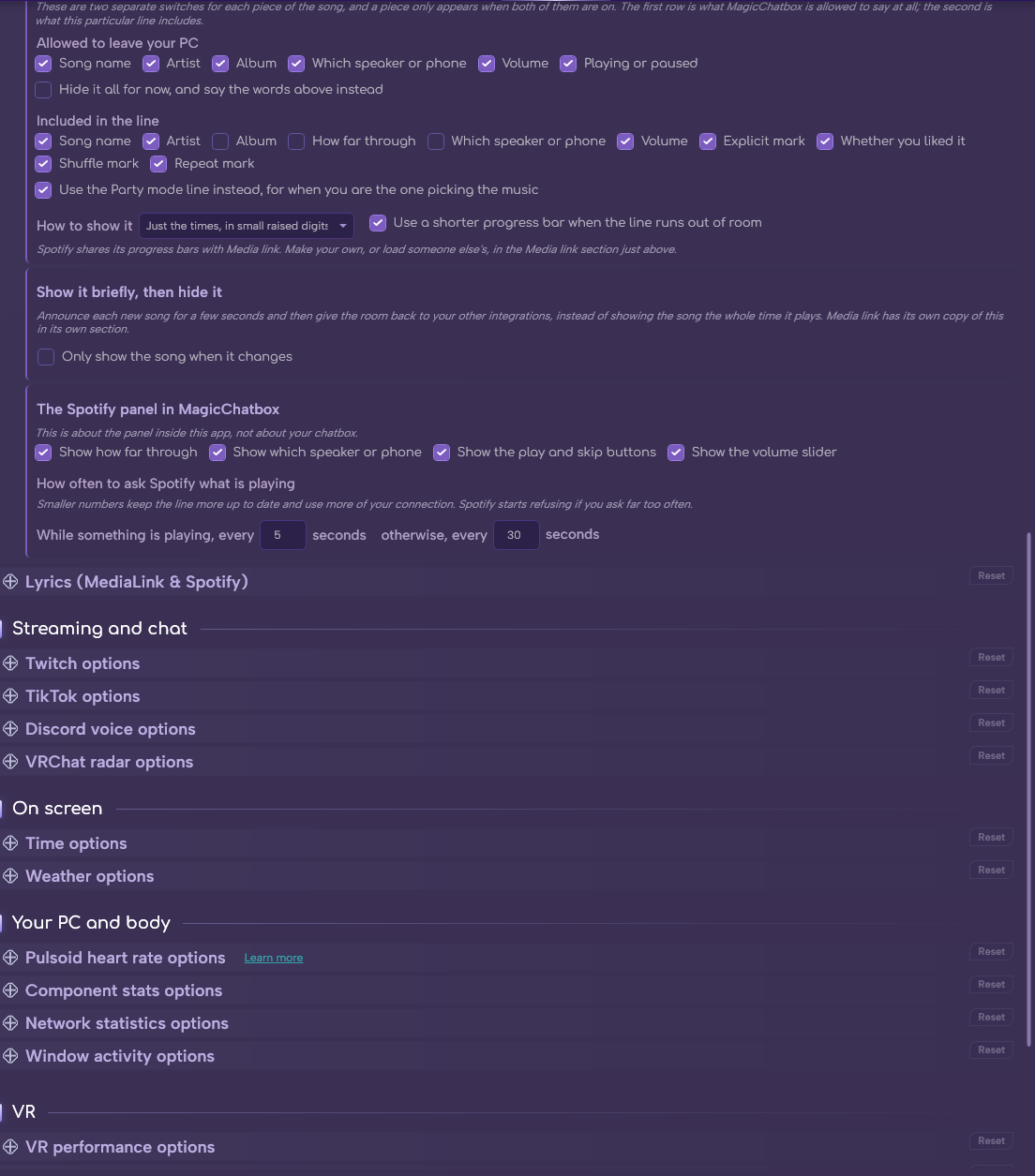
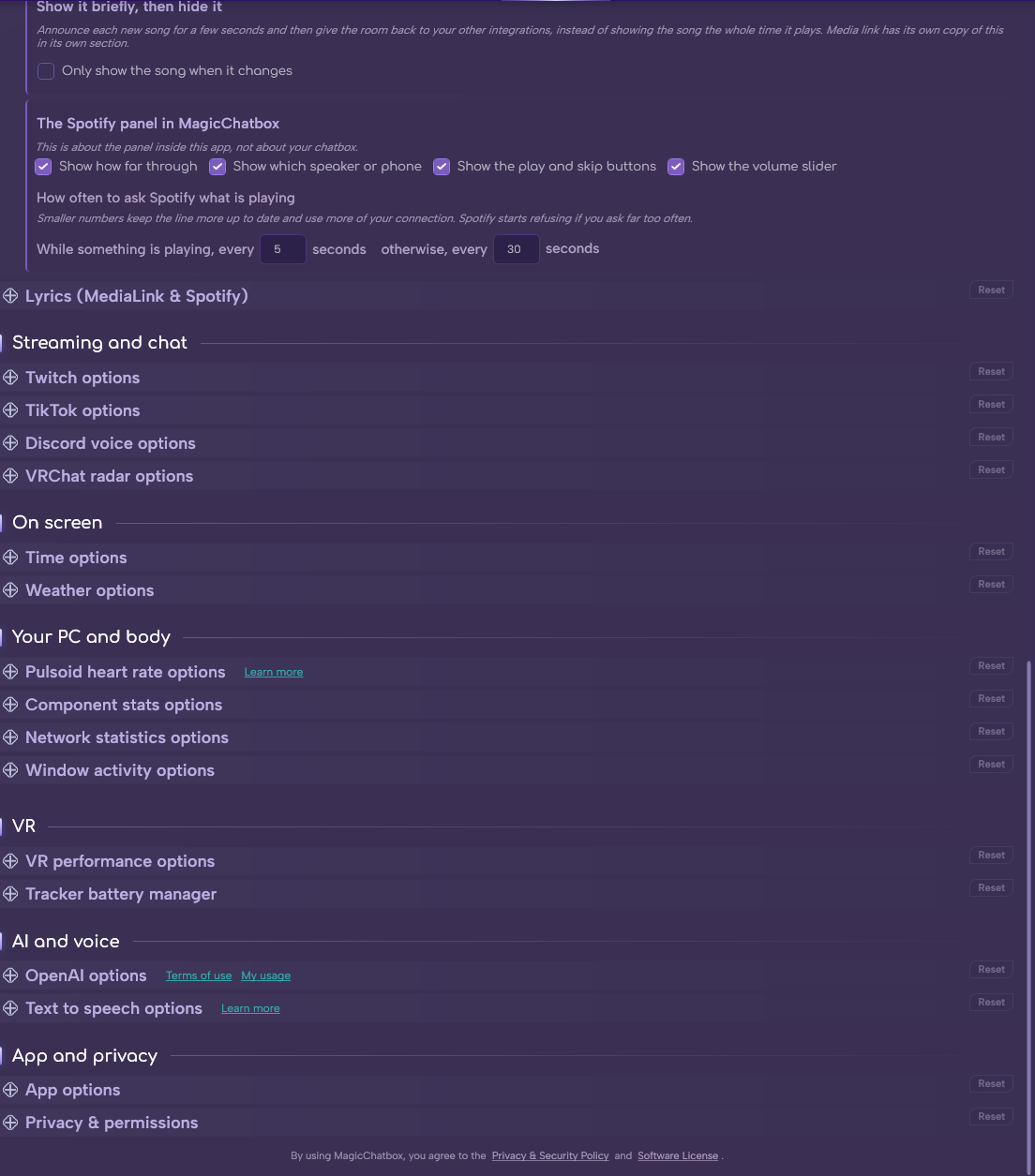
- Only show the song when it changes — print the track for a moment after it changes, then release the space to everything else.
- Hide it again after — how long that moment lasts. Default 25 seconds.
Tip
This is the most effective way to run Spotify alongside a busy chatbox. The song appears when it matters — when it changed — and then gets out of the way.
-
Under The Spotify panel in MagicChatbox:
- While something is playing, every — default 5 seconds, and it will not go below 2 or above 120.
- Otherwise, every — a slower idle rate. Default 30 seconds, between 5 and 600.
Tip
The idle interval exists to be gentle on the API when you are not listening. There is no benefit to lowering either value below the defaults — Spotify does not update faster than that, and hammering it will get you rate-limited.
-
Both integrations can see the same track, so When Spotify and Media link are both on decides what happens:
- Ask me the first time it happens — MagicChatbox prompts you the first time it notices the overlap. This is the default.
- Show Spotify only — the Spotify integration owns the line and Music Display stays quiet for it.
- Show both, even if that repeats the song — both print, which is usually not what you want.
Note
This setting lives on this page, not on the Music Display page, even though it affects both.
-
MagicChatbox shows a live Spotify card in its own window. These affect the app's own UI only, never the chatbox.
- Show how far through.
- Show which speaker or phone.
- Show the play and skip buttons.
- Show the volume slider.
Important
The play, pause, skip and volume controls need Spotify Premium and an already-active Spotify device. If the buttons do nothing, open Spotify on your phone, desktop app or the web player first so there is something to control.
| What you see | What it means |
|---|---|
| Spotify token exchange failed. Check your Client ID and redirect URI. | The redirect URI on your Spotify app does not match, or the Client ID is wrong. |
| The browser never returns | Port 7387 is in use by something else. Close it and try again. |
| Spotify rate limited MagicChatbox. Retrying in Ns. | You are polling too fast. It backs off automatically; leave the intervals at their defaults. |
| Reconnect Spotify appears | The saved token was rejected. Click Connect again. |
| Nothing after two minutes | The approval page timed out. Start the connect again. |
- Yes. Enable Lyrics on the Spotify card for synced lyrics that follow Spotify's own playback position. See Lyrics.
- You can find help in our Discord Server by creating a ticket.