VR Performance
VR Performance reads live compositor statistics from SteamVR and reports whether your session is running cleanly. It is the integration that answers "is it me or is this world just heavy?" without taking the headset off.
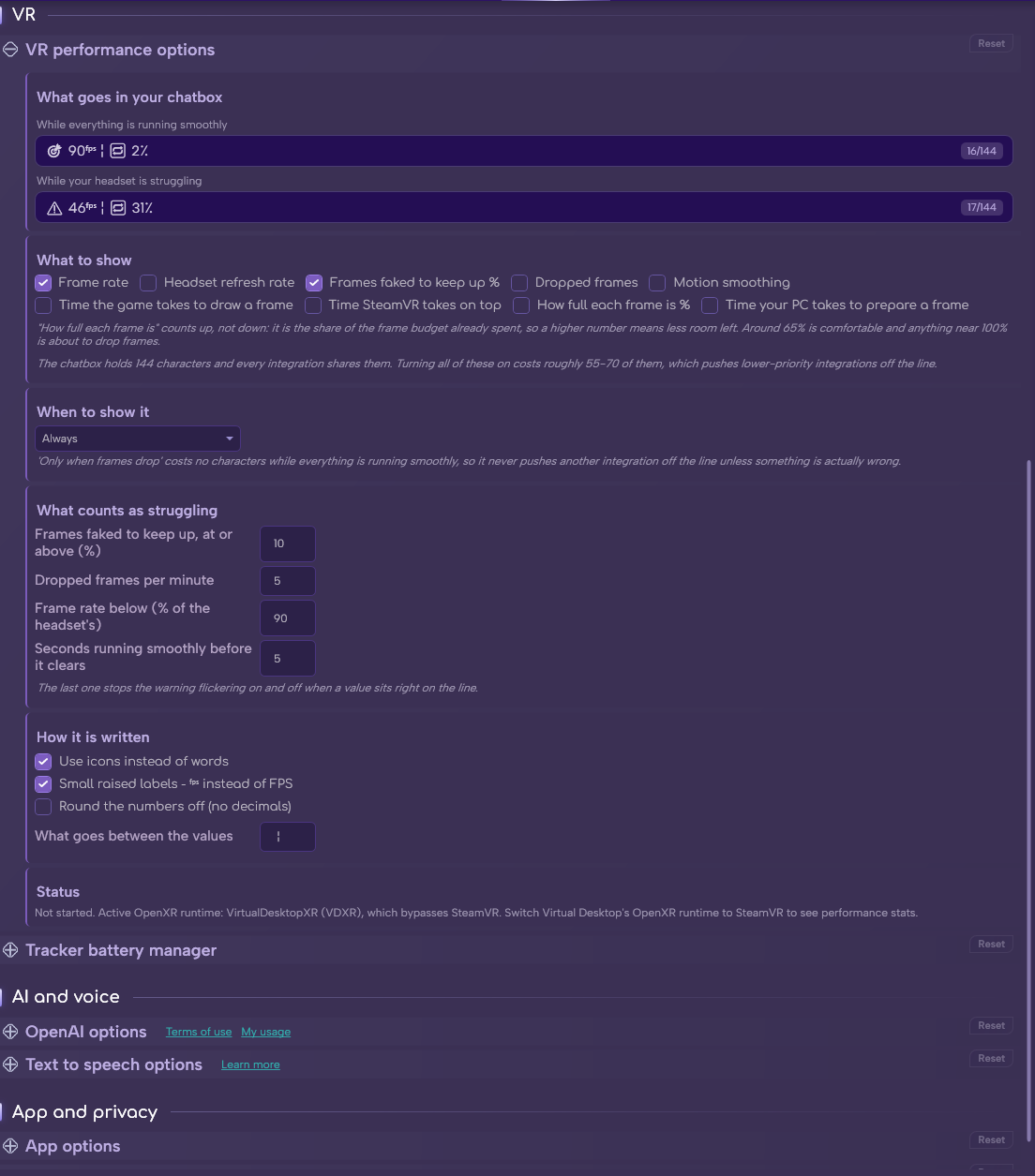
The VR performance section in Options.
- SteamVR running, with a headset connected.
- The 🎯 VR Performance permission, which MagicChatbox asks for when you enable the integration.
Important
This integration needs the 🎯 VR Performance permission. Decline it and the integration switches itself back off. You can grant it later under Options → Privacy.
Note
There is nothing to show while you are on desktop. The integration only produces output when a VR session is actually running.
-
This is the most important setting on the page, because performance stats are only interesting when something is wrong.
-
When to show it offers a choice between always-on and only-when-it-matters. Always is the default.
Tip
A permanent frame counter eats characters your other integrations need. If your line is crowded, switch this to one of the only-on-trouble modes — the numbers are only interesting when something is wrong anyway.
- Frame rate — on by default.
- Headset refresh rate — what your headset is targeting.
- Frames faked to keep up % — reprojection. On by default.
- Dropped frames — frames missed entirely.
- Motion smoothing — whether motion smoothing is engaging.
- Time the game takes to draw a frame — VRChat's own GPU time.
- Time SteamVR takes on top — the compositor's share.
- How full each frame is % — the share of the frame budget already spent.
- Time your PC takes to prepare a frame — the CPU-side frame time.
Important
"How full each frame is" counts up, not down. A higher number means less room left — around 65% is a comfortable session, and anything near 100% is on the edge of dropping frames.
Note
It is still the most predictive number here. Frame rate tells you what already went wrong; this tells you how close you are to it going wrong.
Tip
On the Integrations tile the same toggle is labelled Budget, and in the chatbox it prints as 65% budget.
-
The thresholds that decide when trouble mode triggers are all adjustable.
- Frames faked to keep up, at or above (%) — default 10.
- Dropped frames per minute — default 5.
- Frame rate below (% of the headset's) — default 90.
- Seconds running smoothly before it clears — default 5.
Tip
That last one is what stops the display flickering between normal and expanded every time a world loads something. Raise it if your line is still twitchy, lower it if you want faster reaction.
- Use icons instead of words — saves room.
-
Small raised labels —
ᶠᵖˢinstead ofFPS. - Round the numbers off (no decimals).
-
What goes between the values — default
¦.
- A read-only line at the bottom of the section explains what MagicChatbox can currently see. It distinguishes between VR not running at all, SteamVR not running, and another OpenXR runtime being active — for example:
Active OpenXR runtime: Oculus… launch VRChat through SteamVR instead.
Important
Only SteamVR is read. MagicChatbox gets these numbers from SteamVR's compositor. If VRChat is running through the Oculus runtime, Virtual Desktop's own runtime, or WMR directly, there are no statistics to read — the status line will tell you which runtime it found and what to do about it.
- You can find help in our Discord Server by creating a ticket.