Weather
The Weather integration adds current conditions to your chatbox — temperature at minimum, and optionally the condition, humidity, wind and what it feels like. It is designed to sit alongside the Time integration so the two share one compact segment.
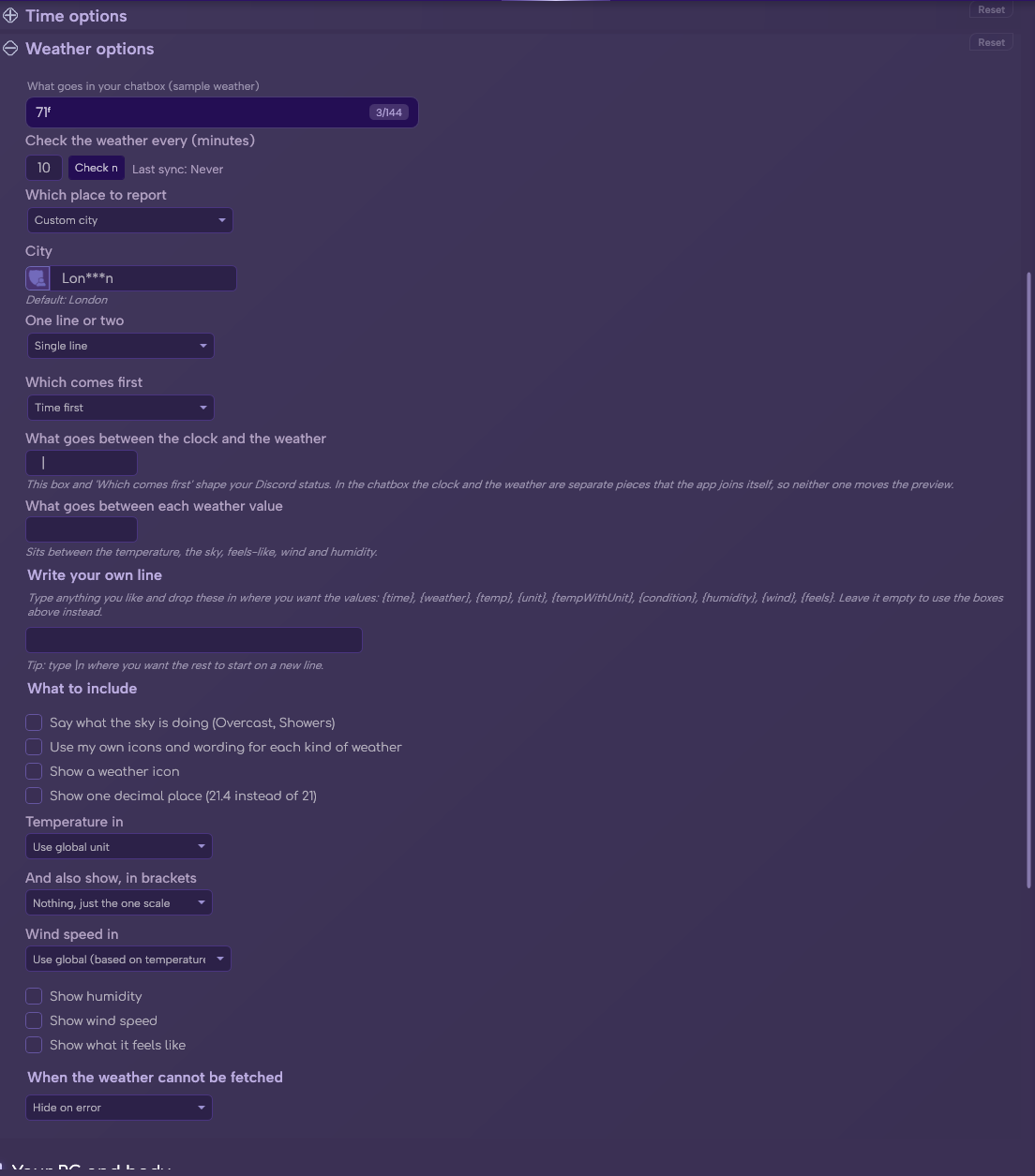
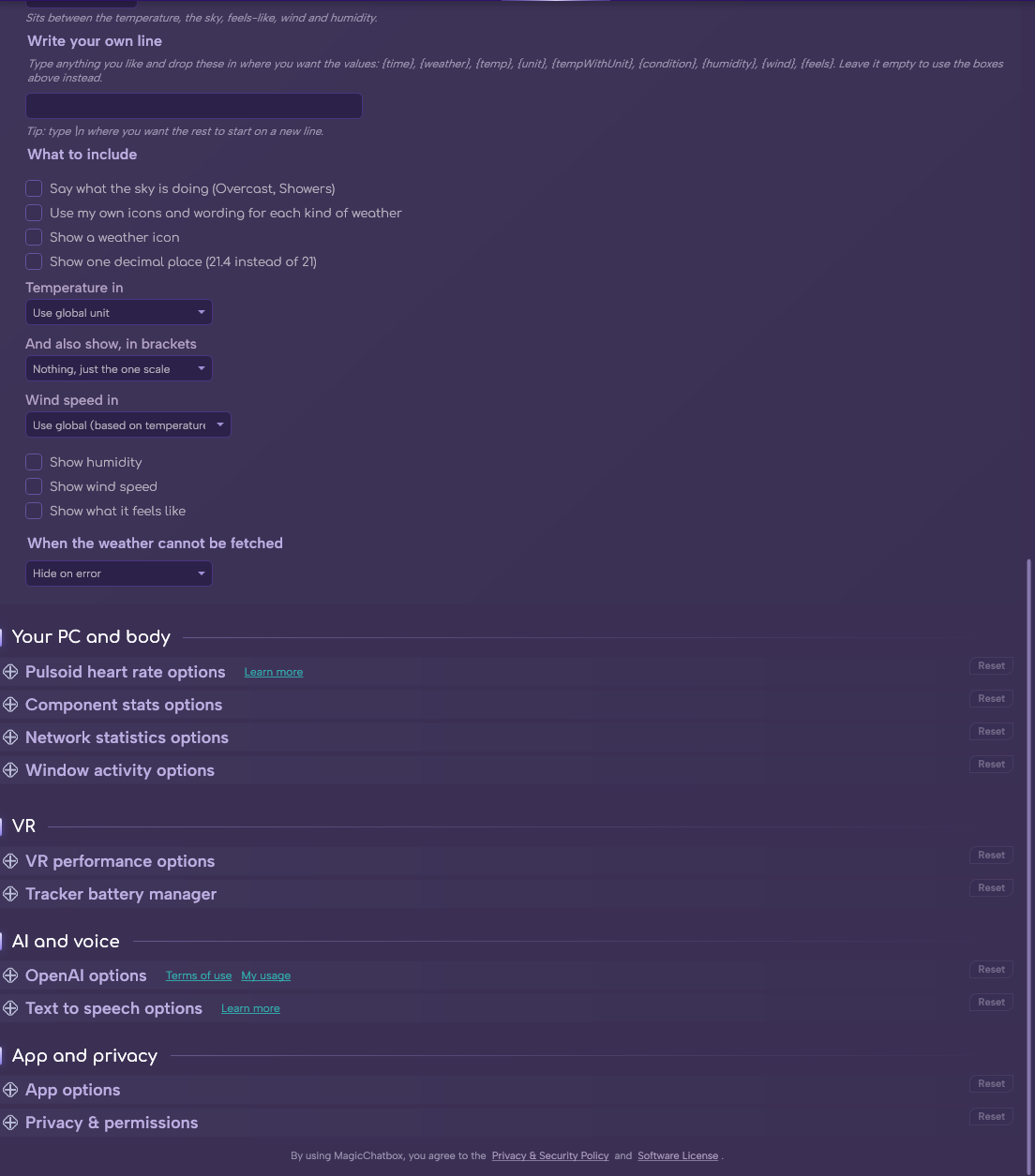
The Weather section in Options.
See the rest of this section
- The 🌐 Internet Access permission, to fetch conditions.
- A location — a city name, coordinates you enter, or IP-based lookup.
Note
Weather comes from Open-Meteo, which is free and needs no API key and no account. You do not have to sign up for anything.
-
Which place to report offers three modes, in increasing order of convenience and decreasing order of privacy.
- Custom city — type your city. This is the default and the one we recommend. It defaults to London until you change it.
- Custom coordinates — enter latitude and longitude directly, for precision or for somewhere a city name does not resolve.
- IP-based — work out roughly where you are from your connection.
Caution
Choosing IP-based also requires ticking Work out my place from my internet connection (uses ipapi.co), which is off by default. It sends your address to a third-party lookup service to determine your position. Custom city achieves the same result in the chatbox without that step — prefer it unless you have a reason not to.
Note
If IP lookup is selected but not consented to, MagicChatbox quietly falls back to your configured city rather than failing.
- Weather is not a standalone item. It always attaches to the Time segment, or it prints nothing at all.
Important
The Weather tile's switch on the Integrations tab is the master on/off for the whole integration. There is no separate "show weather on its own" mode to find — if the switch is off, weather is off.
- Check the weather every (minutes) — default 10.
- Check now — fetch immediately, without waiting.
- The time of the last successful check is shown beside the button.
-
Say what the sky is doing — the text description, such as
OvercastorShowers. - Show a weather icon — a matching emoji.
- Show one decimal place — instead of a whole number.
- Show humidity.
- Show wind speed.
- Show what it feels like — the apparent temperature.
- Temperature in — Use global unit, Celsius, Fahrenheit, Kelvin, Rankine or Réaumur.
-
And also show, in brackets — an optional second scale printed alongside the first, so you can show
21°C (70°F)for an international instance. Set it to Nothing to switch it off. - Wind speed in — Use global (which follows your temperature scale — °F and °R give mph, everything else km/h), km/h or mph.
Tip
The companion scale is the neat answer to "what's that in Fahrenheit?" — you answer it once, in the chatbox, instead of every time someone asks.
- Layout mode — Single line or Two lines.
- Order — Time first or Weather first.
-
Weather separator — sits between the weather block and whatever is next. Default
|. - Stats separator — sits between the individual weather values. Default a single space.
- For full control, write your own template. Anything in braces is replaced.
| Placeholder | What it becomes |
|---|---|
{time} |
The time output |
{weather} |
The whole assembled weather block |
{temp} |
Temperature |
{unit} |
The unit on its own |
{tempWithUnit} |
Temperature including the unit |
{condition} |
Condition description |
{humidity} |
Humidity |
{wind} |
Wind speed |
{feels} |
Apparent temperature |
Caution
That is the complete list. Anything else in braces is printed literally, exactly as you typed it — there is no error message, the text just appears in your chatbox looking like a mistake. If a placeholder is not in this table, it does not exist.
- Use my own icons and wording for each kind of weather replaces the defaults per condition — so a long description can become something shorter, or your own emoji set can replace the built-in ones.
-
Switching it on reveals a card for every kind of weather, each with two boxes:
- Icon — the emoji for that condition.
- Words — what it is called.
Tip
You do not have to fill them all in. Anything you leave blank keeps its default, so you can override just the two or three that annoy you.
-
Weather depends on a network call, so fallback mode decides what happens when it does not come back.
- Hide on error — show nothing at all. This is the default.
- Keep last value — keep showing the last successful reading.
- Show N/A — print a placeholder so the gap is visible.
Tip
Keep last value reads best in practice — weather changes slowly, so a few-minute-old temperature is still true, whereas a disappearing segment makes your line jump around.
- You can find help in our Discord Server by creating a ticket.