Lyrics
Lyrics finds synced lyrics for whatever you are listening to and shows the current line in your chatbox, following the playback position. It works with both Spotify and 🎼 MediaLink.
Note
Lyrics is not a separate item on the Integrations tab. It attaches to whichever music card is playing — enable it with the LYRICS chip on the Spotify or MediaLink card, and a ribbon appears underneath showing the live line.
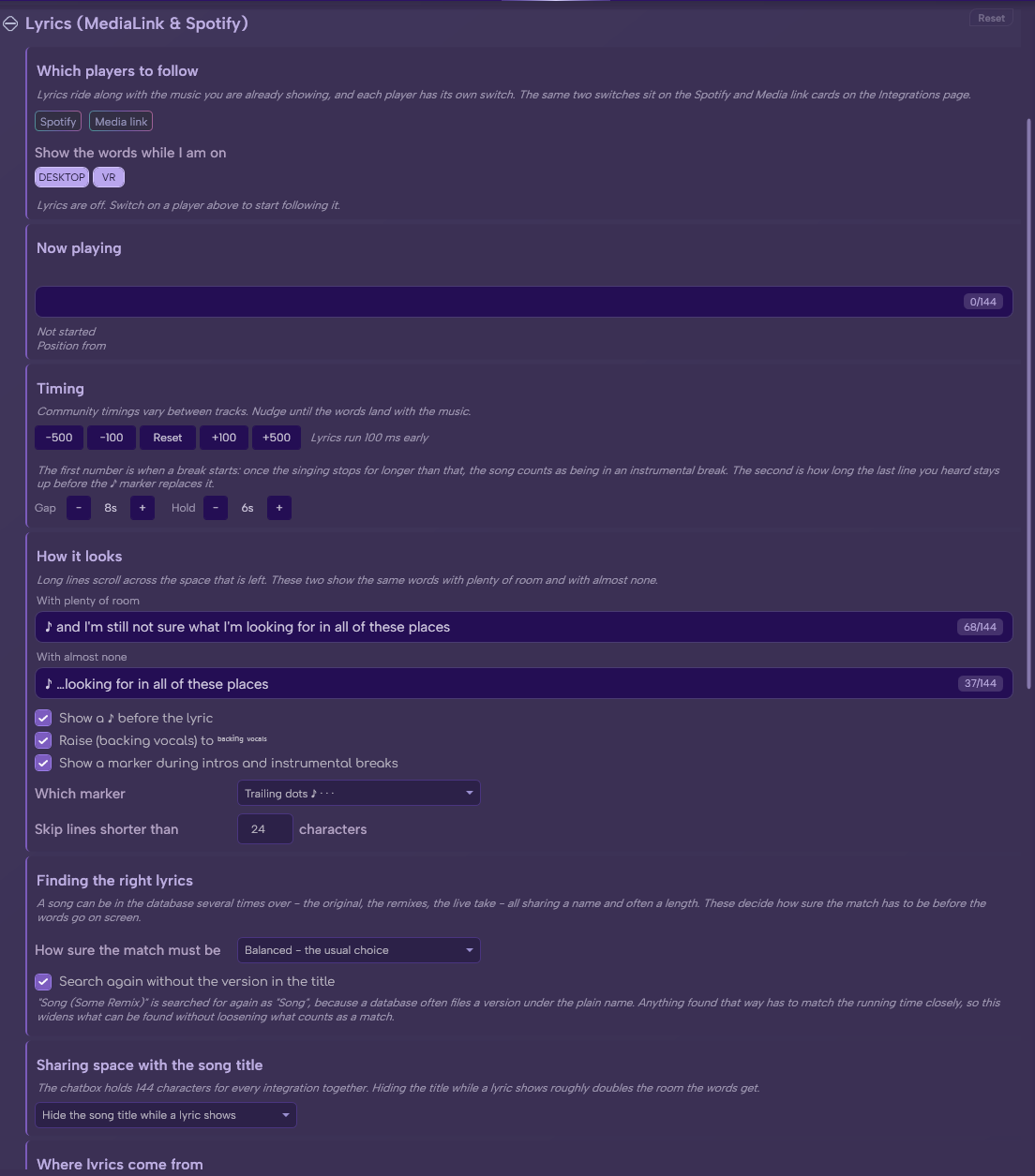
The Lyrics section in Options.
See the rest of this section
-
Spotify and Media link have a switch each. They are independent: turning lyrics off for Media link leaves Spotify alone, and the other way round.
- Spotify — follow the track Spotify itself reports, using its own timing.
- Media link — follow whatever Windows is playing: browsers, local players, anything with media keys.
- Both switches appear in two places, and they are the same setting: the LYRICS chip on each card on the Integrations tab, and the Which players to follow card in Options.
Tip
With both on, Spotify is used whenever it is playing and Windows playback is used otherwise. With only one on, the other player is ignored entirely — useful if you want lyrics for your music but not for every video in a browser tab.
Note
The summary line under those switches tells you what will actually happen, including the awkward case where lyrics are set to follow a player whose integration is switched off on the Integrations tab.
- A music integration already working — Spotify or MediaLink.
- The 🌐 Internet Access permission, for looking lyrics up online.
Important
Without the 🌐 Internet Access permission, only local .lrc files can be used. Online lookup is disabled entirely.
-
Two sources, tried in order.
-
Local files — a folder of
.lrcfiles on your PC. Checked first, costs nothing, works offline. - LRCLIB — a free public lyrics database, used when no local file matches.
-
Local files — a folder of
- Local files are matched first by exact
Artist - Title.lrc, then by a normalized name search, so minor punctuation differences still match.
Note
Only synced lyrics are used. A plain text file with no timestamps cannot follow the music, so it is ignored.
- Offset (ms) — shift the lyrics earlier or later. Raise it if lines appear too early, lower it if they lag. Default +100 ms, nudged in steps of 100 and 500 with the buttons either side. Reset puts it back to +100, not to zero.
- Line hold — how long a line stays up before it is cleared. Default 6 seconds.
- Gap threshold — how long an instrumental break must be before Lyrics treats it as a gap rather than holding the last line. Default 8 seconds.
- Minimum characters — skip very short lines that are not worth the space. Default 24.
- Show a ♪ before the lyric — on by default.
- Raise (backing vocals) to ᵇᵃᶜᵏⁱⁿᵍ ᵛᵒᶜᵃˡˢ — on by default. Lifts anything in brackets into small raised text, so backing vocals and ad-libs read as asides instead of competing with the main line.
- Show a marker during intros and instrumental breaks — on by default, with Which marker to choose its style.
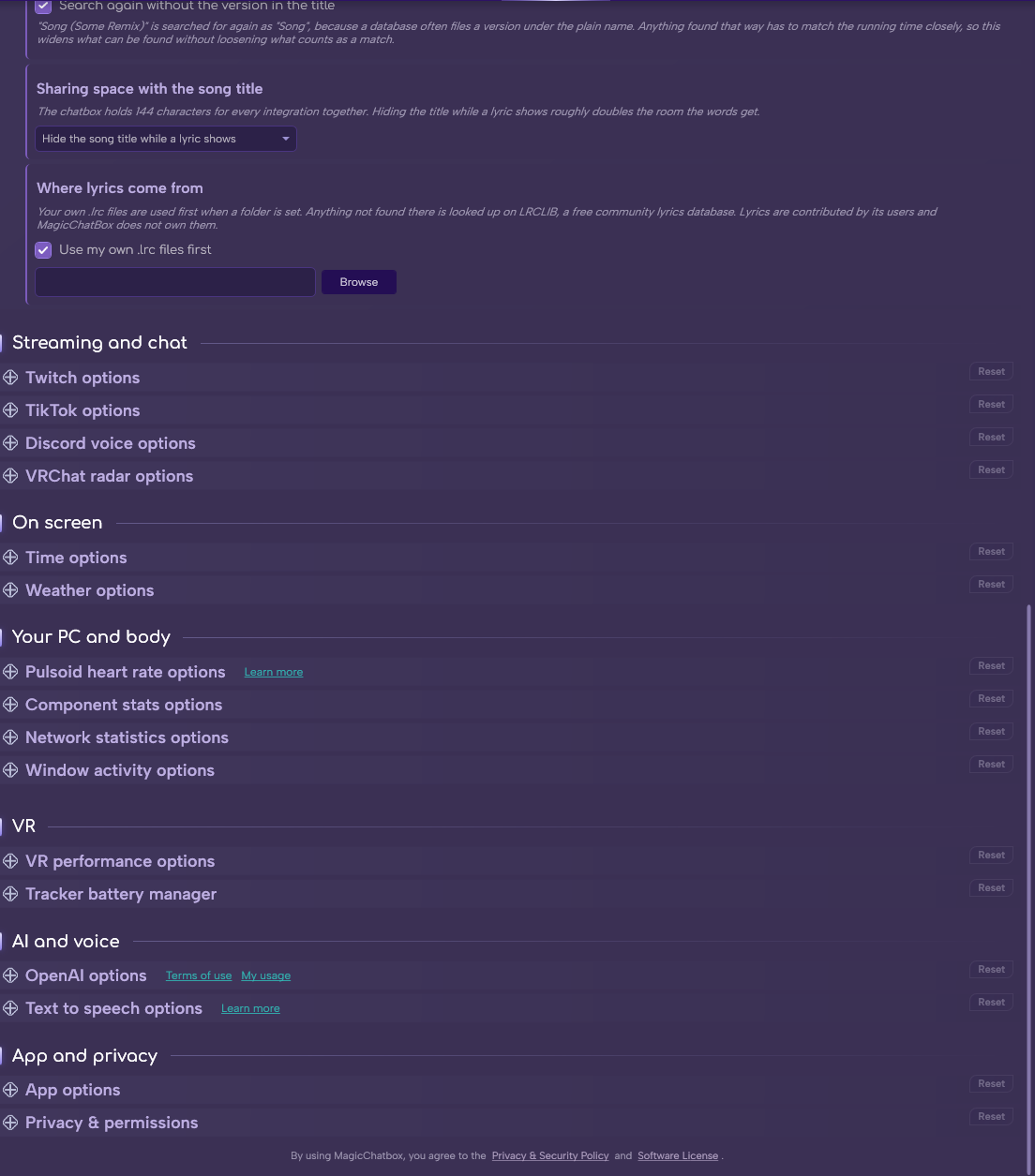
- Use my own .lrc files first — check your own folder before going online. On by default.
- Local lyrics folder — where those files live, with a Browse button.
- Two settings control how hard MagicChatbox tries, and how fussy it is about what it accepts.
- How sure the match must be — how closely the found lyrics must match the track before they are used.
-
Search again without the version in the title — on by default. If
Song (2011 Remaster)finds nothing, it retries asSong.
Tip
Loosen the strictness if common tracks are not being found; tighten it if you are getting lyrics from the wrong song. Remixes and live versions are the usual culprits for both.
-
Both the track name and the lyric want the same space, so you choose:
- Show both — the title and the lyric appear together.
- Hide the song title while a lyric shows — the title steps aside whenever a line is on screen, and comes back during gaps. This is the default.
Tip
The default is the right choice for most people. 144 characters does not comfortably hold an artist, a title and a line of lyrics at once.
- The lyric clears and the ribbon reads Paused. The track stays loaded, so resuming picks straight back up without another lookup.
Note
A paused player still reports a position — it is simply frozen. Left alone, that means the same line sits on screen for as long as the pause lasts, and because a visible lyric hides the song title, there is nothing on the line to say anything stopped. So lyrics stop while you are paused, and the song title is free to come back.
Tip
If the song title still does not appear while paused, check the TRANSIENT chip on that card — that setting only shows the title for a short while after the track changes.
-
A few reasons, all deliberate.
- It is not music. Anything over 15 minutes, under 25 seconds, or with spoken-word markers in the title — podcast, audiobook, livestream, gameplay, interview, documentary — is never looked up. Browser media sessions produce a lot of these and every one would be a guaranteed miss.
- No synced version exists. LRCLIB may only have plain lyrics for that track, which cannot be timed.
- The match was rejected. Candidates are scored on title, artist and duration together, and a candidate has to clear a minimum similarity on both title and artist. This is deliberate — without it, a karaoke or cover version with a coincidentally similar length wins the match and you get the wrong words.
Note
Misses are remembered for 24 hours so the same track is not looked up repeatedly. The cache is held in memory, so it resets when you restart MagicChatbox.
- You can find help in our Discord Server by creating a ticket.