Reading the Integrations page
Every integration you switch on is competing for the same 144 characters. This page explains what the Integrations tab is telling you about that.
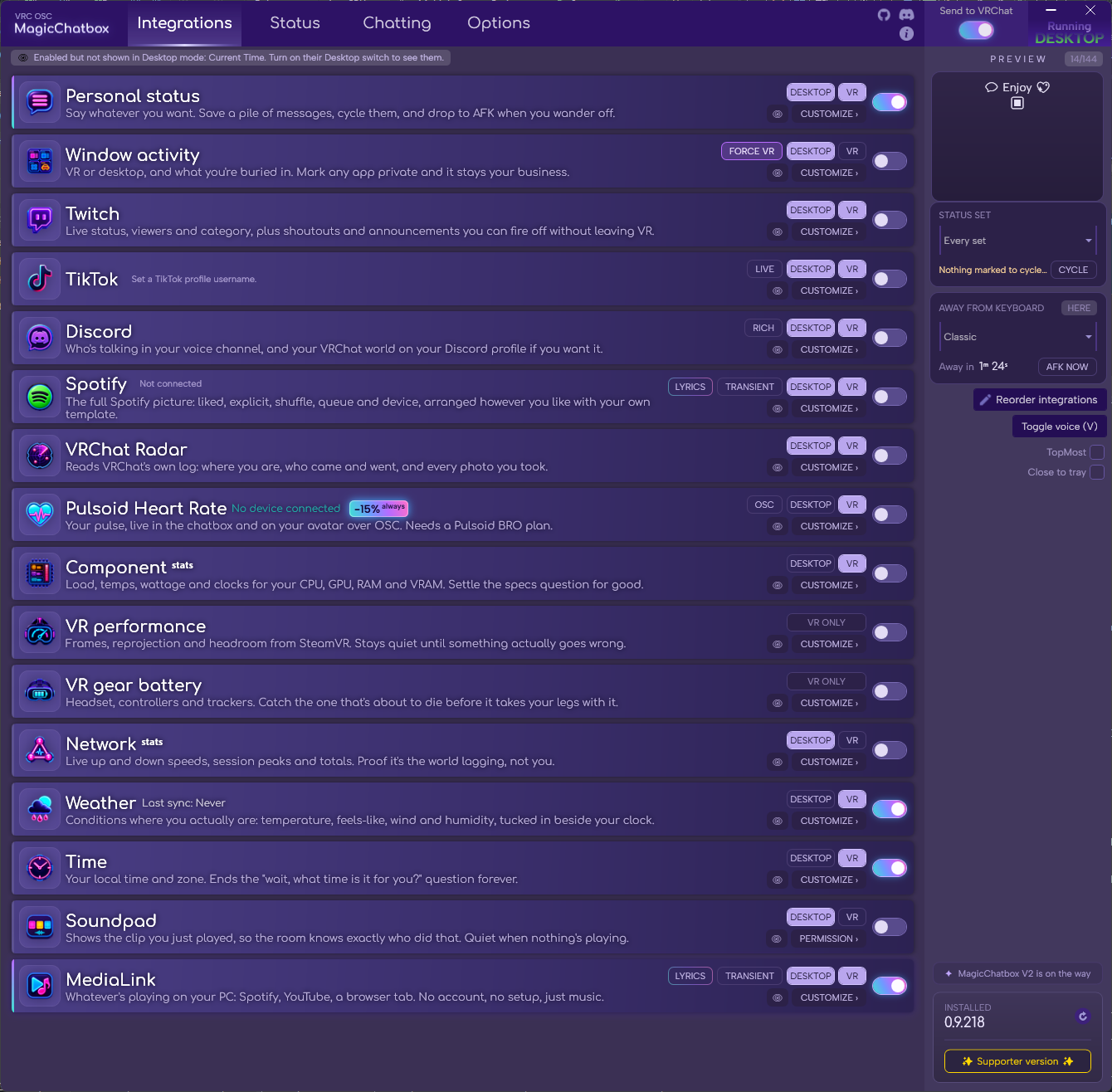
The Integrations tab.
-
Each tile has a thin coloured rail down its left edge.
Rail Meaning Lit This integration's text is in the line VRChat is receiving right now. Dark Nothing from it is reaching the chatbox.
-
Lit is not the same as switched on. A tile can be switched on and still show a dark rail, for any of these reasons:
- It has nothing to say — Discord with a quiet voice channel, Pulsoid with no device connected, Music Display with the music paused.
- Its DESKTOP / VR chips exclude the mode you are currently in.
- It was trimmed to make room inside the 144 characters.
- Send to VRChat is off, in which case nothing is reaching the chatbox at all and every rail is dark.
- It failed repeatedly and was put to sleep — see below.
Tip
The rail is the fastest way to answer "is this thing working?". If it is dark while the integration is on, one of the five reasons above applies — and the notices at the top of the page name reasons 2 and 3 directly.
- If an integration throws errors three times in a row, MagicChatbox stops calling it for 60 seconds, then quietly tries once more. If that probe succeeds, it comes straight back.
- This is why a broken integration goes quiet rather than filling your chatbox with errors — but it also means a dark rail can mean "it is in its cooldown" rather than "it has nothing to say".
Tip
Switching the integration off and back on clears the cooldown immediately, so you do not have to wait out the minute. If it keeps happening, the log folder — Options → App options → Open log folder — names the actual error.
- Two things can keep a switched-on integration out of the chatbox, and each has its own line.
👁 Not shown in this mode
Enabled but not shown in Desktop mode: Current Time. Turn on their Desktop switch to see them.
The integration is on, but its DESKTOP or VR chip is off for the mode you are in right now. Turn that chip on and it comes back.
✂ No room in the line
No room in the 144 characters for Discord and Weather.
Everything you have switched on adds up to more than the chatbox holds, so the lowest-priority integrations were dropped to make the rest fit. The tiles that were cut are also faded.
-
The 144 characters are a hard limit set by VRChat, not by MagicChatbox. If the ✂ notice keeps appearing, something has to go.
- Switch off what you are not reading. The fastest fix.
- Use the DESKTOP / VR chips. Hardware stats in VR, window activity on desktop — no integration has to be on in both.
- Shorten what stays. Most integrations have wording you can trim in their Options section, and fancy text costs more than it looks: bold, italic and monospace letters cost two characters each, because they are Unicode symbols rather than ordinary letters.
- Trim the wrapping. Your separator, prefix and suffix in App options are charged to every line.
- The order is fixed and built in. From first dropped to last kept:
Time → Weather → Network stats → Soundpad → Component stats → VR performance → VR gear battery → TikTok → Twitch → Discord → Heart rate → VRChat radar → Window activity → Spotify → Lyrics → Music Display → Personal status
- So your Personal status is the last thing standing, and Time is the first to go. The reasoning is that what you chose to say yourself outranks a clock anyone can read.
Important
Reorder integrations does not change this. It sets the order pieces appear in the line, left to right, and gives the earlier ones a larger share of the remaining room to size themselves against. It has no effect on who gets cut.
Note
If only one integration is left and it still does not fit, it is shortened with an ellipsis rather than dropped — so you are never left with an empty chatbox.
Note
The character counter beside the PREVIEW panel stays quiet until the line starts filling up, then warms to amber, and turns red at the limit. The preview itself is exactly what VRChat receives.
| Control | What it does |
|---|---|
| DESKTOP / VR | Which mode this integration appears in. They are independent. |
| 👁 | Hide the tile from this list. The integration stays switched on. |
| CUSTOMIZE › | Jump straight to this integration's section in Options. |
| Toggle | Switch the integration on or off. |
- Some tiles carry extra chips — LYRICS on the music cards, OSC on Pulsoid, RICH on Discord — which turn on features specific to that integration.
Tip
Hidden tiles are not lost. They collect in a strip at the top of the page showing what you have hidden, so you can bring any of them back.
- You can find help in our Discord Server by creating a ticket.