Twitch
The Twitch integration displays whether you are live, what you are playing, your viewer count and your follower count. It can also send announcements and shoutouts to your own channel from inside VRChat.
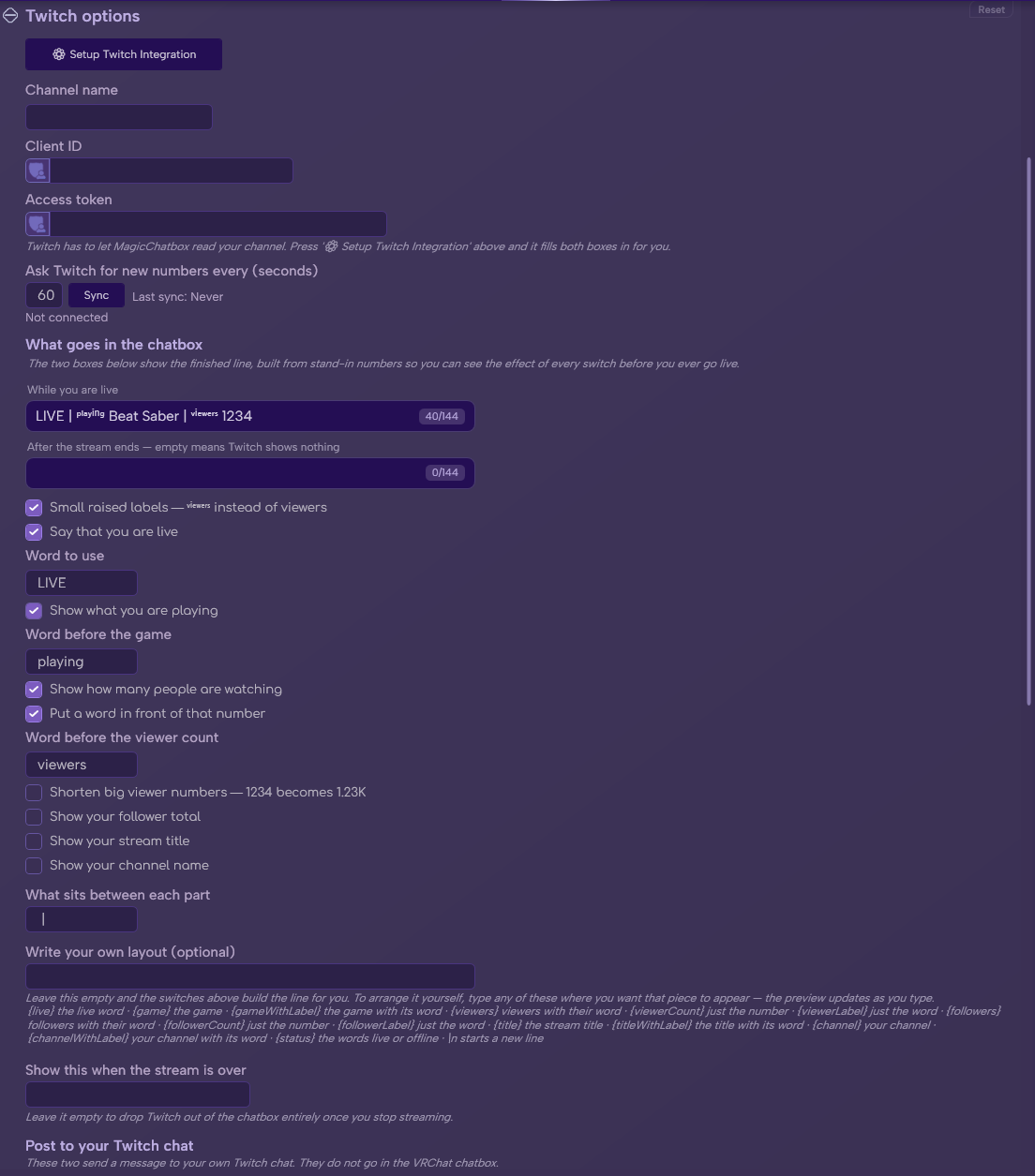
The Twitch section in Options.
See the rest of this section
- A Twitch account and your channel name.
- The 🌐 Internet Access permission, which MagicChatbox asks for when you enable the integration.
- Your own Twitch Developer application, for its Client ID.
- A User Access Token with the right scopes.
Important
Twitch setup is manual, and it is the most involved of any integration. There is no "Sign in with Twitch" button — Twitch requires each application to use its own credentials, so you supply a Client ID and a token yourself. Budget ten minutes for it the first time.
Note
Twitch needs the 🌐 Internet Access permission. Decline it and the integration switches itself back off. You can grant it later under Options → Privacy.
- Open Options → Twitch and click ⚙ Setup Twitch Integration. The wizard has three pages, and this is what each one wants.
- Go to the Twitch Developer Console and log in.
- Click Register Your Application.
- Give it any name. For OAuth Redirect URLs,
http://localhostis fine — MagicChatbox does not use it. - Set the category to Application Integration.
- Create it, then open it and copy the Client ID.
- Paste it into the wizard's Client ID box and continue.
-
You need a token carrying these scopes:
Scope Needed for moderator:read:followersRequired. Your follower count. moderator:manage:announcementsOptional. Sending announcements. moderator:manage:shoutoutsOptional. Sending shoutouts. -
The wizard offers a button that opens twitchtokengenerator.com, a third-party site commonly used for this. Generate a token there with the scopes above and paste it in. If you would rather not use a third-party site, any token you generate yourself with those scopes works just as well.
- Click Test Connection. It tells you whether the token is valid and warns you if
moderator:read:followersis missing. Then Save & Close — your channel name is filled in automatically if you left it blank.
Caution
A User Access Token is a credential. Treat it like a password — do not paste it into screenshots or share it. MagicChatbox stores it encrypted for your Windows account.
Important
These tokens expire, and MagicChatbox does not refresh them. When yours does, the integration reports the token is invalid and you repeat step 3. Nothing else needs redoing.
- Ask Twitch for new numbers every (seconds) — default 60, and it will not go below 15 or above 3600.
- Sync — fetch now, without waiting for the next check.
- The last successful check is shown beside the button, along with any error.
-
Say that you are live — on by default, with Word to use, default
LIVE. -
Show what you are playing — on by default, with Word before the game, default
playing. -
Show how many people are watching — on by default.
-
Put a word in front of that number — on by default, default
viewers. -
Shorten big viewer numbers —
1234becomes1.23K. Off by default.
-
Put a word in front of that number — on by default, default
-
Show your follower total — off by default.
-
Put a word in front of that number — default
followers. -
Shorten big follower numbers —
8420becomes8.42K. Off by default.
-
Put a word in front of that number — default
-
Show your stream title — off by default, since titles are long and the chatbox is short. Word before the title, default
title. -
Show your channel name — off by default. Word before the channel name, default
channel. - Show this when the stream is over — empty by default, which hides the integration entirely while you are offline.
-
Small raised labels —
ᵛⁱᵉʷᵉʳˢinstead ofviewers. On by default. -
What sits between each part — default
|. Only used while you have not written your own layout.
Note
If your follower count refuses to appear, a warning shows under that setting — it means your token is missing moderator:read:followers. Generate a new one with that scope.
- Leave Write your own layout (optional) empty and the line is assembled from the toggles above. Fill it in and you control the layout completely.
| Placeholder | What it becomes |
|---|---|
{live} |
Your live marker |
{game} |
The game, on its own |
{gameWithLabel} |
The game with its prefix word |
{viewers} |
Viewer count with its label |
{viewerCount} |
Just the number |
{viewerLabel} |
Just the label word |
{followers} |
Follower count with its label |
{followerCount} |
Just the number |
{followerLabel} |
Just the label word |
{title} |
Stream title, on its own |
{titleWithLabel} |
Stream title with its prefix word |
{channel} |
Channel name, on its own |
{channelWithLabel} |
Channel name with its prefix word |
{status} |
The combined live/offline state |
Note
Use \n anywhere in the layout to insert a line break.
-
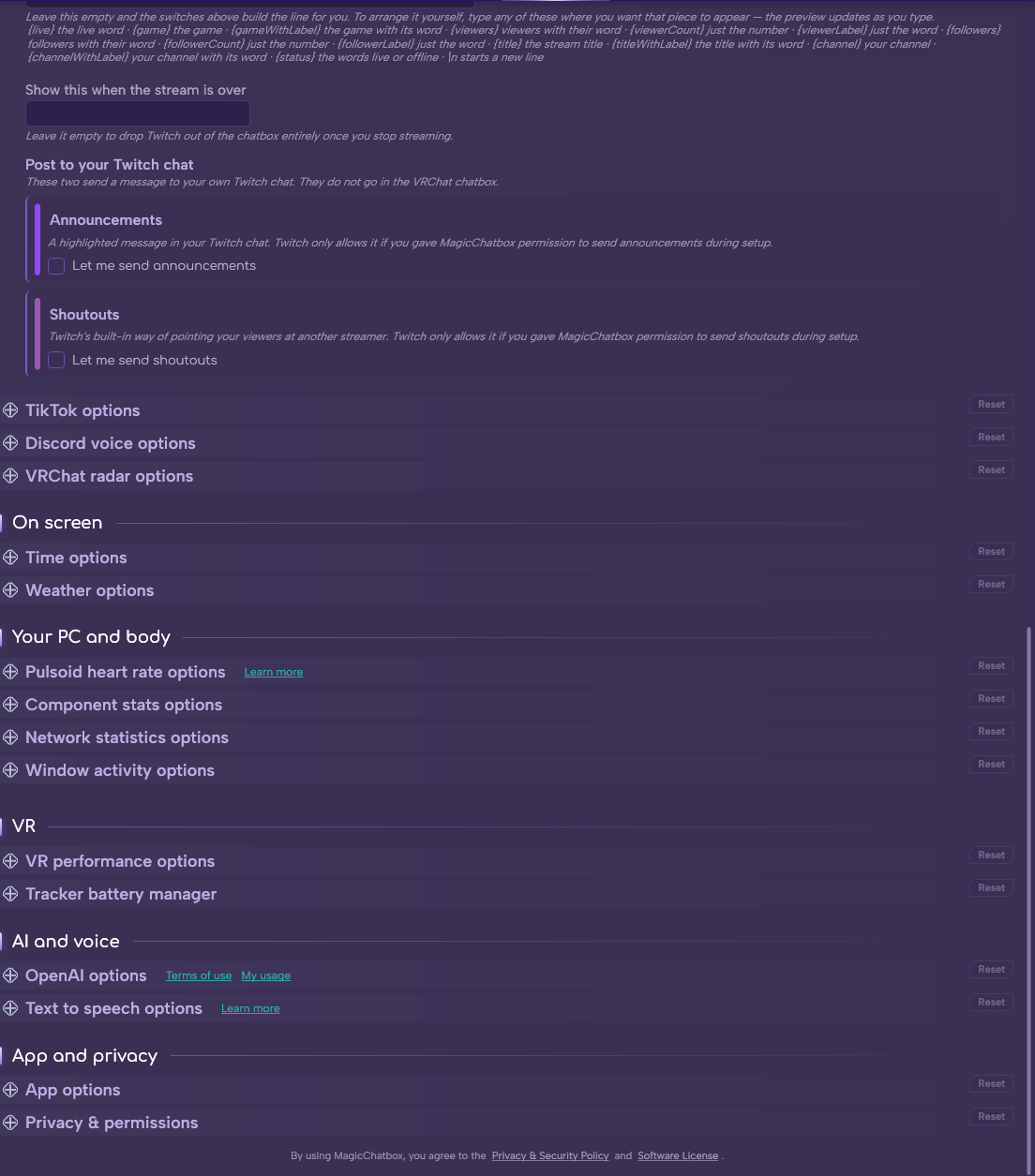
MagicChatbox can post an announcement to your own Twitch chat.
- Let me send announcements — off by default.
- Message — the text, with a Send button beside it.
- Colour — Primary by default.
Note
Needs the moderator:manage:announcements scope on your token.
-
Send a shoutout to another streamer without leaving VR.
- Let me send shoutouts — off by default.
- Channel to shout out — with a Send button.
- Post a highlighted message about them too — on by default.
-
What that message says — default
Go follow {user} at twitch.tv/{user}. - Colour — Purple by default.
Note
Needs the moderator:manage:shoutouts scope. Shoutouts and announcements post to your own channel using your own credentials — they are not messages into other people's chats.
- You can find help in our Discord Server by creating a ticket.