Installation and First Run
This page takes you from nothing to text above your head. It should take about five minutes, and four of those are VRChat's fault.
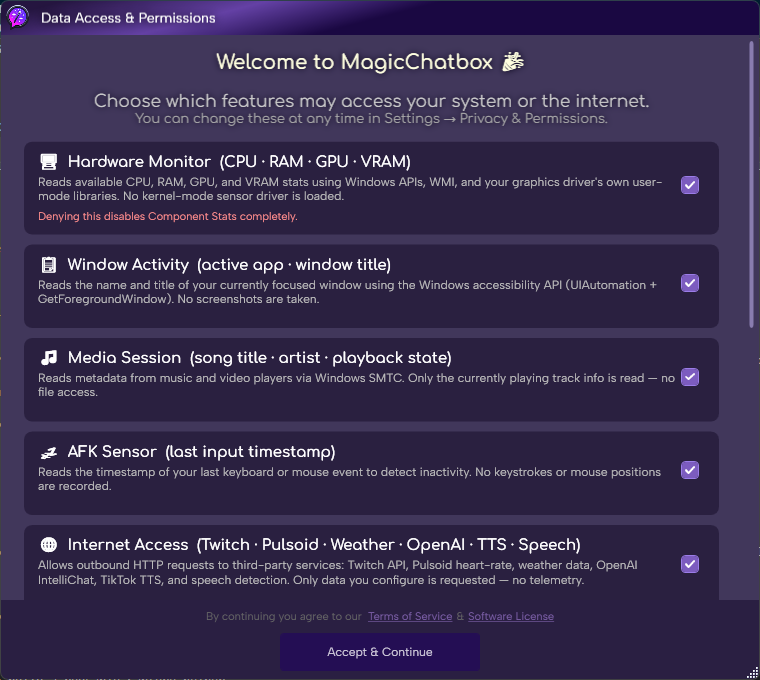
The permission prompt on first launch.
See the rest of this section
- Windows 10 or 11.
- .NET 10 Desktop Runtime — free, from Microsoft. If you skip this, MagicChatbox will offer to fetch it for you on first launch.
- VRChat, on the same PC or reachable over your network.
Note
You do not need a VR headset. MagicChatbox works in desktop mode, and it can also run on a spare PC and send to a Quest over Wi‑Fi — see Standalone.
- Download the latest ZIP from the Releases page.
- Extract the ZIP into a folder of its own. Do not run it from inside the ZIP — the app needs to write its files next to itself.
- Run MagicChatBox.exe.
Tip
Put the folder somewhere permanent, like C:\Program Files\MagicChatbox or Documents\MagicChatbox. Updates replace the files in place, so a folder you will not accidentally delete saves you re-doing your settings.
Important
Windows SmartScreen may warn you. MagicChatbox is not signed with a Microsoft certificate, and unsigned apps always get this warning. Click More info → Run anyway. Every release also carries a VirusTotal link on the Releases page if you would like to check for yourself.
- This is the one step MagicChatbox cannot do for you, and the one people miss. Without it, the app will look like it is working and nothing will appear in-game.
- In VRChat, press R to open the action menu (or open the main menu on desktop).
- Go to Options.
- Open OSC.
- Set OSC Enabled to on.
- There is a short video walkthrough if you would rather see it done.
Tip
If OSC was already on but nothing works, toggle it off and on again, or use Reset OSC Config in the same menu. VRChat occasionally needs this after an update.
-
The first time MagicChatbox opens, it walks you through two things:
- Terms of Service and privacy. Read and accept to continue. If a future release changes the terms, you will be asked again — that is expected, not a bug.
- Nothing is switched on yet. MagicChatbox starts quiet on purpose. You choose what it shows.
- The best one to start with is Time, because it needs no account, no permission and no setup.
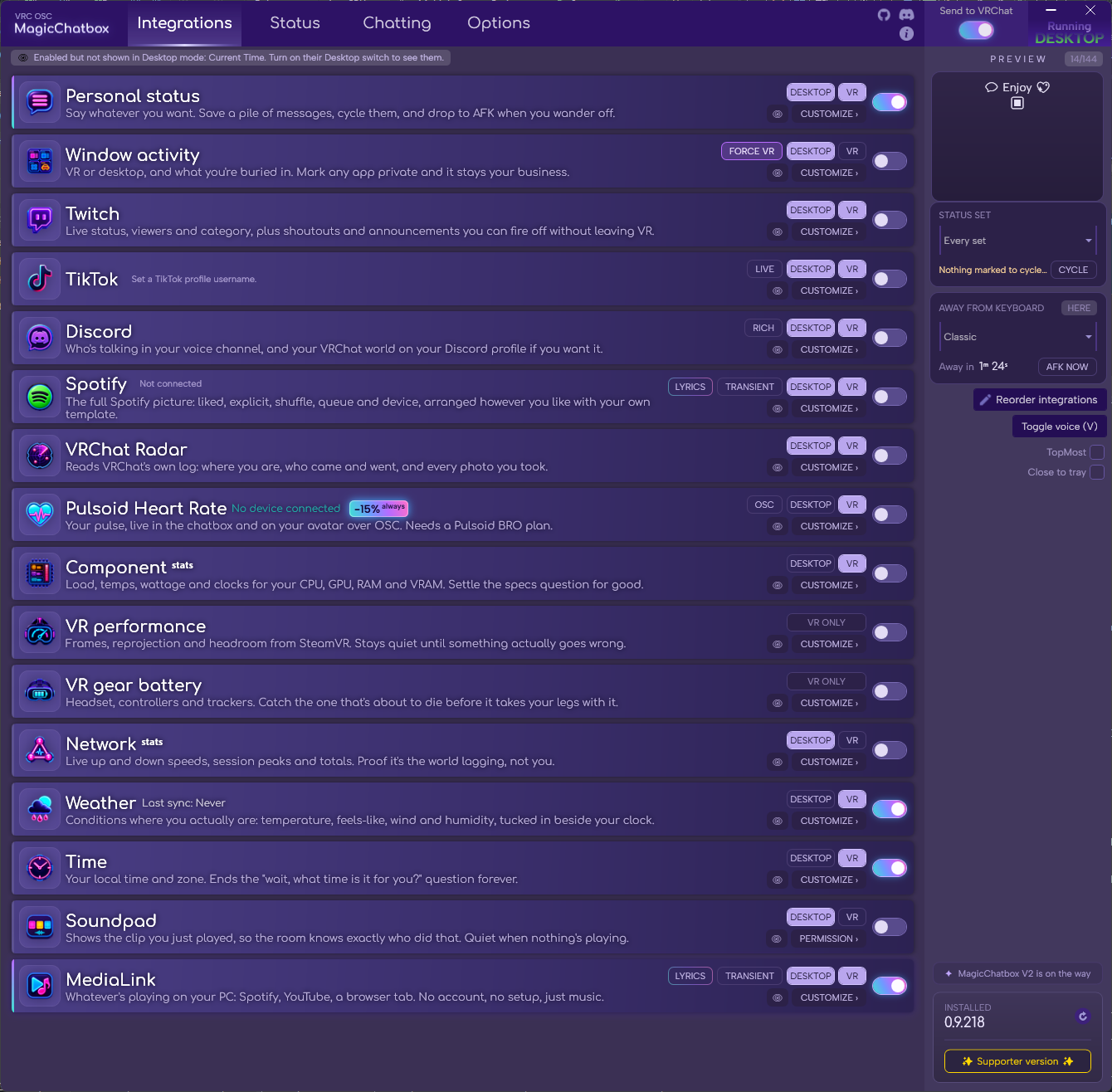
- Open the Integrations tab.
- Find the Time tile and switch it on.
- Make sure its DESKTOP or VR chip is lit for whichever mode you are in.
- Look at the PREVIEW panel — it shows exactly what VRChat is being sent.
- Look above your head in VRChat.
Tip
If the preview shows your text but VRChat shows nothing, the problem is OSC, not MagicChatbox. Go back a section.
- Every integration's settings live under the Options tab, grouped by what they do. Each row opens where it sits, so you never lose your place.
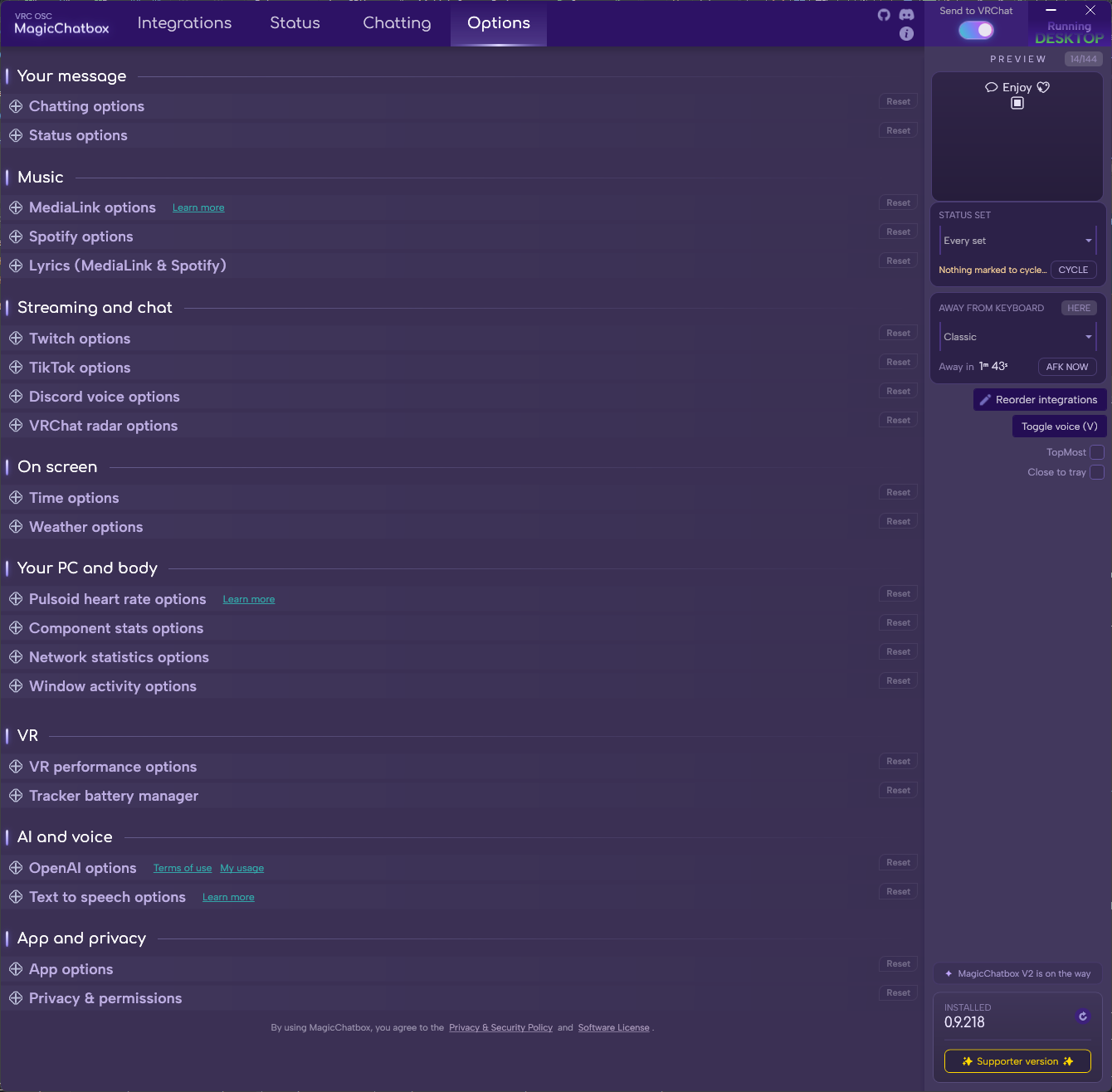
The Options tab, with every section collapsed.
Tip
You rarely need to hunt through this list. On any tile in the Integrations tab, CUSTOMIZE › jumps straight to that integration's section.
- Most integrations need one specific permission before they can read anything, and MagicChatbox asks the first time you switch one on.
- It asks for one named thing at a time — "Hardware Monitor" to read your GPU temperature, not "access to your computer". Approve it and the integration starts; decline it and the integration switches itself back off rather than sitting there broken.
- You can review and revoke everything later under Options → Privacy. See Privacy & Permissions.
| What | Where |
|---|---|
| Settings | %AppData%\Vrcosc-MagicChatbox |
| Logs | %LocalAppData%\Vrcosc-MagicChatbox\logs |
- Both have a button in Options → App options — Open config folder and Open log folder — so you never have to type those paths.
Tip
Backing up the config folder backs up everything: your statuses, templates, integration choices and connected accounts. Copying it to a new PC moves your whole setup, except for connected accounts — those are encrypted to your Windows user and must be reconnected.
-
MagicChatbox checks for a newer version at startup by default and can update itself.
- Look for a newer version at startup — on by default, in Options → App options.
- Include test versions — opt into pre-release builds.
- Go back to {version} — roll back if an update goes badly.
- Install from a ZIP file — update by hand from a downloaded ZIP.
| If you want… | Go to |
|---|---|
| To understand the Integrations tab | Reading the Integrations page |
| Music in your chatbox, with no setup | 🎼 Music Display |
| To fix something that is not working | Troubleshooting |
| To connect Spotify, Twitch or Discord | Their own pages — each needs a little setup |
| To run on a Quest | Standalone |
- You can find help in our Discord Server by creating a ticket.