Discord
The Discord integration does two separate things, and they are worth keeping apart in your head because they need very different amounts of setup:
| Half | What it does | Setup |
|---|---|---|
| 🌐 Rich Presence | Puts your VRChat world on your Discord profile. | None. Turn on the RICH chip. |
| 🎙 Who is talking | Puts your voice channel in the VRChat chatbox. | A Discord application and a one-time sign-in. |
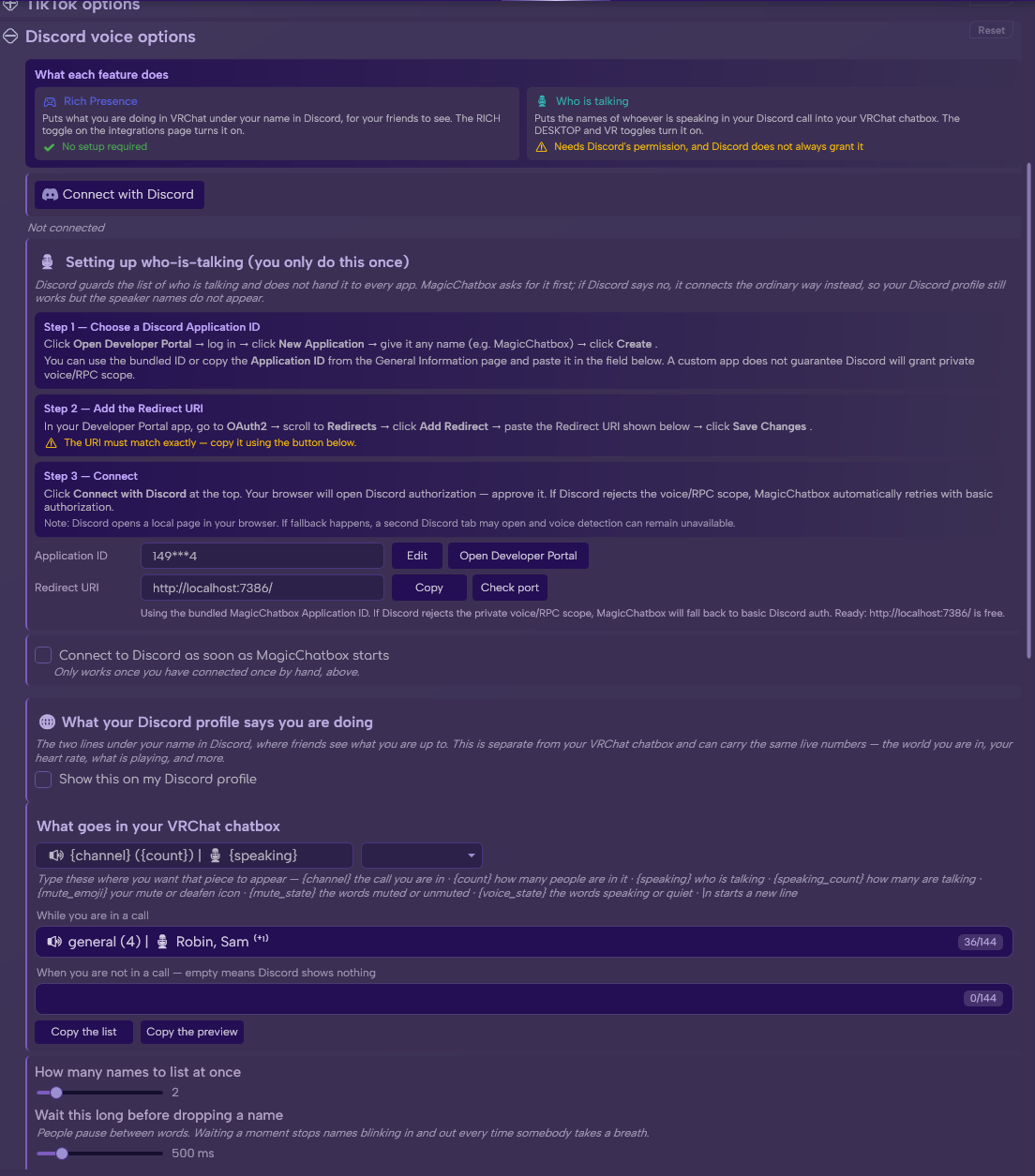
The Discord section in Options.
See the rest of this section
- Have the Discord desktop app running and logged in.
- Turn on the RICH chip on the Discord tile.
- That is genuinely all. MagicChatbox talks to the Discord app over a local pipe, the same way games do.
- Reading your voice channel needs Discord's permission, and Discord only grants that to a registered application signing in through a browser.
Important
This is a real sign-in against discord.com, not just a local connection. MagicChatbox opens your browser, you approve it, and the approval is what lets it read the voice channel. The Rich Presence half does not need any of this.
- MagicChatbox ships with a built-in Application ID that works for most people. Click Connect with Discord, approve it in the browser, and you are done.
- If Discord refuses, or you would rather use your own application, Options → Discord walks you through it in three steps:
- Choose a Discord Application ID. Click Open Developer Portal, create an application, and copy its ID into the Application ID box.
- Add the Redirect URI. Copy the Redirect URI shown in MagicChatbox and add it to your application's OAuth2 redirects, exactly as given. The Check port button confirms nothing else is using it locally.
- Connect. Click Connect with Discord and approve in the browser.
Note
If Discord declines the voice permission, MagicChatbox automatically retries with basic permissions only. You stay connected and Rich Presence keeps working — but the speaker list will stay empty. This is a Discord restriction on unapproved applications, not a fault in your setup.
- Connect to Discord as soon as MagicChatbox starts reconnects automatically, but only once you have connected by hand at least once.
- The chatbox line is built from a template, and a preset picker offers nine ready-made layouts: Detailed, Compact, Minimal, Speaker Count, Count Only, Multi-line, Speaker Focus, Status Bar and Emoji Rich.
Default: 🔊 {channel} ({count}) | 🎙️ {speaking}
| Placeholder | What it becomes |
|---|---|
{channel} |
Voice channel name |
{count} |
How many people are in it |
{speaking} |
Who is currently talking |
{speaking_count} |
Number of people speaking |
{mute_emoji} / {mute_state}
|
Your mute and deafen state |
{voice_state} |
Combined voice state |
Note
Use \n anywhere in the template to insert a line break.
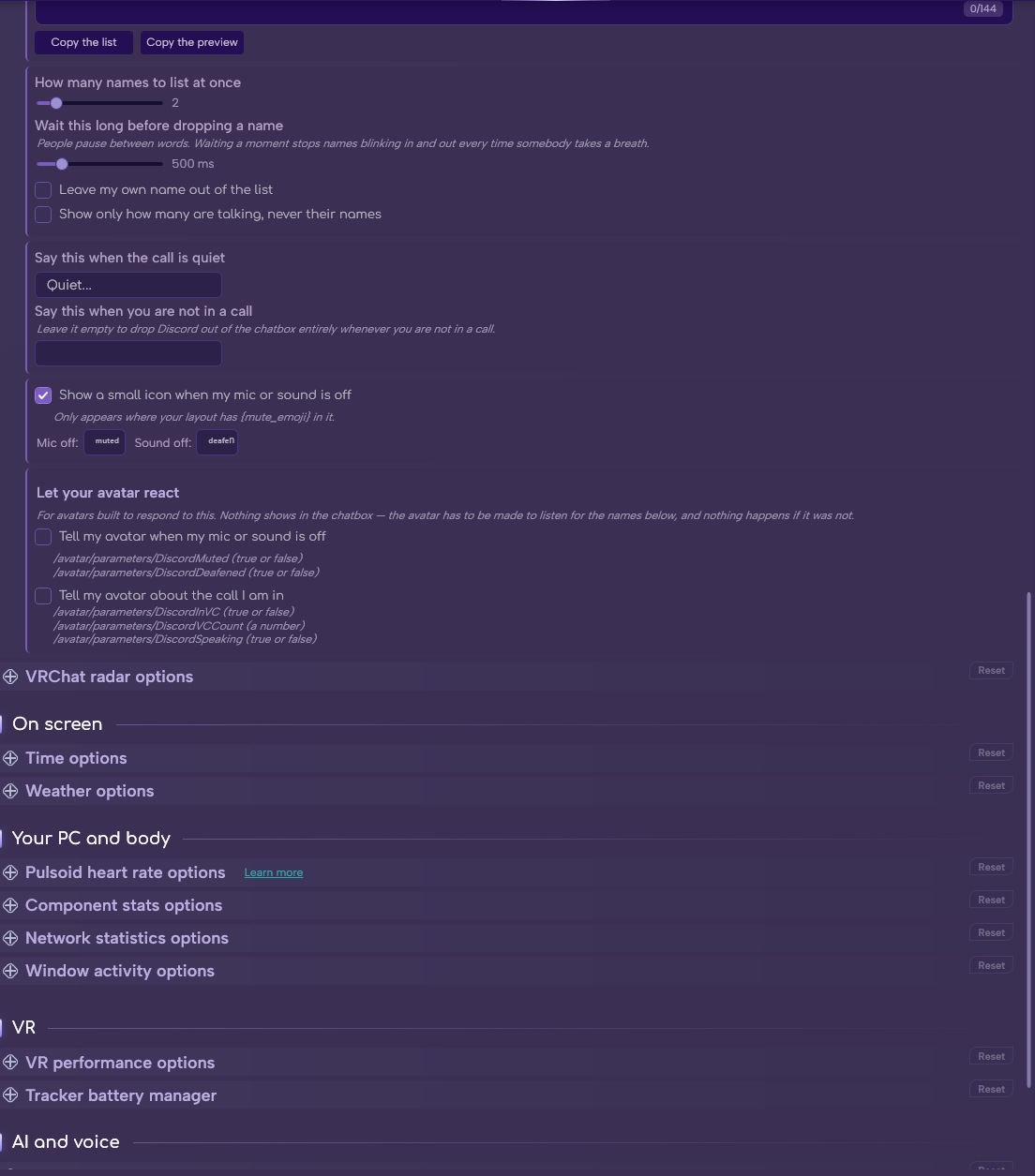
- How many names to list at once — 1 to 10. Default 2.
- Wait this long before dropping a name — 200 to 2000 ms. Default 500.
- Leave my own name out of the list.
- Show only how many are talking, never their names.
Tip
That second setting is what stops the line flickering on every syllable in a busy channel. Raise it if names are changing too fast to read.
-
And what to say when there is nothing to report:
-
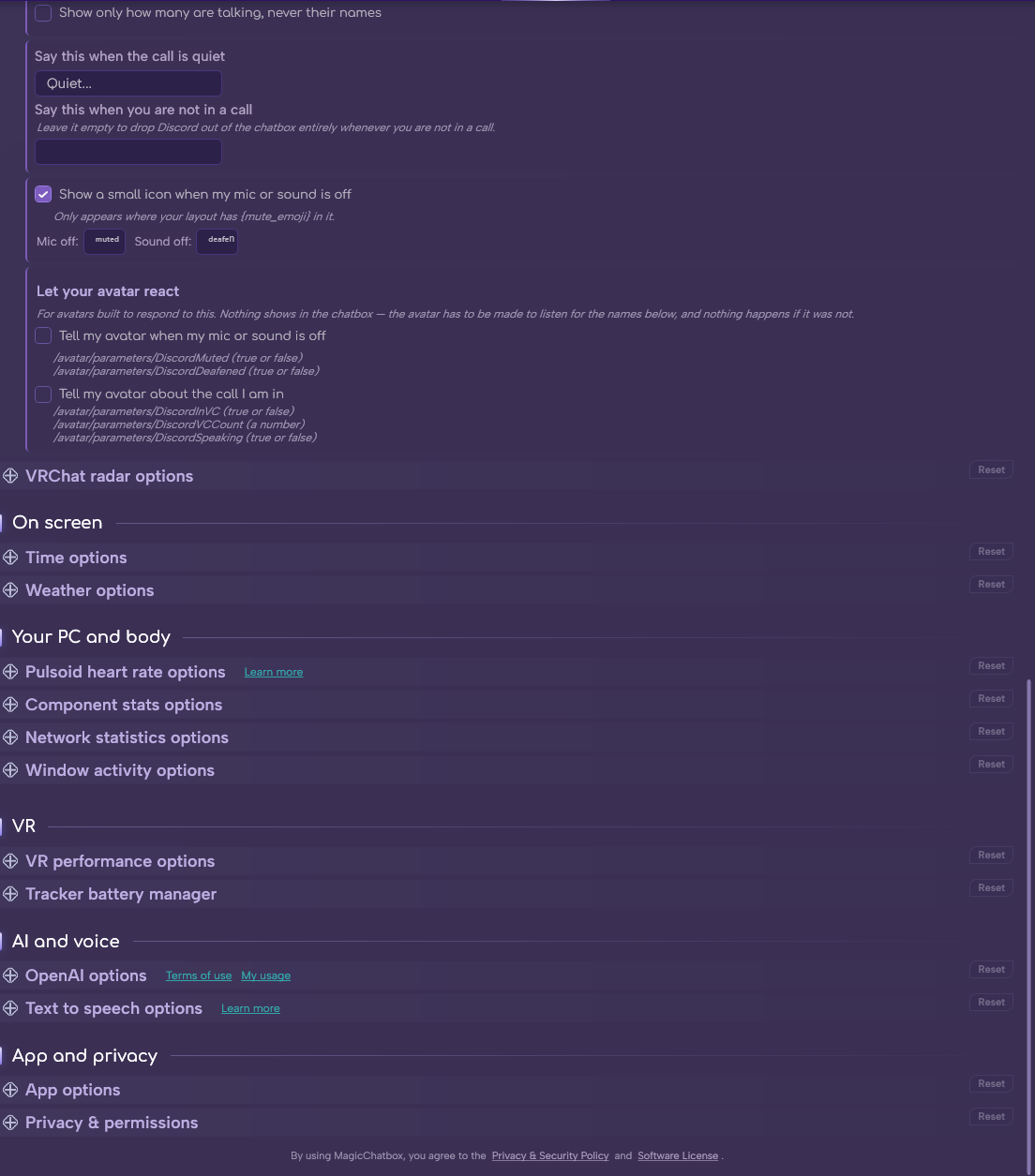
Say this when the call is quiet — default
Quiet.... - Say this when you are not in a call — empty by default, which hides the integration entirely.
-
Say this when the call is quiet — default
- Show a small icon when my mic or sound is off — on by default.
-
Mic off — default
ᵐᵘᵗᵉᵈ. -
Sound off — default
ᵈᵉᵃᶠᵉⁿ.
- Discord state can drive avatar parameters as well as the chatbox. Both are off by default.
-
Tell my avatar when my mic or sound is off — sends
DiscordMutedandDiscordDeafened. -
Tell my avatar about the call I am in — sends
DiscordInVC,DiscordVCCountandDiscordSpeaking.
| Parameter | Type | What it is |
|---|---|---|
/avatar/parameters/DiscordMuted |
bool | Your microphone is muted |
/avatar/parameters/DiscordDeafened |
bool | You are deafened |
/avatar/parameters/DiscordInVC |
bool | You are in a voice channel |
/avatar/parameters/DiscordVCCount |
int | People in the channel |
/avatar/parameters/DiscordSpeaking |
bool | You are talking right now |
Tip
DiscordSpeaking is the interesting one for avatar creators — a boolean that flips while you talk, which is enough to drive a mouth flap or an indicator without any extra setup.
- The reverse direction: show your VRChat activity on your Discord profile.
- Show this on my Discord profile — off by default.
- Start from a ready-made one — thirteen presets: World Info, Minimal, Region, Social, World Host, Host Stats, Event Host, Now Playing, Full Status, Health, Gamer, Streamer and All Stats.
- First line and Second line — the two lines of your presence, written with the placeholders below.
- Show how long I have been in this world.
- Give friends a Join button when the world is open to everyone — the button only appears for Public instances.
- Rich Presence can pull from almost every other integration:
| Placeholder | From |
|---|---|
{world} {count} {type} {region}
|
VRChat Radar |
{unique} {peak} {worlds}
|
Your session so far |
{status} {mode} {time}
|
Your status, VR/desktop mode, the clock |
{media} |
Spotify |
{heart_rate} |
Pulsoid |
{cpu} |
Component Stats |
{window} |
Window Activity |
{weather} |
Weather |
{network} |
Network Statistics |
{viewers} |
Twitch |
{vr_battery} |
Tracker Battery |
Caution
Rich Presence is visible to everyone who can see your Discord profile, not just people in VRChat with you. {world} will publish the name of the world you are in, including private ones.
- You can find help in our Discord Server by creating a ticket.