Repository navigation
Recording Quality and Presets
Everything under Settings > Recording preset and Settings > Video in one place: the four presets, every resolution, frame rate, bitrate and codec option, how capture and display selection work, and what each choice costs on disk.
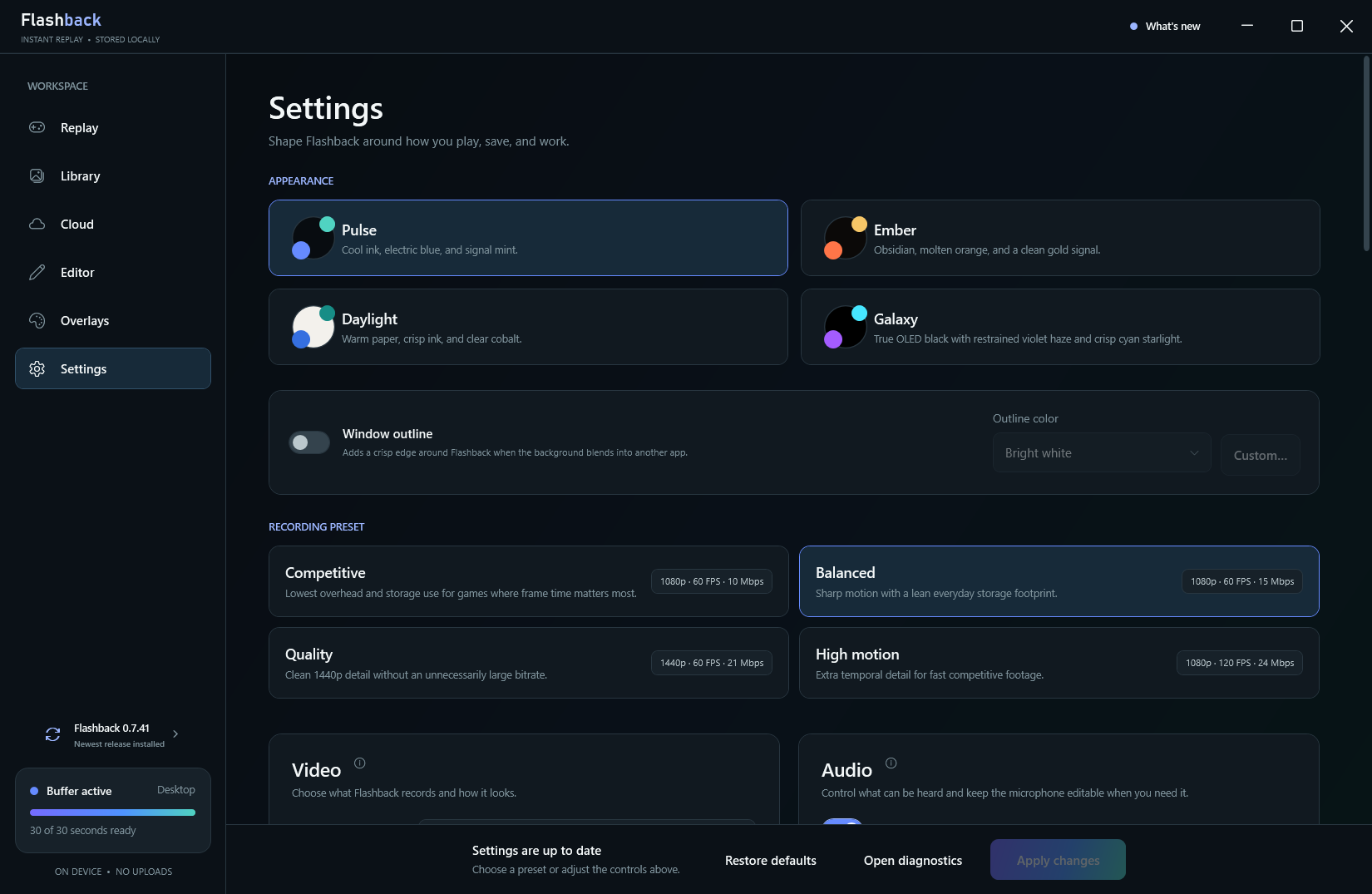
Settings, shown on Flashback 0.7.41.
A preset sets resolution, frame rate and bitrate in one click. Pick one, then fine-tune under Video if you like.
| Preset | Output | In the app | Good for |
|---|---|---|---|
| Competitive | 1080p, 60 FPS, 10 Mbps | "Lowest overhead and storage use for games where frame time matters most." | Competitive shooters, older GPUs, small drives |
| Balanced (default) | 1080p, 60 FPS, 15 Mbps | "Sharp motion with a lean everyday storage footprint." | Almost everyone |
| Quality | 1440p, 60 FPS, 21 Mbps | "Clean 1440p detail without an unnecessarily large bitrate." | 1440p monitors, slower-paced games |
| High motion | 1080p, 120 FPS, 24 Mbps | "Extra temporal detail for fast competitive footage." | Fast games you want to slow down later |
Quality used to target 30 Mbps. It now uses a tuned 21 Mbps, which keeps the resolution and frame rate without needless file size.
You can give any game or app its own preset with Per-Game Profiles.
| Setting | Options | Notes |
|---|---|---|
| Display | Automatic · follow active game, or a specific monitor | Automatic follows the monitor your game is on and doesn't switch during quick alt-tabs. A monitor you pick stays put. |
| Capture method | Automatic (recommended) or Windows Graphics Capture | Automatic asks for Desktop Duplication first and switches to Windows Graphics Capture if it doesn't get real frames. See Capture Pipeline. |
| Video codec | Auto · recommended replay path, H.264 · widest compatibility, HEVC · better quality per bit | Auto uses hardware H.264 whenever it's available. See Hardware Encoding. |
| Resolution | Source resolution, 720p, 1080p, 1440p, 4K UHD (2160p) | Source keeps your display's own size. |
| Frame rate | 30 FPS, 60 FPS, 120 FPS, 240 FPS · high-end hardware | Higher rates need a matching high-refresh display. |
| Video quality | 4 to 100 Mbps | The bitrate. Higher keeps more detail and makes bigger files. |
| Replay length | 15 s, 30 s, 45 s, 1 min, 1 min 30 s, 2 min, 3 min, 5 min, or Custom | Custom takes any exact length from 15 seconds to 24 hours, to the second. See Instant Replay. |
| Smart replay length | Off, or a longer Double-tap length | One press saves your normal length; a quick double press saves the longer one. |
| Show the mouse pointer in recordings | On (default) or off | Applies to saved replays. |
Settings take effect when you press Apply changes.
The 4K UHD (2160p) option keeps a native 3840×2160 display at native size, scales a larger display down to 2160 pixels high while keeping its shape, and never upscales a smaller display. Flashback suggests starting at 45 to 60 Mbps; up to 100 Mbps is available for high-motion footage.
4K is a demanding encoder workload, and 4K at 120 or 240 FPS is an extreme one. Start with 60 FPS and raise settings only if your clips stay smooth.
- 120 FPS needs a high-refresh display and more encoder headroom.
- 240 FPS needs a 240 Hz or faster display and a strong hardware encoder. Flashback encodes it at a constant bitrate with fixed pacing to avoid bursts, and repeats the last image when the screen hasn't changed.
Flashback watches demanding modes. If your hardware can't keep up over a sustained stretch, it shows a performance warning instead of quietly saving uneven clips. See Troubleshooting Recording.
Settings shows an estimate as you change things, for example about 59 MB for each 30-second clip at Balanced. As a rule of thumb, video takes its bitrate times its length:
| Bitrate | Per minute | 30-second clip |
|---|---|---|
| 10 Mbps (Competitive) | about 78 MB | about 40 MB |
| 15 Mbps (Balanced) | about 116 MB | about 59 MB |
| 21 Mbps (Quality) | about 162 MB | about 82 MB |
| 24 Mbps (High motion) | about 185 MB | about 93 MB |
| 45 Mbps (4K starting point) | about 346 MB | about 173 MB |
These include a small allowance for audio and the MP4 container. Real clips of busy scenes come close to the estimate; quiet scenes can be smaller.
The replay buffer itself sits in %LOCALAPPDATA%\Flashback\Buffer and holds your replay length plus the segment being recorded. Saved clips count toward the Storage Limit; the buffer doesn't.
- Not sure? Stay on Balanced.
- Frame drops in game while recording? Try Competitive, or a lower frame rate, before anything else.
- Clips look blocky in fast motion? Raise the bitrate a few Mbps, or try HEVC if your PC can play it.
- Sharing to Discord a lot? Higher settings make bigger files; Flashback's Discord copy shrinks a clip to fit anyway.
Hardware Encoding · Per-Game Profiles · Storage Limit · Settings Reference · Benchmarks