Repository navigation
Settings Reference
Every section of Flashback's Settings tab, in the order the app shows them, with one line per control and a link to the page that explains it in depth. Labels are written exactly as they appear in the app.
Changes wait until you press Apply changes at the bottom of the page. The footer tells you whether settings are up to date, and it also holds Restore defaults and Diagnostics.
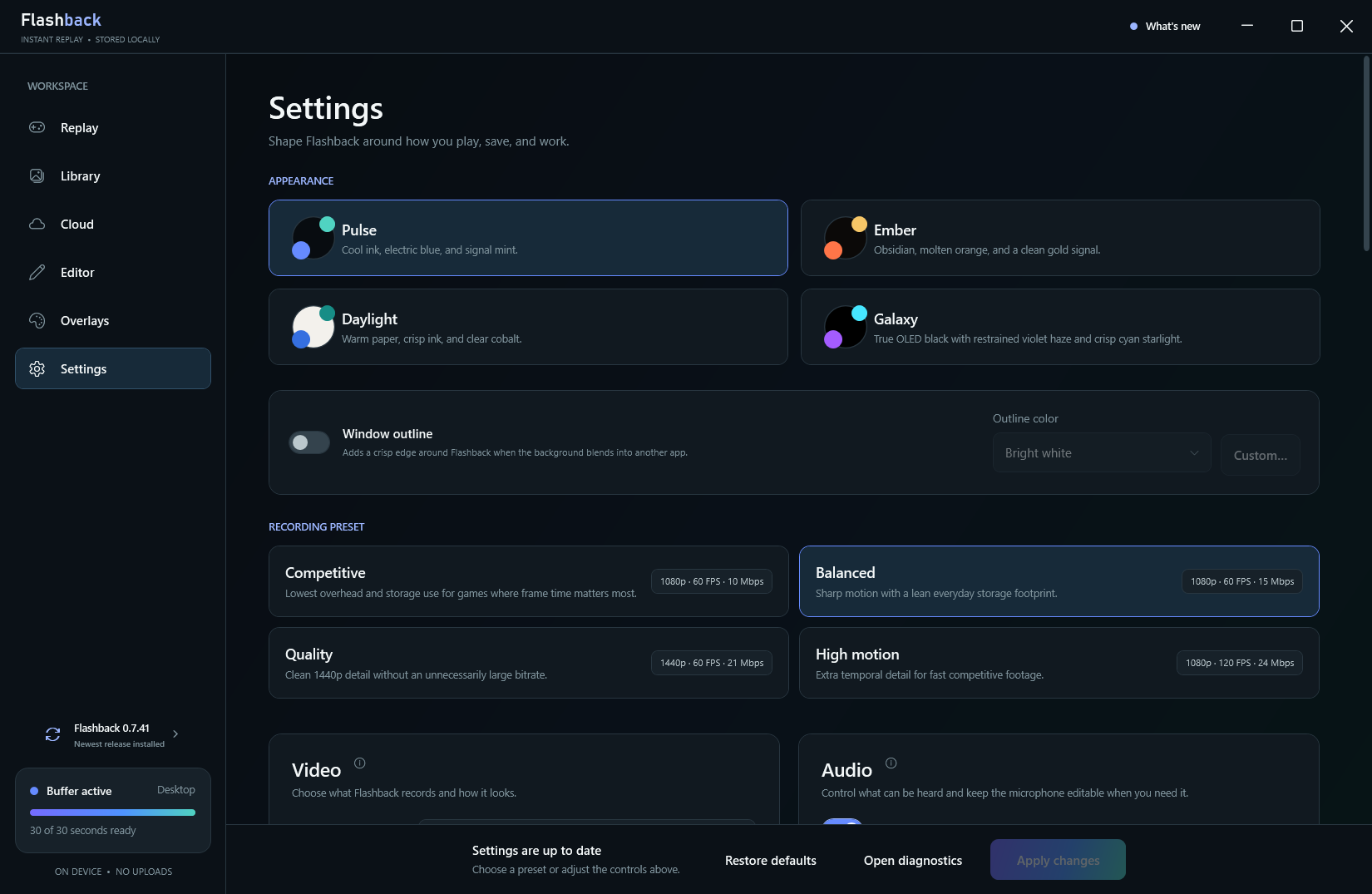
Settings, shown on Flashback 0.7.41. The tables below describe 0.8.0, which adds the saved profiles list, name presets and folder layouts, and Record audio from.
| Control | What it does |
|---|---|
| Theme | Pulse (default, cool ink, electric blue and signal mint), Ember (obsidian, molten orange and gold), Daylight (a light theme: warm paper, crisp ink and cobalt) or Galaxy (true OLED black with violet and cyan). |
| Window outline | Off by default. Draws a visible edge around the Flashback window so it stands out over other apps. It has no effect on saved clips. |
| Outline color | Bright white, Cyan, Blue, Violet, Pink, Orange or Lime, or Custom… for any color. |
| Opacity | How strongly the outline shows, from 10 to 100 percent. |
Four one-click presets: Competitive, Balanced (default), Quality and High motion. See Recording Quality and Presets.
| Control | What it does |
|---|---|
| Display | Automatic · follow active game or a specific monitor. |
| Capture method | Automatic (recommended) or Windows Graphics Capture. See Capture Pipeline. |
| Video codec | Auto · recommended replay path, H.264 · widest compatibility or HEVC · better quality per bit. See Hardware Encoding. |
| Resolution | Source resolution, 720p, 1080p, 1440p or 4K UHD (2160p). |
| Frame rate | 30, 60, 120 or 240 FPS. |
| Replay length | A preset from 15 seconds to 5 minutes, or Custom up to 24 hours. See Instant Replay. |
| Smart replay length | A longer Double-tap length for a quick double press of the save shortcut. |
| Video quality | The bitrate, 4 to 100 Mbps, with a size estimate. |
| Show the mouse pointer in recordings | On by default. |
| PER-GAME PROFILES | The box that holds the controls below. Its top line shows the game in front, and a badge counts saved profiles and how many are on. |
| Use a profile for this game | Shown while a recognized game is in front: gives that game its own Quality preset and replay length. Remove profile deletes that game's profile so it uses your main settings again. |
| Saved profiles / Add game or app | Every saved profile, with an on/off switch, a summary of what it changes, and Edit and Remove. Add game or app makes a profile for any program, recognized or not, with its own quality, replay length, game audio, microphone and mouse pointer. Clear all, beside it, removes every profile after you confirm. See Per-Game Profiles. |
| Control | What it does |
|---|---|
| Name captures after the game you're playing | On by default. Uses the game in front on the recorded display. Well-known games and games installed through Steam, Epic, Riot, Xbox, Battle.net, GOG, EA or Ubisoft are named automatically; anything else uses the desktop label unless it has a per-game profile. |
| File names | A name preset: Game, date, time (default), Game - date, time, Date, time - game or Game_timestamp, no spaces, or Custom pattern. |
| Folders | A folder for each game (default), Game, then month, A folder for each month or Everything in one folder. |
| PREVIEW | The exact file name and folder your next replay and screenshot will get. |
| Customize names | Opens the Replay name pattern and Screenshot name pattern (with a picker for the name pieces), the Desktop label and Desktop folder, and Custom game names: one rule per line, such as cs2 = Counter-Strike 2 | CS2 Clips, which renames a game Flashback already detects. |
| Control | What it does |
|---|---|
| Share anonymous active status | On by default. Sends only a daily rotating anonymous token for the public active-user count on the website. Turn it off and you leave the count within 30 minutes. |
| Show Flashback on my Discord profile | On by default. People who can see your Discord activity see Flashback's replay-buffer status and a Get Flashback link to flashbk.gg, never your game. See Discord Integration. |
See Privacy.
| Control | What it does |
|---|---|
| Play sounds for recorder actions | Short cues when the buffer changes or a replay saves. On by default. |
| Volume and Preview | Default 30%. |
| Save sound |
Pulse (default), Soft chime, Prism, Minimal or Custom MP3 (up to 15 MB) with Choose and Remove. An imported sound is kept in %LOCALAPPDATA%\Flashback. |
| Control | What it does |
|---|---|
| Record game and desktop audio | On by default. Records audio playing through the device under Record audio from. |
| Record audio from | Default output (follows Windows), or a specific speaker or headset to always record. A chosen device that's unplugged stays selected, shows as not connected, and Flashback records the default output until it's back. |
| Include my microphone | Off by default. |
| Microphone | A specific microphone, or Default microphone to follow Windows. A chosen microphone that's unplugged stays selected and shows as not connected. |
| Add editable audio tracks | On by default. Keeps the Flashback mix and adds a separate Game and desktop track, plus a Microphone track when the microphone is on. Works without a microphone. |
| Audio to leave out | Any combination of Discord, Spotify and Browser, with editable tracks on. The microphone is optional. |
See Audio.
| Control | What it does |
|---|---|
| Save captures with my voice | Off by default. "Flashback, clip" or "Flashback, screenshot", processed locally. |
| Listening microphone | The only input voice recognition hears. |
| Sensitivity | From fewer accidental triggers to easier to trigger. |
See Voice Commands. The "Flashback upload" command is switched on separately in the Cloud tab; see Automatic and Voice Uploads.
| Control | What it does |
|---|---|
| Clip folder | Where clips and screenshots go. Default %USERPROFILE%\Videos\Flashback. Browse to change it. |
| Storage limit / Unlimited | 1 to 250 GB (default 20 GB), or never remove captures automatically. See Storage Limit. |
| Storage intelligence > Review | A read-only scan for large, old and duplicate captures. |
| Replay shortcut | Default Ctrl+Shift+F10, shown as keycaps. Click the field and press new keys; the reset button restores the default. |
| Screenshot | Default Ctrl+Shift+F11. Works even while the replay buffer is paused. |
| Clip tools | Shows whether Flashback's bundled FFmpeg, used for saving, trimming and exports, is ready. |
See Shortcuts.
| Control | What it does |
|---|---|
| Launch after I sign in to Windows | Off by default. Starts Flashback for this Windows account, with no password or administrator prompt. |
| Start with the window hidden | Flashback starts buffering from the tray icon without opening its window. |
| Keep Flashback running when I close the window | On by default. The X hides Flashback near the clock so buffering continues; Quit in the tray menu exits. |
| Ghost Mode | Off by default. No window at launch, no sounds, no notifications and no Discord status; the replay buffer, shortcuts, voice controls and tray icon keep working. Turn it off here or from the tray menu. See Ghost Mode. |
Shows your installed version and update status, with Check for updates (or Download / Restart and update when a release is ready), What's new (the changelog), Report a bug (opens the support form with your version filled in), Join the Flashback Discord and, when needed, Download installer. See Installing and Updating.
| Button | What it does |
|---|---|
| Restore defaults | Asks first, then resets recording, audio, naming, appearance, startup, storage and shortcut options. Nothing changes until you choose Apply changes, and saved clips are never removed. |
| Diagnostics | Shows recent logs with personal details replaced, to review before you copy or save them for support. See Diagnostics and Logs. |
| Apply changes | Saves and applies everything you changed. |
Getting Started · Recording Quality and Presets · Storage Limit · Shortcuts