Repository navigation
Add Tracks
The Add tracks card adds one external audio or subtitle file to each video of a list, without re-encoding. Typical use: a season of MKV files and a folder of Italian SRT files, one per episode. The result is always MKV, written by mkvmerge from Settings ▸ Tool paths.
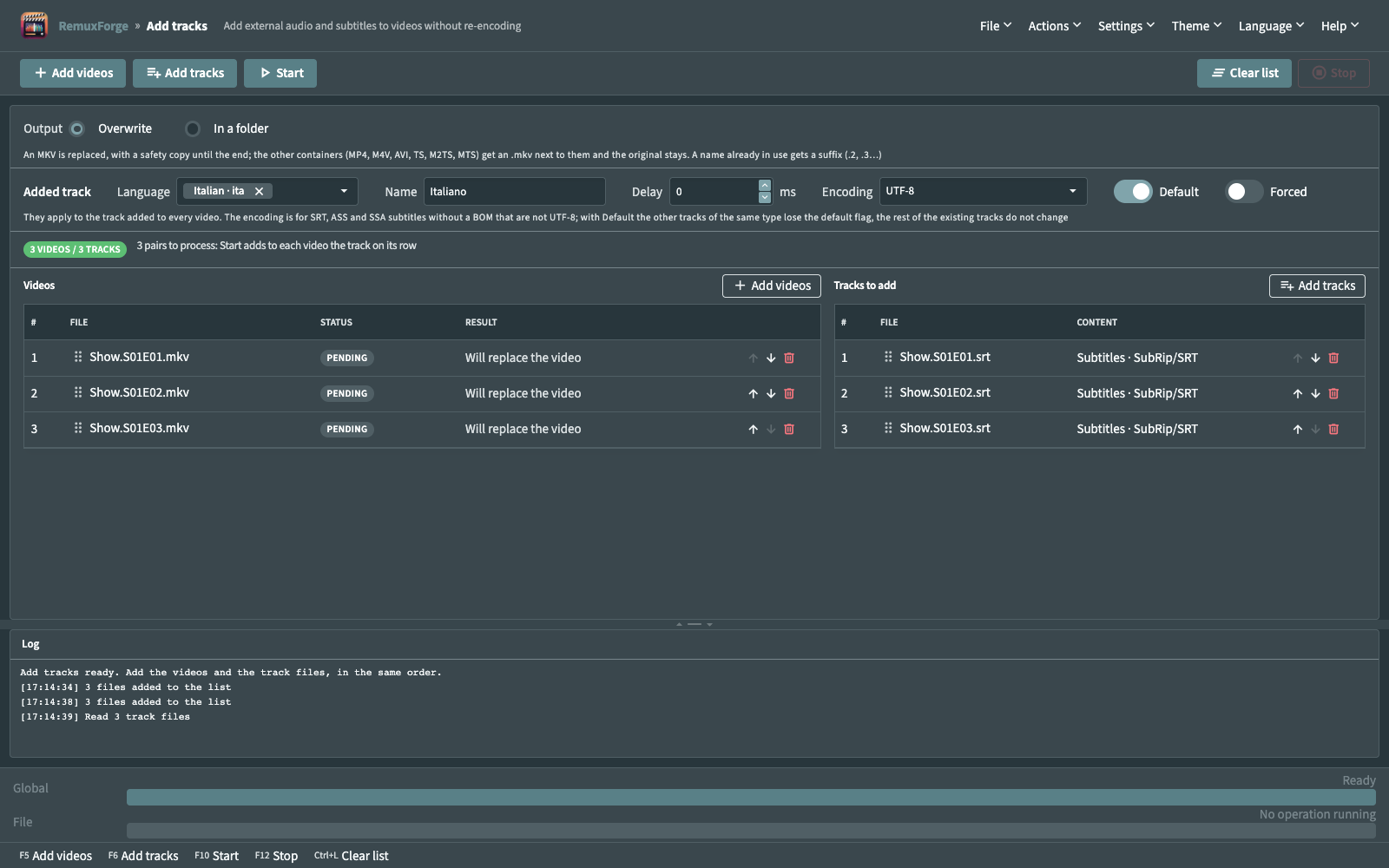
- Open Add tracks from the home screen.
- Press Add videos (
F5) and pick the videos: MKV, MP4, M4V, AVI, M2TS, MTS or TS. - Press Add tracks (
F6) and pick the track files, one per video. Both pickers select several files at once: see Choosing several files. - Check the pairs: row 1 of Videos goes with row 1 of Tracks to add, row 2 with row 2, and so on.
- Set the properties of the added track under Added track, and choose Output.
- Press Start (
F10).
| Type | Extensions |
|---|---|
| Subtitles |
.srt, .ass, .ssa, .sup, .idx
|
| Audio |
.ac3, .eac3, .dts, .thd, .aac, .flac, .opus, .mka
|
RemuxForge reads each track file as soon as it is added; Content shows Reading, then the type and format, for example Subtitles · SubRip/SRT. A file that cannot be added shows the reason in red, for example:
- the file holds more than one track: The file contains 2 tracks: tracks are added one at a time;
- the track is neither audio nor subtitles;
- a VobSub
.idxhas no.subwith the same name next to it; - a text subtitle is UTF-16 without a byte order mark, which mkvmerge cannot read: save it as UTF-8, or as UTF-16 with the mark, and add it again;
- a text subtitle is neither UTF-8 nor marked as UTF-16 and Encoding is still
UTF-8: choose its encoding, see below.
The two lists scroll together, so each video stays next to its track. To change a pair, move a row inside its own list:
- drag it by the handle on the left onto the row whose place it takes;
- or use the Move up and Move down arrows at the end of the row. From the keyboard the focus stays on the arrow of the moved row, so the same file moves again.
The bin at the end of a row removes it from its list.
The badge above the lists counts both sides, for example 8 videos / 8 tracks, green when they match. Next to it a line says what blocks Start, or how many pairs are ready:
| Message | What to do |
|---|---|
| Add the videos on the left and the tracks on the right: row 1 goes with row 1, row 2 with row 2… | Add videos and tracks. |
| There are more videos than tracks / There are more tracks than videos | Add files, or remove the highlighted rows without a partner. |
| N track files not read yet | Wait for the reading to finish. |
| N track files cannot be added | Remove or replace the files shown in red. |
| N subtitle files are not UTF-8: choose their encoding in «Encoding» | Choose the encoding under Added track. |
| N videos are next to a track they already contain | Move the track, or remove the video. |
| N pairs to process: Start adds to each video the track on its row | Ready. |
| All pairs are already processed | Nothing left to do. |
Rows without a partner are highlighted: No track on a video, No video on a track file.
The properties apply to the track added to every video.
| Field | What it does |
|---|---|
| Language | The language of the added track. Empty keeps the language written in the file (As in the file). |
| Name | The track name. Empty keeps the name written in the file (As in the file). |
| Delay | Shifts the track, in milliseconds, in steps of 100. A negative delay makes the track start earlier: whatever would fall before the start of the video is dropped, and the hint under the fields says so. |
| Encoding | The character set of SRT, ASS and SSA files that have no byte order mark and are not UTF-8, for example Western European (windows-1252) or Central European. The list also covers Cyrillic, Greek, Turkish, Baltic, Hebrew, Arabic, Thai, Vietnamese, Japanese, Chinese and Korean. |
| Default | Marks the added track as default. The other tracks of the same type lose the default flag, so the added track is the only default of its type. |
| Forced | Marks the added track as forced. |
The rest of the existing tracks keeps its flags. The added track goes after the last track of its type: a subtitle after the existing subtitles, an audio track after the existing audio.
| Option | Where the result goes |
|---|---|
| Overwrite | An MKV video is replaced by the new file; a safety copy of the original is kept until the end and restored if the replacement fails. A video in another container (MP4, M4V, AVI, TS, M2TS, MTS) gets a new .mkv next to it, and the original stays. |
| In a folder | The MKV files go in the folder you type in Folder or choose with Choose the folder; the videos stay as they are. |
A name already in use gets a suffix (.2, .3…). Before you start, Result shows what will happen to each video: Will replace the video or Will become Show.S01E01.mkv.
| Status | Meaning |
|---|---|
| Pending | Waiting for Start. |
| Running | The track is being added. |
| Added | Done. Result shows the new file, or Video replaced. |
| Added with warnings | Done, with mkvmerge warnings in the log and in the Result tooltip. |
| Error | No file written; Result gives the reason. |
| Stopped | Stop reached this video: no file written. |
Every result is checked before it takes its final name: the file must have the original tracks plus the added one, and with Default the added track must be the only default of its type. Otherwise the row shows Error and no file is written.
Start works on the pairs not yet added. After an error or a stop, fix the cause and press Start again: pairs already added are left alone.
| Command | Key | What it does |
|---|---|---|
| Add videos | F5 |
Adds videos to the left list. |
| Add tracks | F6 |
Adds track files to the right list and reads them. |
| Start | F10 |
Adds the track of each row to the video of the same row. |
| Clear list | Ctrl+L |
Empties both lists. Files on disk stay untouched. |
| Stop | F12 |
Stops the batch. The current video is not written; the videos already done stay. |
At the end a notification sums up the batch, for example 8 tracks added, and the log lists each pair as video → track with its outcome.
- Track extraction: take tracks out of a video
- Remux wizard: take tracks from another release and synchronize them