Repository navigation
Track Extraction
The Track extraction card saves the audio and subtitle tracks of MKV, MP4, M4V, AVI, M2TS, MTS and TS files as separate files. Each track is written as it is, without re-encoding. Tracks of MKV files are extracted with mkvextract, tracks of the other containers with ffmpeg; set both in Settings ▸ Tool paths.
- Open Track extraction from the home screen.
- Press Add files (
F5) and pick the videos. The picker selects several files at once: see Choosing several files. RemuxForge reads the tracks of each video as soon as it is added. - Choose the tracks in one of the two views, By file or By type.
- Choose Output, see below.
- Press Extract (
F10).
The line under the list says what Extract is about to do, for example Extract uses this view's choice: 6 tracks from 3 files. Each view keeps its own choice.
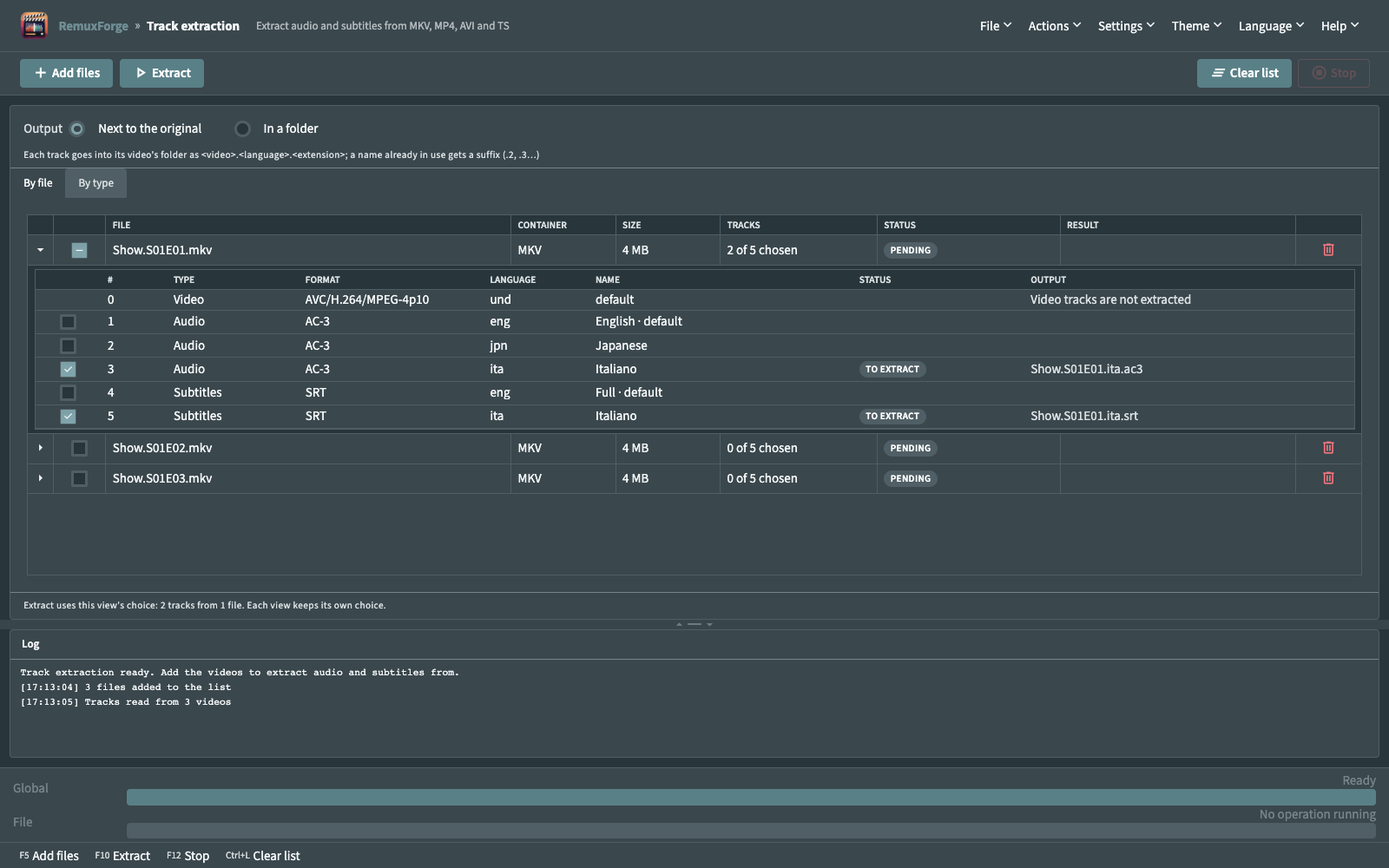
One row per video. Expand a row to see its tracks and tick the ones to extract. The check box on the video row ticks or clears every extractable track of that video; it shows a partial mark when only some are ticked. No track is ticked when a video is added.
| Video column | Shows |
|---|---|
| File | The name of the video; point at it for the full path. |
| Container | The extension of the video. |
| Size | The size of the video. |
| Tracks | How many tracks are ticked out of the extractable ones, for example 2 of 5 chosen. |
| Status | See Video status. |
| Result | How many tracks were written, or why the video cannot be read. |
| Bin | Remove from the list. |
| Track column | Shows |
|---|---|
| # | The track number in the video. |
| Type | Video, Audio, Subtitles or Other. |
| Format | The format the track is written in, see Formats. |
| Language | The ISO 639-2 language of the track; und when the video has none. |
| Name | The track name, followed by default and forced when the flags are set. |
| Status | For ticked tracks: To extract, Running, Extracted, Extracted with warnings, Error or Stopped. |
| Output | The name the file will have, then the name written or the error. A track that cannot be extracted shows why here, for example Video tracks are not extracted. |
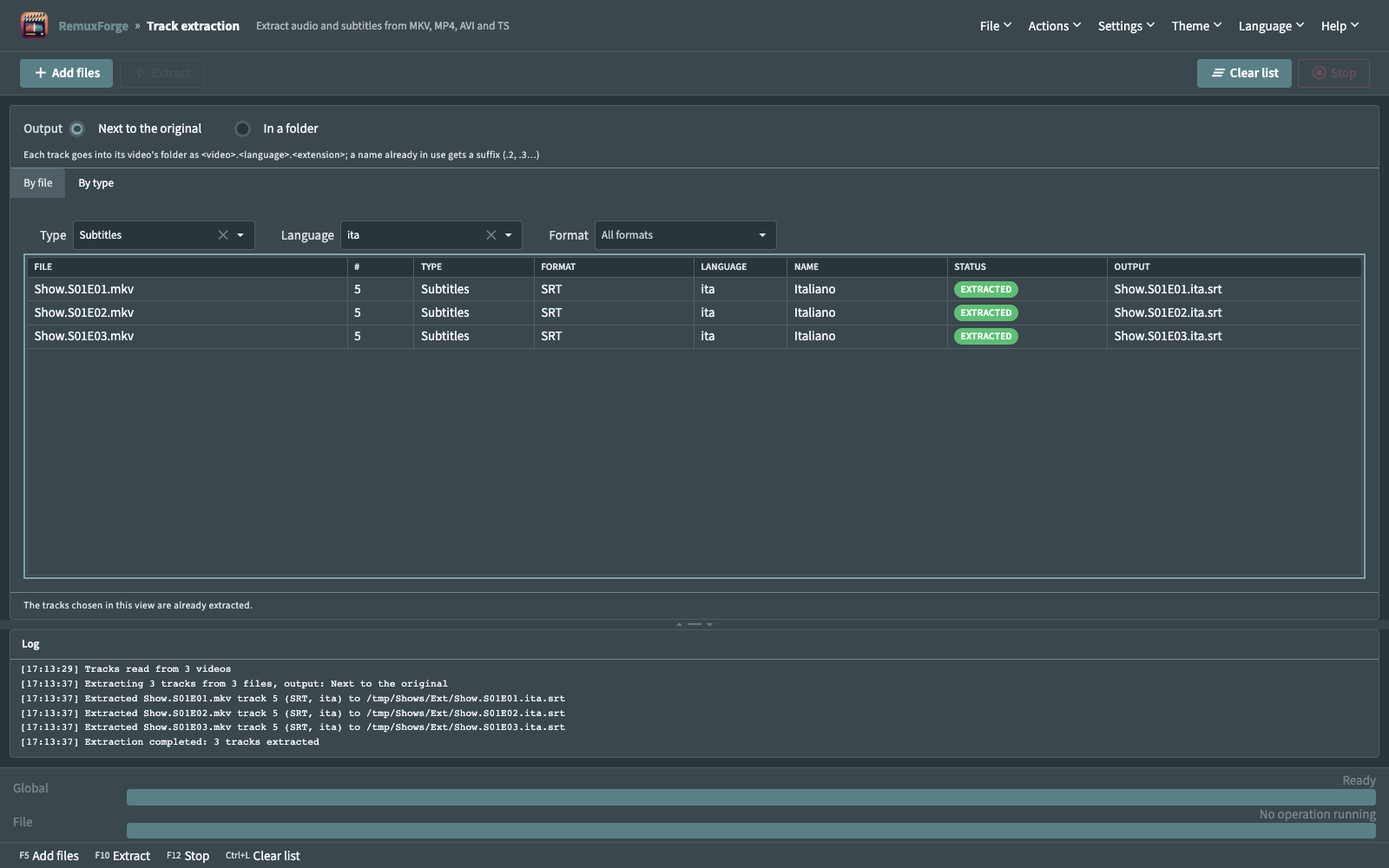
Three filters choose the tracks across all the videos of the list:
| Filter | Values |
|---|---|
| Type | Audio, Subtitles. Empty means All types. |
| Language | The languages found in the listed videos. Empty means All languages. |
| Format | The formats found in the listed videos, for example AC-3, SRT. Empty means All formats. |
Each filter takes several values. The table lists every extractable track that matches all three filters, one row per track, with the same columns as the track rows of By file plus File. Example: Type = Subtitles and Language = ita extracts every Italian subtitle of a season in one go.
When no track matches, the view shows No tracks to extract with the reason: the filters exclude every track, or the videos have no audio or subtitle track that can be extracted.
Extract uses the choice of the open view: the ticks of By file, or the filters of By type. Each view keeps its own choice while you switch. During extraction the other view stays closed.
| Format | Extension |
|---|---|
| AAC | .aac |
| AC-3 | .ac3 |
| E-AC-3 | .eac3 |
| DTS | .dts |
| TrueHD | .thd |
| FLAC | .flac |
| Opus | .opus |
| Vorbis (MKV only) | .ogg |
| MP3 | .mp3 |
| MP2 | .mp2 |
| PCM | .wav |
| ALAC |
.caf from MKV, .m4a from other containers |
| SRT (MKV only) | .srt |
| ASS, SSA (MKV only) |
.ass, .ssa
|
| WebVTT (MKV only) | .vtt |
| PGS | .sup |
| VobSub (MKV only) |
.idx with its .sub next to it |
| Timed Text → SRT (MP4) | .srt |
The Timed Text subtitles of MP4 files have no file format of their own: they are converted to SRT with the same text. Video tracks, and audio or subtitle formats outside this table, stay in the list with the reason in Output and cannot be ticked.
| Option | Where the tracks go |
|---|---|
| Next to the original | In the folder of each video. |
| In a folder | In the folder you type in Folder or choose with Choose the folder. |
Each file is named <video>.<language>.<extension>, for example Show.S01E01.ita.ac3. A name already in use gets a suffix before the language: Show.S01E01.2.ita.ac3, Show.S01E01.3.ita.ac3. Two Italian AC-3 tracks of the same video therefore become Show.S01E01.ita.ac3 and Show.S01E01.2.ita.ac3. The Output column shows the planned names before you start.
With In a folder, Extract waits for a valid folder and the line under the options says what is missing.
| Status | Meaning |
|---|---|
| Reading | RemuxForge is reading the tracks. |
| Unreadable | The tracks cannot be read; Result gives the reason. |
| Not read | The reading was stopped before this video. It resumes at the next Add files. |
| Pending | Tracks read, nothing extracted yet. |
| Running | Tracks of this video are being extracted. |
| Extracted | Every ticked track is written. |
| Extracted with warnings | Written, with warnings in the log and in the Output tooltip. |
| Partly extracted | Some tracks are written, others failed or were stopped. |
| Error | No track written. |
| Stopped | Stop reached this video. |
A track that holds no data is not written and shows The track contains no data: no file written. Adding an Unreadable or Not read video again reads it again.
Extract works on the chosen tracks still to do. Tracks already extracted stay as they are; after a stop or an error, press Extract again for the rest.
| Command | Key | What it does |
|---|---|---|
| Add files | F5 |
Opens the picker, adds the chosen videos and reads their tracks. |
| Extract | F10 |
Extracts the chosen tracks still to do. |
| Clear list | Ctrl+L |
Empties the list. Files on disk stay untouched. |
| Stop | F12 |
Stops the reading or the extraction. The track being written is discarded; the tracks already written stay. |
At the end a notification sums up the batch, for example 6 tracks extracted, 1 converted from Timed Text to SRT, and the log lists each track with its outcome.
- Add tracks: add a subtitle or audio file to each video
- AI subtitle translation: translate extracted SRT, ASS and SSA subtitles