Repository navigation
Subtitle Translation Review
Once the glossary is approved, the project goes through three phases: the model translates, the model reviews, and you check the lines. Translation and AI review run one after the other by themselves; the project then waits for your review, which ends by writing the subtitle files.
This page is part of AI subtitle translation.
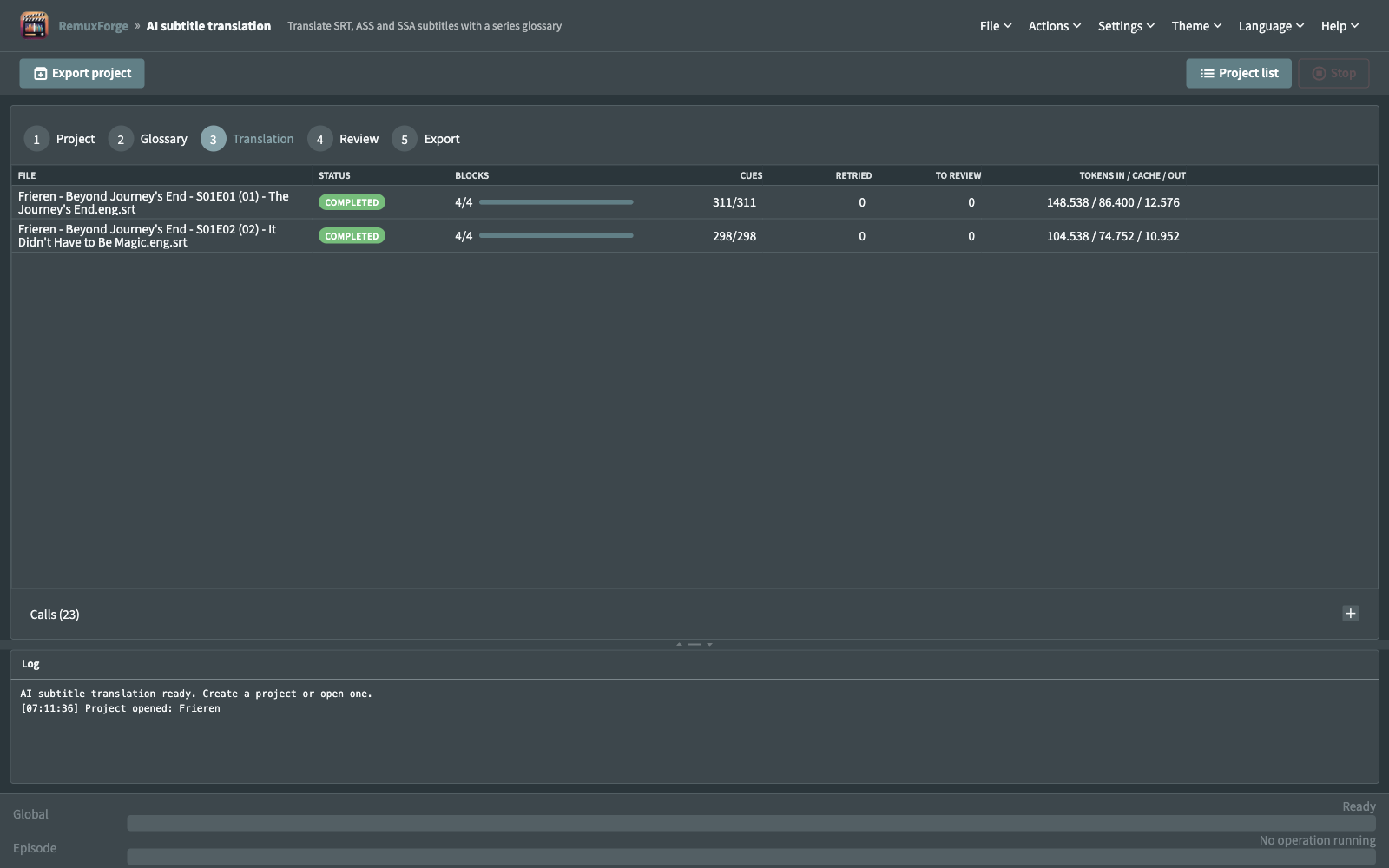
Approve on the Glossary step freezes the approved glossary, the Translation and Review models and the AI review mode for this translation, then starts. Files are translated Parallel files at a time (see Models); each file is cut into blocks of about 60 lines, on the longest pauses.
| Column | Shows |
|---|---|
| File | The file, with the reason in red when it is blocked. |
| Status | Waiting, In progress, Completed or Blocked. |
| Blocks | Blocks done out of the total, with a small bar. |
| Cues | Lines accepted out of the total. |
| Retried | Lines that needed a second attempt. |
| To review | Lines left without a valid translation. |
| Tokens in / cache / out | Input, cached and output tokens used so far. |
The Global bar follows all the blocks of the batch; the Episode bar shows Block 3 of 12 and the current file.
Every reply is checked line by line, see Checks on every line. Rejected lines go back to the model with the reasons, up to two times; a line still rejected stays untranslated and is marked To review. When a reply is cut short, the block is split in two and the next blocks of that file get smaller.
When every file is translated, the notification Translation completed appears and the AI review starts.
Stop (F12) cancels the current call at once. The blocks already saved stay; the block in progress is redone on resume. Resume (F10) continues from where the translation stopped, also after RemuxForge has been closed.
| Notification | Meaning | Button |
|---|---|---|
| Translation stopped | You pressed Stop. | Resume |
| Translation paused | The access stopped the requests, for example a usage limit. Every file stops after its current block. | Resume |
| Translation failed | An access or service error, for example a key that is no longer valid. | Retry |
Temporary network errors and service overloads are retried by themselves. When the service asks to slow down, all the files in parallel wait together.
While the translation is stopped, the glossary can be corrected and approved again: see Approve.
A file whose source subtitle was moved or changed on disk after the analysis is Blocked, with The file is gone or The file changed after the analysis. Put the original file back and resume, or use the buttons on its row:
- Restart file, for a changed file during the translation: translates it again from scratch, after a confirmation. The lines already translated for that file are lost.
- Remove file: leaves the file out of the translation. It needs at least one other file.
When the other files are done, the notification Translation with blocked files asks you to restart or remove the blocked ones. A file blocked after the translation shows AI review with blocked files: remove it, or put the source back and open the project again.
With AI review set to Full in the Project step, the Review model rereads the translation block by block, with the glossary and the warnings of each line. With None the project goes straight to your review.
For each block the model lists the issues it finds:
- Errors of meaning: a wrong or missing meaning, an untranslated passage, the wrong gender or number of a speaker, the wrong form of address, a glossary term not respected, swearing made milder than the original. Its corrected text replaces the translation in the file, after the same checks as a reply, and the line gets Corrected by AI.
- Other issues, such as fluency, register or consistency: the file stays as it is.
Lines marked To review are translated once more, and lines you edited by hand stay as you wrote them.
The Review step shows AI review… with the block, the file and the model. At the end the notification AI review completed gives the lines corrected, or Nothing to review when there was no block to reread. Stop and resume work as for the translation.
Lines the model fails to review are marked To review with AI review failed and the reason, for example Response cut short; the rest of the review goes on, and the notification is AI review partly completed, with the lines not reviewed. A service error, for example a key that is no longer valid, stops the review with AI review failed; Retry (F10) resumes it.

The Review step shows the lines of one file at a time:
- File chooses the file.
- Show filters the lines: All, To check (to review, glossary, retried, corrected by AI or edited by hand) or Edited.
| Column | Content |
|---|---|
| # | The line number. A repeat icon marks a stretch repeated across files, such as an opening: an edit changes every copy. |
| Times | Start and end. |
| Original | The source text. |
| Translation | The translated text, with the pencil button Edit. A line to review shows why it has no translation, for example Formatting mark missing, or why the AI review did not reread it. |
| Warnings | Badges, see below. |
| Badge | Meaning |
|---|---|
| To review | No valid translation yet, or a line the AI review could not reread. |
| Glossary | The original contains a glossary term and the translation lacks its rendering. |
| Retried | The line needed a second attempt. |
| Corrected by AI | The AI review changed it; point at it to read the text before and the reason. |
| Edited by hand | You changed it. |
Formatting in the middle of a line, such as an italic word, appears as numbered marks: ⟦1 word⟧. Keep each mark, with its number, around the matching words of the translation.
Edit opens the line. A saved line passes the same checks as a reply of the model: when it fails, Cue not saved lists the reasons and the line stays open. A valid line gets Edited by hand and loses To review and Corrected by AI.
Approve writes the translated subtitles where Output on the Export step says: next to the original until you choose a folder there. When some lines have no translation it asks first, because those lines are written with the original text. When every file is written, the notification Subtitles exported names the folders and the card returns to the project list; a file that cannot be written keeps the project on the Export step, with the error on its row. After the first approval, corrections are written from the Export step.
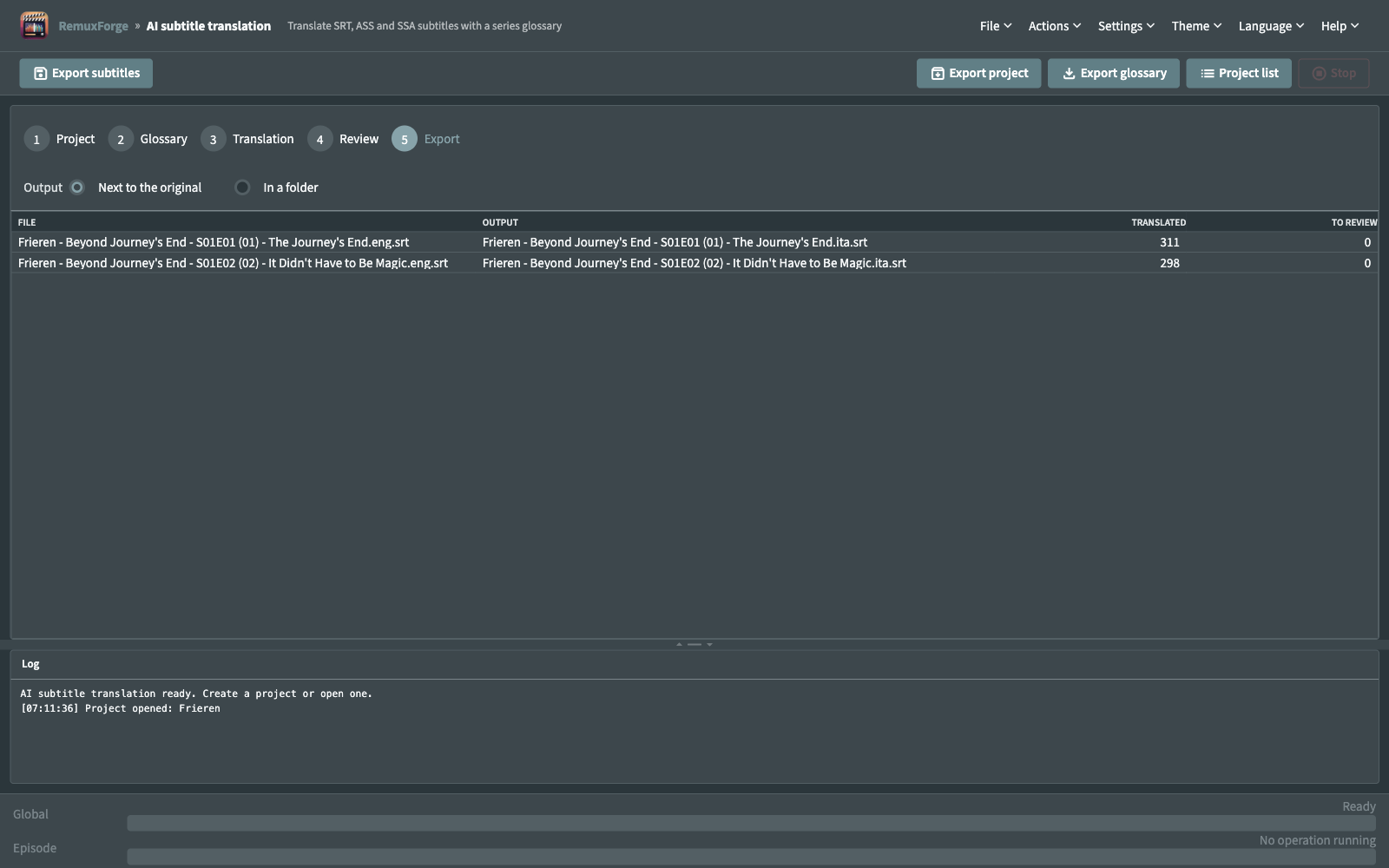
The Export step writes the subtitles again after corrections made in the review. A correction by hand returns the project to To review until the next export.
Output chooses where the translated subtitles go:
| Option | Where the files go |
|---|---|
| Next to the original | In the folder of each source subtitle. |
| In a folder | In the folder you type in Folder or choose with Choose the folder. |
The file name takes the target language: when the name ends with the source language, in any of its codes, that code is replaced; otherwise the target language is added. With English as the source, Show.S01E01.eng.srt, Show.S01E01.en.srt and Show.S01E01.srt all become Show.S01E01.ita.srt.
Exporting again overwrites the file written by the previous export of the same translation. When that file was edited by hand, or another file has the name, the existing file stays as it is and the new one gets a suffix before the language: Show.S01E01.2.ita.srt, Show.S01E01.3.ita.srt.
The table shows each File with its Output name, the Translated lines and the lines To review that have no translation. Export subtitles (F10) writes the files, with the same confirmation and the same return to the project list as Approve. When a file cannot be written, the table changes to the Written file of each subtitle, or the error.
Only the text of the lines changes. Timing, numbering, styles, line endings and the lines left untranslated stay exactly as in the original. A file read with a chosen encoding is written as UTF-8; a file with a byte order mark keeps it.
The same checks apply to the replies of the model and to your edits:
- The translation is empty;
- the formatting marks
⟦n …⟧of the original must all be there, once each, in the same order, and not empty; - characters that are markup in the subtitle format are refused unless the original has them:
{,}and\in every format,<and>in SRT.
Lines with only formatting or drawings, and the text not to translate (see What gets translated), are not sent to the model and stay as they are: the Excluded column of the Project step counts them.
Karaoke tags and the tags in the middle of a word stay in the translated line: every karaoke syllable keeps its duration and the line keeps its total.

The Calls panel at the bottom of the page lists every request sent to the model for the project, analysis and translation together, in the order they started. It shows on the Glossary and Translation steps, and on the Review step while the AI review runs. It starts closed.
| Column | Content |
|---|---|
| Time | The time of the call. |
| Type | The kind of call, with the attempt number when there is one. |
| File | The file, or All files. |
| Cues | How many lines, with the first and the last. |
| Model | Model and reasoning level. |
| Outcome | Delivered, Rejected, Reduced, Interrupted, Error, the number of issues found by the AI review, or Discarded for a call whose result was lost to a stop and is redone on resume. |
| Tokens in / cache / out | The tokens of the call. |
| Duration | Seconds. |
A row with rejected lines or an error expands to show the reasons of each rejected line, the kind of error and why a reply was cut short.
- AI subtitle translation: projects, models, archives
- Translation glossary: analysis and glossary
- Add tracks: add the translated subtitles to the videos