Repository navigation
Metadata TVDB TMDB
From TVDB / TMDB… (toolbar of the Metadata workspace) matches the scanned files to a series or a movie on TheTVDB or TMDB, then writes titles, synopsis, IDs, dates, numbers, genres, people and the cover into the files. The same match also feeds the TVDB / TMDB method of Advanced rename.
One match covers one title: a series, or a movie. Every value is shown before and after in the preview, and the files are written only when you press Apply.
RemuxForge reads TheTVDB and TMDB with your own API keys, entered once in Settings ▸ TVDB and TMDB. Both are free under the conditions of each service; the conditions and how to get the keys are in Settings. You need the key of the source you search: TheTVDB, TMDB, or both.
Without the key of its source, the search shows Search failed with "TheTVDB credentials are missing from the settings" (or TMDB); a key the service refuses gives "TheTVDB credentials rejected".
- Set Input: and run Scan input (
F5). - Press From TVDB / TMDB…. The button is enabled once the list has files and no operation is running.
- Files: tick the files of the title.
- Search: choose source, type, title and language, press Search, then click the right result.
- Episodes (series only): choose the seasons, load their episodes and untick those you do not want.
- Matching (series only): check which episode goes in each file.
- Preview: set the Title template:, check the changes of each file, press Apply.
The steps are shown as numbered badges at the top of the dialog. Back returns to the previous step, Close leaves without writing anything.
The list holds every scanned file, none ticked. Tick the files of one title; the box in the header ticks or clears them all. Next becomes available once at least one file is ticked and RemuxForge has read the current tags and attachments of the files, which the preview shows as Before.
For a movie, tick one file only: with more, clicking a movie result shows "One movie at a time: choose a single file".

| Field | What it does |
|---|---|
| Source: | TheTVDB or TMDB. |
| Type: | TV series / anime or Movie. With Movie the dialog has no Episodes and Matching steps. |
| Title: | The text to search. The field starts empty. |
| Year: | Optional. Narrows the search to titles that started, or came out, in that year. |
| Language: | The language of titles and synopses. It starts from the Default language: of the settings. |
Search lists the results with Title, Original title, Year and Overview. "No results" appears as a notification when nothing matches. On TheTVDB, the titles whose name, translation or alias contains the searched text come first.
Click a result to load it. A series loads its list of seasons and opens Episodes. A movie goes straight to the preview.
Texts missing in the chosen language are taken in English. When TheTVDB does not offer the chosen language at all, the texts are in English.
| Field | What it does |
|---|---|
| Seasons: | The seasons whose episodes are loaded; choose one or more. Specials is season 0. |
The seasons named by SxxEyy in the ticked file names start chosen; otherwise none is chosen.
Load episodes reads the episode list of the chosen seasons, with Cancel to stop and go back to the season choice.
The list shows the episodes as S01E01 — Title — first aired date, all ticked. Untick the episodes to leave out of the match. Changing Seasons: clears the list until you press Load episodes again.
Next is available once at least one episode is ticked. It reads the details of the ticked episodes, such as people and translated texts, with the bar "Episodes loaded: {0} of {1}" and Cancel to go back to the list, then opens the matching with the ticked episodes.
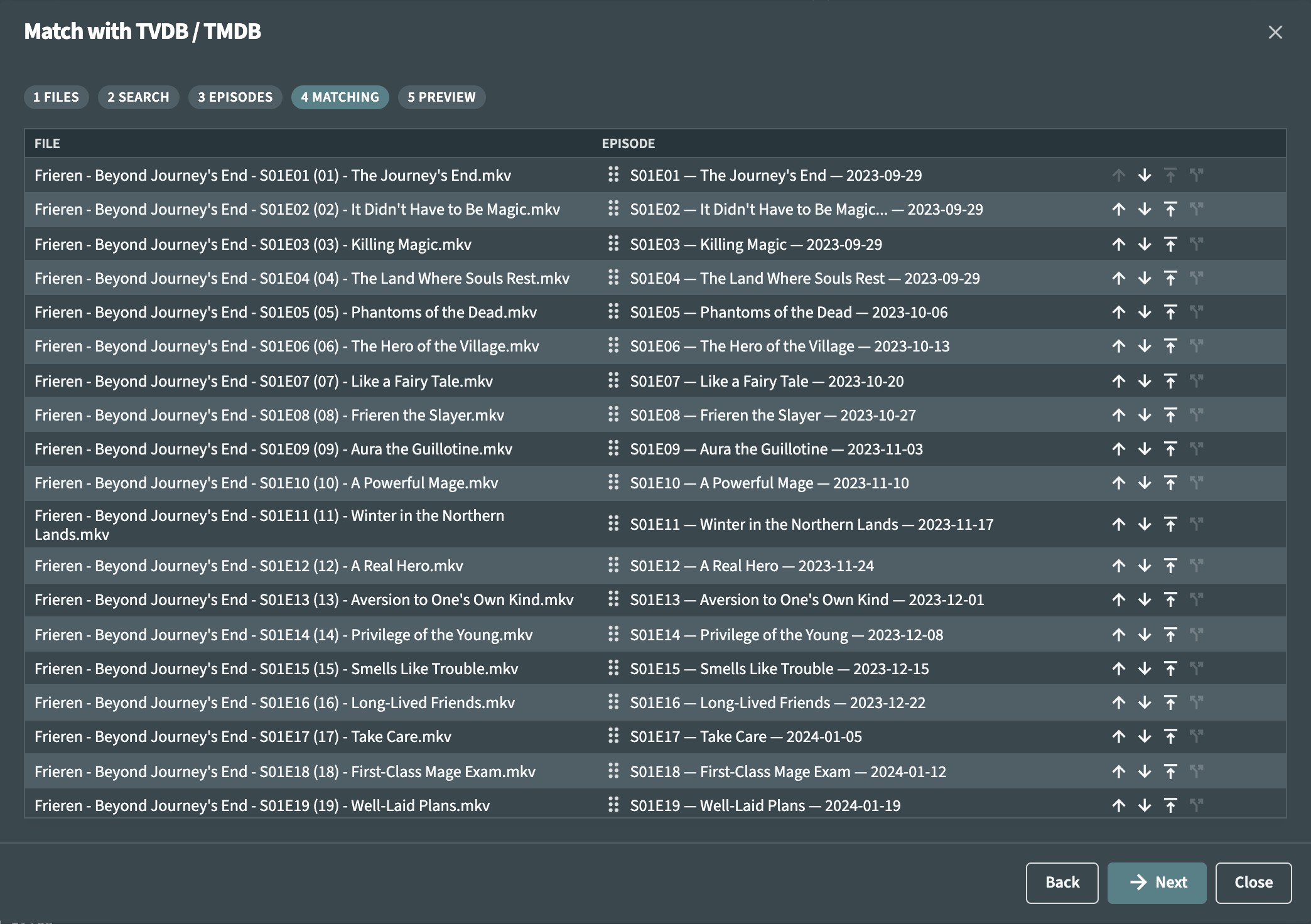
The left column lists the ticked files in path order, the right column the ticked episodes in season and episode order, as S01E01 — Title — first aired date. Rows without a file read No file; the specials (season 0) are at the bottom.
The first pairing is automatic:
- a file whose name contains
SxxEyy(upper or lower case) gets that episode.S01E04E05,S01E04-E05andS01E04-05get both episodes, provided the second follows the first in the same season; - a file without
SxxEyygets, in order, the first episode still free, specials excluded; - a special is paired only by
S00Eyyin the file name, or by hand.
To correct it:
| Command | What it does |
|---|---|
| Drag the handle ⋮⋮ of an episode | Swaps it with the episode of the row where you drop it. |
| Move the episode to the file above / below (arrows) | Swaps the episode with the one of the next row up or down. |
| Merge with previous | Adds the episode to the file above, for a file holding two or more episodes. Available when it is the next episode of the same season. |
| Split | Takes the last episode out of a merged file and gives it back to the file it came from, or to the first file below without an episode, or to a new No file row. |
A file with No episode is left out. Next opens the preview of the matched files.
-
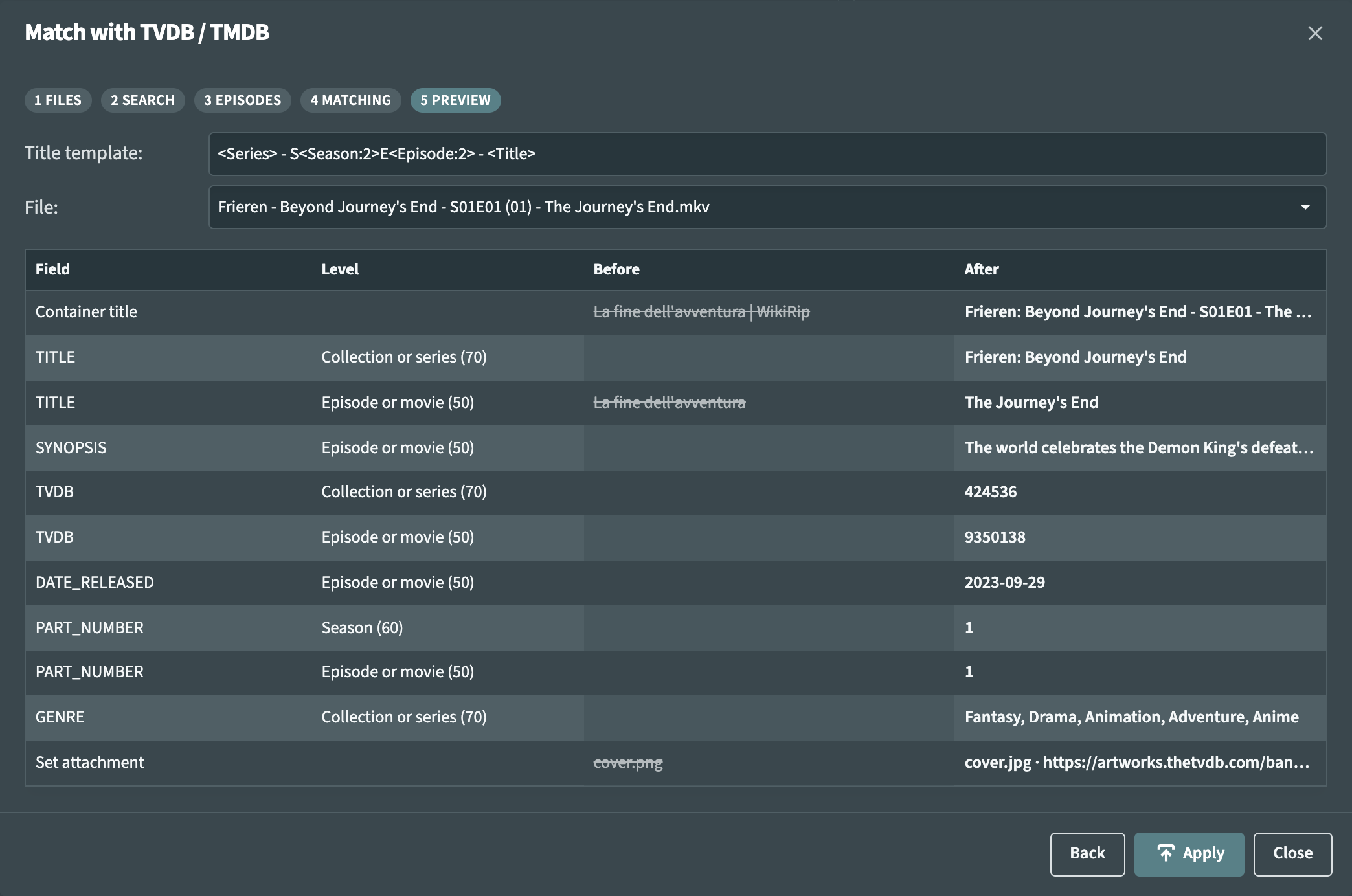
Title template: builds the container title (
container_title) from the placeholders below. It starts as<Series> - S<Season:2>E<Episode:2> - <Title>for a series and<Title>for a movie. - File: chooses the file whose changes are listed.
- The table lists each change with Field, Level, Before and After. The cover row shows the attachment name and the image address.
Only differences are listed: a value equal to the one already in the file is not rewritten, and a value the source does not have is not written, so nothing is cleared. Values already in the file are replaced.
For a movie the steps are Files, Search, Preview:

| Placeholder | Value |
|---|---|
<Series> |
Title of the series. Empty for a movie. |
<Season> |
Season number. |
<Episode> |
Episode number; for a file with several episodes, first and last, as 4-5. |
<Absolute> |
Absolute number of the episode, or first and last. Empty when the source does not give it for every episode of the file, and always empty with TMDB. |
<Title> |
Title of the episode or of the movie. The titles of a file with several episodes are joined with /. |
<Year> |
Year of the series or of the movie. |
<Season>, <Episode> and <Absolute> take a width: <Episode:2> writes 01, <Absolute:3> writes 013. In a range the width applies to each number, so <Episode:2> gives 04-05. Without a width the number is written as it is. A placeholder that does not exist stays in the text as written.
Tags are written in the container, at the level shown in the Level column: Collection or series (70), Season (60) or Episode or movie (50).
| Data | Episode of a series | Movie |
|---|---|---|
| Container title | Title template: | Title template: |
TITLE |
Series (70); episode (50) | Movie (50) |
SYNOPSIS |
Episode (50) | Movie (50) |
TVDB (TheTVDB) |
Series ID (70); episode ID (50) | |
TVDB2 (TheTVDB) |
movies/<id> (50) |
|
TMDB (TMDB) |
tv/<id> (70) |
movie/<id> (50) |
DATE_RELEASED |
First aired, YYYY-MM-DD (50) |
Release date (50) |
PART_NUMBER |
Season (60); episode (50) | |
GENRE |
Genres of the series (70) | Genres (50) |
DIRECTOR, WRITTEN_BY, ACTOR
|
People of the episode (50) | People of the movie (50) |
| Cover | Poster of the season, otherwise of the series | Poster of the movie |
Genres and people are separated by commas, without repetitions. In a file with several episodes, the titles are joined with /, the synopses with a blank line, the people of all its episodes are merged, and the numbers, the episode ID and the date are those of the first episode. TMDB has no episode ID tag.
The poster is downloaded when you press Apply and attached as cover.jpg when it is a JPEG image or cover.png when it is a PNG image; an image in another format is not attached. A cover.jpg or cover.png already in the file is replaced, even when the format changes, and the other attachments stay as they are. When a poster cannot be downloaded, nothing is written: the notification "Writing not started" gives the reason, and the dialog stays open.
Apply closes the dialog and writes the matched files one at a time, with the Output: settings of the workspace, as Manual edit does:
- with Overwrite,
mkvpropeditedits the original file, which is then read again so the preview shows its new state; - with Output folder, the edited copy is written to the output folder, following Keep folders and Overwrite existing.
No confirmation is asked. The progress reads Writing TVDB / TMDB data, and the log adds "TVDB / TMDB data written: {0}" for each file. A file that fails is marked Error and the others carry on. Stop (F12) ends the batch after the current file. When no file has anything to change, the notification "No changes to write" appears and the dialog stays open.
The changes are recorded under the rule name TVDB / TMDB: <title>. After writing with Overwrite, run Analyze again before applying a preset to the same files.
Help ▸ Info shows, under TV and movie data, the TheTVDB and TMDB logos with "TV and movie data provided by TheTVDB" and the TMDB notice. The terms of both services require it.
- Advanced rename: renaming the files from the same match
- Settings: API keys and default language
- Metadata reference: the tags written
- Metadata workspace: scanning and the output settings