Repository navigation
preferences
Configuration → Configurer QElectroTech (Configure QElectroTech), in the Configuration menu of every window, opens these pages, listed down the left:
| Page | What it sets | § |
|---|---|---|
| Général | interface, paths, startup, element and text defaults, grid and keyboard movement | 1 |
| Nouveau projet | the defaults a new project and a new sheet start with | 2 |
| Export, Impression | export and print defaults | 3 |
| Raccourcis | the key for every command | 4 |
| Barre de raccourcis | the commands the S shortcut bar shows | 3b |
| Barres d'outils | toolbar icon size, text with the icons, locking | 4c |
| Souris 3D | only in builds with 3D mouse support | 4b |
Two more pages, Gestes de la souris (the gesture ring's own commands) and Contenu des barres (what each toolbar holds), are described on Customising QElectroTech — see §4c. There is no separate "Display" or "Grid" category; those live inside Général. Everything about shortcuts, toolbars and gestures is gathered on Customising QElectroTech.
A second, related dialog — Project Properties — reuses one of these pages (New project/New sheet) to edit the current project's defaults instead of the application's. See §2.
Source: sources/configdialog.cpp (the dialog shell),
sources/ui/configpage/ (the pages),
QETApp::configureQET() (where they're assembled).
The largest page, in several groups:
Six folder pickers, letting you relocate every collection the app reads: common elements, company elements, custom (your own) elements, company title-block templates, custom title-block templates, and custom macros.
This is exactly the setting behind a real bug. Relocating the common collection to a folder path with no trailing slash used to silently break IEC 81346 prefix lookups for every element (bugtracker #671) — fixed upstream. If prefixes ever stop working after you use this dialog, that history is why.
- Use system colours
- Use trackpad gestures
- Allow zooming out beyond the sheet edge
- HDPI scaling rounding policy (round up at .5, always ceil, always floor, round up at .75, or no rounding) — matters on fractional-scale displays
- Language
Three more options in this group come with the features on Drawing faster:
| Option | Default | Pull request |
|---|---|---|
| Double-cliquer dans la collection ouvre l'éditeur d'élément au lieu de l'insérer — double-click in Collections opens the editor instead of placing the symbol | off (double-click places) | PR #1042 |
| Afficher les commandes près de la sélection — a small command bar beside what you just clicked | on | PR #1055 |
| Gestes de la souris avec le bouton droit — right-drag runs a command from a ring | on | PR #1057 |
| Afficher les résultats de recherche sous forme de liste triée — a Collections search shows one ranked list. Untick it for the filtered tree search of older versions. The Insert picker and the shortcut bar stay ranked either way | on | PR #1083 |
The wires-per-terminal options — a master switch, the most wires per terminal, and one wire per folio report — are in this tab too, below Afficher les propriétés d'un conducteur sélectionné… (PR #1272); see Wires per terminal §1.
- Show the grid by default (takes effect on the next launch, not immediately)
- Show guides by default (same — next launch)
- Highlight elements embedded in the project (vs. referenced from a collection)
- A cap on how many primitives the element editor's parts list will render before giving up — raising it can slow the editor down or crash it on a very complex element
On the Projets tab of Général, both off by default:
| Option | Does |
|---|---|
| Autoriser l'exécution de scripts JavaScript (Projet > Exécuter un script, et --run) (allow running JavaScript scripts) | lets scripts and script buttons run. A script runs with your rights; only run scripts you trust. See JavaScript Scripting |
| Autoriser un assistant IA à agir sur le projet ouvert (mode direct) (allow an AI assistant to act on the open project — live mode) | lets a connected assistant work in the open window. Takes effect at the next start; unticking it cuts the connection at once. See Live mode |
Default font size and behaviour for each of these three separately — an element's own dynamic text fields, free-standing text on a sheet, and everything else, respectively.
- Grid spacing (1–30)
- Keyboard-nudge step (1–30) — how far arrow keys move a selection
- Keyboard-nudge step with Alt held (1–9) — the fine-movement modifier
- Grille des textes déplacés à la souris (text grid for dragged texts): 1:1, 1:2, 1:5, 1:10 of the sheet grid, or off — see Mouse modifiers §2
The same page, two names, depending on where you open it:
| Opened from | Title | Edits |
|---|---|---|
| Configuration → Configurer QElectroTech | Nouveau projet | the defaults every future new project starts with |
| A project's own Propriétés du projet dialog | Nouveau folio | that one project's defaults |
Five tabs, and this is the page behind everything documented in
Project XML's newdiagrams block:
| Tab | Sets |
|---|---|
| Sheet | border (rows/columns/size) and title block template |
| Conductor | the default conductor properties every new wire starts with |
| Sheet reports | the label formula for next_report/previous_report elements — see Linking wires across pages §4 |
| Cross-references | master/slave label formulas — see Linking elements |
| Guides | default alignment guides |
Changing this from Preferences (no project open) changes what new projects get; it does not retroactively change any project already open. Changing it from a project's Properties dialog changes only that project.
These two pages share the same underlying widget — Print is the export widget with printing mode turned on, not a separate implementation. Both expose:
- Output format: PNG, JPG, BMP, SVG or DXF (Print naturally constrains this further)
- Export the whole sheet (border + title block + content) or elements only
- Draw grid / draw border / draw title block
- Draw terminals / draw terminal names — off by default, since the interactive editor's terminal markers aren't meant to appear in output
- Keep conductor colours
- SVG-only: transparent background
These are the same settings the File → Export dialog itself exposes — this page just sets what a new export starts with, the same relationship New project/New sheet has to a brand-new project.
For the DXF format's own fidelity limits (what does and doesn't survive export), see DXF import & export.
Chooses the commands the S shortcut bar shows, and so also the command bar beside a selection and the gesture ring (unless the gesture ring has been given a list of its own on Gestes de la souris). Pick the situation under Contexte — nothing selected, only wires, or anything else — then move commands between Commandes disponibles and Dans la barre, dans l'ordre with Ajouter → / ← Retirer, and order them with Monter / Descendre or by dragging. Valeurs par défaut restores the defaults for that situation. Stored in your settings, never in a project. See Drawing faster.
Raccourcis lists every command that can have a key, grouped by where it applies, with three columns: Action (with its icon), Menu (where the command lives) and Raccourci (click it and press the new combination). Every command of the sheet editor's menus and toolbars is listed.
- Filtrer les raccourcis… and Toutes les catégories narrow the list; the second filter shows all commands, only those with a key, only those without, or conflicts only — the fast way to find two commands fighting over the same key.
- Rechercher par touche (search by key): press a combination and the list shrinks to the command that uses it.
- Copier la liste copies the rows shown, tab-separated, ready to paste into a spreadsheet as a cheat sheet.
- Tout réinitialiser resets every key; the arrow at the end of a row resets that one.
A conflict is shown, not silently allowed. Details and a screenshot: Customising QElectroTech §1.
Only in builds with 3D mouse support: pan and zoom speed, zoom by push/pull or twist, dead zone, inverting each direction, and binding the device's buttons to commands. See 3D mouse.
Taille des icônes (Par défaut, 16, 24, 32 or 48 px), Boutons (Icône seule, Texte à côté de l'icône, Texte sous l'icône) and Verrouiller les barres d'outils, for the sheet editor, the element editor and the title block editor. OK applies them to the windows already open. Showing and hiding a toolbar stays on a toolbar's right-click menu.
Contenu des barres chooses the buttons on each sheet editor toolbar and adds toolbars of your own; Gestes de la souris gives the gesture ring its own commands and 4 or 8 directions; and Configuration → Personnaliser… shows all of these pages as tabs of one window. See Customising QElectroTech.
- No per-diagram auto-save interval. QET writes a periodic crash-recovery backup in the background, but its timing isn't a setting — see the User Manual's note on this, and After a crash in the FAQ for the three copies it keeps.
- No project-wide "page size" setting separate from the Sheet tab's border configuration above — border rows/columns/size is the page layout.
- No dark-mode toggle distinct from "use system colours." Theme follows the OS unless you opt out of that.
- The sheet background colour is not on any page. It is the Couleur de fond du folio (Sheet background colour) button on the Affichage (View) toolbar: Couleur système (follow the system theme, dark on a dark desktop), a list of fixed colours, recent choices, or Autre couleur…. It applies to every open project and, since September 2026, is remembered between runs, recent choices included. It is kept in your settings, not in the project. See Printing and exporting §4 for what it does to output.
From the Configuration menu, below Configurer QElectroTech:
| Entry | Does |
|---|---|
| Enregistrer la configuration sous... (Save configuration as) | saves every setting to a .conf file |
| Charger une configuration... (Load configuration) | replaces your settings with a saved file, then closes QElectroTech; start it again to use them |
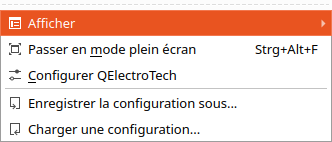
Use it to keep one set of settings per customer or drawing standard, to move your settings to another computer, or to keep a copy before trying something. The file is plain text in ini format, the same on every system.
- Kept out of the file, and kept when loading: window and dialog sizes and positions, and the recent-files lists. They belong to the computer, not to the way you work.
- Loading replaces, it does not merge. A setting the loaded file does not have is removed, so switching from one saved configuration to another leaves nothing of the first behind.
- Only files saved by QElectroTech are accepted.
Since PR #1166 (merged 2026-09-29). The full story — what is in the file, what loading does, sharing a setup — is on Saving and loading settings.
Resize a dialog — this Preferences window, Search and Replace, Export and the others — and it reopens at that size and place, also after restarting QElectroTech. A dialog last left partly off-screen (a monitor unplugged, say) reopens fully on screen. The recovery prompt and the image crop dialog keep their fixed size. Since PR #1165 (merged 2026-09-29), which also fixed the PLC input/output table's Type column showing as light grey boxes under a dark system theme.
| Before | After |
|---|---|
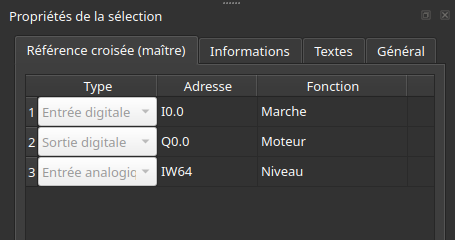 |
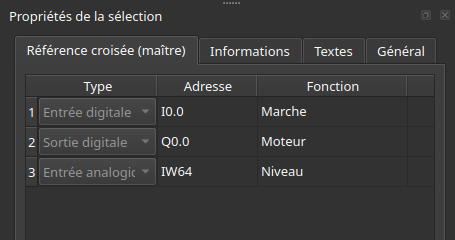 |
See also: Project XML · Linking elements · Linking wires across pages · DXF import & export · Grid size and element size · 3D mouse
