Repository navigation
aligning_items
Wires in QElectroTech run straight when the terminals at both ends line up, and terminals line up when their symbols sit on the grid. A symbol that is even a few pixels off the grid gives a bent or stepped wire.
Symbols leave the grid more easily than you might think:
- Alt+arrow moves a selection by 1 pixel (see Mouse modifiers, §6), so a few presses leave it between grid points.
- Ctrl while dragging places freely, ignoring the grid.
- Projects made with older versions, or with a different grid setting, may already contain symbols off the grid.
In the example projects that ship with QElectroTech, 508 of 3,678 placed symbols (14 %) are off the grid.
Until now nothing put them back: you had to drag each symbol by eye until it happened to land on a grid point. This page covers the commands that do it for you. They were proposed in discussion #1069 and are built one pull request at a time.
Menu names are given in French, as QElectroTech shows them until the translations are updated, with an English gloss in italics.
| Command | What it does | Pull request |
|---|---|---|
| Snap to grid | puts the selected items back on the grid | #1073 |
| Align left, centre, right, top, middle, bottom | lines the selected items up on one edge or one centre line | #1087 |
| Distribute, straighten wires | space items evenly, straighten the wires between them | planned in discussion #1069, not built yet |
Snap to grid and Align are both merged. Distribute and straighten wires are still to come.
- Select the items to fix. Ctrl+A selects everything on the sheet, which is the quickest way to tidy a whole page.
- Choose Edit ▸ Align ▸ Align to grid. The same command is in the right-click menu of the selection, and in command search (Ctrl+Shift+M, type "grille").
Each selected item moves to the nearest grid point, and the status bar says what happened:
| Status bar | Meaning |
|---|---|
| 3 items put back on the grid | 3 items were off the grid and have been moved |
| The selection is already on the grid | nothing needed moving; no undo step is added |
| (1 locked object left in place) | added when locked items were in the selection; they were not moved |
One undo step (Ctrl+Z) puts every item back where it was.
| Item | Snaps to |
|---|---|
| Symbols | the sheet grid, by the symbol's origin point: exactly where dragging it would have dropped it |
| Pictures | the sheet grid |
| Free texts | the text grid, the finer step set under Display ▸ Text grid, so a text you placed on a finer step is not pulled onto the coarser sheet grid |
| Shapes (lines, rectangles, ellipses, polygons) | the sheet grid, by the top-left corner of the shape as drawn: a rectangle's corner, the corner of an ellipse's box. The line thickness does not count |
| Locked items | not moved |
| Wires | follow their symbols, as they do when you drag |
Items already on the grid stay exactly where they are.
- Half a step rounds up. A symbol exactly half a grid step off (5 px on the default 10 px grid) goes to the next grid point, so "back on the grid" is not always "back where it was before the nudge".
- Holding Ctrl makes no difference. Unlike dragging, where Ctrl means "ignore the grid", this command always snaps to the grid, so it still works if you give it a shortcut that includes Ctrl.
- No default shortcut. You can assign one under Configure QElectroTech ▸ Shortcuts; the command is listed in the Diagram editors group.
- The grid is the sheet's own grid. If you changed the grid size in the preferences, symbols snap to that size.
- A symbol whose terminals are off the grid inside the symbol itself still gives bent wires after snapping. That is a problem in the symbol, not its position; fix it in the element editor.
- Select two or more items: symbols, pictures, free texts, shapes or groups.
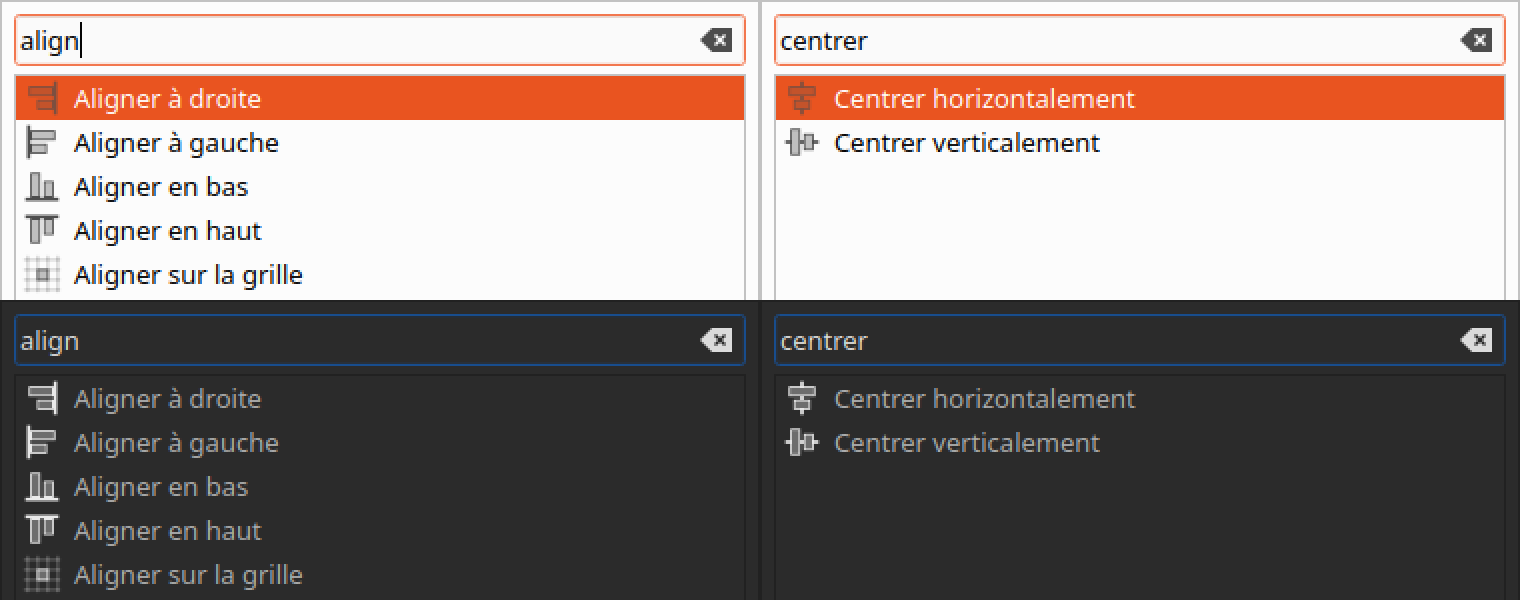
- Choose one of the six commands under Edit ▸ Align, the same submenu as Align to grid (Snap to grid, above). It is also in the right-click menu of the selection, and in command search (Ctrl+Shift+M, type "align" or "centre").
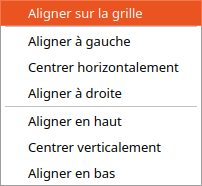
| Command | Lines the items up on |
|---|---|
| Align left | the left-most left edge |
| Centre horizontally | one vertical line, through the average of their centres |
| Align right | the right-most right edge |
| Align top | the top-most top edge |
| Centre vertically | one horizontal line, through the average of their centres |
| Align bottom | the bottom-most bottom edge |
Each of these commands, and Align to grid, has its own icon in the menu, the right-click menu, command search and the shortcut bar (PR #1153, merged 2026-09-29).
With a single item selected the six commands are greyed out; only Snap to grid is available. A single group counts as one item, however many things are in it.
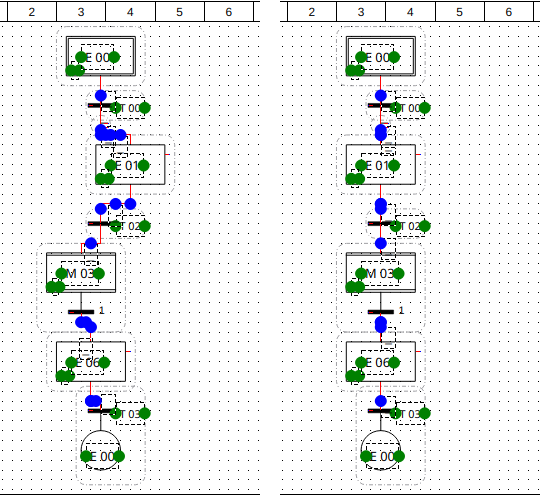
The status bar says what happened:
| Status bar | Meaning |
|---|---|
| 4 items aligned | 4 items moved |
| The selection is already aligned, to the nearest grid step | nothing needed moving (see "The grid wins" below); no undo step is added |
| Select at least two unlocked elements, images, texts, shapes or groups | fewer than two items could move, usually because the others are locked |
| (1 locked object left in place) | added when locked items were in the selection; they were not moved |
One undo step (Ctrl+Z) puts every item back where it was.
| Item | Edges | Centre |
|---|---|---|
| Symbol | its outline, without its texts (label, reference, information fields) | its origin point: the point it snaps to the grid by, which is where its wires usually leave. Centring symbols of different sizes therefore puts their wires on one straight line, not the middles of their drawings |
| Picture | the picture itself, without its caption | the middle of the picture |
| Free text | the text's box | the middle of the box |
| Group (Grouping items) | the box around all its members | the middle of that box |
| Shape (line, rectangle, ellipse, polygon) | the shape as drawn, without the line thickness | the middle of that box |
| Locked items | not moved | — |
| Wires | follow their symbols, as they do when you drag | — |
A group moves as one piece: every member moves by the same amount, so the group keeps its shape.
- Items only move across the line. Align left moves items left or right, never up or down; Align top never moves anything sideways.
- The grid wins. Every item lands on the grid its drag would have used: symbols, pictures and shapes on the sheet grid, free texts on the text grid. So aligning never takes a symbol off the grid. The price: two symbols whose left edges are at different distances from their origin points cannot both sit on the grid and on the same left edge, so one can end up as much as half a grid step (5 px on the default grid) off the line.
- Half a step rounds up, as with Snap to grid.
- Holding Ctrl makes no difference, as with Snap to grid.
- No default shortcuts. Assign your own under Configure QElectroTech ▸ Shortcuts, in the Diagram editors group.
- No automatic wiring. Lining a symbol up with a free terminal does not add a wire, unlike dropping it there with the mouse.
- Grid size and element size — the sheet grid, and why symbols are drawn to it
- Mouse modifiers — what Ctrl, Shift and Alt change while you drag or nudge
- Grouping items — moving several items as one
- Drawing faster — command search and other commands at the cursor
