Repository navigation
assistant_live_mode
Normally an AI assistant connected through the MCP server
works on files: it reads a .qet, tests changes on copies, and never touches
the drawing you have open. Live mode adds a second way of working: the
assistant on one screen, QElectroTech on the other, and each thing it does
happens in front of you, in the project you have open — where you can watch
it, refuse it, undo it, or carry on by hand.
Status: merged on 2 October 2026. Everything on this page is in development builds made since then; it is not in a release yet. The pull requests:
PR What it adds Builds on #1222 the setting, the startup warning, the status-bar indicator, running scripts live #1221 (script buttons) #1223 the Assistant panel, ask-first, the allowed commands, the screenshot #1222 #1225 the qet_live_*MCP tools#1224 #1312 create, open and switch projects #1225 #1313 printing, save and close, the change list, the layout check #1312 #1314 Don't ask again at start, and ask-first remembered across restarts #1222 #1316 the optional timing log #1225 The project, printing and memory changes merged on 5 October 2026.
The proposal is discussion #1226.
Menu and option names are given in French, as QElectroTech shows them until the translations are updated, with an English gloss in italics.
| Headless (the usual way) | Live | |
|---|---|---|
| works on |
.qet files and copies of them |
the project open in your QElectroTech |
| QElectroTech running? | no — started in the background for each call | yes, your own window |
| MCP tools |
qet_*, qet_script_*
|
qet_live_* only |
| what you must switch on | QET_ENABLE_SCRIPTING=1 |
that, and the live setting, and the warning at this start |
| undo | nothing of yours changed | one Ctrl+Z per assistant action |
A script tested headless runs the same way live; only where it runs changes. The tools are kept apart so one can never be taken for the other.
-
The MCP server is started with
QET_ENABLE_SCRIPTING=1, as for the editing tools (see Scripting gate). -
The setting. In Configure QElectroTech > General > Projects (Settings > General > Projects): Allow an AI assistant to act on the open project (live mode). Off by default. It takes effect at the next start; unticking it cuts the connection at once.
-
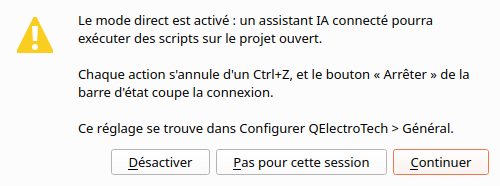
The warning, at start. While the setting is on, each time QElectroTech starts it shows, before anything can connect:
Live mode is on: a connected AI assistant will be able to run scripts on the open project. Each action is undone with one Ctrl+Z, and the “Stop” button in the status bar closes the connection. This setting is in Configure QElectroTech > General > Projects.
Button Does Continue opens the connection for this session Not this session stays closed until the next start Disable stays closed and turns the setting off Below the buttons, Don't ask again at start: ticked when you press Continue, live mode then opens at every start without the warning. Unticking the setting and ticking it again brings the warning back, so "don't ask again" never outlives the choice it was made for. Without that box ticked, a setting you forgot about can never leave the door open silently.
With the setting off, QElectroTech opens nothing at all and behaves exactly as
it does without this feature; the qet_live_* tools answer that live mode is
off and do nothing. When they cannot connect, they say which of the three
switches is missing.
Shows Live mode: waiting for an assistant or Live mode: assistant connected, then the last thing it did, with ✓ or ✗ and the time. Hover it for the error, if there was one.
Stop beside it cuts the connection for the rest of the session.
A panel called Assistant opens on the right while live mode is open. It lists every action, newest first: the time, ✓ or ✗, and its undo step's name. Hover an entry, or double-click it, for the details: the error, what the script logged, and the script itself.
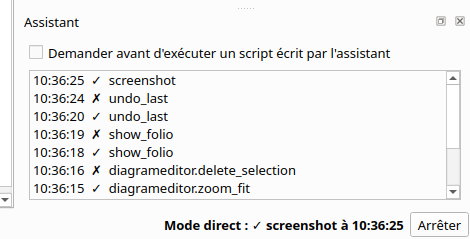
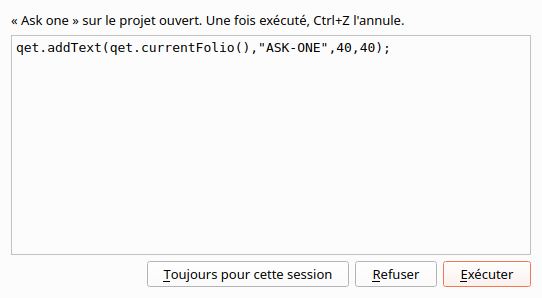
At the top: Ask before running a script the assistant wrote, ticked unless you chose otherwise; QElectroTech remembers it across restarts. While it is ticked, a script the assistant wrote on the spot is shown to you first, in a box titled The assistant wants to run a script:
| Button | Does |
|---|---|
| Run | runs it |
| Decline | nothing happens; the assistant is told you refused |
| Always | runs it and stops asking: the box above is unticked, and stays so after a restart until you tick it again |
Stored scripts — the script buttons you already have — run without asking: you put them there.
Each assistant action is one undo step, named Assistant : <what it did>, in the same undo history as your own work. Ctrl+Z takes it back.
The assistant can undo too (qet_live_undo_last), but only its own last
step. If the newest step is something you did, it is refused: what you do by
hand stays yours to undo.
| Tool | Does | Needs QET_ENABLE_SCRIPTING=1
|
|---|---|---|
qet_live_status |
is QElectroTech there and live mode open; the project and sheet on screen, how many sheets, what is selected, the last undo step; the stored scripts; whether a macro recording is under way; every open project (projects: title, file, sheets, unsaved changes, which is current) |
no |
qet_live_run_script |
runs script text on the open project (asks you first, see above); returns what it logged, its error, and the undo step's name | yes |
qet_live_run_stored |
presses one of your stored script buttons, by its id | yes |
qet_live_command |
runs one editor command from a fixed list (below) | yes |
qet_live_show_folio |
shows another sheet of the open project | no |
qet_live_undo_last |
undoes the newest step, only if it was the assistant's | yes |
qet_live_screenshot |
an image of the sheet on screen, so the assistant sees what you see | no |
qet_live_changes |
the project's undo history: each step's name, whether you or the assistant made it, whether it is undone; with since, only the steps after an earlier answer |
no |
qet_live_layout_check |
qet_layout_check on the drawing as it is on screen, unsaved changes included, plus the house-style rules (labels over wires, 4-way junctions, side branches out of line) |
yes, for the QElectroTech it starts to run the check |
The tools for projects, saving and printing are in the next section.
Since 5 October 2026 (#1312,
#1313) the
assistant can also work with whole projects in your window. The one it opens,
creates or switches to becomes the current project, and every later
qet_live_* call acts on it.
| Tool | Does | Needs QET_ENABLE_SCRIPTING=1
|
|---|---|---|
qet_live_new_project |
a new project, as File > New makes one, with your defaults for new sheets; optional title, number of sheets (1–100), and a file to save it to at once | yes |
qet_live_open_project |
opens a saved .qet (full path), with no file dialog; one already open is just made current |
no |
qet_live_switch_project |
makes another open project current, by its place in qet_live_status's list or by its file |
no |
qet_live_save_project |
saves the current project to its file, or to a new file, which then becomes its file | yes |
qet_live_close_project |
closes a project, only if it has no unsaved changes | yes |
qet_live_print |
prints all sheets, the one on screen, or a list of them, on a named printer or your default one, without the print dialog — or to a PDF file | yes |
What protects your work:
- Nothing is written over an existing file. Saving to a new file, creating a project with a file, and printing to PDF all refuse a file that is already there.
- Closing never discards changes. The assistant has to save first.
- Printing asks you, every time, because paper cannot be taken back. A box titled Print says L'assistant veut imprimer N folio(s) de « project » sur « printer » (The assistant wants to print N sheets of "project" on "printer"), with Print and Cancel (Cancel). Cancel, and the assistant is told you refused. Printing to a PDF file does not ask. Sheets print as a PDF export draws them: no grid, no terminal markers.
Only commands that open no window, so nothing can end up waiting for an answer nobody gives. Every other command id — deleting, exporting, the menus' save and print — is refused; for edits the assistant runs a script, which you can undo, and it saves and prints with the tools above.
Command id (diagrameditor.…) |
|
|---|---|
select_all, select_nothing, select_invert, select_all_conductors, select_all_text_fields
|
selection |
zoom_in, zoom_out, zoom_content, zoom_fit, zoom_reset
|
view |
rotate_selection, rotate_texts, snap_selection_to_grid
|
arrange |
group_selection, ungroup_selection
|
groups |
conductor_reset |
redraw the selected wires' path |
- Click on the screen. Clicking at coordinates breaks at every layout change and can be steered by anything drawn on a sheet. The assistant acts only through the same calls a script button uses.
-
Open a dialog.
qet.showMessage()in a live script goes to the log instead of opening a box. - Run two things at once. One request at a time; a second one meanwhile is answered "busy". A script still stops after 30 seconds.
- Reach you over the network. The connection is a local socket (a named pipe on Windows), on your own machine only.
When you press Continue, QElectroTech adds the connection's name and a
random token to qet-assistant.json (see
script buttons), readable only by you, and
removes them on Stop or when it closes. The MCP server reads them from
there; a connection without the token is closed.
The token keeps out other users of the computer and stale connections. A program already running as you could read your projects anyway, which is why what you can see — the indicator, the panel, ask-first, undo — matters more than the token.
Live mode is the one place an assistant changes the project you have open. The risk it adds: text inside a project you received (a label, a note, a title-block field) could try to steer the assistant into editing your drawing. The answers are ask-first for anything the assistant writes itself, the log, and one Ctrl+Z per action. If you do not need it, leave the setting off.
- Tick the live setting, restart QElectroTech, press Continue. The status bar says en attente d'un assistant; the Assistant panel opens.
- Open your project. In the assistant's chat: "number the wires on the sheet I'm looking at, starting at 100".
- The assistant calls
qet_live_status, sees the project and sheet, and may take aqet_live_screenshot. - It writes a script and sends it with
qet_live_run_script. The ask-first box shows it; you press Run. - The wires are numbered; the panel shows Assistant:... with ✓. Not what you wanted? Ctrl+Z.
- Stop when you are done.
For people looking into speed: start QElectroTech and the MCP server with
the environment variable QET_LIVE_PERF_LOG set to a file path. Each request
then appends one line of JSON to that file from each side: the MCP server
writes how long the whole call took, and QElectroTech how long the request
waited in line, waited for your answer to an ask-first box, ran, and how long
until the sheet on screen was painted again. Without
the variable nothing is measured or written
(PR #1316).
- macOS has not been tested. Linux, and a Windows build under Wine with a Windows-side client, have.
- No questions back. A live script cannot ask you for a value; the assistant asks in its chat instead.
- Script buttons — the stored scripts live mode can press
- Macro recorder — show the assistant a task instead of describing it
- MCP server and Connecting an AI assistant
- JavaScript Scripting — what a script can do
- Discussion #1226 — the proposal
