Repository navigation
showing_and_hiding_items
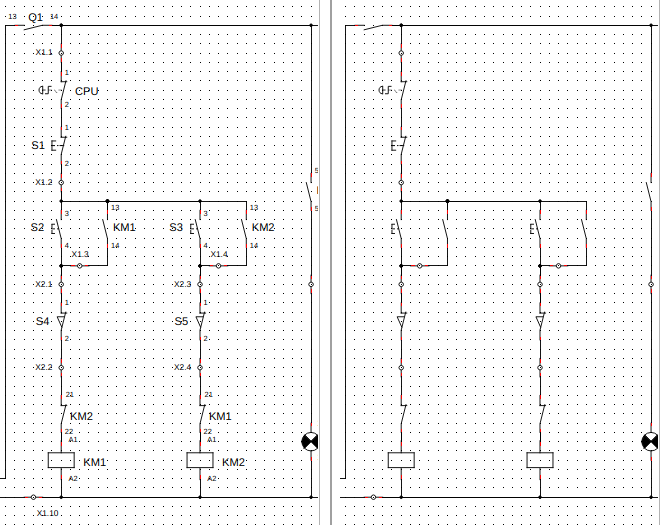
A busy sheet carries a lot besides symbols and wires: every symbol's label and terminal numbers, wire numbers, notes, frames, pictures, tables and cross-references. Sometimes you want to see only the circuit — to check the wiring at a glance, or to read a crowded corner. Affichage ▸ Afficher (View ▸ Show) hides whole kinds of items at once, on every sheet, and shows them again just as easily.
It was asked for in bugtracker #301 (show and hide text fields and symbols separately).
Menu names are given in French, as QElectroTech shows them until the translations are updated, with an English gloss in italics.
Open Affichage ▸ Afficher. Each kind of item has a tick; all are ticked to start with. Untick one and every item of that kind disappears from every sheet of every open project. Tick it again and they all come back.
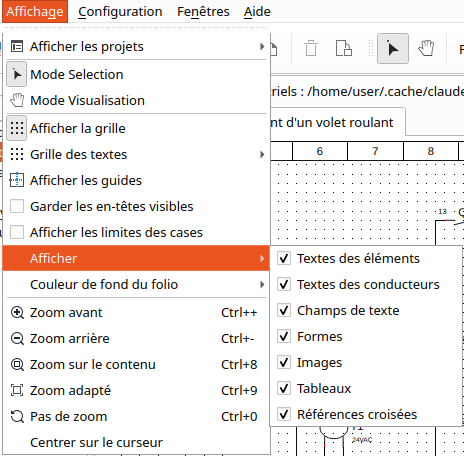
| Tick | English | Hides |
|---|---|---|
| Textes des éléments | Symbol texts | the texts of each symbol you can edit on the sheet: its label, terminal numbers, information fields |
| Textes des conducteurs | Wire texts | wire numbers and the other texts on wires |
| Champs de texte | Text fields | free texts placed on the sheet |
| Formes | Shapes | lines, rectangles, ellipses, arcs, polylines and curves |
| Images | Pictures | pictures — see Pictures on a sheet |
| Tableaux | Tables | parts lists and summaries placed on a sheet |
| Références croisées | Cross-references | the cross-references drawn under coils and contacts — see Linking elements |
Symbols and wires always stay. A text that is drawn as part of a symbol itself (in the element editor), rather than as one of its editable texts, stays too: it belongs to the symbol's drawing.
While anything is hidden, the right-hand end of the status bar says how many kinds are, for example 2 type(s) d'objets masqué(s) (2 kinds of item hidden); its tooltip points back to Affichage ▸ Afficher. With everything shown, the message goes away. So a sheet that looks emptier than it should is never a mystery.
3. What a hidden item does, and does not do
| While its kind is hidden | |
|---|---|
| On screen | not drawn, on every sheet of every open project |
| Selecting | cannot be selected, so Ctrl+A, a selection box, copy, cut and delete all skip it — nothing hidden is moved or deleted by accident |
| Printing, PDF, image export | left out: what you print is what you see |
| DXF export | left out too |
| New items | an item of a hidden kind that you add, paste or that a project brings in when it opens starts hidden as well |
| Items that hide themselves | a wire number switched off in the wire's properties, or hidden by one text per potential, stays hidden when you show the kind again: showing a kind brings back only what this menu hid |
- Nothing is saved in the project. The file is the same whatever you hide; someone else opening it sees everything.
- Nothing is saved between sessions either. Like the grid, it is a view setting: every kind is shown again the next time QElectroTech starts.
- It applies to all open projects together, not one project or one sheet.
- Hiding and showing is not an edit, so there is nothing to undo.
- Zoom to fit still counts hidden items. Zoom sur le contenu (Ctrl+8) leaves room for them.
- There are no named layers. You cannot hide some texts, or the items of one trade; only whole kinds. Layers of your own are planned separately and need a change to the file format.
- The symbol editor has no such menu.
- Finding your place on a sheet — the other view settings: header bars, cell limits, zoom
- Printing and exporting — what reaches paper, PDF and images
- DXF import & export — DXF layers
- Conductors — wire numbers and their own show/hide setting
