Repository navigation
script_buttons
Keep a JavaScript script in QElectroTech, give it an icon and a shortcut, and run it from a button, a menu, the shortcut bar or command search — instead of picking the file again every time. You can write the script yourself, or let an AI assistant write, test and store it through the MCP server. Both end in the same place: a file in your scripts folder, which QElectroTech turns into a button.
Status: merged on 2 October 2026. Everything on this page is in development builds made since then; it is not in a release yet. The pull requests:
PR What it adds Builds on #1219 qet.currentFolio(),qet.apiSignatures(), one undo step per run— #1220 stored scripts, the Scripts menu and toolbar #1219 #1221 the script manager window #1220 #1224 MCP tools to write, test and store scripts — The proposal and its open questions are in discussion #1226. The same series continues with live mode and the macro recorder.
Menu and option names are given in French, as QElectroTech shows them until the translations are updated, with an English gloss in italics.
JavaScript Scripting already lets a script read a project, edit it with real undo, and export it. But from the editor, Exécuter un script… (Run script) asks for a file every time, and a script cannot tell which sheet you are looking at. So a repeated task — put a revision note on this sheet, renumber the selected wires, rotate the selected coils — stays a chore. Script buttons make a script a command like any other.
Scripts are off by default (PR #984). A script runs with your rights: it can read and change the open project and write files. The setting is in Configurer QElectroTech > Général > Projets (*Settings
General > Projects*): Autoriser l'exécution de scripts JavaScript (Projet > Exécuter un script, et --run) (Allow running JavaScript scripts). If it is off, the first time you press a script button QElectroTech asks whether to turn it on. Nothing on this page gets around that switch.
Each script is one .js file in the scripts folder of your QElectroTech
data folder:
| System | Folder |
|---|---|
| Linux | ~/.local/share/QElectroTech/QElectroTech/scripts/ |
| Windows | %APPDATA%\QElectroTech\QElectroTech\scripts\ |
| macOS | ~/Library/Application Support/QElectroTech/QElectroTech/scripts/ |
If you start QElectroTech with --data-dir, the folder moves with it.
Projet > Scripts > Ouvrir le dossier des scripts (Project > Scripts >
Open the scripts folder) opens it, creating it if needed.
QElectroTech watches the folder. Drop a script in and its button appears straight away; delete it and the button, its menu entry and its shortcut go. No restart, and nothing to register.
Scripts are yours, not the project's: nothing is added to the .qet file, and
a project you receive cannot bring a script with it.
The top of the file says how the button looks. One file holds both, so there is nothing to keep in step and one file to share:
// ==QETScript==
// @name     Add revision note
// @icon     note.svg
// @tooltip  Puts a "Rev A" note on the sheet you are looking at
// @shortcut Ctrl+Alt+R
// @context  canvas
// @api      1
// ==/QETScript==
var f = qet.currentFolio();
qet.addText(f, "Rev A", 40, 40);| Key | Required | Meaning |
|---|---|---|
@name |
yes | the button's text, and the name shown in menus, command search and the undo history |
@icon |
no | a picture file next to the script (note.svg, note.png), or builtin:<name> for an icon from QElectroTech's theme. Left out: a tile with the name's initials |
@tooltip |
no | the text shown when you hover the button |
@shortcut |
no | a keyboard shortcut, written as Qt writes them (Ctrl+Alt+R). A shortcut you set in the shortcut settings wins over it |
@context |
no | when the button is usable — see the next table. Default canvas
|
@api |
no | the header version; only 1 exists |
@context |
The button works when… |
|---|---|
canvas |
a project is open (always) |
selection |
something is selected on the sheet |
conductor |
at least one wire is selected |
Without an open project every script button is greyed out.
A wrong header is refused, not ignored. An unknown key (@shortcutt), a
missing @name, an unknown @context or an @api other than 1 means no
button. The file is listed greyed in Projet > Scripts as Ignoré :
broken.js: unknown header key @shortcutt (Ignored), so you can see which
line is wrong. A misspelt shortcut that silently did nothing would be harder
to find.
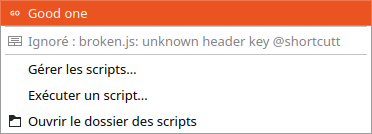
A file name becomes the script's id: add-revision-note.js is
diagrameditor.script.add-revision-note in the shortcut settings.
Every stored script is an ordinary command, so you can reach it any of these ways:
| Where | How |
|---|---|
| Projet > Scripts (Project > Scripts) | one entry per script, with its icon |
| the Scripts toolbar | one button per script. Hidden while the folder has no script, shown once the first one arrives |
| its keyboard shortcut |
@shortcut, or one you set in the shortcut settings |
| the S shortcut bar | add it with "…" → Customise, like any command (see Drawing faster) |
| command search, Ctrl+Shift+M | type the script's name |
Below the scripts, the Projet > Scripts menu holds:
| Entry | Does |
|---|---|
| Enregistrer une macro (Record a macro) | see Macro recorder (PR #1227) |
| Gérer les scripts… (Manage scripts) | the script manager, below |
| Exécuter un script... (Run script) | run any .js file once, as before — it moves here from the Projet menu |
| Ouvrir le dossier des scripts | open the scripts folder |

A script run from the editor is one undo step, named Script : <name>.
A button that adds twenty items is undone with one Ctrl+Z, not twenty. This
also applies to Exécuter un script…. A script that changes nothing leaves no
empty step behind. Headless --run keeps one step per call, as before.
qet.currentFolio() returns the index of the sheet on screen, so a button
acts where you are looking. Headless (--run, or an assistant testing a copy)
it returns 0, the first sheet, so the same script can be tried without a
window. It returns -1 if the project has no sheet.
Projet > Scripts > Gérer les scripts… (Manage scripts) lists your scripts with their icons on the left, and edits the selected one on the right.
| Field | Header line it writes |
|---|---|
| Nom : (Name) | @name |
| Icône : (Icon) |
@icon. Leave it empty for the initials tile, type builtin:<name> for a theme icon, or click the preview to choose an SVG or PNG — the file is copied into the scripts folder |
| Info-bulle : (Tooltip) | @tooltip |
| Raccourci : (Shortcut) | @shortcut |
| Actif : (Active) |
@context: Toujours (Always), Avec une sélection (With a selection), Avec un conducteur sélectionné (With a wire selected) |
Below the fields is the script's text, a plain text editor.
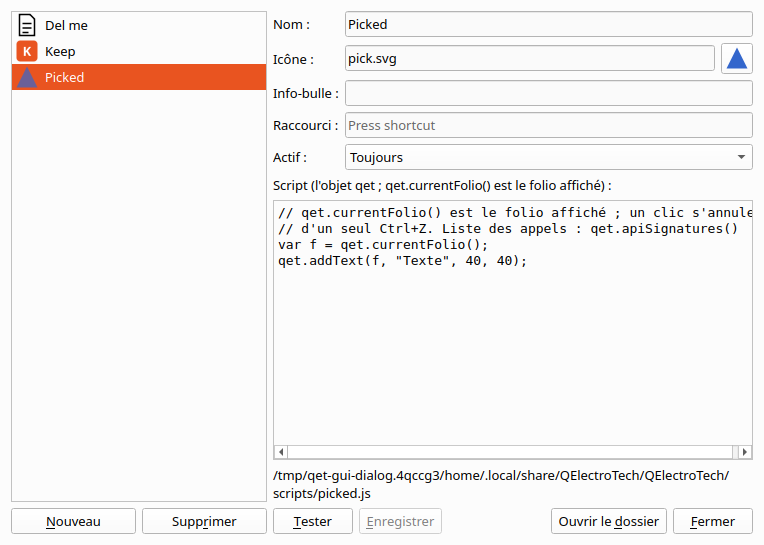
| Button | Does |
|---|---|
| Nouveau (New) | starts a script called Nouveau script from a template |
| Enregistrer (Save) | writes the file; the button appears or updates |
| Tester (Test) | saves, then runs it on the current project. Ctrl+Z takes it back |
| Supprimer (Delete) | asks, then deletes the file, and its icon if no other script uses it |
| Ouvrir le dossier | opens the scripts folder |
| Fermer (Close) | asks whether to save first if the script was changed |
A script whose header is wrong is listed with the reason (Pas de bouton : …, No button), and Enregistrer refuses to save a header that would give no button, with the reason under the editor.
The manager only writes files. The folder does the rest, so the manager, a text editor and an AI assistant can never disagree about what a script is.
With the MCP server set up (Connecting an AI assistant), you can ask: "make me a button that puts a Rev A note on the sheet I'm looking at". The assistant:
- reads the call list with
qet_script_api, - writes the script and tries it with
qet_script_test— on a copy of one of your projects, which it then compares with the original, so you see what it would change, - stores it with
qet_script_install, optionally with an SVG icon it drew.
The button appears in your open QElectroTech. The assistant never presses it: you do. (To let it act on the open project, see live mode.)
| Tool | Does | Needs QET_ENABLE_SCRIPTING=1
|
|---|---|---|
qet_script_api |
every call a script can make, with its arguments, taken from the QElectroTech it targets | yes |
qet_script_test |
runs script text on a copy of a project and returns what changed (a qet_diff); the project is never modified |
yes |
qet_script_install |
stores a script as a button: checks the header, writes <id>.js and optionally <id>.svg. Given test_project, it tests first and refuses a script that fails |
yes |
qet_script_list |
the stored scripts, with their header fields, and the files that give no button and why | no |
qet_script_read |
the text and icon of one stored script | no |
qet_script_remove |
deletes a stored script, and its icon if no other script uses it | yes |
qet_about |
what QElectroTech last wrote about itself: its folders, whether scripting is on, its stored scripts, and your house style | no |
QET_ENABLE_SCRIPTING=1 goes in the environment the MCP server is started in,
as for the editing tools (see Scripting gate).
Where the server puts scripts. The server chooses the folder; a tool call
cannot. In order: QET_MCP_SCRIPTS_DIR if set; else the folder QElectroTech
named in qet-assistant.json; else the platform folder in the table above.
Set QET_MCP_SCRIPTS_DIR if you start QElectroTech with --data-dir and it
has not run since.
Whenever an editor window opens, and whenever the stored scripts or the
settings change, QElectroTech writes qet-assistant.json in the platform data
folder (~/.local/share/QElectroTech/QElectroTech/ on Linux,
%APPDATA%\QElectroTech\QElectroTech\ on Windows) — there even when
--data-dir moves everything else, so the server can always find it. It
lists QElectroTech's version, every folder in use (data, settings, scripts,
element and title block collections), whether scripting and live mode are on,
every script call, the stored scripts and the ones refused, the macro
recordings, your house style, and — only
while live mode is open — how to reach it. Only you can read it. qet_about shows
it to the assistant, without the live-mode token.
-
Projet > Scripts > Ouvrir le dossier des scripts.
-
Save this as
rotate-selected.jsthere:// ==QETScript== // @name Rotate selected half a turn // @tooltip Rotates every selected symbol on this sheet by 180° // @context selection // ==/QETScript== var f = qet.currentFolio(); var uuids = qet.selectedElements(f); for (var i = 0; i < uuids.length; i++) qet.rotateElement(f, uuids[i], 180); qet.log("rotated " + uuids.length + " symbol(s)");
With no
@icon, the button shows a tile with the name's initials. Other calls are listed on JavaScript Scripting, andqet.apiSignatures()returns every call your QElectroTech knows. -
The Scripts toolbar appears with the new button, greyed until you select something.
-
Select some symbols, click. One Ctrl+Z undoes all the rotations.
- Your folder only. No scripts per project or shared across a company yet (open question 3 in discussion #1226).
- No questions to the user. A script cannot yet ask for a value when you press its button; one button does one thing.
- macOS has not been tested. Linux and Windows have, including a Windows build run under Wine.
- No arbitrary menu commands from a script, as before — see JavaScript Scripting.
- JavaScript Scripting — every call a script can make
- Live mode — an assistant running scripts in the open project while you watch
- Macro recorder — do a task by hand once, and let an assistant turn it into a button
- MCP server and Connecting an AI assistant
- Drawing faster — the shortcut bar and command search scripts appear in
- Discussion #1226 — the proposal
